
The Outlook attachment size limit exceeded error appears when a message is heavier than Outlook, the mail server, or the recipient’s mailbox will accept. It usually shows up at the worst moment, right after a long file has been attached and the Send button is clicked. The good news is that the fix takes only a few minutes once the real cause is clear.
Key Takeaways
- The error means the total message size, not just one file, is over a limit set by Outlook, the mail server, or the recipient.
- Outlook.com accounts allow attachments up to 20 MB, and Microsoft 365 mailboxes default to a 25 MB message size limit.
- Attaching a file adds roughly one third to its size during encoding, so a 20 MB file can fail even when it looks under the limit.
- The fastest fix is to compress the file or share it as a OneDrive link instead of attaching a copy.
- For IMAP or POP accounts in Outlook for Windows, the client-side limit can be raised with the MaximumAttachmentSize registry value.
How to Fix the Outlook Attachment Size Limit Exceeded Error Step by Step
Work through these steps in order. Most people find that one of the first three solves the problem without touching any settings.
- Step 1: Check the real size of the file. Open File Explorer, right-click the file, choose Properties, and read the Size value. Add up every attachment in the message, because the limit applies to the whole email. Remember that encoding makes the sent message roughly one third larger than the files on disk.
- Step 2: Compress the file. Right-click the file or folder in File Explorer, select Send to, then Compressed (zipped) folder. Attach the new .zip file instead. Documents, spreadsheets, and text-heavy files shrink well, while photos, videos, and PDFs that are already compressed shrink very little.
- Step 3: Share the file as a OneDrive link instead of attaching it. In the message window, select Attach File and choose a file from OneDrive under Browse Cloud Locations, or attach a large local file and let Outlook offer the upload option. Pick Share as OneDrive link, and the recipient receives a link rather than a heavy attachment. This works best when the recipient only needs to view or download the file.
- Step 4: Shrink images before attaching them. Photos straight from a phone or camera are often 5 MB each or more. Resize them in the Photos app or any image editor, then attach the smaller versions.
- Step 5: Split the attachments across several emails. The limit is applied per message, so sending three files in three separate emails keeps each one under the cap. Give each message a clear subject such as ‘Project files – part 1 of 3’ so the recipient can follow along.
- Step 6: Send the message again. A message that is under the limit leaves the Outbox normally. If the error returns, continue with the advanced fix below.
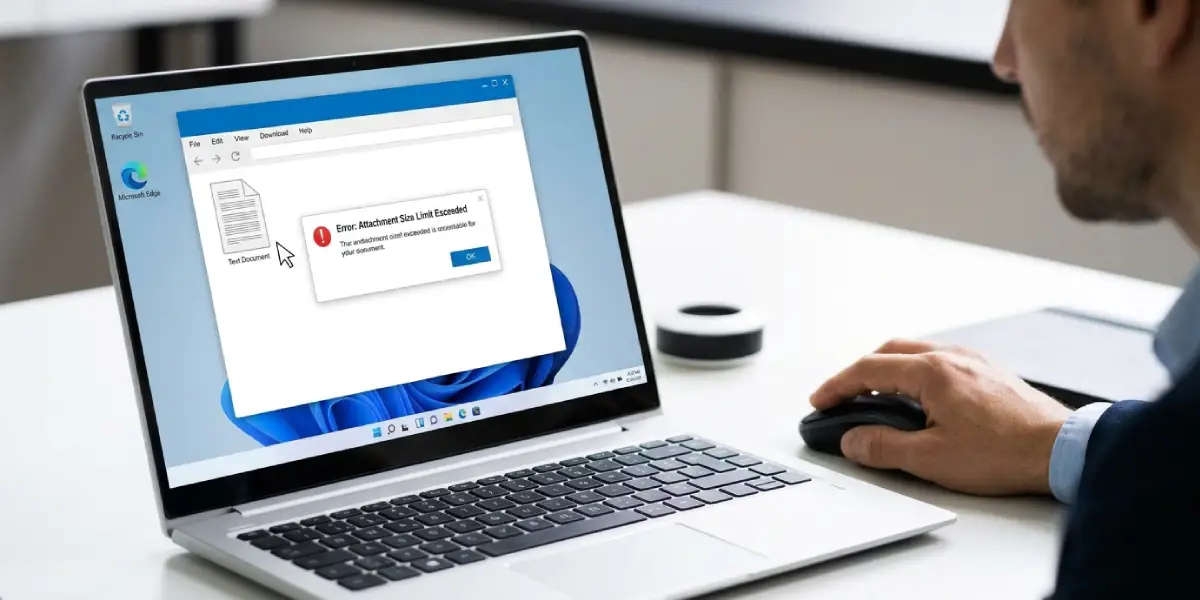
Tip: When the error appears after clicking Send, the message may be stuck in the Outbox. Open the Outbox folder, delete or edit the stuck message, and resend the smaller version so the old one does not keep retrying.
Raise the Client-Side Limit for IMAP or POP Accounts in Outlook for Windows
Outlook for Windows applies its own attachment limit to IMAP and POP accounts, 20 MB by default. This registry value changes only the limit inside Outlook. The mail server and the recipient’s provider keep their own limits, so a larger value helps only when those allow bigger messages.
- Step 1: Close Outlook completely, and back up the registry or create a restore point before making changes.
- Step 2: Press the Windows key and R together, type regedit, and press Enter.
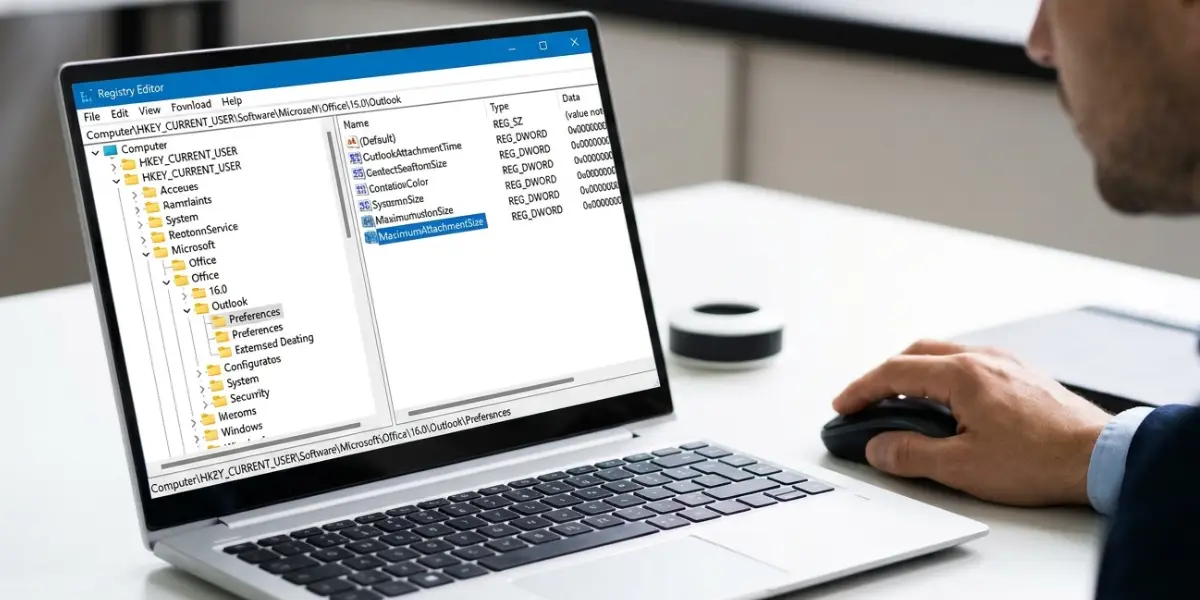
- Step 3: Go to HKEY_CURRENT_USER\Software\Microsoft\Office\16.0\Outlook\Preferences.
- Step 4: Right-click an empty area, select New, then DWORD (32-bit) Value, and name it MaximumAttachmentSize.
- Step 5: Double-click the new value, select Decimal, and enter the limit in kilobytes. For example, 40960 sets the limit to 40 MB. A value of 0 removes the Outlook-side limit.
- Step 6: Click OK, close the Registry Editor, and restart Outlook.
Tip: Microsoft 365 mailboxes enforce the limit on the server, so this registry change will not raise it. For those accounts, a mail administrator can adjust the maximum send size, which can be set as high as 150 MB.
Common Problems and Fixes
The error returns even though the file looks under 20 MB
Encoding adds about one third to the size of an attachment. A 18 MB file can therefore become a 24 MB message and fail. Compress the file further, or use a OneDrive link.
The email bounces back with a message too large notice
This means the limit was hit on the server or on the recipient’s side, not in Outlook. Bounce messages for this problem often include the codes 5.2.3 or 5.3.4. Raising the Outlook setting will not help here, so share the file through a link or reduce its size.
The message is stuck in the Outbox
Open the Outbox, remove the oversized message, and create a new one with smaller or linked files. Leaving it in place can block other outgoing mail.
The OneDrive link option does not appear
The option is offered when the signed-in account is connected to OneDrive. Confirm the account is signed in under File, then Account Settings, and make sure the file is saved in a OneDrive folder or can be uploaded there.
The registry change has no effect
Confirm the value name is spelled exactly as MaximumAttachmentSize, that it sits under the Preferences key for version 16.0, and that Outlook was fully closed and reopened. Also check whether the account is Microsoft 365 or Outlook.com, since the server limit cannot be changed from the registry.
Frequently Asked Questions
What is the attachment size limit in Outlook?
Outlook.com allows attachments up to 20 MB, Microsoft 365 mailboxes default to a 25 MB message size limit, and IMAP or POP accounts in Outlook for Windows default to 20 MB. The limit that applies depends on the account type.
Why does Outlook say the attachment is too large when the file is under the limit?
Email encoding increases the size of attachments by roughly one third, and the limit counts the whole message including all attachments and the body. A file close to the limit on disk can therefore exceed it when sent.
How do I send a file larger than the Outlook limit?
Upload the file to OneDrive and share it as a link. Outlook offers this option when attaching a large file, and the recipient gets a download link instead of a heavy attachment.
Can the Outlook attachment size limit be increased?
For IMAP and POP accounts in Outlook for Windows, the MaximumAttachmentSize registry value raises the limit inside Outlook. For Microsoft 365 accounts, the limit is set on the server and can only be changed by an administrator.
Does zipping a file fix the Outlook attachment size limit exceeded error?
It can, when the file compresses well, such as documents and spreadsheets. Photos, videos, and files that are already compressed shrink very little, so a OneDrive link works better for those.
Why is my email stuck in the Outbox after the size error?
Outlook keeps trying to send the oversized message. Open the Outbox, delete or edit the message, and resend a smaller version.
Do multiple attachments count together toward the limit?
Yes. The limit applies to the total size of the message, so several small files can add up to more than the allowed amount. Splitting the files across separate emails keeps each message under the cap.
What do error codes 5.2.3 and 5.3.4 mean for attachments?
These codes appear in bounce notices when a message is larger than the server or recipient allows. The fix is to reduce the message size or send the file as a link.
