
Typing the same message again and again wastes time, and it invites small mistakes. The fix is to save and reuse email templates in Outlook so the wording, subject line, and formatting are ready whenever needed. This guide covers the classic Outlook for Windows method and the My Templates method used in new Outlook and Outlook on the web.
Key Takeaways
- In classic Outlook, a template is a message saved as an Outlook Template (*.oft) file.
- Saved templates open from Home > New Items > More Items > Choose Form > User Templates in File System.
- In new Outlook and Outlook on the web, the My Templates feature stores reusable text and inserts it with one click.
- Templates in classic Outlook keep the subject, body, formatting, and attachments, so a polished message only has to be built once.
Step-by-Step: Save and Reuse Email Templates in Outlook (Classic Outlook for Windows)
Save a Message as a Template
- Step 1: Open Outlook and select Home > New Email to start a blank message.
- Step 2: Type the subject line and write the body exactly as it should appear each time. Add any formatting, links, or attachments that belong in every copy. Leave the recipient fields empty unless the same people receive this message every time.
- Step 3: In the message window, select File > Save As.
- Step 4: Open the Save as type drop-down and choose Outlook Template (*.oft). Outlook switches to its default Templates folder, which is the right place to keep the file.
- Step 5: Enter a clear file name, such as Weekly Status Update, and select Save.
- Step 6: Close the message window without sending it. If Outlook asks about saving changes to the draft, select No, since the template file is already saved.
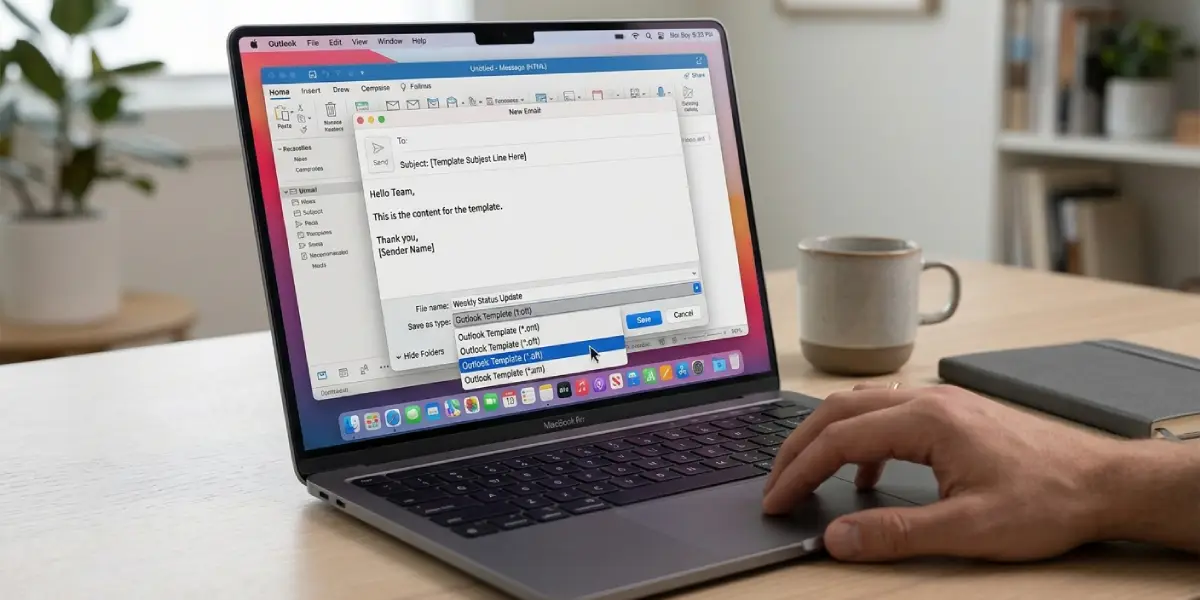
Tip: Give templates names that describe the situation, not the content. ‘Invoice Reminder – Second Notice’ is far easier to spot in a list than ‘Template 4’.
Open a Saved Template and Send It
- Step 1: On the Home tab, select New Items > More Items > Choose Form.
- Step 2: In the Look In drop-down, select User Templates in File System.
- Step 3: Select the template from the list and choose Open. A new message appears with the saved content already in place.
- Step 4: Add the recipients, adjust any details such as names or dates, and select Send.
The original template file stays untouched. Each time it opens, Outlook creates a fresh copy, much like photocopying a form instead of writing on the master sheet.
Save and Reuse Email Templates in New Outlook and Outlook on the Web
Create a Template With My Templates
- Step 1: Select New mail to open a message window.
- Step 2: On the compose toolbar, select the More options button (three dots) and choose My Templates. In some layouts, a Templates icon is shown directly on the toolbar.
- Step 3: Select + Template.
- Step 4: Enter a title for the template, type the text that should be reused, and select Save.
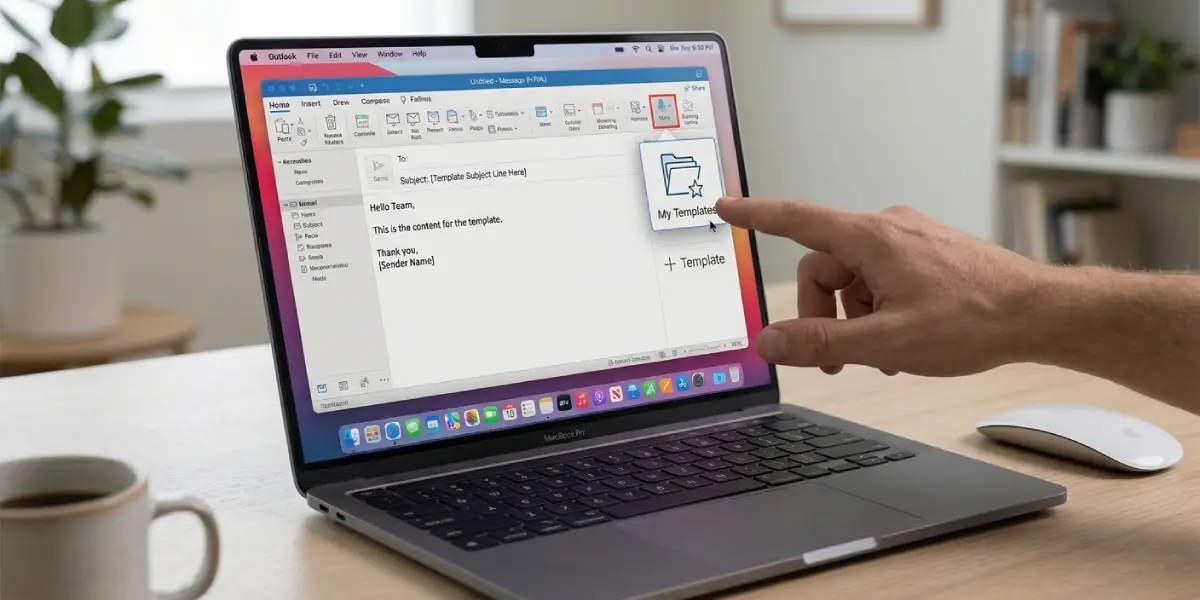
Insert a Template Into a New Message
- Step 1: Open a new message and select More options > My Templates.
- Step 2: Select the template from the list. Its text is inserted into the message body.
- Step 3: Fill in the subject and recipients, edit anything that needs changing, and send.
Tip: This method works best for reply snippets and short standard messages. Subject lines and attachments are better handled with the classic .oft method.
Common Problems and Fixes
The Template Does Not Appear Under User Templates in File System
This usually means the file was saved outside the default Templates folder. Open the message again, or locate the .oft file, and use Save As to store it in the Templates folder, which is reached by typing %appdata%\Microsoft\Templates into the File Explorer address bar. Then repeat the Choose Form steps.
Outlook Template (*.oft) Is Missing From the Save as Type List
The Save as type list shows templates only when Save As is used from inside an open message window. Selecting Save As from the main Outlook window offers different formats. Open a new email first, then go to File > Save As.
The Signature Appears Twice
Outlook adds the default signature to every new message, and the template may already contain one. Delete the extra signature in the template draft and save it again as an .oft file.
Old Recipients or Details Show Up in the Template
Anything present in the message when it was saved is stored in the template. Open the template, remove the unwanted names or text, and use Save As to overwrite the file with the same name.
My Templates Is Not Visible in the Toolbar Menu
Check the More options menu in the message window, since the item is often tucked away there. On a work or school account, an administrator may have turned the feature off, so the Microsoft 365 admin is the person to ask.
Frequently Asked Questions
Where does Outlook save email templates?
Classic Outlook stores .oft templates in the Templates folder, found at %appdata%\Microsoft\Templates on Windows. My Templates content is stored with the Microsoft 365 account instead of as a file.
What file format is an Outlook email template?
The format is Outlook Template, with the .oft file extension. It is chosen in the Save as type list when saving a message.
Can a template include a subject line and attachments?
Yes, in classic Outlook. The subject, body, formatting, and attachments present when the message is saved as an .oft file all become part of the template.
How can a saved template be edited?
Open it with New Items > More Items > Choose Form > User Templates in File System, make the changes, and select File > Save As. Save it as an Outlook Template (*.oft) with the same file name and confirm the overwrite.
How can an email template be deleted?
In classic Outlook, delete the .oft file from the Templates folder in File Explorer. In My Templates, open the template and use the delete option next to it.
Does Outlook on the web support the .oft method?
No. Outlook on the web and new Outlook use the My Templates feature for reusable text, while .oft files belong to classic Outlook for Windows.
Will opening a template change the original?
No. Opening a template through Choose Form creates a new message based on it, so the saved file stays exactly as it was.
Can a template be shared with a coworker?
Yes. The .oft file can be sent as an attachment, and the coworker saves it into their own Templates folder. After that, it appears under User Templates in File System in their Outlook.
