
Setting up an account that isn’t Gmail, Yahoo, or Outlook.com takes an extra step, but adding a generic IMAP account in the Outlook mobile app only takes a few minutes once the right server details are on hand. This guide walks through the exact screens and settings needed, from opening the app to confirming mail syncs correctly.
Key Takeaways
- Outlook mobile can connect to almost any email provider through a manual IMAP setup, not just major webmail services.
- Before starting, gather the incoming (IMAP) and outgoing (SMTP) server addresses, ports, and security type from the email provider.
- The app usually tries auto-detection first, and manual IMAP entry only appears if that fails.
- Common IMAP settings use port 993 for incoming mail and port 587 for outgoing mail, both with SSL/TLS enabled.
- Most sign-in issues trace back to a typo in the server name or an incorrect port, not the app itself.
Step-by-Step: Add a Generic IMAP Account in the Outlook Mobile App
What to Gather Before Starting
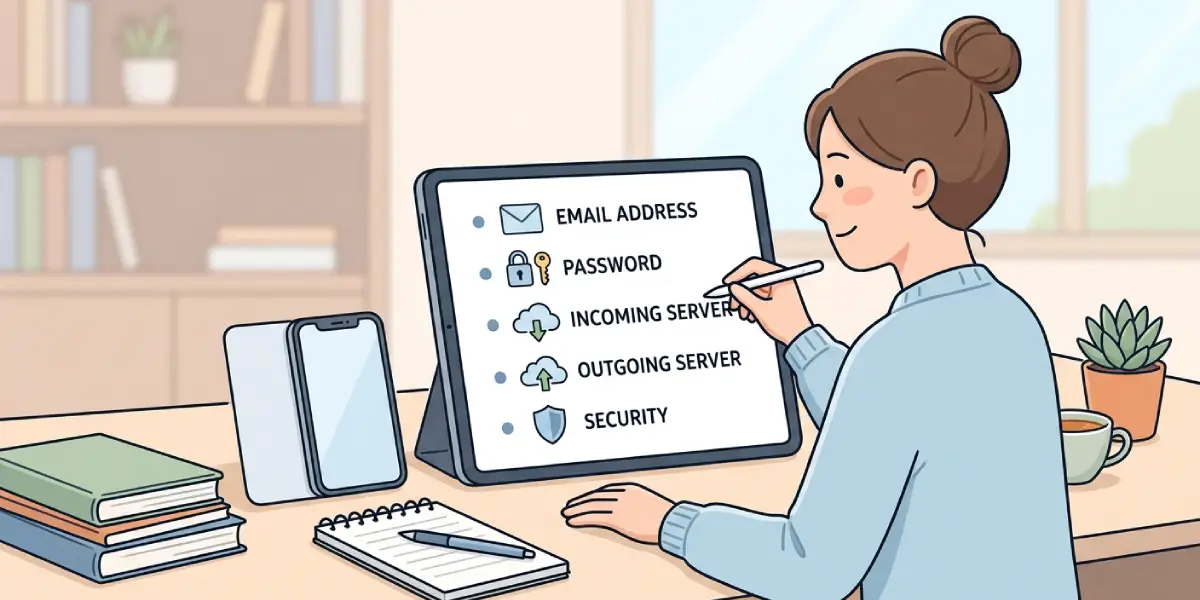
A little prep saves a lot of back-and-forth screens. Most providers list this information on their support page under ‘IMAP settings’ or ‘mail client setup’. Have this ready before opening the app:
- Full email address and password (or app-specific password, if the provider requires one)
- Incoming mail server (IMAP) hostname and port
- Outgoing mail server (SMTP) hostname and port
- Security type, typically SSL or STARTTLS
Adding the Account
- Step 1: Open the Outlook app on the phone or tablet.
- Step 2: Tap the profile icon or menu icon in the top-left corner, then tap the gear-shaped Settings icon.
- Step 3: Under Mail Accounts, tap ‘Add Account’ and then ‘Add Email Account’.
- Step 4: Enter the full email address for the account and tap ‘Continue’.
- Step 5: Outlook will try to detect the account type automatically. If it can’t find a match for the domain, it will prompt for the account type – select ‘IMAP’ from the list.
- Step 6: Enter the account password, then tap ‘Sign In’ or ‘Next’.
Entering Server Settings
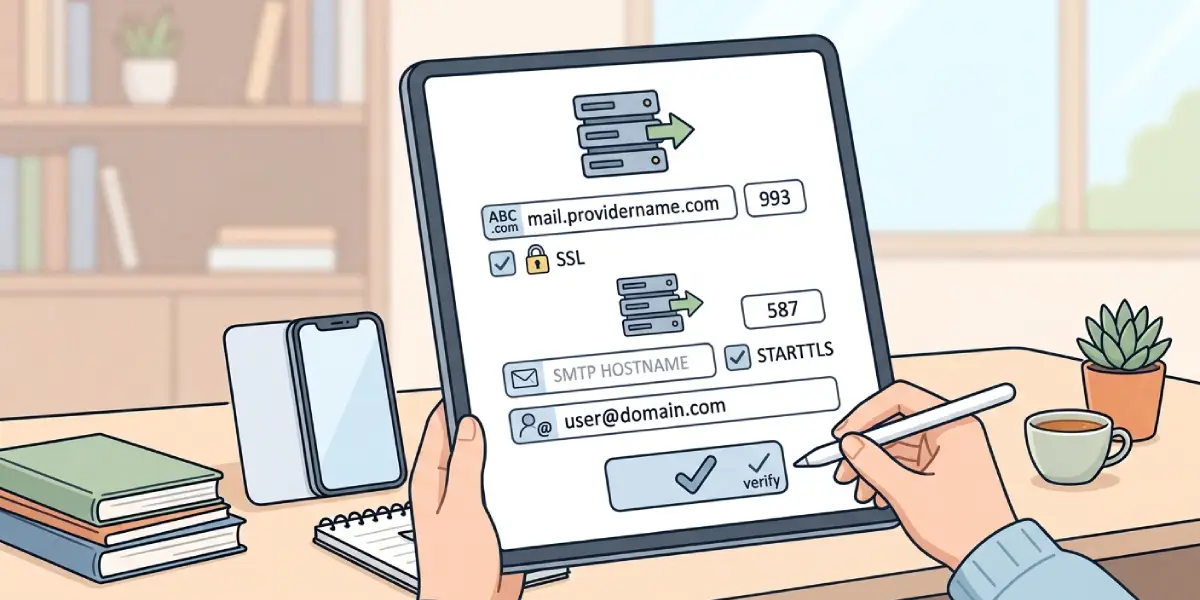
This is the section where a generic IMAP setup differs from adding a mainstream provider. Once IMAP is selected, the app opens a form asking for both incoming and outgoing details.
- Step 7: Under Incoming Mail Server, type the IMAP hostname (for example, mail.providername.com) and set the port to 993, with SSL turned on unless the provider specifies otherwise.
- Step 8: Under Outgoing Mail Server (SMTP), type the SMTP hostname and set the port to 587 (or 465 if the provider requires SSL rather than STARTTLS).
- Step 9: Confirm the username field shows the full email address, not just the part before the @ symbol – some providers require the complete address here even though it looks redundant.
- Step 10: Tap ‘Sign In’ or ‘Done’ to let Outlook verify the settings.
Tip: If the provider offers both a ‘standard’ and a ‘secure’ port option, choose the secure one first. It resolves connection failures far more often than the standard port does.
Finishing Setup
- Step 11: Once verification succeeds, Outlook may ask about enabling notifications, syncing contacts, or setting a swipe gesture – these are optional and can be adjusted later in Settings.
- Step 12: Tap ‘Maybe Later’ or ‘Done’ to land back on the inbox.
- Step 13: Confirm the new account appears in the account switcher and that messages begin loading in the inbox within a minute or two.
Common Problems and Fixes
- Outlook rejects the password repeatedly: Some providers block basic password sign-in for security reasons. Check whether the provider requires an app-specific password, generated separately from the regular account password, and use that instead.
- The app can’t connect to the server: Double-check the hostname for typos – a missing letter in something like mail.providername.com is the most frequent cause. Also confirm the port number matches what the provider lists for IMAP or SMTP.
- Emails load but sending fails: This usually points to the SMTP port or security setting. Try switching between port 587 with STARTTLS and port 465 with SSL, since providers don’t always support both.
- Setup screen loops back to account type selection: This typically means the incoming or outgoing server details were entered incorrectly. Re-enter both server addresses carefully and avoid extra spaces before or after the text.
- Account connects but folders are missing: Some providers only sync the inbox by default. Open the account settings after setup and look for a folder sync option to enable additional folders like Sent or Archive.
Frequently Asked Questions
What does ‘generic IMAP account’ mean in Outlook mobile?
It refers to any email account that isn’t one of Outlook’s automatically recognized providers, such as Gmail or Outlook.com, and instead requires manually entered IMAP and SMTP server details.
Where can the IMAP and SMTP settings for an email provider be found?
Most providers publish these under a support or help section labeled ‘mail client setup’ or ‘IMAP settings’. A quick search for the provider’s name plus ‘IMAP settings’ usually surfaces the exact hostnames and ports needed.
Why does Outlook ask for an app-specific password instead of the regular one?
Some email providers block standard password sign-in from third-party apps as a security measure. In that case, the provider’s account security settings will include an option to generate a separate app-specific password for use with Outlook.
What port should be used for incoming IMAP mail?
Port 993 with SSL enabled is the standard port used by most IMAP providers for incoming mail.
What port should be used for outgoing SMTP mail?
Port 587 with STARTTLS is the most common choice, though some providers require port 465 with SSL instead.
Can more than one IMAP account be added to Outlook mobile?
Yes. The same ‘Add Account’ process in Settings can be repeated for additional IMAP accounts, and each one will appear in the account switcher.
Why does account verification fail even with correct settings?
This can happen if the provider temporarily blocks the connection due to unusual sign-in activity. Waiting a few minutes and trying again, or checking the provider’s account activity page, often resolves it.
Does adding a generic IMAP account support sending and receiving mail equally?
Yes, once both the incoming (IMAP) and outgoing (SMTP) servers are entered correctly, the account handles sending and receiving the same way built-in providers do.
Is a Wi-Fi connection required to add the account?
No, a stable mobile data connection works fine. A stronger connection simply speeds up the initial folder sync after setup.
