
Learning how to safely open a laptop for deep cleaning is one of the most effective ways to clear out dust buildup, cool down an overworked machine, and add years to its usable life. Dust collects inside fans, vents, and heatsinks faster than most people expect, especially in homes with pets or carpeted floors. This guide walks through the entire process from the first screw to the final power-on test.
Key Takeaways
- Power down completely, unplug the charger, and disconnect the internal battery before touching any component.
- A small Phillips #00 screwdriver, a plastic spudger, and compressed air handle most of the job.
- Grounding against static electricity protects sensitive parts like the motherboard and RAM.
- Short bursts of compressed air work better than long, continuous spraying on fan blades.
- Reconnecting the battery and confirming every screw is back in place prevents most post-cleaning problems.
Before You Start
A little preparation prevents most of the mistakes that turn a simple cleaning session into a repair job. Shut the laptop down fully rather than putting it to sleep, unplug the charger, and let it sit for a few minutes if it has been running hot. A quick photo of the bottom panel before removing any screws makes reassembly far less stressful later on.
Tools and Materials Needed
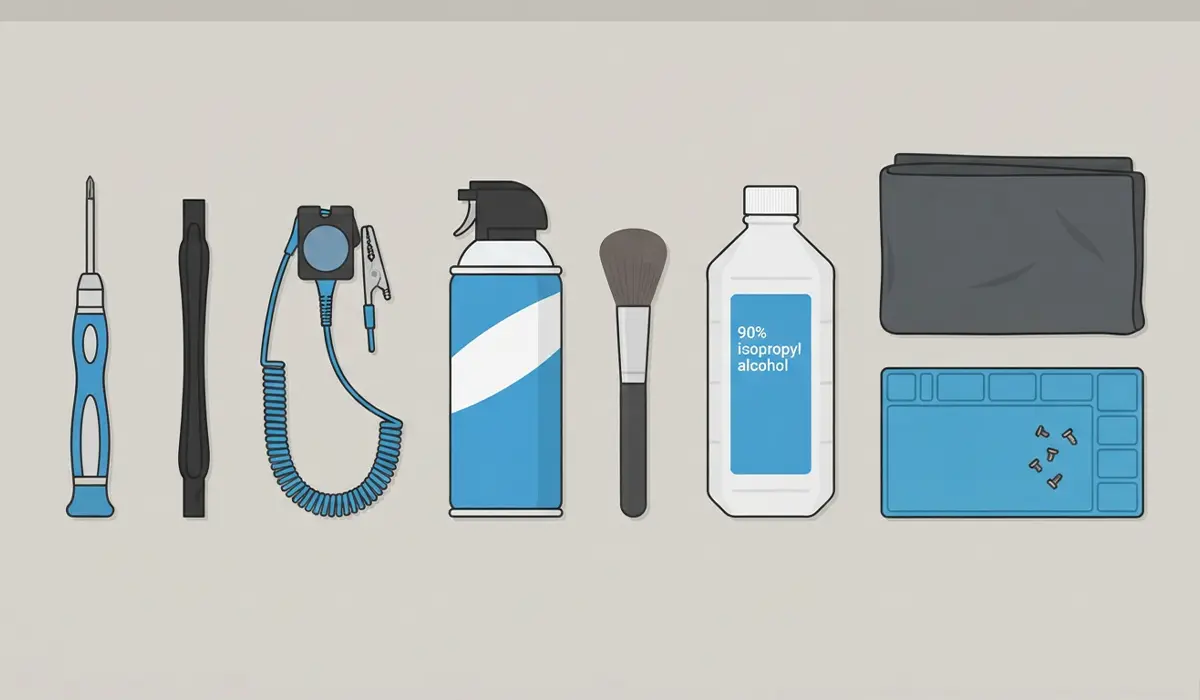
- Precision Phillips #00 or #0 screwdriver, matched to the laptop’s screw heads
- Plastic spudger or pry tool for prying the case open
- Anti-static wrist strap, or a habit of touching a bare metal surface before handling internal parts
- Compressed air can, held upright
- Soft-bristle brush, such as a clean makeup or electronics brush
- 90 percent or higher isopropyl alcohol
- Lint-free or microfiber cloth
- A small tray, magnetic mat, or labeled containers for screws
Tip: Group screws by the panel section they came from rather than tossing them into one pile. Laptop manufacturers often use several slightly different screw lengths, and mixing them up is one of the most common reassembly headaches.
Anyone dealing with a cracked chassis, a laptop still under active manufacturer warranty, or a machine that shows signs of liquid damage near the motherboard should consider having a professional handle the job instead. Opening the case on many laptops can void the remaining warranty, so checking the manufacturer’s policy first is worth the extra minute.
Step-by-Step: How to Safely Open a Laptop for Deep Cleaning
- Step 1: Power off the laptop completely, unplug the charger, and close the lid. Flip it over on a flat, well-lit surface.
- Step 2: Identify and remove every screw on the bottom panel using the correctly sized Phillips driver. Some laptops hide a screw or two under a rubber foot or warranty sticker.
- Step 3: Insert a plastic spudger into the seam along one edge of the panel and gently work it around the perimeter, releasing the clips a section at a time rather than forcing one spot.
- Step 4: Lift the bottom panel free and set it aside. Take a moment to note cable routing before anything gets moved.
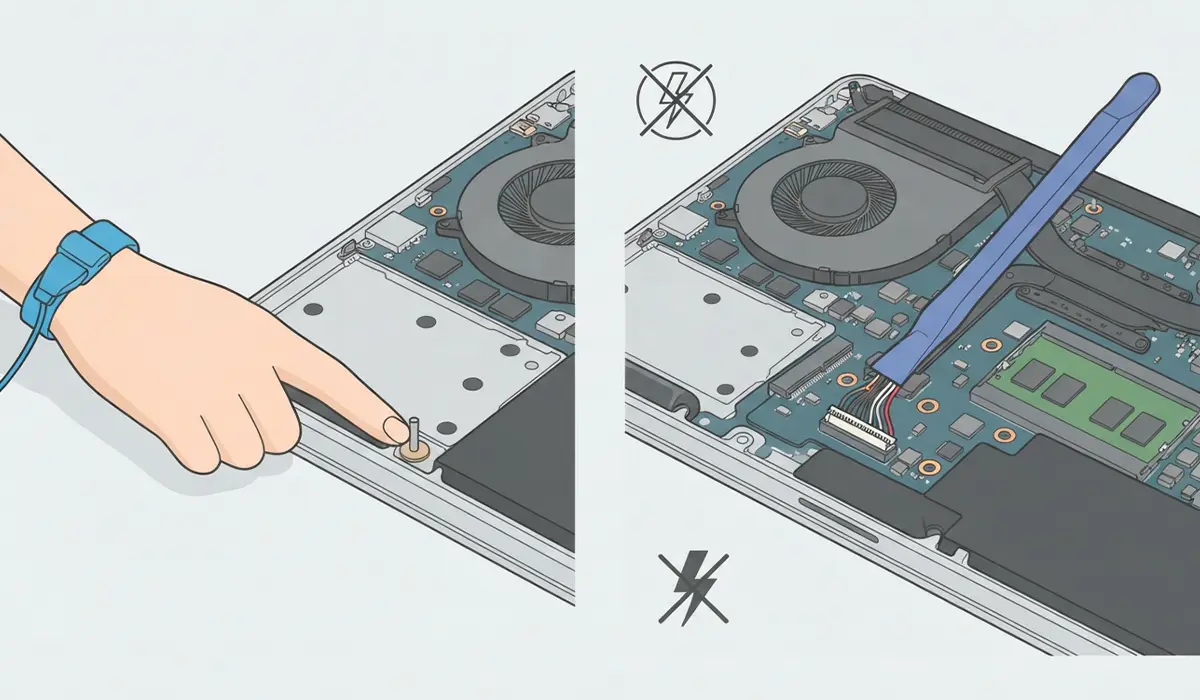
- Step 5: Locate the battery connector on the motherboard and disconnect it using the plastic pry tool. This single step prevents accidental short circuits while cleaning around live components.
- Step 6: Touch a bare metal part of the chassis, or put on an anti-static wrist strap, before handling any internal parts directly.
- Step 7: Use the soft brush to loosen dust from the fan blades, heatsink fins, and surrounding vents. Hold the fan blades still with a fingertip or the brush while spraying to avoid spinning the fan faster than it is designed to handle.
- Step 8: Apply short bursts of compressed air through the exhaust vents to push loosened dust out, rather than deeper into the chassis.
- Step 9: Lightly dampen a microfiber cloth with isopropyl alcohol and wipe down visible grime on the interior plastic and metal surfaces, keeping liquid well away from connectors, ports, and the battery.
- Step 10: Reconnect the battery cable, double-check that no tools or loose screws remain inside, and set the bottom panel back in place.
- Step 11: Press the panel down along the seam until the clips click into place, then replace every screw in its original location.
- Step 12: Plug in the charger, power the laptop on, and confirm the fan spins smoothly and the machine boots normally.
Common Problems and Fixes
Laptop Will Not Turn On After Reassembly
This usually traces back to the battery connector not being fully seated. Reopen the panel, confirm the connector clicks firmly into its socket, and check for a stray screw pressing against the motherboard.
Rattling or Clicking Sound Inside the Case
A loose screw left inside the chassis or a panel clip that did not fully snap into place are the most common causes. Power down, reopen the bottom panel, and inspect for anything out of place.
Fan Runs Louder Than Before
If a fan blade was nudged out of alignment during cleaning or dust got pushed deeper instead of out, the fan may rub or work harder than usual. A second gentle round with compressed air, holding the blade steady, typically resolves it.
Extra Screws Left Over
Sorting screws by section during disassembly makes this rare, but if a hole is missing its screw, checking the labeled tray against the earlier photo of the bottom panel usually identifies where it belongs.
Keyboard or Trackpad Feels Unresponsive
This can point to a ribbon cable that shifted during the process. Reopen the panel and confirm all internal connectors, especially near the keyboard and trackpad, are seated the way they were before disassembly.
Frequently Asked Questions
Is it safe to open a laptop for cleaning at home?
Yes, for most consumer laptops, as long as the battery is disconnected first and static precautions are taken. Ultra-thin or heavily glued models can be more delicate and may call for extra caution.
Will opening the laptop void its warranty?
It depends on the manufacturer. Many warranty stickers cover a screw near the bottom panel, and breaking that seal can affect coverage, so checking the specific warranty terms beforehand is worth doing.
How often should a laptop be opened for deep cleaning?
Once every six to twelve months works well for most users, though laptops in dusty environments or homes with pets may benefit from more frequent attention.
What screwdriver size is typically needed?
Most laptops use Phillips #00 or #0 screws, though some models mix in a Torx or Pentalobe screw near the hinge or battery area.
Can isopropyl alcohol damage internal components?
High-percentage isopropyl alcohol evaporates quickly and is generally safe on plastic and metal surfaces when applied sparingly to a cloth rather than sprayed directly. It should never touch connectors, cables, or the battery itself.
Is disconnecting the battery always necessary?
Yes, whenever the battery is accessible without extensive teardown. It removes the risk of a short circuit while brushing or spraying compressed air near live components.
Is compressed air safe to use inside a laptop?
It is safe when used in short bursts and held upright to avoid releasing liquid propellant. Holding fan blades still while spraying prevents over-spinning the motor.
What if a screw does not seem to fit anywhere during reassembly?
Comparing it against the pre-disassembly photo and the labeled screw groups usually solves this. Forcing a screw into the wrong hole can strip the thread or damage the panel underneath.
Does this process work the same way on a MacBook?
The general approach is similar, but many MacBook models use proprietary Pentalobe screws and have the battery glued in place rather than connected by a simple plug, which raises the difficulty and risk level considerably.
What is the actual risk from static electricity during this process?
A static discharge from bare hands can damage sensitive components like the motherboard or RAM, sometimes without any visible sign at the time. Grounding with a wrist strap or touching bare metal beforehand removes most of that risk.
