
Adding an AOL Mail account in Classic Outlook only takes a few minutes once the right settings are in place. This guide walks through the easiest, most reliable method, including the one step most people forget: generating an app password.
Key Takeaways
- Classic Outlook connects to AOL Mail using IMAP, not the older POP3 protocol.
- An AOL app password is required if two-step verification is turned on, which is the case for most accounts today.
- The incoming server is imap.aol.com on port 993, and the outgoing server is smtp.aol.com on port 465.
- Outlook usually detects these settings automatically, but manual entry is available as a backup.
- Most connection issues trace back to using a regular AOL password instead of an app password.
How to Add an AOL Mail Account in Classic Outlook
This process works the same way whether Outlook is being set up for the first time or a new AOL address is being added to an existing profile.
Step-by-Step Setup
- Step 1: Generate an AOL app password before opening Outlook. Sign in to the AOL Account Security page in a browser, turn on two-step verification if it is not already active, then select ‘Generate app password’ and choose ‘Other App’ when prompted. Copy the password shown, since it only appears once.
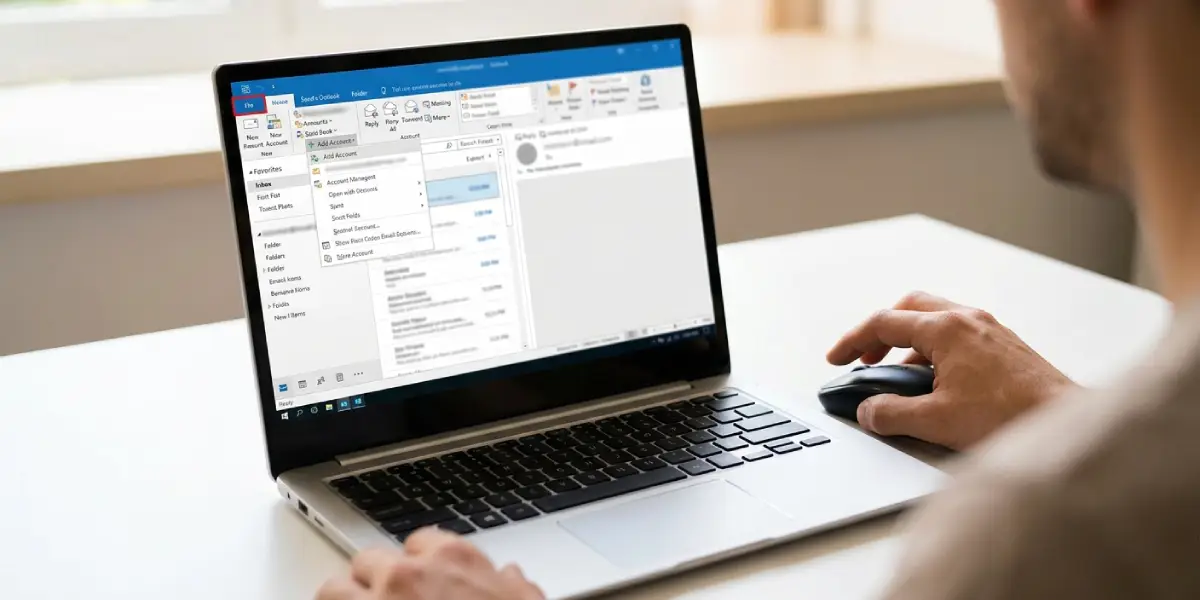
- Step 2: Open Classic Outlook and go to the File tab in the top-left corner.
- Step 3: Under Account Information, select Add Account.
- Step 4: Type the full AOL email address (for example, name@aol.com) into the box and select Connect.
- Step 5: When prompted for a password, paste the app password generated in Step 1, not the regular AOL login password.
- Step 6: If Outlook asks to choose an account type, select IMAP. This keeps mail synced across devices rather than downloading it to a single machine.
- Step 7: If automatic setup does not complete, select Advanced options or Change account settings, then enter the server details manually: incoming mail server imap.aol.com, port 993, SSL enabled, and outgoing mail server smtp.aol.com, port 465, SSL enabled.
- Step 8: Select Connect or Next, then Done once Outlook confirms the account has been added successfully.
Tip: Save the app password somewhere secure right after generating it. AOL only displays it once, and losing it means starting the app password process over from scratch.
Confirming the Account Works
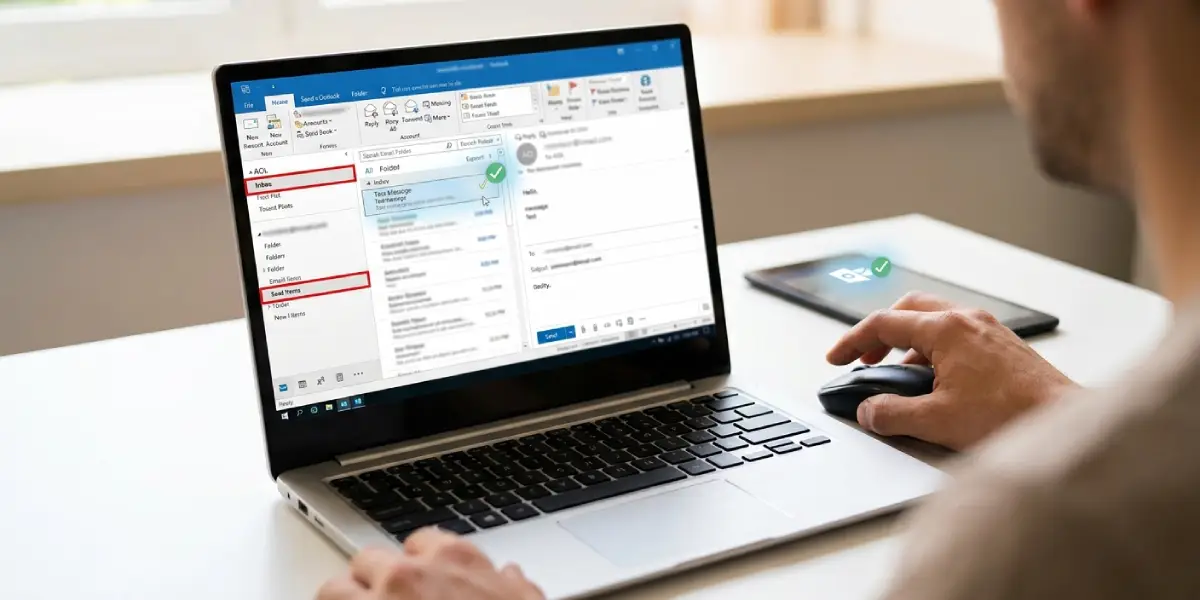
Once Outlook finishes syncing, a test email is the quickest way to confirm everything connected properly. Send a message to a second address, then check that it arrives and that AOL folders appear in the left-hand navigation pane inside Outlook.
Common Problems and Fixes
Most setup hiccups fall into a handful of predictable categories. Here is how to resolve the ones that show up most often.
- Outlook rejects the password repeatedly: This almost always means a regular AOL password was entered instead of an app password. Generate a fresh app password and paste it exactly, since a single typo will cause another rejection.
- Account setup hangs on ‘Searching for settings’: Cancel the process, restart Outlook, and try again using the manual server settings from Step 7 instead of relying on autodetect.
- Emails arrive with a long delay: Check the Send/Receive settings under the Send/Receive tab and confirm the AOL account is included in the automatic send/receive group with a reasonable interval, such as every 10 minutes.
- Outlook shows a certificate or encryption warning: Reopen the account’s Advanced settings and verify SSL is selected for both the incoming and outgoing servers, since AOL requires encrypted connections on both ports.
- Old emails do not show up after setup: IMAP syncs mail gradually rather than all at once. Give Outlook a few extra minutes, especially for accounts with a large mail history.
Frequently Asked Questions
Does adding an AOL Mail account in Classic Outlook require an app password?
Yes, in most cases. Any AOL account with two-step verification enabled needs an app password instead of the standard login password, and AOL has been steadily expanding this requirement.
Is IMAP or POP3 better for adding AOL Mail to Outlook?
IMAP is the better choice for this task. It keeps messages synced across the AOL webmail interface and any other device signed into the same account, while POP3 typically downloads mail to just one machine.
What are the correct AOL server settings for Outlook?
The incoming IMAP server is imap.aol.com on port 993 with SSL enabled. The outgoing SMTP server is smtp.aol.com on port 465 with SSL enabled.
Why does Outlook keep asking for the AOL password again?
This usually happens when the regular AOL account password was entered instead of a generated app password. Creating a new app password from the AOL Account Security page and re-entering it typically resolves the loop.
Can multiple AOL Mail accounts be added to the same Outlook profile?
Yes. Repeating the Add Account steps for each additional AOL address adds them all to the same profile, and each one will need its own app password.
How long does it take for AOL emails to appear after setup?
Most accounts sync within a few minutes, though accounts with years of stored mail may take longer to fully populate.
Is a security question or verification code needed during setup?
Outlook itself will not ask for a security question, but AOL may send a verification prompt to a browser when generating the app password for the first time.
What happens if the app password is lost after entering it in Outlook?
Nothing changes for the existing Outlook connection, since Outlook stores it after entry. A new app password only needs to be generated if the account has to be reconnected later.
Does this setup process work the same on Outlook for Mac?
The core steps are similar, though menu names differ slightly. This guide is written specifically for Classic Outlook on Windows.
