
A desktop that beeps instead of booting normally is trying to tell you something. Knowing how to fix PC beeping on startup starts with decoding what those beeps actually mean before touching a single component. Most beep patterns point to a small handful of common culprits, and many of them can be resolved in under an hour with basic tools.
Key Takeaways
- Beep codes come from the motherboard’s BIOS and each pattern signals a specific hardware fault.
- Loose or dusty memory modules and graphics cards cause the majority of startup beeping.
- Reseating components and clearing static buildup solves the issue in many cases.
- Continuous or repeating beeps often mean a component needs replacing, not just cleaning.
- Matching the beep pattern to the motherboard brand is the fastest way to narrow down the cause.
Common Causes of PC Beeping on Startup
Beep codes are a leftover diagnostic language from the days before PCs had onscreen error messages, and motherboards still use them today because a screen that never turns on can’t display an error. The BIOS chip runs a Power-On Self-Test, commonly called POST, the moment the power button is pressed. If POST hits a problem before the video card initializes, the only way it can communicate is through the motherboard’s built-in speaker.
Memory (RAM) Issues
A stick of RAM that has shifted slightly out of its slot, or contacts that have picked up a thin layer of oxidation, is the single most common trigger for startup beeping. This shows up frequently after moving a PC, after a dusty environment settles into the slots, or simply over time as the system is powered on and off.
Graphics Card Seating Problems
On systems with a dedicated graphics card, a card that has settled loose in its slot, or one where the power connector isn’t fully clicked in, will often stop POST cold. Some cases flex slightly during shipping or transport, which is enough to nudge a card out of full contact.
Motherboard or CPU Faults
Less commonly, the beeping points to the CPU itself, damaged motherboard pins, or a failing BIOS chip. This is more likely after a fresh CPU install, a BIOS update gone wrong, or physical damage to the socket.
Power Supply Irregularities
An underpowered or aging power supply unit can fail to deliver stable voltage during the startup sequence, which some motherboards interpret and report as a beep pattern of its own.
Before You Start
Turn off the PC completely and unplug the power cable from the wall, not just the switch on the power supply. Press the power button once with the cable disconnected to drain any remaining charge from the capacitors. Touch a bare metal part of the case, or wear an anti-static wrist strap, before handling any internal components. Let the system sit for a few minutes if it was just running, since some parts near the CPU and graphics card can hold heat.
Tools and Materials Needed
- Phillips head screwdriver
- Anti-static wrist strap (optional but recommended)
- Compressed air can
- Soft-bristle brush
- Pencil eraser or contact cleaner for RAM/card contacts
How to Fix PC Beeping on Startup: Step-by-Step Fixes
Method 1: Identify the Beep Pattern
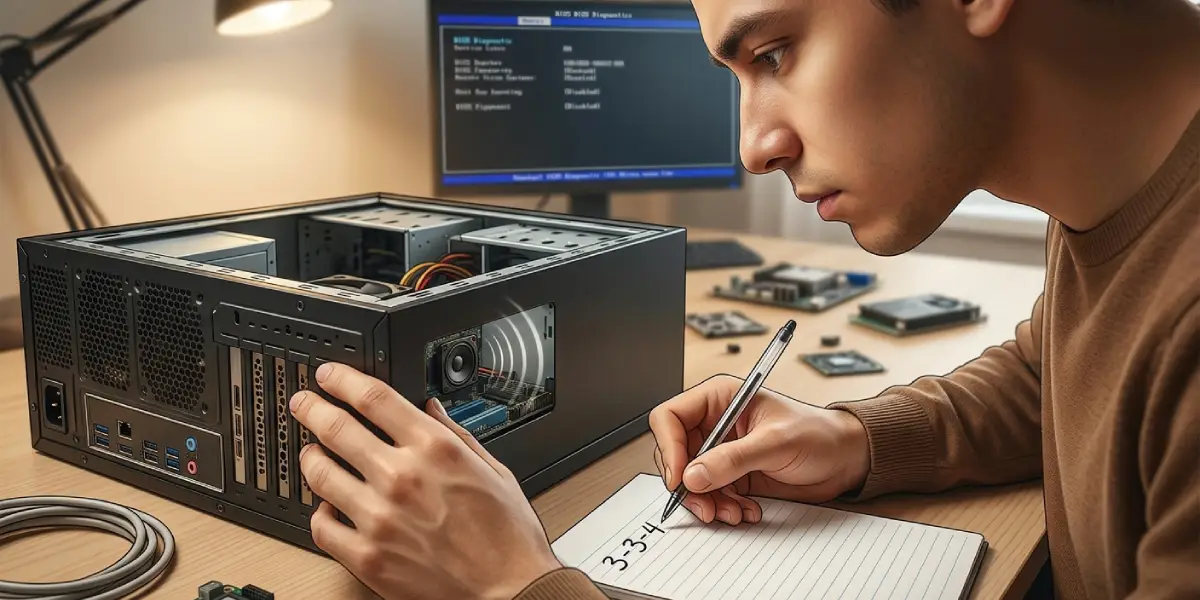
- Step 1: Count the beeps carefully – note whether they are short, long, or a mix, and whether the pattern repeats.
- Step 2: Check the motherboard or system manufacturer’s beep code chart, since patterns differ between AMI, Award, and Phoenix BIOS brands.
- Step 3: Write the pattern down before opening the case, since it’s easy to forget once the cover comes off.
Method 2: Reseat the Memory Modules
- Step 1: Power down, unplug the PC, and open the side panel.
- Step 2: Push the retention clips outward on each RAM slot and lift the memory sticks straight out.
- Step 3: Gently wipe the gold contacts with a soft eraser or a lint-free cloth if any discoloration is visible.
- Step 4: Reinsert one stick at a time, pressing straight down evenly until both clips snap into place.
- Step 5: Reconnect power and boot to see if the beeping stops.
Tip: If there are multiple RAM sticks, test the system with just one installed at a time. This isolates a single faulty module quickly instead of guessing at the whole set.
Method 3: Reseat the Graphics Card
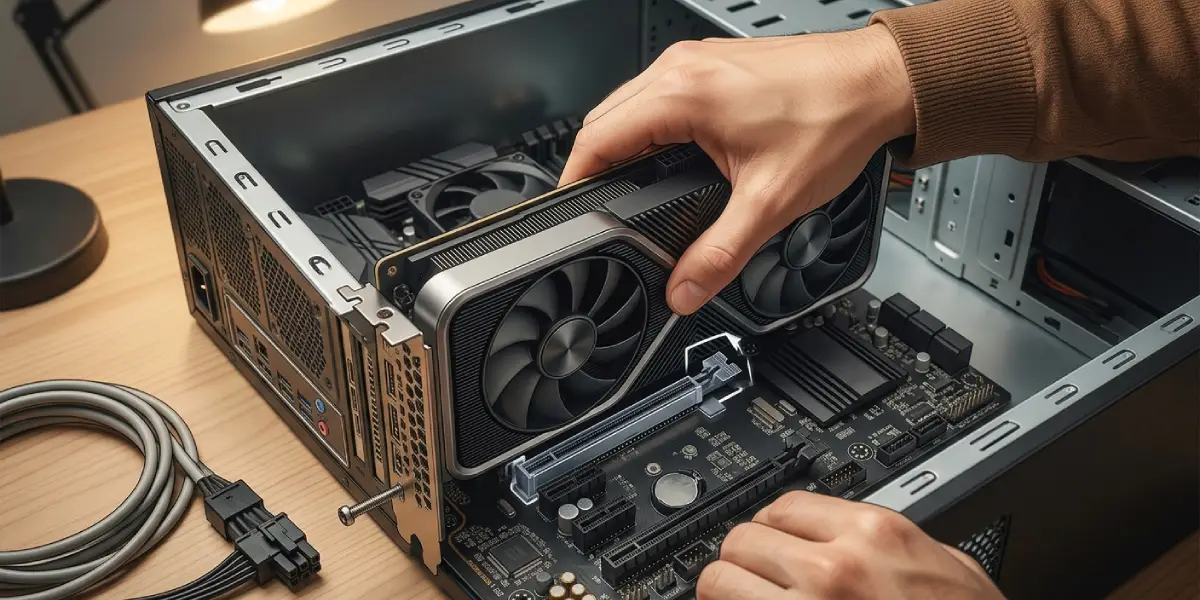
- Step 1: With the system powered off and unplugged, release the slot’s retention latch and any case screws holding the card bracket.
- Step 2: Remove the card and inspect the PCIe slot for dust, then clear it with compressed air.
- Step 3: Reinsert the card firmly until it clicks into the slot completely.
- Step 4: Reconnect any PCIe power cables directly from the power supply, making sure each connector is fully seated.
Method 4: Check the Power Connections
- Step 1: Confirm the main 24-pin motherboard connector and the CPU power connector (usually 4 or 8-pin) are both fully clicked in.
- Step 2: Inspect cables for any visible fraying or looseness near the connector housing.
Method 5: Clear the CMOS
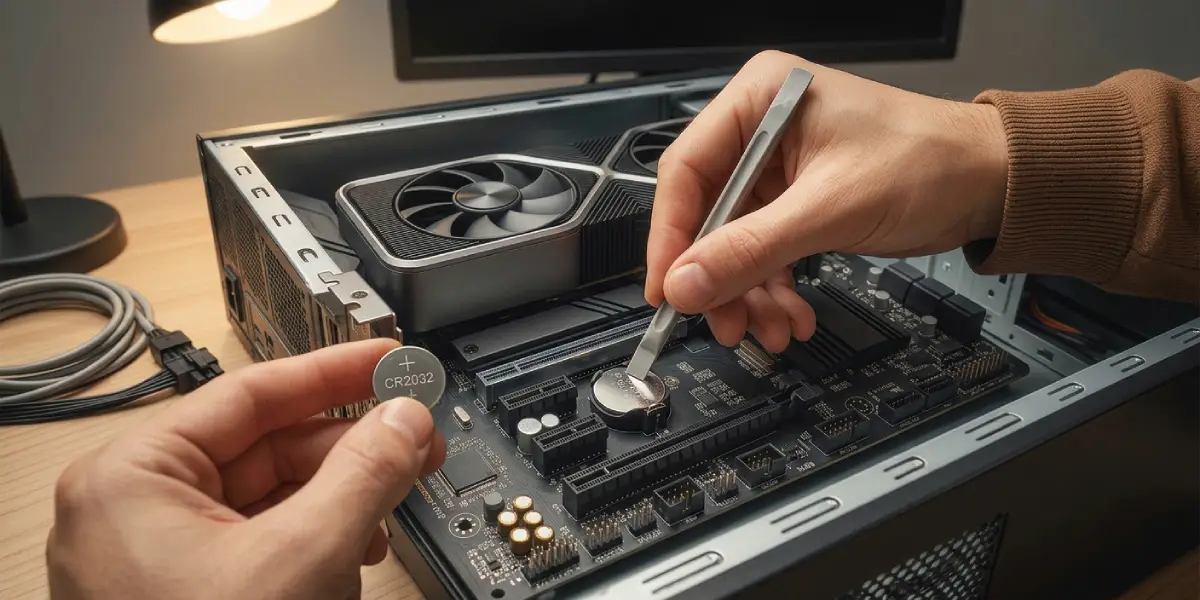
- Step 1: Locate the small battery on the motherboard, usually a coin-style CR2032 cell.
- Step 2: With the system unplugged, remove the battery for about a minute, or use the motherboard’s CMOS reset jumper if one is present.
- Step 3: Reinstall the battery and power the system back on to see if a reset BIOS configuration resolves the beeping.
Tip: A dead CMOS battery on its own can sometimes cause startup irregularities, so this step is worth trying even if the beeping seems unrelated to BIOS settings.
Method 6: Test Components Individually
- Step 1: If beeping continues, disconnect all non-essential components, drives, extra RAM sticks, add-in cards, and boot with only the CPU, one RAM stick, and the graphics card installed.
- Step 2: Reintroduce components one at a time, booting after each addition, until the beeping returns and identifies the faulty part.
If beeping persists after reseating, cleaning, and testing components individually, and the pattern points to a CPU or motherboard fault, this is a reasonable point to consult a professional repair technician, since diagnosing a damaged socket or a failing motherboard often requires specialized testing equipment. Opening the case is generally safe for a desktop and rarely voids the warranty on major components, but check the system manufacturer’s policy first if the PC is still under warranty.
Common Problems and Fixes
Beeping Continues After Reseating RAM
This usually means the memory module itself has failed rather than simply being loose. Try the stick in a different slot, and if the beeping follows the stick, it likely needs replacing.
PC Beeps Even With All Components Removed
When beeping happens with only the CPU and no RAM installed, this is often a normal ‘no memory detected’ code rather than a fault, since some motherboards beep to confirm POST is running. Reinstall known-good memory and retest.
New Beep Pattern Appears After a BIOS Update
An interrupted or corrupted BIOS update can trigger a persistent beep code. Clearing the CMOS as described in Step 5 often resolves this, and some motherboards support a BIOS flashback feature that reflashes the firmware without needing to boot.
Beeping Returns After a Few Weeks
Recurring beeping after a temporary fix often points to dust buildup or a slot with worn contacts. Regular cleaning with compressed air every few months helps prevent the pattern from returning.
Frequently Asked Questions
What does one long beep followed by two short beeps mean?
This pattern commonly indicates a graphics card issue on many BIOS brands, though the exact meaning can vary by motherboard manufacturer, so checking the specific brand’s beep code chart is the most reliable way to confirm it.
Why does my PC beep once and boot normally?
A single short beep on many systems is a normal confirmation that POST completed successfully and is not an error at all.
Can a bad power supply cause beeping on startup?
Yes, an unstable or failing power supply can prevent components from receiving consistent power during POST, which some motherboards will report as a beep code.
Is it safe to open a desktop PC to fix beeping?
Opening a desktop case is generally safe as long as the system is powered off, unplugged, and static precautions are taken before touching internal components.
Does clearing the CMOS delete personal files?
No, clearing the CMOS only resets BIOS settings like boot order and clock speed back to default. It does not affect files stored on the hard drive or SSD.
Why does my PC beep continuously without stopping?
A continuous, unbroken beep often signals a serious issue such as a stuck key on the keyboard, a power supply problem, or in some cases a failing motherboard component.
How do I find my motherboard’s specific beep code chart?
Check the label printed on the BIOS chip itself or the motherboard box for the BIOS brand, then search that manufacturer’s official documentation for the beep code reference table.
Can dust alone cause a PC to beep on startup?
Yes, dust buildup in RAM slots or the PCIe slot can interfere with electrical contact and trigger the same beep codes as a loose component.
Should laptops be diagnosed the same way as desktops for beeping?
Laptops use similar BIOS beep codes, but internal access is far more limited and often requires removing a bottom panel, so a professional technician is usually a safer choice for laptop internals.
