
Losing access to an Outlook profile does not mean the mail stored inside a PST file is gone. It is entirely possible to recover mail from a PST without a profile by creating a bare-bones Outlook profile just for opening the file, without ever setting up an email account. This guide walks through the exact steps, in order, so nothing important gets skipped.
Key Takeaways
- Outlook always needs some profile to launch, but that profile does not need an email account attached to it.
- A blank, account-free profile is enough to open and browse an orphaned PST file.
- Running the Inbox Repair Tool (scanpst.exe) first prevents most opening errors.
- Once the PST is open, items can be dragged, copied, or exported into a working mailbox.
- This method works whether Outlook was just reinstalled, the original profile was deleted, or the PST simply became detached from its account.
How to Recover Mail from a PST Without a Profile
This section covers the full recovery sequence, starting with a health check on the file itself and ending with the PST fully readable inside Outlook.
Method 1: Locate and Repair the PST File First
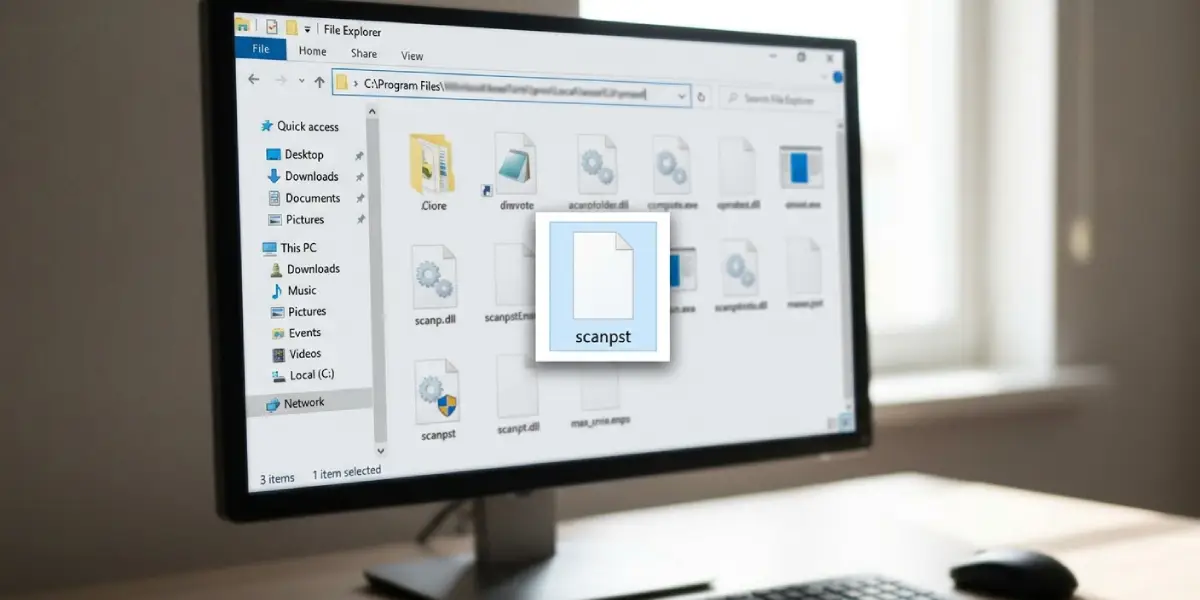
- Step 1: Find the Inbox Repair Tool, scanpst.exe, in the Outlook installation folder. On most 64-bit Windows machines it sits in a path similar to C:\Program Files\Microsoft Office\root\Office16, though the exact folder name shifts slightly by Office version.
- Step 2: Double-click scanpst.exe and browse to the PST file that needs recovering.
- Step 3: Click Start to scan the file for structural errors. If errors are found, back up a copy of the original PST before letting the tool repair it, since repair operations rewrite parts of the file.
- Step 4: Click Repair and let the process finish. A short log appears once it is done.
Tip: Skipping this repair step is the single most common reason people later see ‘file in use’ or ‘not recognized’ errors when trying to open an old PST.
Method 2: Create a Blank Outlook Profile Without an Email Account
- Step 5: Open Control Panel and search for Mail. On a 64-bit system with 32-bit Office installed, the search box may need to point to the 32-bit Control Panel item directly.
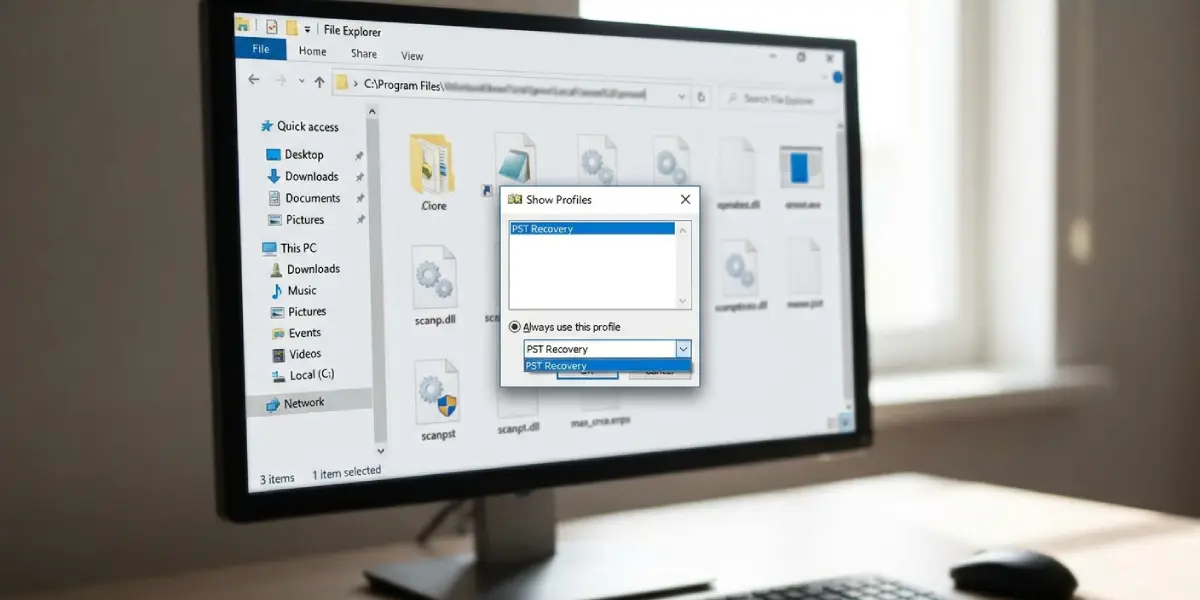
- Step 6: In the Mail Setup window, select Show Profiles.
- Step 7: Click Add, type a name such as ‘PST Recovery,’ and click OK.
- Step 8: When the Add Account wizard appears, close it or click Cancel instead of entering any email address. This leaves the new profile empty, which is exactly what is needed.
- Step 9: Back in Show Profiles, set ‘Always use this profile’ and choose the new blank profile from the dropdown, or leave it set to ‘Prompt for a profile to be used’ if multiple profiles exist.
Method 3: Open Outlook Using the Blank Profile
- Step 10: Launch Outlook. If prompted, select the newly created blank profile and click OK.
- Step 11: Outlook opens with an empty folder pane, since there is no mailbox attached to this profile yet. That is expected and normal.
Method 4: Open the PST File Inside Outlook
- Step 12: Go to File, then Open & Export, then select Open Outlook Data File.
- Step 13: Browse to the repaired PST file from Step 1, select it, and click OK.
- Step 14: The PST now appears in the left-hand folder pane, usually labeled ‘Outlook Data File’ or with the original mailbox name. Expand it to see the folder structure, including Inbox, Sent Items, and any custom folders.
Tip: Right-clicking any folder inside the opened PST and choosing Properties shows the item count, which is a quick way to confirm the recovery actually pulled in mail rather than opening an empty shell.
Method 5: Save or Move the Recovered Mail
- Step 15: To keep the mail permanently accessible, drag individual messages or folders from the PST into a live mailbox or into a separate archive PST connected to a working profile.
- Step 16: Alternatively, right-click any folder in the opened PST and use Copy Folder to duplicate it into another data file without disturbing the original.
Common Problems and Fixes
- Outlook won’t finish loading after selecting the blank profile: This usually means an old, corrupted profile setting is being reused. Delete the profile in Control Panel and create it again from scratch.
- The Open Outlook Data File option is missing or greyed out: Close Outlook completely through Task Manager, then reopen it, since a background process sometimes locks the File menu.
- scanpst.exe reports the file cannot be repaired: Try running the scan again immediately afterward. Corruption sometimes needs two or three passes before the tool fully clears it.
- Control Panel does not show a Mail icon: This means Outlook has never been installed under that Windows user account. Installing or repairing the Office installation adds the Mail applet back.
- PST opens but folders appear empty: The PST may be an ANSI-format file exceeding its size limit, or it may still be mid-repair. Re-run scanpst.exe and confirm the repair log shows no remaining errors.
Frequently Asked Questions
Is it possible to open a PST file without setting up any Outlook profile at all?
No, Outlook always requires an active profile to launch, but that profile can be completely empty, with no email account attached, which is the method used above.
Will creating a blank profile affect the existing mail account on the same computer?
No. Multiple profiles can exist side by side, and Outlook only loads the one selected at startup, so the original account and its data stay untouched.
What if the PST file was password protected?
The correct password still needs to be entered when the file is opened through Open Outlook Data File. There is no supported way to bypass a lost PST password through this method.
Can this method recover mail from a PST created by a different version of Outlook?
Yes, PST files are generally backward and forward compatible across recent Outlook versions, though very old ANSI-format PSTs from legacy versions may need a size-limit check first.
Does scanpst.exe delete any mail during the repair?
It can, in rare cases, remove items it identifies as unrecoverable, which is exactly why backing up the original PST before repairing it matters.
How can the location of a lost PST file be found?
Searching the file system for *.pst using File Explorer’s search bar usually locates it, especially in the default Documents\Outlook Files folder or wherever the file was last saved.
Is it safe to delete the blank recovery profile afterward?
Yes. Once the needed mail has been copied out, the blank profile can be deleted through Control Panel without affecting the recovered messages.
Why does Outlook ask to configure an email account every time the blank profile is used?
This happens if Cancel was not clicked at the right point during profile creation. Deleting the profile and recreating it, making sure to close the Add Account wizard immediately, resolves it.
Can the recovered PST be opened on a different computer using this same method?
Yes, the blank-profile approach works on any machine with Outlook installed, as long as the PST file itself is copied over and accessible from that computer.
