
Seeing the set of folders cannot be opened in Outlook the moment the app launches is frustrating, especially when a busy inbox is waiting on the other side. This error usually points to a damaged data file, a corrupted profile, or a navigation pane that has gotten confused. The fixes below are listed in the order most people find success with, starting with the quickest options first.
Key Takeaways
- The error almost always traces back to a corrupted Outlook data file (.pst or .ost), a broken profile, or a damaged navigation pane file.
- Running the built-in ScanPST.exe repair tool solves this issue for most people on the first try.
- Resetting the navigation pane and creating a fresh Outlook profile fix cases that ScanPST cannot.
- Outdated add-ins and a damaged Office installation are less common causes but worth checking if earlier steps do not help.
- Closing Outlook completely before running any repair tool prevents the fix from failing halfway through.
Step-by-Step Guide to Fix ‘The Set of Folders Cannot Be Opened’ in Outlook
Method 1: Repair the Outlook Data File with ScanPST.exe
ScanPST is the inbox repair tool built into every version of Outlook, and it catches the file corruption that triggers this error more often than any other fix.
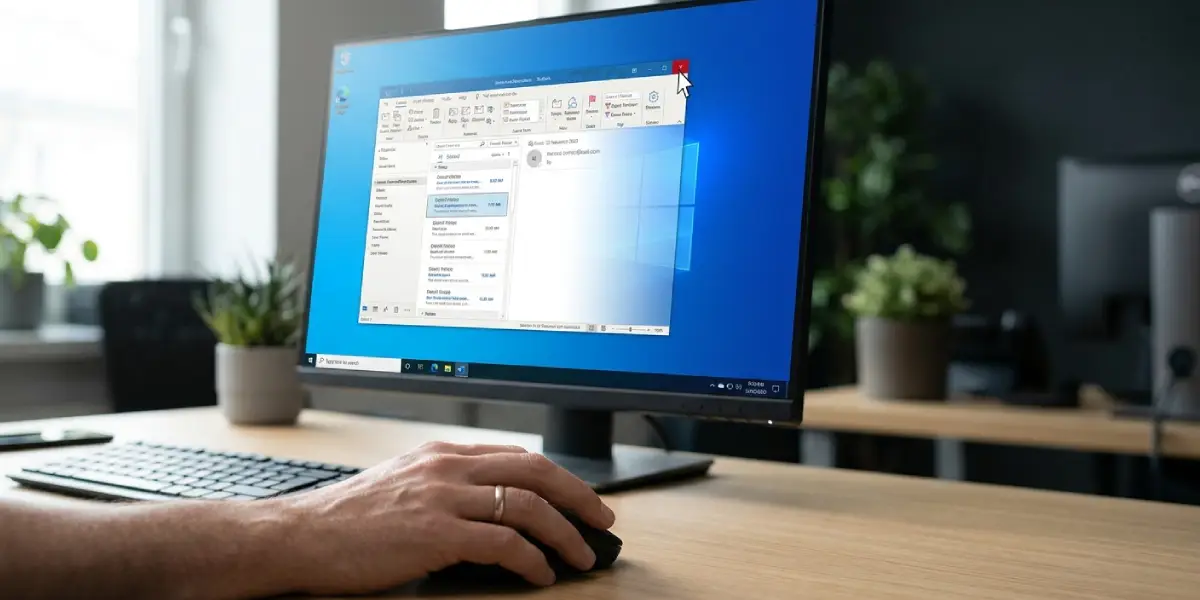
- Step 1: Close Outlook completely, including any background processes still running in Task Manager.
- Step 2: Locate ScanPST.exe. On most systems it sits inside a folder such as C:\Program Files\Microsoft Office\root\OfficeXX, where XX matches the installed Office version.
- Step 3: Double-click ScanPST.exe to open the tool, then select ‘Browse’ and choose the .pst or .ost file tied to the affected account.
- Step 4: Click ‘Start’ to scan the file. This can take a few minutes on larger mailboxes.
- Step 5: If the scan reports errors, click ‘Repair’ and let the tool finish before closing it.
- Step 6: Reopen Outlook and check whether the folders load normally.
Tip: Back up the data file before running the repair by copying it to another folder first, since ScanPST occasionally removes items it cannot fix.
Method 2: Reset the Navigation Pane
A damaged navigation pane file is a common, quieter cause of this error, and resetting it forces Outlook to rebuild the folder list from scratch.
- Step 1: Close Outlook fully.
- Step 2: Press Windows key + R, type outlook.exe /resetnavpane, and press Enter.
- Step 3: Wait for Outlook to reopen on its own and watch whether the folder set now loads.
Method 3: Create a New Outlook Profile
When the existing profile itself is corrupted, no data file repair will help. Building a new profile and reconnecting the account usually clears things up.
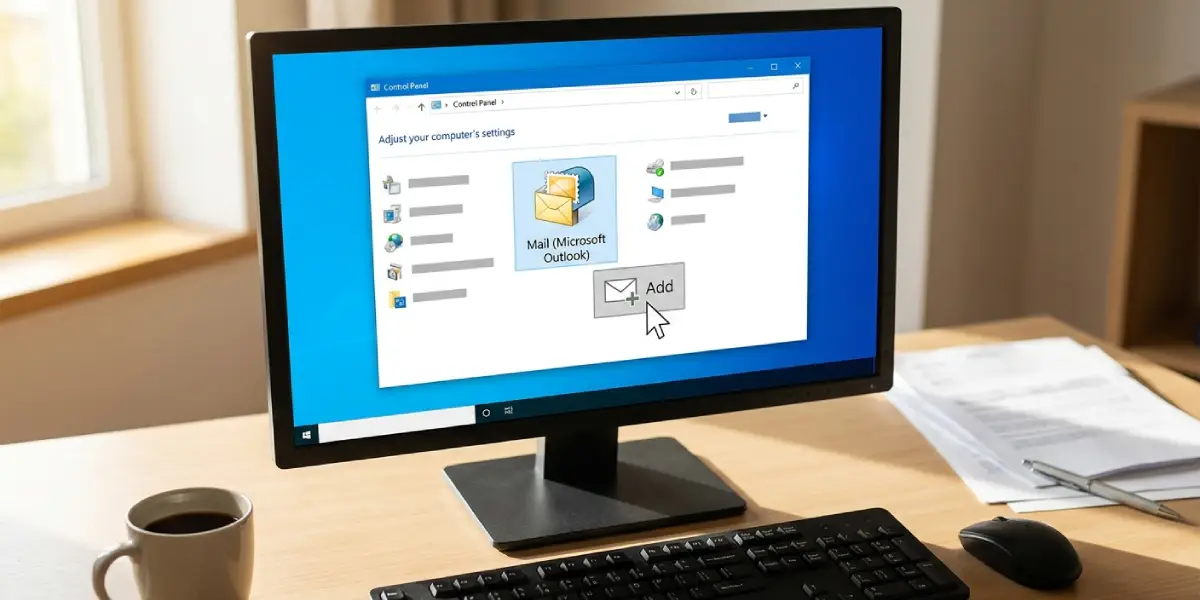
- Step 1: Close Outlook, then open Control Panel and select ‘Mail’ (search for ‘Mail’ if it is not visible right away).
- Step 2: Click ‘Show Profiles’, then ‘Add’ to create a new profile and give it a distinct name.
- Step 3: Follow the prompts to add the affected email account to this new profile.
- Step 4: Under ‘When starting Microsoft Outlook, use this profile’, select the new profile from the dropdown.
- Step 5: Open Outlook and confirm the folders appear correctly under the new profile.
Tip: Keep the old profile in place until the new one is confirmed working, in case any settings need to be copied back over.
Method 4: Disable Add-ins and Restart Outlook
- Step 1: Press Windows key + R, type outlook.exe /safe, and press Enter to launch Outlook in Safe Mode.
- Step 2: If the folders open without issue in Safe Mode, go to File > Options > Add-ins.
- Step 3: Select ‘COM Add-ins’ next to the ‘Manage’ dropdown and click ‘Go’.
- Step 4: Uncheck each add-in, restart Outlook normally, and re-enable them one at a time to identify the culprit.
Method 5: Repair the Office Installation
- Step 1: Open Control Panel, go to ‘Programs and Features’, and find Microsoft Office in the list.
- Step 2: Select it, click ‘Change’, and choose ‘Quick Repair’. Run ‘Online Repair’ if the quick option does not resolve the error.
- Step 3: Restart the computer once the repair finishes and reopen Outlook.
Common Problems and Fixes
- ScanPST finishes but the error still appears: Run the tool a second time. Some data files need more than one pass before every error is cleared.
- Cannot find ScanPST.exe: The file path differs between 32-bit and 64-bit Office installs, so check both C:\Program Files\Microsoft Office and C:\Program Files (x86)\Microsoft Office.
- New profile still shows the same error: This usually means the data file itself is the problem rather than the profile, so revisit the ScanPST repair before continuing.
- Outlook freezes during the navigation pane reset: Give it a few extra minutes on large mailboxes before forcing it to close, since rebuilding the folder list takes time.
- Error returns after a few days: This often points to a syncing issue with the mail server rather than a local file problem, so removing and re-adding the account can help.
Frequently Asked Questions
What causes ‘the set of folders cannot be opened’ error in Outlook?
The most common causes are a corrupted .pst or .ost data file, a damaged navigation pane file, or a broken Outlook profile.
Is it safe to run ScanPST.exe on an important mailbox?
Yes, though making a backup copy of the data file beforehand is a smart precaution in case the repair removes any corrupted items.
Will resetting the navigation pane delete any emails?
No. It only rebuilds the folder list layout and does not touch the actual messages or folders stored in the data file.
How long does the ScanPST repair usually take?
Small data files often finish in under a minute, while larger mailboxes with several gigabytes of data can take ten minutes or more.
Does creating a new Outlook profile remove existing emails?
No, the emails remain in the original data file. A new profile simply reconnects to the account and rebuilds the folder structure.
Can antivirus software cause this error?
Yes, in some cases security software locks or scans the data file at the same time Outlook tries to access it. Temporarily disabling real-time scanning can confirm whether this is the cause.
What if none of these fixes work?
Try running Outlook in Safe Mode to rule out add-ins, then repair the Office installation. If the error persists after that, the data file may need to be recreated by exporting mail items to a fresh .pst file.
Does this error affect both Exchange and IMAP accounts?
Yes, it can appear on any account type, though the underlying cause and the data file involved (.ost for Exchange and IMAP, .pst for POP) will differ slightly.
Should the old Outlook profile be deleted after switching to a new one?
Only after confirming the new profile works correctly for several days. Keeping the old one as a backup for a short period is a safer approach.
