
An external monitor not waking from sleep is one of the more frustrating display issues, especially when the PC itself seems fine but the screen just stays black. This usually comes down to a handshake problem between the graphics driver, the cable, and the monitor’s own power management, and most cases can be fixed without any new hardware.
Key Takeaways
- The issue is almost always caused by a signal handshake failure, a driver power setting, or a loose cable connection.
- Updating the graphics driver and adjusting sleep-related power settings solves the majority of cases.
- Switching the video cable or port often resolves problems that persist after software fixes.
- Some monitors need their own power-saving or ‘quick start’ setting turned off to wake properly.
- A factory reset of the monitor is a reliable last resort before assuming it’s failing hardware.
Common Causes of an External Monitor Not Waking From Sleep
This problem tends to show up after a Windows update, a driver update, or simply over time as a monitor ages. The most common causes include outdated or corrupted graphics drivers, a cable or port that’s not fully seated, aggressive monitor power-saving modes, and a mismatch between how the GPU signals wake-up and how the monitor listens for it. Multi-monitor setups add another layer, since Windows sometimes treats each display’s wake timing differently.
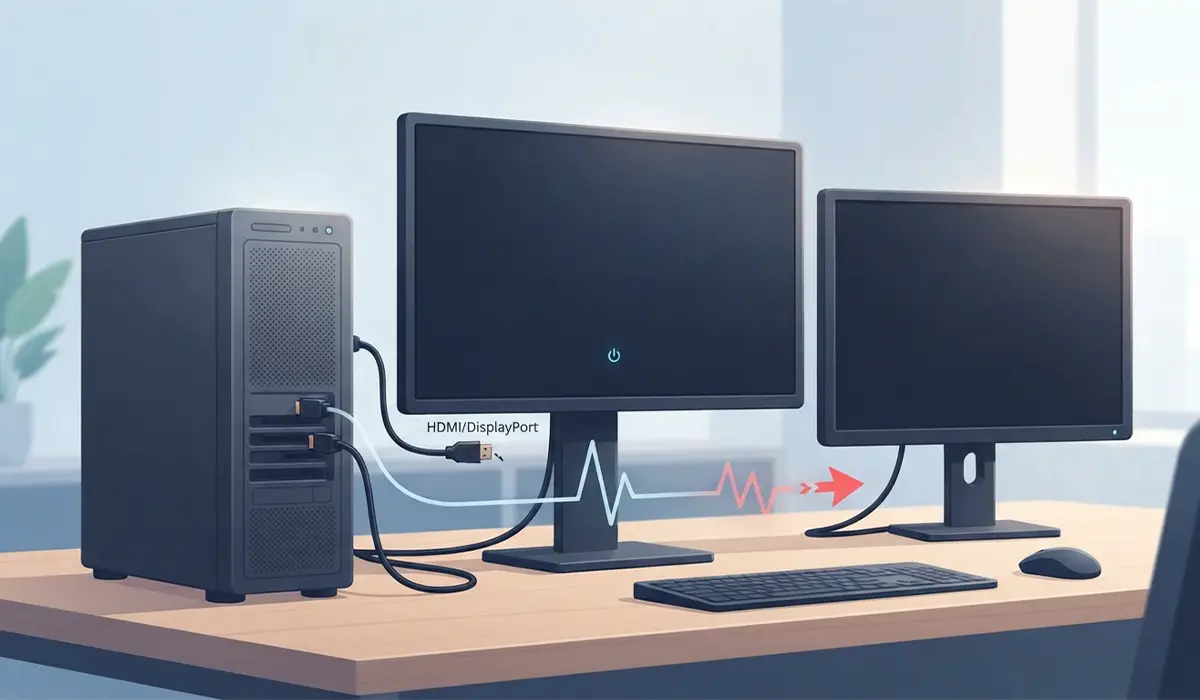
How to Fix a Monitor That Won’t Wake From Sleep
Step-by-Step Fixes
- Step 1: Move the mouse or press a key on the keyboard first, and give the monitor five to ten seconds. Some panels take longer than expected to re-sync with the signal.
- Step 2: Check the monitor’s own power button and status light. If the light is off or blinking amber, the monitor itself dropped out of standby incorrectly and may need a manual power cycle – turn it off at the switch, wait ten seconds, then power it back on.
- Step 3: Unplug the video cable from both the monitor and the graphics card, then reconnect it firmly on both ends. A cable that’s even slightly loose can prevent the wake signal from being recognized.
- Step 4: Try a different video port on the graphics card, and if available, a different cable type entirely – for example switching from HDMI to DisplayPort. This isolates whether the port or cable is the actual point of failure.
- Step 5: Open Device Manager, expand ‘Display adapters’, right-click the graphics card, and select ‘Update driver’. Choose ‘Search automatically for drivers’. An outdated driver is one of the most frequent causes of wake failures after a Windows update.
- Step 6: Open Power Options in Windows, select ‘Change plan settings’ for the active plan, then ‘Change advanced power settings’. Under ‘PCI Express’, set ‘Link State Power Management’ to ‘Off’. This setting is a well-known culprit for displays that won’t resume properly.
- Step 7: Go into the monitor’s on-screen display menu and look for a power-saving, eco mode, or ‘quick start’ setting. Turning this off tells the monitor to fully wake rather than staying in a partial standby state that skips the signal handshake.
- Step 8: If the monitor is connected through a docking station, hub, or KVM switch, try connecting it directly to the graphics card instead. These devices can interfere with the wake signal, particularly on multi-monitor setups.
- Step 9: Restore the monitor to its factory settings through its OSD menu. This clears any conflicting custom settings that may have built up over time and is worth trying before assuming the panel is failing.
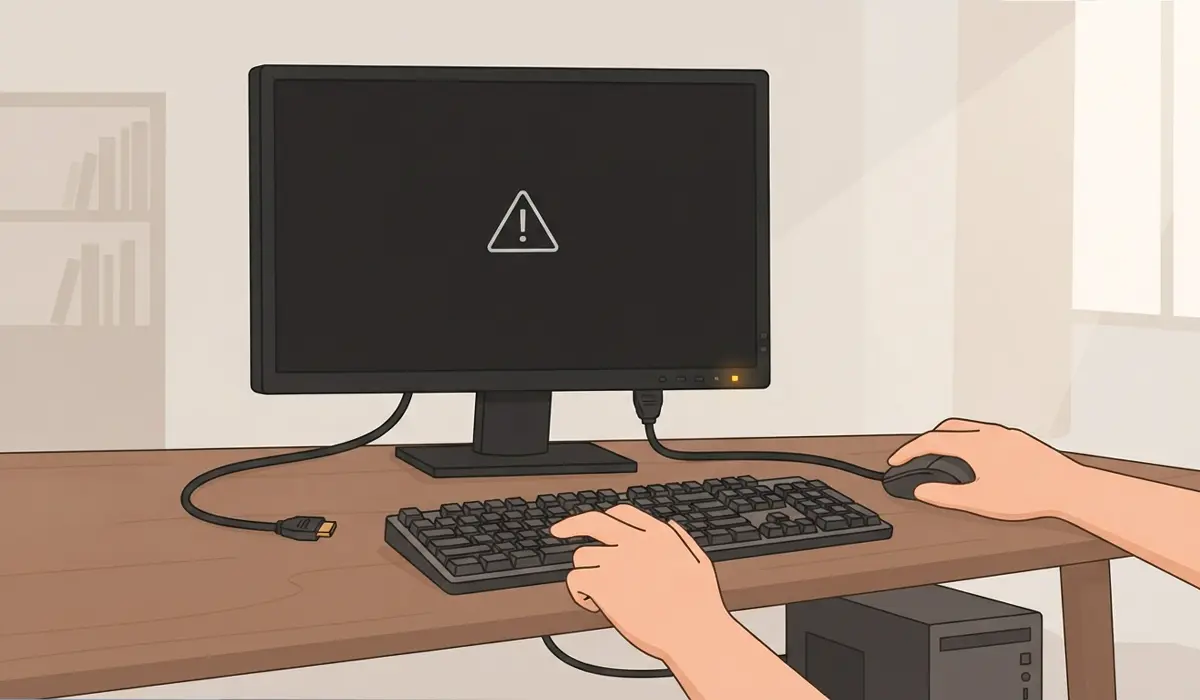
Tip: If only one monitor in a multi-display setup fails to wake, try disconnecting the other displays temporarily. This narrows down whether the issue is with the monitor itself or with how Windows is managing multiple wake signals at once.
Common Problems and Fixes
- Monitor wakes but shows no signal or a black screen: This usually points to a cable or port issue rather than the monitor itself. Reseating the cable or switching ports, as covered above, resolves most of these cases.
- Only one monitor in a dual-monitor setup won’t wake: Try setting that monitor as the primary display temporarily in Windows Display settings, then switch it back. This can force Windows to re-detect and correctly re-sync the wake signal.
- Monitor wakes fine from a restart but not from sleep specifically: This points strongly to a Windows power setting rather than the monitor. Revisiting the PCI Express Link State Power Management setting from Step 6 usually clears it up.
- Issue started right after a Windows update: Roll back the graphics driver through Device Manager by right-clicking the display adapter, selecting ‘Properties’, then the ‘Driver’ tab and ‘Roll Back Driver’ if that option is available.
Most of these fixes take only a few minutes to try, and working through them in order clears up the vast majority of wake-from-sleep issues without needing to replace anything. If a monitor still fails to wake after a full factory reset, a driver update, and testing on a different cable and port, that combination points toward an aging power board inside the monitor rather than a settings problem, and it may be time to have it looked at by a professional or considered for replacement.
Frequently Asked Questions
Why does my external monitor go black when my PC wakes from sleep?
This is typically a signal handshake delay between the graphics card and the monitor, or a power-saving setting on the monitor itself that’s slowing down its wake response.
Does updating the graphics driver actually fix wake-from-sleep issues?
Yes, in a large share of cases. Outdated or recently changed drivers are one of the most common triggers for a monitor failing to resume properly after sleep.
Why does only one of my two monitors fail to wake up?
Windows sometimes manages wake timing differently across multiple displays, and one monitor’s power-saving settings or cable connection may be different from the other, causing an inconsistent result.
Should I use HDMI or DisplayPort to avoid wake issues?
Both work well when the cable and port are in good condition. If one type is causing problems, switching to the other is a useful troubleshooting step rather than a guaranteed permanent fix.
Can a docking station or KVM switch cause this problem?
Yes. These devices sit between the GPU and monitor and can interfere with the wake signal, particularly in multi-monitor setups. Connecting the monitor directly to the graphics card helps confirm this.
Is it safe to change the PCI Express Link State Power Management setting?
Yes, this is a standard Windows power setting and adjusting it carries no risk to hardware. It may slightly increase idle power use, which is a normal trade-off for more reliable display wake behavior.
Will a factory reset on the monitor erase anything important?
No. A factory reset only clears the monitor’s own display settings, such as brightness, color mode, and power options. It doesn’t affect the PC or any files.
How long should I wait before assuming the monitor won’t wake?
Give it ten to fifteen seconds after moving the mouse or pressing a key. If there’s still no signal after that, it’s time to move through the troubleshooting steps rather than waiting longer.
Could this be a graphics card problem instead of a monitor problem?
It’s possible, especially if every monitor connected to that card shows the same wake issue. Testing the monitor on a different computer, or a different monitor on the same PC, quickly narrows this down.
Does this issue mean the monitor is failing and needs replacing?
Not usually. Most wake-from-sleep problems are software or connection related. A monitor is only likely failing if it still won’t wake reliably after a factory reset, a driver update, and testing on a different cable and port.
