
Need to set up an automatic Out of Office reply in Outlook before a vacation, a business trip, or a few days off? The whole process takes about two minutes, and it keeps colleagues and clients informed while the inbox sits unattended. The steps below cover new Outlook, Outlook on the web, and classic Outlook for Windows.
Key Takeaways
- In new Outlook and Outlook on the web, the setting lives under Settings > Mail > Automatic replies.
- In classic Outlook for Windows, the option is under File > Info > Automatic Replies (Out of Office).
- A start and end time makes the reply switch on and off by itself.
- Replies to people outside the organization must be turned on separately.
- The feature needs a Microsoft 365, Exchange, or Outlook.com mailbox.
Step-by-Step Guide to Set Up an Automatic Out of Office Reply in Outlook
Most people find it easiest to start in new Outlook or Outlook on the web, because the settings sit on a single screen. Classic Outlook users can jump to the next H3 section.
New Outlook and Outlook on the Web
- Step 1: Open new Outlook, or go to outlook.office.com in a browser, and sign in with the account that needs the reply.
- Step 2: Select the Settings icon (the gear) in the top-right corner.
- Step 3: Select Mail, then choose Automatic replies.
- Step 4: Switch on the Turn on automatic replies toggle.
- Step 5: Tick the Send replies only during a time period checkbox, then pick the start date and time and the end date and time.
- Step 6: Type the message in the text box. State that the sender has reached an out-of-office message, give the return date, and name a backup contact for urgent matters.
- Step 7: Tick Send replies outside your organization if clients, vendors, or other external senders should also get the message. Then choose whether to reply to all external senders or only to the contacts saved in the address book.
- Step 8: Optionally, tick Block my calendar for this period so colleagues see the time as busy. The calendar options can also decline new invitations during that period.
- Step 9: Select Save to activate the reply.
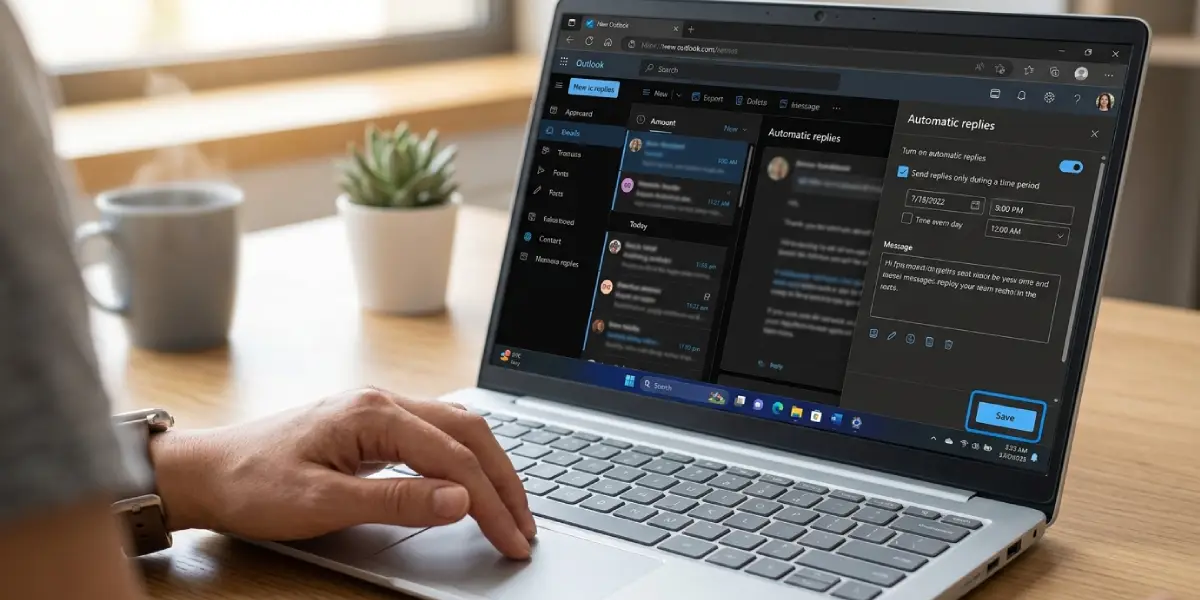
Tip: Always set an end time. Without one, the reply keeps going until it is switched off manually, and plenty of people discover this weeks after returning when a client asks why the old message is still going out.
Classic Outlook for Windows
- Step 1: Open classic Outlook and select File.
- Step 2: On the Info page, select Automatic Replies (Out of Office).
- Step 3: In the Automatic Replies window, choose Send automatic replies.
- Step 4: Tick Only send during this time range, then set the Start time and End time.
- Step 5: On the Inside My Organization tab, type the message that coworkers should receive.
- Step 6: Open the Outside My Organization tab and tick Auto-reply to people outside my organization. Choose My contacts only or Anyone outside my organization, then type the external message.
- Step 7: Select OK to save the settings.
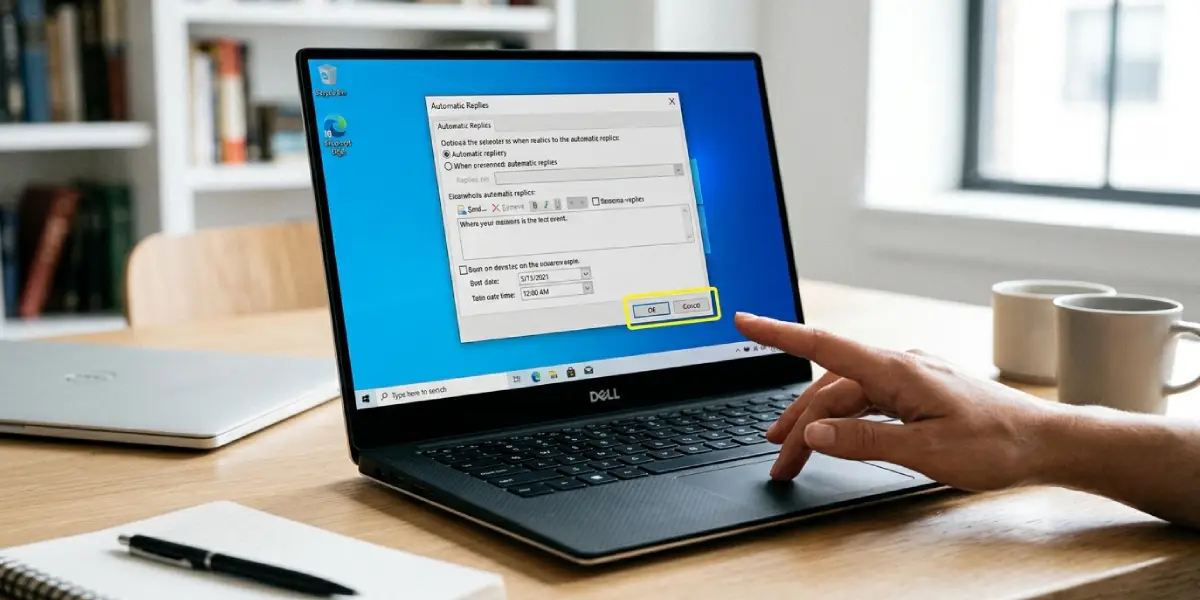
Tip: Write the outside message more briefly and leave out internal details such as project names or the reason for the absence. A short line with the return date and a backup contact is usually enough.
Common Problems and Fixes
The Automatic Replies Option Is Missing
This happens when the account is a POP or IMAP mailbox rather than a Microsoft 365, Exchange, or Outlook.com mailbox. The built-in feature only works with those account types. If the mailbox is hosted by Microsoft, signing in through Outlook on the web and following the steps above usually brings the setting back.
External Senders Are Not Getting the Reply
The external reply is off by default. In new Outlook and Outlook on the web, tick Send replies outside your organization. In classic Outlook, tick Auto-reply to people outside my organization on the Outside My Organization tab. Also check whether the reply is limited to contacts only, since senders who are not saved contacts will be skipped.
The Reply Starts or Stops at the Wrong Time
Recheck the start and end date and time, including the AM or PM setting. If the device and the mailbox use different time zones, the reply can start earlier or later than expected, so confirm the time zone in Outlook settings.
The Reply Is Still Running After Returning
If no end time was set, the reply stays on. Open the same Automatic replies settings and switch the toggle off. In classic Outlook, choose Do not send automatic replies instead.
Senders Say They Received the Message Only Once
This is normal. Outlook sends the automatic reply once per sender during the active period, which prevents repeated messages from filling someone’s inbox.
Frequently Asked Questions
Where is the Out of Office setting in Outlook?
In new Outlook and Outlook on the web, open Settings (the gear icon), select Mail, then Automatic replies. In classic Outlook for Windows, select File, then Info, then Automatic Replies (Out of Office).
How do I schedule an Out of Office reply to start and stop automatically?
Tick Send replies only during a time period (or Only send during this time range in classic Outlook), then set the start and end date and time. The reply turns on and off by itself.
How do I turn off an Out of Office reply in Outlook?
Open the Automatic replies settings and switch off the Turn on automatic replies toggle, then save. In classic Outlook, choose Do not send automatic replies and select OK.
Can people outside my organization receive the Out of Office reply?
Yes, but it must be enabled. Tick Send replies outside your organization in new Outlook and Outlook on the web, or Auto-reply to people outside my organization in classic Outlook.
Can I send a different message to internal and external senders?
Yes. Classic Outlook has separate Inside My Organization and Outside My Organization tabs, each with its own message. New Outlook and Outlook on the web use a single message for internal senders and external senders alike.
Why is the Automatic Replies button missing in Outlook?
The account is probably a POP or IMAP mailbox. Automatic replies are supported for Microsoft 365, Exchange, and Outlook.com accounts, so the option does not appear for other account types.
Do I need to keep Outlook open for the automatic reply to work?
No. For Microsoft 365, Exchange, and Outlook.com mailboxes, the reply is sent from the server, so it keeps working even when Outlook is closed or the computer is off.
Will the same person receive the Out of Office reply repeatedly?
No. Outlook sends the automatic reply only once to each sender during the active period, even if that person emails several times.
