
Learning how to fix gaming mouse side buttons not working starts with one question: is the problem in the hardware, the software, or the game itself? Most cases turn out to be a settings or software conflict, which means the fix is often only a few minutes away. The steps below run from the quickest checks to the more involved ones, so the simple answer gets ruled in or out first.
Key Takeaways
- Side buttons are usually registered by Windows as Mouse Button 4 and Mouse Button 5, so a button can work perfectly and still do nothing if the app or game has no action assigned to it.
- Manufacturer software such as Logitech G HUB, Razer Synapse, Corsair iCUE, or SteelSeries GG is the most common source of remapping conflicts.
- Testing the mouse on a second computer quickly separates a hardware fault from a software problem.
- Only a worn or failed switch inside the mouse needs a repair or replacement. Everything else can be fixed with settings, drivers, or firmware.
Common Causes
Side buttons stop responding for a short list of reasons. Knowing which one applies saves time, because each cause points to a different fix.
- The button is assigned to a different action, or to nothing, in the mouse software or in the active profile.
- A game or program has no keybind set for Mouse Button 4 or 5.
- Two remapping tools are fighting over the same button.
- A corrupted or outdated driver or firmware.
- A weak battery, a poor wireless connection, or a flaky USB port.
- Dust, debris, or a worn micro switch under the button.
Before You Start
Steps 1 to 8 need no tools at all. Step 9 involves cleaning around the buttons, and for that it helps to have compressed air, a soft brush, a microfiber cloth, and a small precision screwdriver on hand. Unplug the mouse from the PC before cleaning, and on a wireless model switch it off and remove the battery if it is removable. Touch a bare metal surface before handling any internal parts to discharge static.
How to Fix Gaming Mouse Side Buttons Not Working: Step-by-Step Fixes
Quick Checks
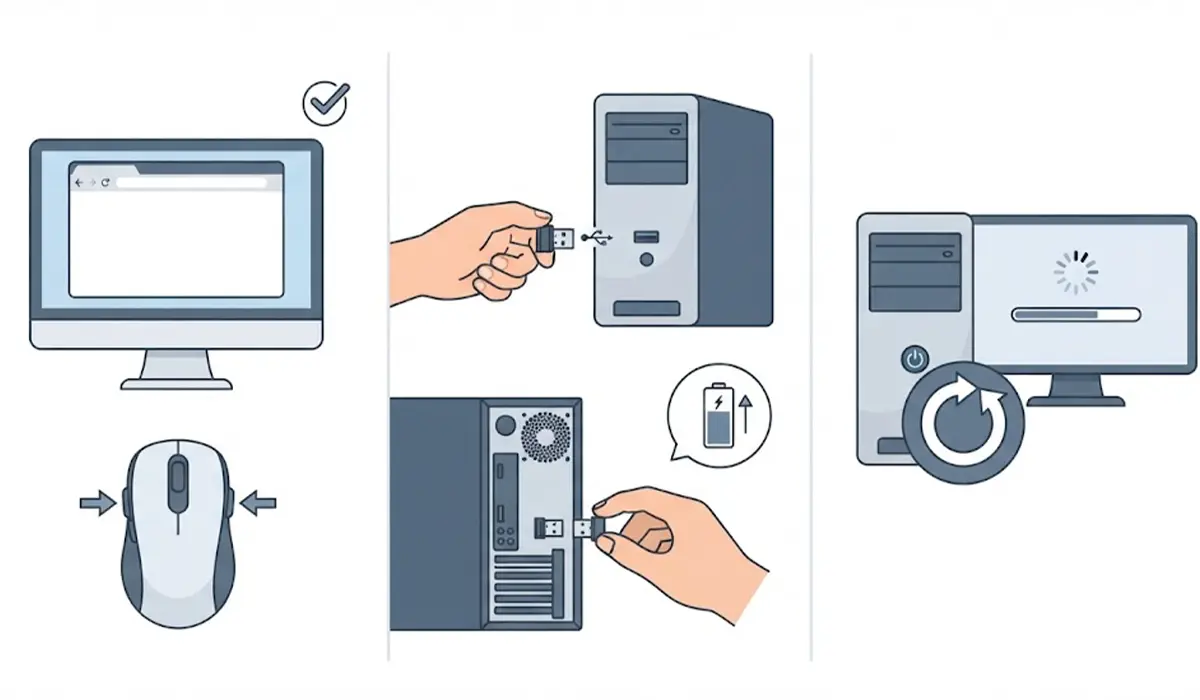
- Step 1: Test the buttons in a neutral place. Open a web browser, visit a few pages, and press the side buttons. By default, Mouse Button 4 usually goes back and Mouse Button 5 usually goes forward. If they work there, the hardware is fine and the problem lies in the game or software settings.
- Step 2: Reconnect the mouse. Unplug it, wait a few seconds, and plug it into a different USB port directly on the PC, not through a hub or a front-panel extension. For a wireless mouse, replace or recharge the battery, move the receiver closer using a short extension cable, and re-pair the mouse if needed.
- Step 3: Restart the PC. It sounds basic, but a restart clears stuck background processes and reloads input drivers, and it resolves more side button problems than most people expect.
Software and Driver Fixes
- Step 4: Check the button assignments in the mouse software. Open the manufacturer’s app and confirm that the side buttons are assigned to the intended actions. Make sure the right profile is active, since many apps switch profiles automatically per game and a profile with blank assignments can make the buttons look dead. If the settings look wrong, reset the mouse to its default profile and test again.
- Step 5: Check the in-game keybinds. Open the game’s controls menu and look for the button binding option. Many games only respond to a side button after it has been bound explicitly, and some only accept the bind when the mouse is set to its standard button mode.
- Step 6: Remove conflicting remapping tools. If more than one program manages the mouse, for example the vendor app plus a separate button remapper or an AutoHotkey script, close or uninstall the extra one. Two programs assigning the same button often cancel each other out. Also note that a remapped action can fail in a program running as administrator unless the mouse software is also run as administrator.
- Step 7: Reinstall the mouse driver. Press the Windows key, open Device Manager, expand Mice and other pointing devices, right-click the mouse, and choose Uninstall device. Restart the PC and Windows will reinstall the standard driver automatically. If the mouse needs its own software, reinstall the latest version from the manufacturer’s website afterward.
- Step 8: Update the mouse firmware. Open the manufacturer’s app and look for a firmware or device update option. Keep the mouse connected and the PC powered on for the whole update, since an interrupted update can cause new problems.
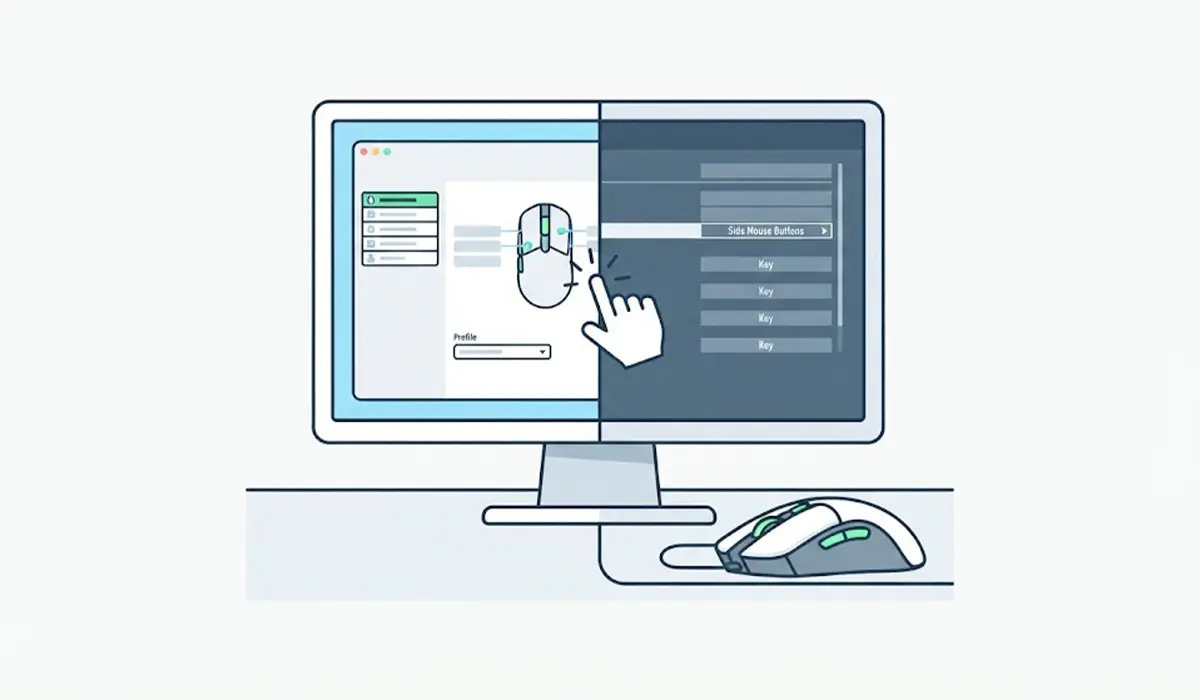
Tip: Test the mouse on a second computer before going any further. If the side buttons work there, the mouse is healthy and the cause is in Windows, the driver, or the software on the original PC. If they fail there too, move on to the hardware check below.
Hardware Checks
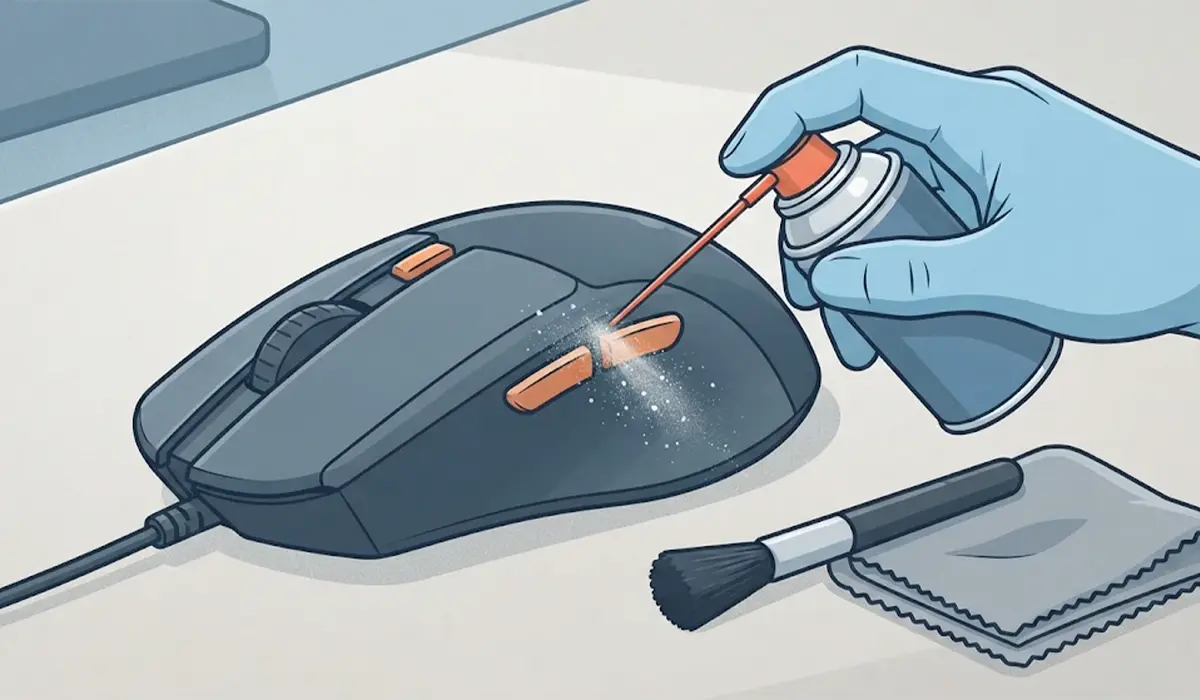
- Step 9: Clean around the side buttons. Dust and debris can wedge under a button and stop it from pressing the switch fully. With the mouse unplugged, use short bursts of compressed air around the edges of the buttons, then sweep the seams with a soft brush. Wipe the shell with a dry microfiber cloth. Avoid pouring or spraying liquid into the gaps, because moisture reaching the switch can cause more damage than the original dirt.
- Step 10: Judge the switch itself. If a button feels loose, mushy, or never clicks, the micro switch underneath has probably worn out. Replacing one means opening the mouse and desoldering, which carries real risk for anyone without soldering experience. If the mouse is still under warranty, request a replacement instead, since opening the shell may void the warranty. Otherwise, a repair shop or a replacement mouse is the safer route.
Common Problems and Fixes
The side buttons work in Windows but not in a specific game
The game likely has no bind assigned or is using its own input handling. Open the game’s controls menu, assign the side button to the desired action, and check that no mouse software profile is overriding it.
The buttons stopped working after a Windows update
An update can replace the mouse driver or reset a setting. Reinstall the driver through Device Manager as in Step 7, then reinstall or update the manufacturer’s software.
The buttons work for a while, then stop
This pattern often points to a weak battery on a wireless mouse, a USB port that loses power, or a profile that switches automatically. Try a different port, fresh batteries, and a single fixed profile to see whether the problem disappears.
The mouse software does not detect the mouse
Close the software completely, unplug the mouse, and reconnect it. If detection still fails, uninstall the software, restart the PC, and install the latest version from the manufacturer’s website.
The buttons still fail after every software fix
If the same side buttons also fail on a second computer, the cause is physical. Clean around the buttons again, and if that does not help, the micro switch needs a professional repair or a warranty replacement.
Tip: When switching between games often, save one dedicated profile per game in the mouse software and turn off automatic profile switching until everything is stable. That keeps a stray profile from silently wiping the side button assignments.
Frequently Asked Questions
Why are my gaming mouse side buttons not working?
The most common reasons are a wrong or missing assignment in the mouse software, no keybind set in the game, a driver or firmware problem, or a conflict between two remapping programs. Less often, the cause is a worn or dirty switch inside the mouse.
How do I test whether my mouse side buttons work?
Open a web browser, visit a few pages, and press the side buttons. If they move back and forward through the page history, the buttons are registering correctly in Windows. A button tester website or the mouse software’s button test feature gives the same answer.
Do I need the manufacturer’s software for the side buttons to work?
Not always. Most mice send the side buttons as standard Mouse Button 4 and 5 without extra software. The software is needed to remap them, create macros, or use custom profiles.
Can a driver update fix side buttons that stopped working?
Yes, a corrupted or outdated driver is a known cause. Uninstalling the mouse in Device Manager and restarting lets Windows reinstall the standard driver, and updating the manufacturer’s software refreshes any custom drivers.
Why do the side buttons work on the desktop but not in my game?
Windows reads the buttons fine, but the game has no action bound to them. Open the in-game controls menu and assign the actions manually, and make sure no mouse software profile is blocking the input.
Can dust make side buttons stop working?
Yes. Dust or debris can keep a button from pressing the switch fully. Short bursts of compressed air and a soft brush usually clear it without opening the mouse.
Is it worth repairing a mouse with a broken side button switch?
It depends on the mouse and the skills available. Replacing a micro switch requires opening the mouse and soldering, which can damage the board if done incorrectly. For a mouse under warranty, a replacement is the better route, and for a budget model, buying a new mouse is often simpler.
Could a weak battery cause side buttons to fail on a wireless mouse?
Yes. A low battery can cause lag, missed clicks, or dropped inputs on specific buttons before the mouse fully disconnects. Replacing or recharging the battery is a quick first test for any wireless mouse.
