
The Outlook needs your current credentials loop is the prompt that returns every time a password is entered, no matter how many times it is typed correctly. It usually comes from a stale or corrupted sign-in token stored on the PC, not from a wrong password. The steps below clear that cached data in the right order so Outlook can sign in cleanly again.
Key Takeaways
- The loop is almost always caused by old cached sign-in data, so clearing it fixes most cases.
- Always confirm the password works in Outlook on the web before changing anything on the PC.
- Removing the Office entries in Credential Manager is the single most effective fix.
- A fresh Outlook profile solves the cases that cached credentials do not.
- If the loop returns after every fix, the cause is usually an account or security policy that only an administrator can change.
Step-by-Step Guide to Fix the Outlook Needs Your Current Credentials Loop
These steps apply to the classic Outlook desktop app for Windows with a Microsoft 365, Outlook.com, or Exchange account. Work through them in order, and test Outlook after each one, because the loop often ends before the last step.
Check the account first
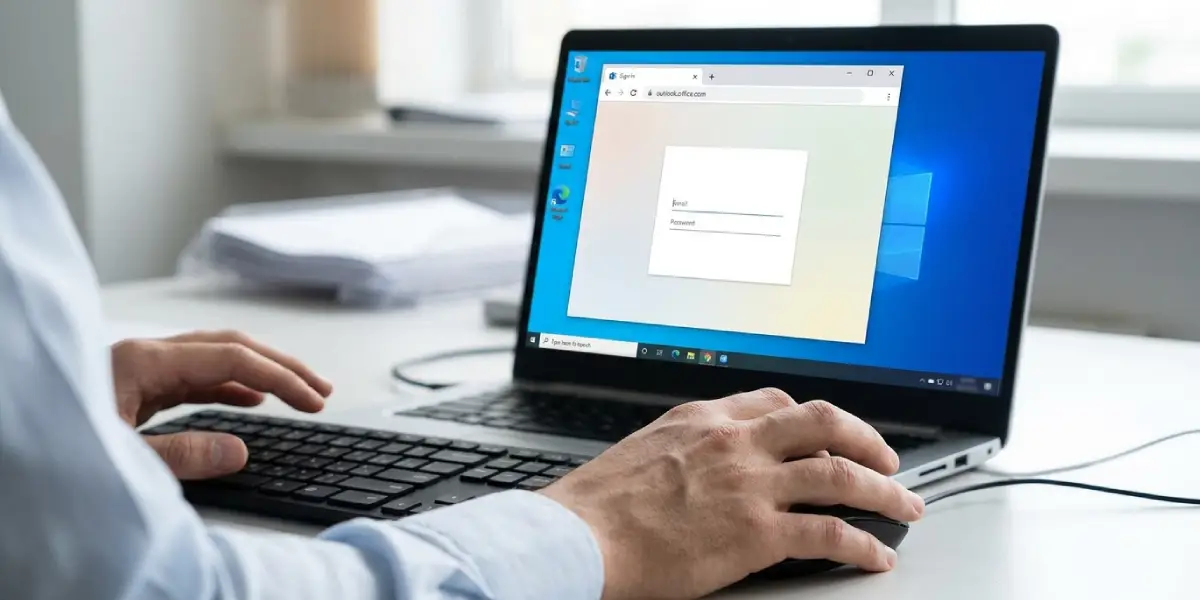
- Step 1: Open a browser and sign in to the same mailbox at outlook.office.com (or outlook.live.com for a personal account). If sign-in fails here, the problem is the password or the account itself, so reset the password or contact the administrator before touching Outlook.
- Step 2: Close Outlook completely. Press Ctrl + Shift + Esc to open Task Manager, select any OUTLOOK.EXE process on the Processes tab, and choose End task. A half-closed Outlook keeps the bad token in memory and undoes the next steps.
Clear the stored credentials
- Step 3: Select Start, type Credential Manager, and open it. Choose Windows Credentials, then expand the entries under Generic Credentials.
- Step 4: Find every entry that begins with MicrosoftOffice16_Data: and any entry that mentions outlook.office365.com or office.com. Expand each one and select Remove. Leave unrelated entries such as saved website logins alone.
- Step 5: Open Settings, go to Accounts, then Access work or school. If an old or unused work account is listed there, select it and choose Disconnect. Skip this step for any account still needed for daily work.
Tip: Think of the Credential Manager entries like an expired key card stuck in a door reader. Outlook keeps offering the old card, so the door keeps refusing it until the card is removed and a fresh one is issued at the next sign-in.
Update Office and sign in again
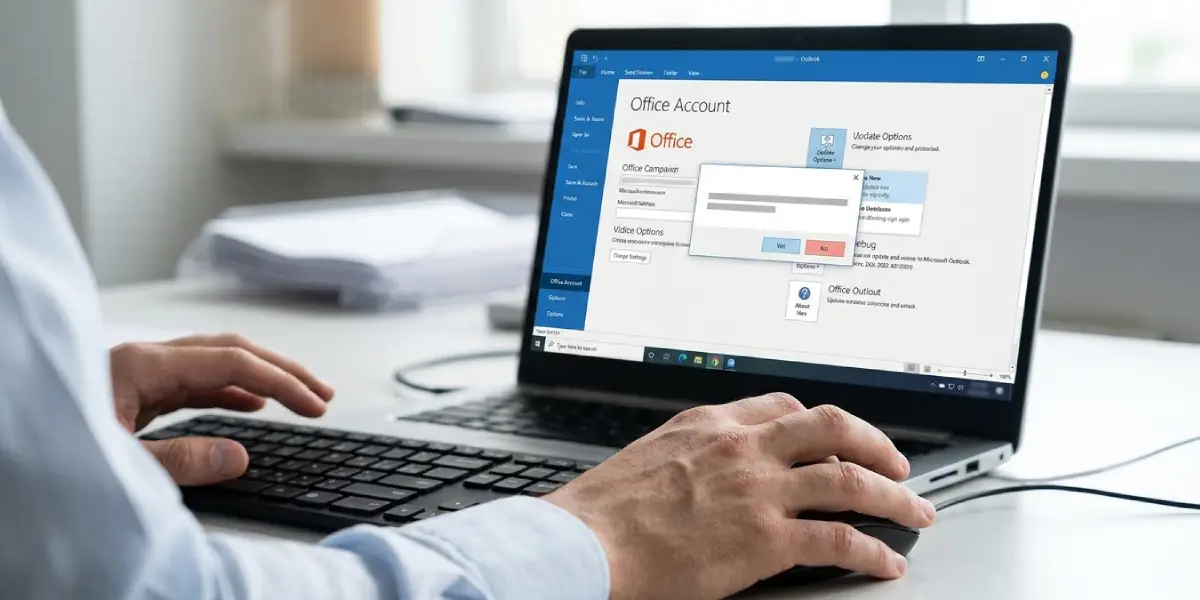
- Step 6: Restart the PC, open Outlook, go to File, then Office Account, select Update Options, and choose Update Now. Old builds are a known source of broken sign-in prompts, so this step removes that variable.
- Step 7: Reopen Outlook and sign in when prompted. Complete any multi-factor approval. If a window asks about allowing the organization to manage the device, choose No, sign in to this app only, unless the IT team has said otherwise.
Create a new Outlook profile if the loop continues
- Step 8: Close Outlook, open Control Panel, switch the view to Large icons, and select Mail (Microsoft Outlook). Choose Show Profiles, then Add, and give the profile a new name.
- Step 9: Add the email account in the setup window and finish the sign-in. Back on the Mail dialog, select Always use this profile and pick the new one, then open Outlook.
Tip: Do not delete the old profile right away. Keep it for a few days until the new one has finished syncing and everything is confirmed to be in place.
Common Problems and Fixes
The prompt returns right after the password is entered
This usually means an old credential entry came back or was missed. Close Outlook, return to Credential Manager, remove any new MicrosoftOffice16_Data: entries, and sign in once more. Check that the PC clock and time zone are correct too, since a wrong time can make sign-in tokens fail validation.
Outlook keeps asking for a password, but the web login works
That points to a damaged local profile rather than the account. Creating a new Outlook profile in Step 8 and Step 9 is the fix, because it builds a clean set of connection settings.
Outlook will not open normally after the credentials are cleared
Press Windows + R, type outlook.exe /safe, and press Enter. If Outlook opens and stays signed in, an add-in is interfering. Disable add-ins one at a time under File, Options, Add-ins, then Manage COM Add-ins, and select Go.
The multi-factor prompt never appears or fails
Make sure the authenticator app is approving requests on the correct account, and try the sign-in again after a fresh restart. A sign-in that is blocked every time, even with the right approval, is typically a conditional access or password policy, so the IT administrator needs to review it.
The password was changed recently and Outlook never accepted it
Credentials saved before the change are the likely culprit. Remove the Office entries as in Step 3 and Step 4, then sign in with the new password.
Frequently Asked Questions
Why does Outlook keep saying it needs my current credentials?
Outlook is holding a sign-in token that is expired, corrupted, or no longer accepted by the server. Typing the same password does not help because Outlook keeps reusing the bad token instead of requesting a new one.
Will removing credentials in Credential Manager delete my emails?
No. Credential Manager only stores sign-in information. Mail stays on the server and in the Outlook data files, so removing the entries only forces a fresh sign-in.
Which Credential Manager entries should be removed?
Remove the entries that start with MicrosoftOffice16_Data: and any entries that mention outlook.office365.com or office.com. Other saved logins are unrelated and should stay.
Do I need to reinstall Office to stop the loop?
Almost never. Clearing the cached credentials, updating Office, and creating a new profile resolve nearly every case without a reinstall.
Does the password need to be reset if the loop continues?
Only when the password also fails on Outlook on the web. If the web sign-in works, the password is fine and the problem sits in the local Outlook data.
Why does the loop happen after a password change?
Outlook may still be using the old saved credentials from before the change. Clearing the Office entries in Credential Manager makes Outlook ask for the new password and store it correctly.
Can an add-in cause the credentials prompt to repeat?
Yes, a faulty add-in can interfere with sign-in. Starting Outlook in safe mode with outlook.exe /safe shows quickly whether an add-in is responsible.
What should be done if the loop returns after every fix?
Contact the IT administrator or the email provider. A repeating loop after a clean profile and cleared credentials usually points to a conditional access rule, a locked account, or a security setting on the mailbox itself.
