
Clearing Outlook error 0x8DE00005 comes down to one move: replacing the old mail connection with a fresh one. The error usually appears as ‘Server Error: 3219’ and stops a Hotmail or Outlook.com account from sending and receiving. It is tied to the discontinued Windows Live Mail app, which relied on a sync method Microsoft no longer supports. The steps below remove the broken account and set it up again in current Outlook.
Key Takeaways
- Error 0x8DE00005 appears together with Server Error 3219 when an old Windows Live Mail setup cannot reach a Hotmail or Outlook.com mailbox.
- Retyping the password does not help, because the connection method itself is outdated.
- The fix is to remove the old account and add the same address in current Outlook.
- Mail stored on the Outlook.com server stays safe during the switch.
Clearing Outlook Error 0x8DE00005 Step by Step
This works best when the steps are followed in order. Think of it like replacing a worn-out key rather than forcing it into the lock again.
- Step 1: Open a web browser, go to outlook.com, and sign in with the same email address. Seeing the inbox there confirms the mailbox and its messages are fine and that only the old app connection is failing.
- Step 2: Open Windows Live Mail, right-click the affected account name in the left pane, and select Remove account. Confirm the removal. This clears the stale connection that keeps producing the error.
- Step 3: Close Windows Live Mail completely so it does not try to reconnect in the background.
- Step 4: Open current Outlook. In classic Outlook, select File, then Add Account. In new Outlook, select the Settings gear, then Accounts, then Email accounts, then Add account.
- Step 5: Type the full email address, select Connect or Continue, and sign in through the Microsoft sign-in window that appears. Approve any security prompt, then select Done.
- Step 6: Let the first sync finish, then send a short test message to another address and confirm a reply can be received.
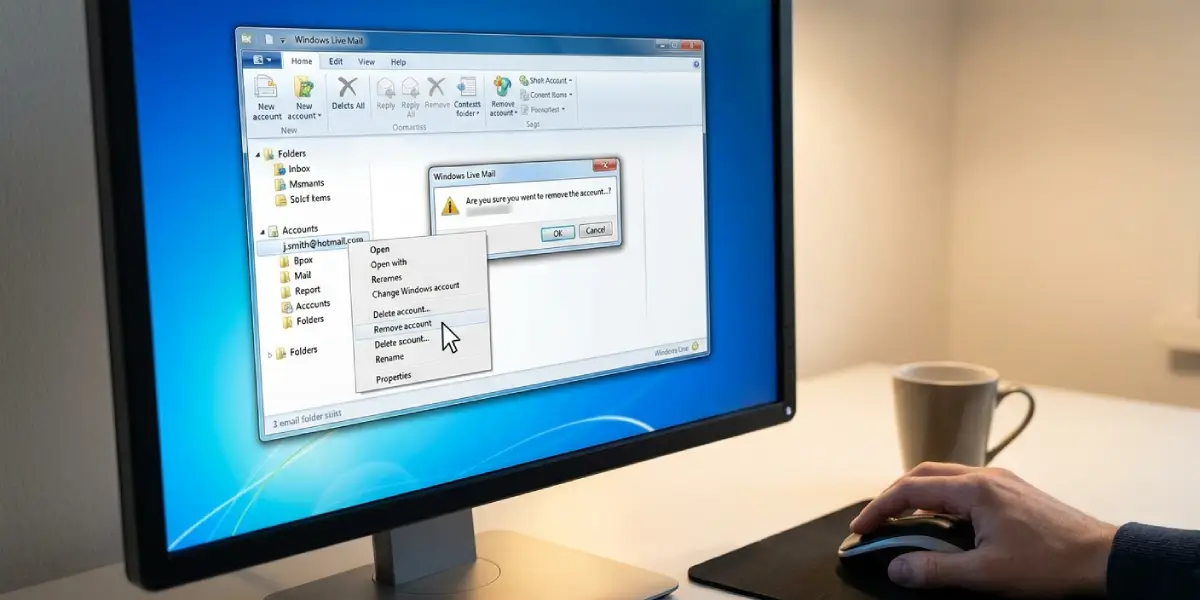
Tip: Before Step 2, check whether any folders in Windows Live Mail sit under a local storage section instead of the account. Those items live only on the PC, so copy or back them up first.
Why the New Setup Holds Up
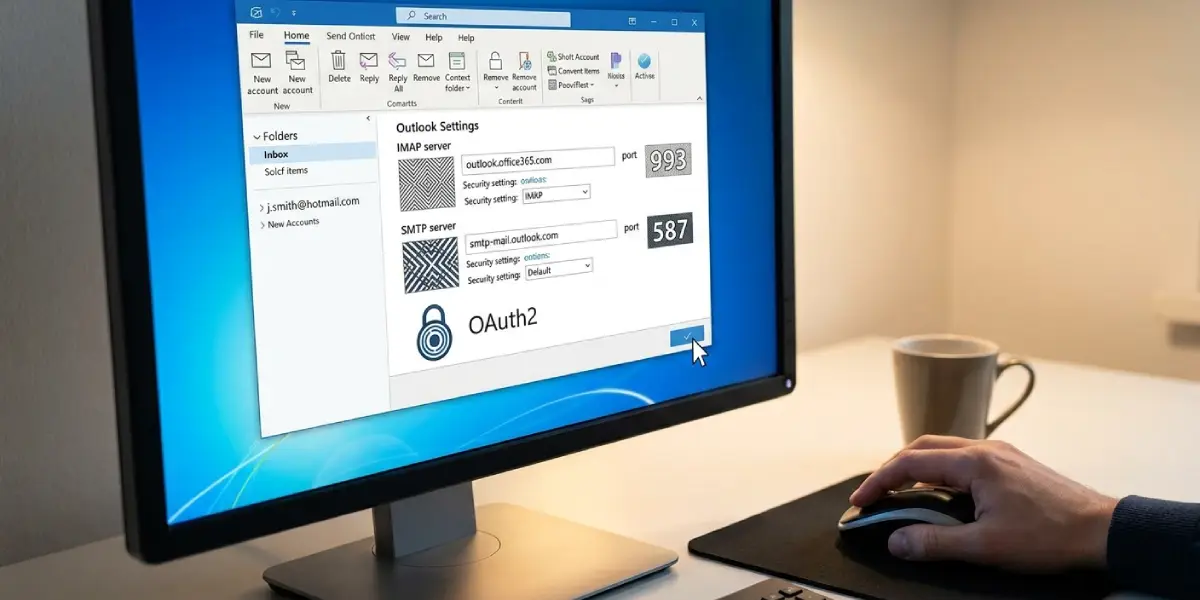
Microsoft’s Outlook.com connection settings list outlook.office365.com on port 993 for IMAP and smtp-mail.outlook.com on port 587 with STARTTLS for SMTP, and they require modern authentication (OAuth2). Current Outlook handles that sign-in automatically, so no server details need to be typed by hand.
Common Problems and Fixes
The Error Still Shows After Removing the Account
Windows Live Mail is probably still open or still holds a second copy of the account. Close the app fully, reopen it, and confirm no entry remains for that address. Then continue with the new setup in current Outlook.
Error 3202 Appears Instead of 3219
Reports of this problem show either code alongside 0x8DE00005. Both point to the same failed connection, so the same fix applies: remove the old account and add it again in current Outlook.
The Sign-In Window Keeps Asking for a Password
Enter the password only in the Microsoft sign-in window, not in any manual server fields. If the prompt keeps returning, sign in at outlook.com first to confirm the password is correct, then try adding the account again.
Messages Look Missing After Setup
Give the first sync time, especially with a large mailbox. If something is still absent, check the same folder at outlook.com. Anything visible there will appear in Outlook once the sync completes.
Old Mail Saved Only on the PC Is Not in the New Account
Items kept in local Windows Live Mail folders are not stored on the server. Those need to be backed up from the old app before the account is removed.
Tip: Keep Outlook open and connected to the internet during the first sync. Closing it early is the most common reason a new account looks incomplete.
Frequently Asked Questions
What does Outlook error 0x8DE00005 mean?
It is an error ID shown with Server Error 3219 when Windows Live Mail cannot send or receive for a Hotmail or Outlook.com account. The connection method used by the old app is no longer supported.
Is error 0x8DE00005 a problem with current Outlook?
Reports tie it to Windows Live Mail, which Microsoft stopped supporting in 2017. Adding the account to current Outlook replaces the failing setup.
Will removing the account delete my emails?
Mail stored on the Outlook.com server stays there. Only items saved in local folders on the PC are at risk, so back those up first.
Does the error mention a DeltaSync address?
Yes. Many reports show a mail.services.live.com DeltaSync address in the message. That sync method is no longer supported, which explains why the account stops working.
Will retyping the password fix error 0x8DE00005?
Usually not. The password is rarely the cause, because the app is using a connection method that no longer works.
Can Windows Live Mail keep working with IMAP settings?
Microsoft’s Outlook.com settings require modern authentication (OAuth2), and Windows Live Mail is an unsupported app. Moving the account to current Outlook is the dependable route.
What is the difference between errors 3219 and 3202?
Both codes have been reported together with 0x8DE00005. They share the same fix, which is to remove the old account and add it again in current Outlook.
Should classic Outlook or new Outlook be used?
Either one works. Both let an Outlook.com, Hotmail, or Live address connect through the standard Microsoft sign-in window.
Does the same fix work for Hotmail and Live addresses?
Yes. Microsoft treats @outlook.com, @hotmail.com, and @live.com addresses as Outlook.com accounts, so the steps are the same.
