
If a spreadsheet full of names, emails, and phone numbers is sitting on your computer, there is a quick way to import contacts into Outlook from a CSV file without retyping anything. The process takes only a few minutes in both classic Outlook and new Outlook. This guide covers each path, plus the fixes for the snags that show up most often.
Key Takeaways
- Save the contact list as a CSV file, with a header row, and close it before importing.
- In classic Outlook, use File, Open and Export, then Import/Export, and choose Comma Separated Values.
- In new Outlook, open People, select Manage contacts, then Import contacts.
- Choose how duplicates are handled and confirm the Contacts folder as the destination.
- If fields land in the wrong place or come in blank, use Map Custom Fields to match columns.
Step-by-Step Guide to Import Contacts into Outlook from a CSV File
Before You Start: Prepare the CSV File
A clean file saves a lot of cleanup later. Think of the header row as labels on moving boxes: if the labels are clear, everything ends up in the right room.
- Step 1: Open the contact list in Excel or another spreadsheet app and make sure the first row contains column headings such as First Name, Last Name, E-mail Address, and Mobile Phone.
- Step 2: Keep one contact per row and remove blank rows or stray notes above the data.
- Step 3: Choose File, then Save As, and pick the CSV format. CSV UTF-8 is the safer choice when names include accents or non-English characters.
- Step 4: Close the file completely so no other program is holding it open.
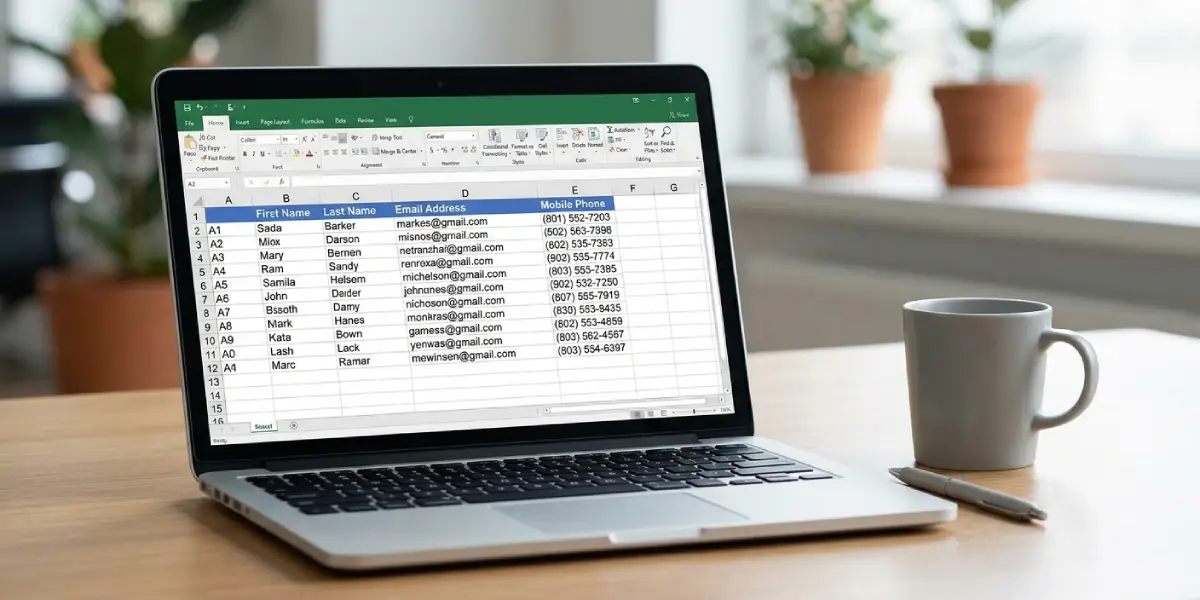
Tip: Use Outlook-style column names where possible, for example First Name and E-mail Address. Outlook recognizes these automatically, which cuts down on manual field mapping.
Import a CSV File in Classic Outlook for Windows
- Step 1: Open Outlook and select File in the top-left corner.
- Step 2: Select Open and Export, then click Import/Export to launch the Import and Export Wizard.
- Step 3: Choose Import from another program or file, then click Next.
- Step 4: Select Comma Separated Values and click Next.
- Step 5: Click Browse, locate the saved CSV file, and select it.
- Step 6: Under Options, choose how duplicates are handled: Replace duplicates with items imported, Allow duplicates to be created, or Do not import duplicate items. Click Next.
- Step 7: Select the Contacts folder as the destination and click Next.
- Step 8: Click Finish. The contacts are added to the chosen folder in a few moments.
- Step 9: Switch to People and confirm the new contacts appear with the right names and email addresses.
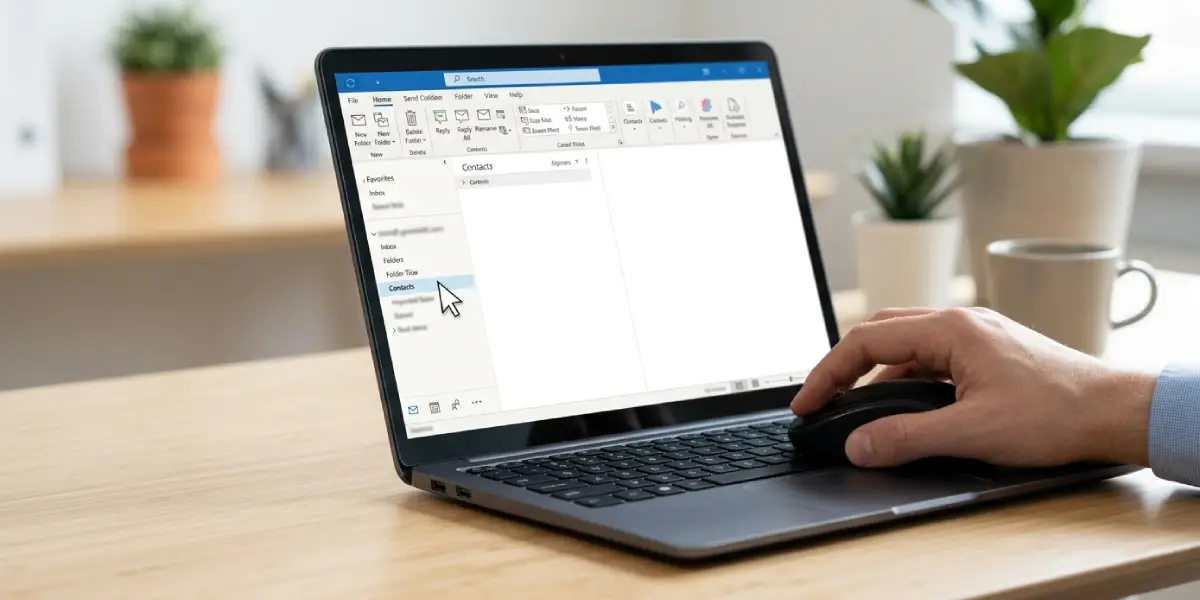
Tip: When the contact list is an update to people already stored in Outlook, Do not import duplicate items is the safest option. It keeps existing entries untouched.
Map Fields When Columns Do Not Match
This step matters when the spreadsheet uses custom headings such as Cell instead of Mobile Phone. Outlook offers a mapping screen before the import finishes.
- Step 1: On the last wizard screen, before clicking Finish, select Map Custom Fields.
- Step 2: Drag each column name from the left panel, labeled From, to the matching Outlook field in the right panel, labeled To.
- Step 3: Click OK, then click Finish to run the import.
Import a CSV File in New Outlook and Outlook on the Web
- Step 1: Open Outlook and select People from the left navigation bar.
- Step 2: Select Manage contacts in the toolbar, then choose Import contacts.
- Step 3: Click Browse and select the saved CSV file.
- Step 4: Click Import (or Upload, depending on the version) and wait for the confirmation.
- Step 5: Check the contact list to confirm the names and emails came through correctly.
Common Problems and Fixes
The Import Fails Because the File Is in Use
This usually happens when the CSV is still open in Excel. Close the file, return to Outlook, and run the import again.
Contacts Import with Blank Fields
Blank fields almost always mean the column headings do not match Outlook’s field names. Run the import again in classic Outlook and use Map Custom Fields to link each column to the correct field. The same fix works for a full name stored in a single column, which can be split into First Name and Last Name in the spreadsheet beforehand.
Special Characters Look Garbled
Accents and non-English letters turn into odd symbols when the file was saved in a basic CSV format. Re-save the spreadsheet as CSV UTF-8, then import it again.
Duplicate Contacts Appear After the Import
If the Allow duplicates to be created option was chosen, existing contacts are copied rather than skipped. Delete the extra entries, then repeat the import with Do not import duplicate items or Replace duplicates with items imported selected.
Contacts Land in the Wrong Folder
The destination folder is picked in the wizard. If contacts ended up somewhere unexpected, such as a secondary address book, run the import again and select the main Contacts folder on the destination screen.
Comma Separated Values Is Not Listed
The wizard only shows this option after Import from another program or file is selected. Go back one screen and confirm that choice, then Comma Separated Values appears in the list.
Frequently Asked Questions
Can Outlook import contacts from a CSV file directly?
Yes. Classic Outlook uses the Import and Export Wizard under File, Open and Export, while new Outlook and Outlook on the web use Manage contacts, then Import contacts, in the People section.
What columns should the CSV file include?
At minimum, include a header row with columns such as First Name, Last Name, and E-mail Address. Adding fields like Mobile Phone, Company, and Job Title is optional, and Outlook-style heading names import with the least effort.
How do I save an Excel list as a CSV file?
Open the workbook, choose File, then Save As, and select CSV from the file type list. CSV UTF-8 is a good choice when contacts have accented or non-English characters.
Can contacts be imported into Outlook without Excel?
Yes. Any spreadsheet app or text editor that can save a comma-separated file works, as long as the first row contains column headings and each contact sits on its own row.
Will importing a CSV file overwrite existing contacts?
Only if Replace duplicates with items imported is selected in classic Outlook. Choosing Do not import duplicate items leaves existing contacts as they are.
Where do imported contacts appear in Outlook?
Imported contacts appear in the People section, inside the Contacts folder selected during the import.
Why are some fields empty after importing a CSV file?
Empty fields usually mean the CSV column names did not match Outlook’s field names. Use Map Custom Fields in classic Outlook to connect each column to the right field, then import again.
Is there a limit to how many contacts a CSV import can handle?
Outlook handles lists of hundreds or thousands of contacts without trouble in most cases. For very large lists, splitting the file into smaller CSV files makes the import easier to verify.
Can a CSV import be undone?
There is no one-click undo for an import. The simplest cleanup is to select the unwanted contacts in People and delete them, which is easier when the import went into a separate contacts folder.
