
To set up server-side rules in Outlook the right way, the rule has to be built so it runs on the mail server instead of on one computer. That means it keeps sorting mail while Outlook is closed and the laptop is off. This guide walks through the exact clicks, plus the one mistake that quietly turns a server-side rule into a client-only one.
Key Takeaways
- Server-side rules need a Microsoft 365, Exchange, or Outlook.com mailbox. IMAP and POP accounts cannot run them.
- Rules are created in File > Manage Rules & Alerts > New Rule in Outlook for Windows.
- Any client-only action, such as playing a sound or moving mail to a .pst file, makes the whole rule client-only.
- A rule labeled ‘(client only)’ in the rules list will not run when Outlook is closed.
- Rules built in Outlook on the web are always server-side.
How to Set Up Server-Side Rules in Outlook the Right Way
The steps below use Outlook for Windows (classic). The scenario: all messages from a specific sender should land in a dedicated folder automatically, even overnight. Create that folder inside the mailbox first.
Create the Rule in Outlook for Windows
- Step 1: Confirm the account type. Server-side rules only work on mailboxes hosted on Microsoft 365, Exchange, or Outlook.com. A Gmail or other IMAP account added to Outlook will only get client-only rules.
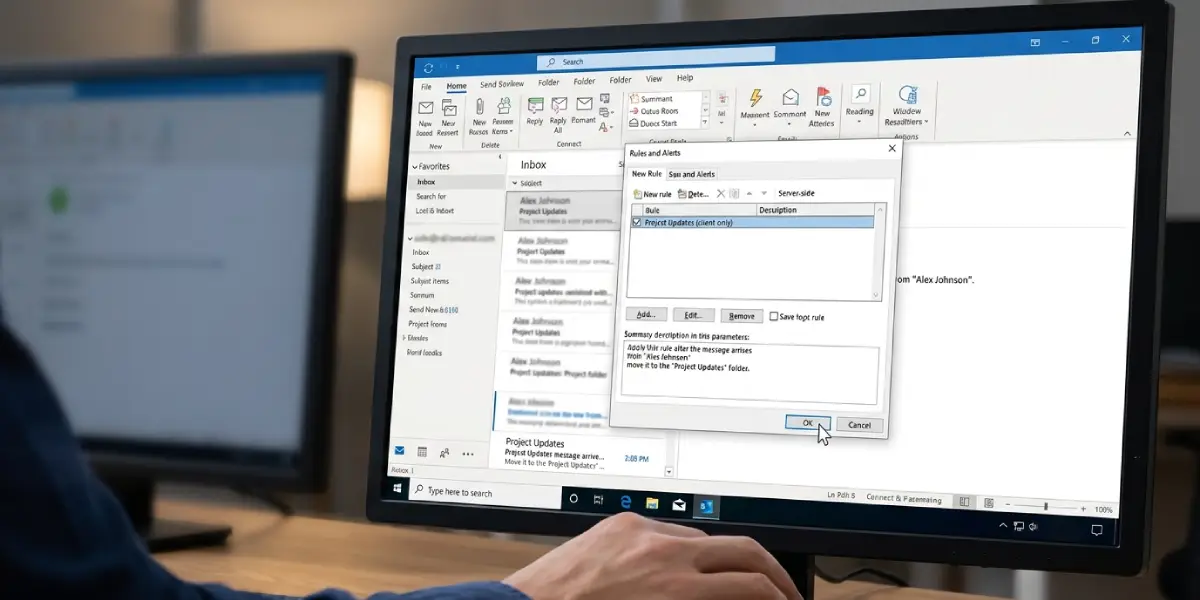
- Step 2: In Outlook, select File, then Manage Rules & Alerts. The Rules and Alerts window opens on the E-mail Rules tab.
- Step 3: If more than one account is added, open the ‘Apply changes to this folder’ drop-down and pick the Inbox of the Exchange or Microsoft 365 mailbox. A rule created under the wrong account will not behave as expected.
- Step 4: Select New Rule. Under ‘Start from a blank rule’, choose ‘Apply rule on messages I receive’, then select Next.
- Step 5: Tick a condition such as ‘from people or public group’. In the description box at the bottom, select the underlined text, choose the sender, and select Next.
- Step 6: Tick the action ‘move it to the specified folder’. Select the underlined word ‘specified’, then pick a folder that lives inside the same mailbox. This is the step where most rules go wrong, because a folder in a .pst data file makes the rule client-only. Select Next.
- Step 7: Add any exceptions, for example ‘except if it is flagged with importance’. Skip this screen if no exceptions are needed, then select Next.
- Step 8: Give the rule a clear name, make sure ‘Turn on this rule’ is ticked, review the summary, and select Finish.
- Step 9: Back in the Rules and Alerts window, look at the rule name in the list. If ‘(client only)’ appears next to it, return to the rule and remove the action that caused it. Select OK to save.
Tip: To apply a new rule to mail that is already sitting in the Inbox, open Manage Rules & Alerts, select Run Rules Now, tick the rule, and choose the folder. Server-side rules otherwise only act on new incoming messages.
Create the Rule in Outlook on the Web
Rules built in a browser run on the server by default, which makes this the simplest route.
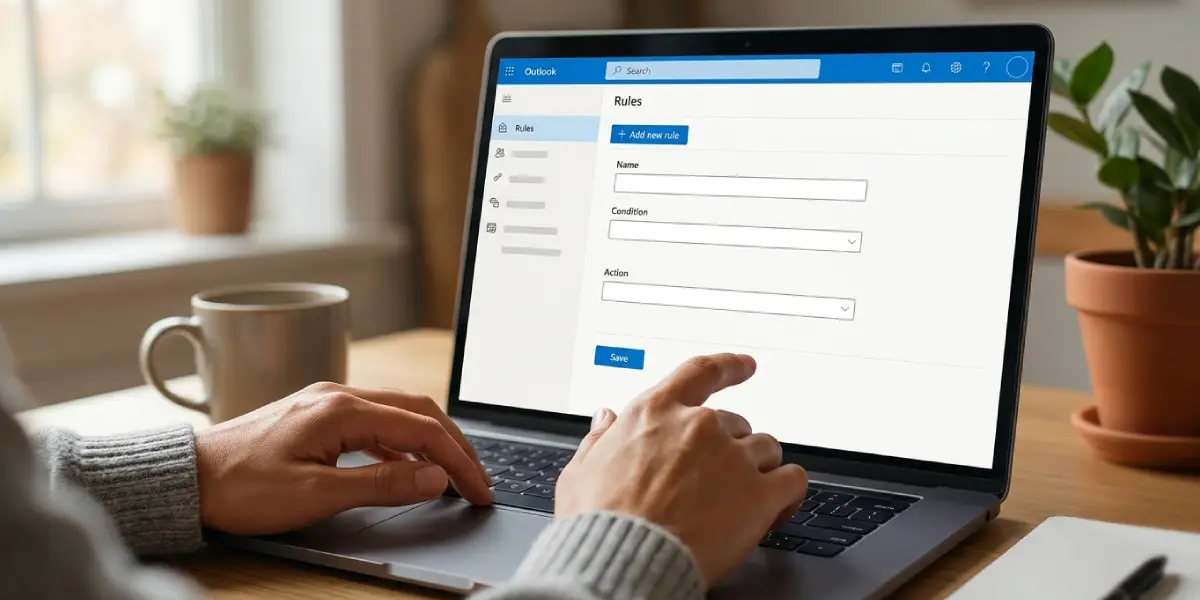
- Step 1: Sign in to Outlook on the web and select the Settings gear icon.
- Step 2: Choose Mail, then Rules.
- Step 3: Select Add new rule and enter a name.
- Step 4: Pick the condition and the action, such as Move to, then select Save.
Check That the Rule Really Runs on the Server
A quick test removes any doubt. Close Outlook completely, send a test message to the mailbox from the matching sender, then open Outlook on the web or the phone app. If the message is already in the target folder, the rule is running server-side.
Tip: Server-side rules run before client-only rules. If both types exist, keep the important sorting rules server-side and place any client-only extras, such as a sound alert, in a separate rule.
Common Problems and Fixes
The Rule Shows ‘(client only)’
One or more actions or conditions only work on a desktop client. Common culprits are playing a sound, displaying a New Item Alert window, printing, starting an application, and moving or copying mail to a .pst file. Edit the rule, remove that action, and put it in its own rule if it is still needed.
The Rule Does Not Run When Outlook Is Closed
This almost always means the rule is client-only or the account is IMAP or POP. Check for the ‘(client only)’ label and confirm the mailbox is hosted on Exchange, Microsoft 365, or Outlook.com.
Outlook Warns That Rules Exceed the Size Limit
Server-side rules share a storage quota on the mailbox, which is 256 KB by default in Microsoft 365. Long lists of senders or many separate rules use it up fast. Merge rules that do the same thing, shorten long sender lists, and delete rules that are no longer needed.
Older Messages Were Not Moved
Rules only handle mail that arrives after they are turned on. Use Run Rules Now in the Rules and Alerts window to apply the rule to existing messages.
Mail Goes to the Wrong Folder
Two rules may match the same message. Rules run from the top of the list down, so use the Move Up and Move Down buttons to fix the order, and tick ‘Stop processing more rules’ on the rule that should win.
Frequently Asked Questions
Do server-side rules run when Outlook is closed?
Yes. A server-side rule is stored and processed on the mail server, so it sorts incoming mail even when Outlook is closed and the computer is off.
How can a rule be checked to see if it is server-side?
Open File, then Manage Rules & Alerts, and look at the rule name. If ‘(client only)’ appears beside it, the rule runs only while Outlook is open. Rules without that label run on the server.
Which email accounts support server-side rules?
Mailboxes hosted on Microsoft 365, Exchange, and Outlook.com support them. IMAP and POP accounts do not, so rules for those accounts always run on the desktop client.
Which actions turn a rule into a client-only rule?
Playing a sound, showing a New Item Alert window or desktop alert, printing, starting an application, and moving or copying messages to a folder in a .pst file all make the rule client-only.
Can a server-side rule move mail to a PST file?
No. A .pst file is stored on the local computer, which the server cannot reach, so any rule that targets one runs only when Outlook is open.
Do server-side rules apply to messages already in the Inbox?
Not automatically. Rules act on new incoming mail. To process existing messages, select Run Rules Now in the Rules and Alerts window and choose the rule and folder.
Are rules created in Outlook on the web server-side?
Yes. Rules created in Outlook on the web are always processed on the server, so they never carry a client-only label.
Does the order of rules matter?
Yes. Rules run from the top of the list to the bottom, and server-side rules run before client-only rules. Use Move Up and Move Down to set the order, and use ‘Stop processing more rules’ when only one rule should act on a message.
Is there a limit to how many server-side rules a mailbox can have?
The limit is based on size, not a fixed count. Microsoft 365 mailboxes have a rules quota of 256 KB by default, so a mailbox with many long or complex rules can reach it quickly.
