
Knowing how to fix Windows not shutting down properly can save a lot of frustration, especially when the screen goes dark but the fans keep spinning, or the PC hangs on ‘Shutting down’ forever. The cause is usually a stuck app, a driver, a pending update, or the Fast Startup feature. The fixes below move from the quickest checks to the deeper repairs.
Key Takeaways
- Most shutdown problems come from Fast Startup, stuck updates, misbehaving drivers, or an app that refuses to close.
- Turning off Fast Startup fixes a large share of cases and takes under a minute.
- Event Viewer and a clean boot reveal which app or service is blocking shutdown.
- SFC and DISM repair damaged system files that can interrupt the shutdown process.
- Holding the power button should be a last resort, not a daily habit.
Common Causes of Windows Not Shutting Down Properly
Shutting down looks simple, but Windows has to close every app, stop every service, and tell every driver to power down. If any one of them stalls, the whole process stalls. Most cases trace back to one of these:
- Fast Startup: This feature saves part of the system state to disk so the next boot is quicker. It means ‘Shut down’ is not a true shutdown, and it can leave the PC in a half-off state.
- Pending or stuck Windows updates: An update that is mid-install can hold the shutdown for a long time or leave the machine hanging.
- Apps and background services that will not close: A frozen program or a background service waiting on a network or disk response can block the process.
- Outdated or faulty drivers: Chipset, graphics, storage, and network drivers are the usual suspects.
- Connected peripherals: A misbehaving USB device, external drive, or dock can stop Windows from finishing.
- Corrupted system files: Damaged Windows files can break the shutdown sequence.
- Power settings and firmware: Odd power plan settings or an old BIOS/UEFI version can cause a PC to stay on after shutdown.
Step-by-Step Fixes for Windows Not Shutting Down Properly
Before running system commands, save open work and back up important files. Test the PC after each step, because the problem often disappears early and the later steps are not needed.
Quick Fixes First
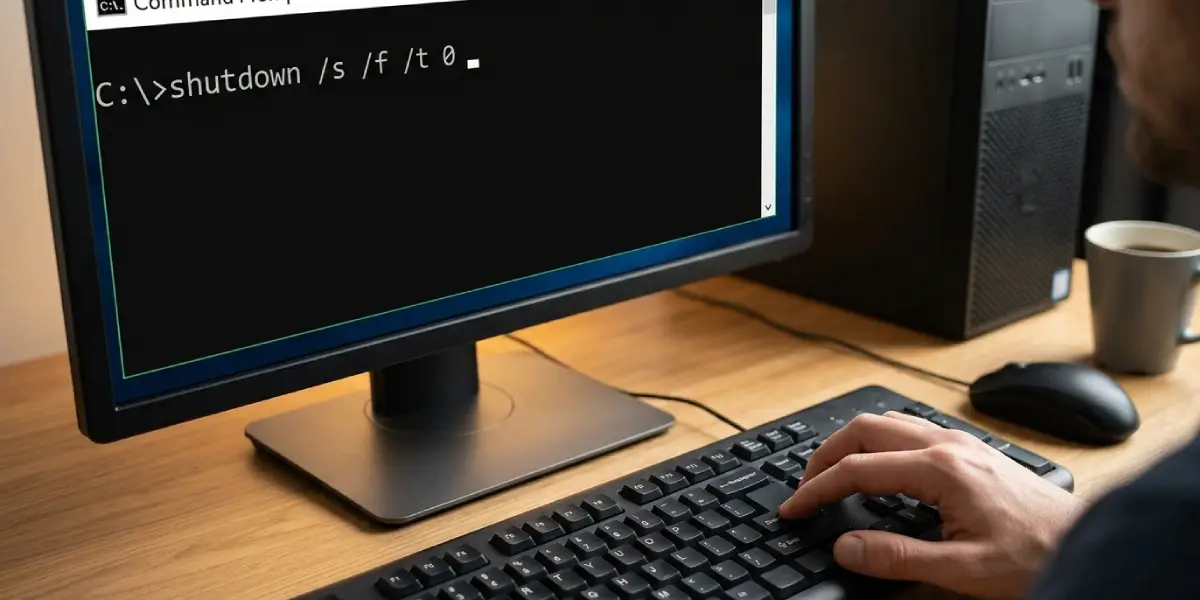
- Step 1: Force a full shutdown to confirm the problem. Open Command Prompt, type shutdown /s /f /t 0 and press Enter. The /f switch forces open apps to close. If the PC powers off cleanly this way but not through the Start menu, Fast Startup or an app that refuses to close is the likely culprit.
- Step 2: Turn off Fast Startup. Open Control Panel, go to Power Options, click ‘Choose what the power buttons do’, then click ‘Change settings that are currently unavailable’. Untick ‘Turn on fast startup (recommended)’ and click ‘Save changes’. Restart once, then try shutting down again.
- Step 3: Let Windows finish its updates. Open Settings, go to Windows Update, and install anything pending. Restart when prompted and keep the PC plugged in during the process. Interrupting an update is a common way to create shutdown trouble in the first place.
- Step 4: Unplug every non-essential peripheral. Remove USB drives, printers, docks, webcams, and card readers, leaving only the keyboard and mouse. Try shutting down. If it works, plug devices back in one at a time to find the one causing the delay.
Tip: A PC that shuts down fine after a restart but not after a normal boot is a classic Fast Startup symptom. Choosing ‘Restart’ performs a full reload of the system, while ‘Shut down’ with Fast Startup enabled does not.
Find the App or Service Blocking Shutdown
- Step 5: Look for the blocker in Event Viewer. Press the Windows key, type Event Viewer and open it. Go to Windows Logs, then System, and look for warnings or errors near the time of the failed shutdown. Event ID 1074 records which process started a shutdown, and entries from Kernel-Power can point to improper power-off events.
- Step 6: Watch for the ‘This app is preventing shutdown’ screen. If Windows names a program, close it manually before shutting down, then update it or reinstall it. Programs such as backup tools, cloud sync clients, and older utilities are frequent offenders.
- Step 7: Run a clean boot to isolate software conflicts. Press Windows key + R, type msconfig and press Enter. On the Services tab, tick ‘Hide all Microsoft services’, then click ‘Disable all’. Open Task Manager, go to the Startup apps tab, and disable the startup items. Restart and test shutdown. If the problem is gone, re-enable services in small groups until it returns, which identifies the culprit. Return Windows to normal startup afterward.
Update Drivers and Firmware
- Step 8: Update key drivers. The chipset, graphics, storage controller, and network drivers matter most. The most reliable source is the PC or laptop manufacturer’s support page for the exact model, followed by the chip maker for graphics drivers. Optional driver updates in Windows Update can also help. Avoid random driver-updater programs, since they often install the wrong versions.
- Step 9: Check the BIOS/UEFI version. Manufacturers sometimes release firmware updates that fix power-management and shutdown bugs. Follow the maker’s instructions exactly and keep the device plugged in throughout. A failed firmware update can leave a device unable to start, so this step is best left to a professional if there is any doubt.
Repair Windows Itself
- Step 10: Run the Windows Power troubleshooter. Open Settings, go to System, then Troubleshoot, then Other troubleshooters, and run the Power troubleshooter. It resets some problematic power behavior automatically.
- Step 11: Repair system files with SFC. Open Command Prompt as administrator, type sfc /scannow and press Enter. Let the scan complete without interrupting it, then restart.
- Step 12: Repair the Windows image with DISM. In the same administrator Command Prompt, run DISM /Online /Cleanup-Image /RestoreHealth and wait until it finishes. Then run sfc /scannow again and restart.
- Step 13: Restore the default power plans. In an administrator Command Prompt, run powercfg /restoredefaultschemes. This clears customized power settings that may interfere with shutdown. Any custom plans will need to be set up again.
- Step 14: Use ‘Reset this PC’ as a last software option. Open Settings, go to System, then Recovery, and choose ‘Reset this PC’. The ‘Keep my files’ option preserves personal files but removes installed apps. Back up everything important first.
Tip: If shutdown problems appeared right after installing a specific app, driver, or update, uninstalling that item is faster than any broader repair. System Restore can also roll Windows back to a point before the trouble began, if a restore point exists.
Common Problems and Fixes
The PC Still Hangs on ‘Shutting down’ After Disabling Fast Startup
Move on to the clean boot and driver updates. At that point, a service, startup app, or driver is the more likely blocker than the Fast Startup feature.
The Screen Turns Off but the Fans and Lights Stay On
This points to a driver or firmware issue, often involving the chipset or the BIOS/UEFI power handling. Update the chipset driver and the firmware, and disconnect external devices to test.
The PC Shuts Down Fine Unless an Update Is Pending
Let the update complete fully while plugged in. If the update keeps failing, run the Windows Update troubleshooter from Settings, then repeat the SFC and DISM steps.
The PC Restarts Instead of Shutting Down
Check that automatic restart on system failure is not triggering. Open System Properties, go to the Advanced tab, click Settings under ‘Startup and Recovery’, and untick ‘Automatically restart’. A blue screen error may then show on screen and reveal the real cause.
Shutdown Takes Several Minutes Every Time
A slow shutdown often means a drive is struggling or a service is timing out. Check the drive’s health with the manufacturer’s tool or a reliable disk health utility, and back up data promptly if warnings appear. A failing drive is a hardware problem, and a technician should handle any replacement.
Only a Long Press of the Power Button Turns the PC Off
Treat this as a temporary workaround. Forced power-offs risk file corruption, so work through the fixes above, and have the machine inspected if the issue returns after a clean Windows reset.
Frequently Asked Questions
Why is my computer not shutting down properly?
The most common reasons are Fast Startup, a pending Windows update, an app or service that will not close, an outdated driver, or a connected USB device causing a hang.
Is it safe to hold the power button to force a shutdown?
It works in an emergency, but it can corrupt files and interrupt writes to the drive. Use it only when the system is completely frozen, then find the underlying cause.
Does disabling Fast Startup harm the computer?
No. The only effect is a slightly slower boot, especially on older drives. On a modern SSD, the difference is usually small.
How do I find which app is stopping Windows from shutting down?
Watch for the ‘This app is preventing shutdown’ message, check Event Viewer under Windows Logs and System, or run a clean boot to narrow down the startup app or service responsible.
Can a Windows update cause shutdown problems?
Yes. An update that is still installing, or one that failed partway, can delay or block shutdown. Let updates finish while the PC is plugged in, and troubleshoot Windows Update if they keep failing.
Can outdated drivers stop Windows from shutting down?
Yes. Chipset, graphics, storage, and network drivers can hang during the power-down sequence. Downloading current versions from the PC manufacturer’s support page is the safest route.
What does the shutdown /s /f /t 0 command do?
It tells Windows to shut down right away and force running applications to close. It is a quick test to see whether an app is the cause of the problem.
Should the BIOS be updated to fix shutdown problems?
Only if the manufacturer lists a fix for power or shutdown behavior, or if other steps have failed. Firmware updates carry some risk, so follow the maker’s instructions closely and keep the device plugged in.
When does a shutdown problem point to failing hardware?
If the problem continues after a clean Windows reset, or comes with disk errors, random crashes, or very slow performance, a failing drive or power component is possible. A technician can run hardware diagnostics to confirm.
