
Knowing how to fix Task Manager not opening matters most when an app freezes and the one tool built to close it refuses to appear. The cause is usually a disabled policy, damaged system files, or malware interfering with Windows. Each of these can be checked and repaired in a few minutes.
Key Takeaways
- Try every method of opening Task Manager first, because a broken shortcut is sometimes the only problem.
- The message ‘Task Manager has been disabled by your administrator’ points to a Group Policy or registry setting, often left behind by malware.
- Running DISM and then SFC repairs the corrupted system files that commonly cause Task Manager to crash or fail to launch.
- A malware scan should come before any registry edits, so the setting is not switched off again.
- If nothing works, a new user account, System Restore, or an in-place repair upgrade solves the stubborn cases.
Common Causes of Task Manager Not Opening
Task Manager rarely fails for no reason. Most cases trace back to one of a handful of triggers, and spotting the likely one saves time.
- Disabled by policy: A Group Policy or registry value called DisableTaskMgr can block the tool completely. Some security software and some malware set it deliberately.
- Malware or unwanted software: Certain threats disable Task Manager so that their processes cannot be found and ended.
- Corrupted system files: A failed update, sudden shutdown, or damaged drive sector can break the files Task Manager depends on.
- Damaged user profile: Task Manager may fail for one account while working perfectly for another.
- Conflicting third-party software: Some system utilities and shell customization tools interfere with how Windows launches core apps.
- Pending or broken Windows updates: An update stuck halfway can leave components in a mismatched state.
How to Fix Task Manager Not Opening
Work through the steps in order. They run from the quickest and safest checks to the deeper repairs, so there is no need to skip ahead unless a step clearly does not apply.
- Step 1: Try every way of opening it. Press Ctrl + Shift + Esc, then try Ctrl + Alt + Del and choose Task Manager. Right-click the taskbar and choose Task Manager, or press Windows + X and pick it from the menu. Finally, press Windows + R, type ‘taskmgr’, and press Enter. If one method works, the others may simply have a broken shortcut.
- Step 2: Restart and install updates. A full restart clears temporary glitches. Then open Settings, go to Windows Update, and install anything pending. Task Manager problems tied to a half-finished update often disappear after the restart that completes it.
- Step 3: Scan for malware. Open Windows Security, choose Virus and threat protection, then Scan options, and run a Full scan. For a deeper check, choose Microsoft Defender Offline scan, which restarts the PC and scans outside of Windows. Do this before changing any policy, because a leftover threat can simply disable Task Manager again.
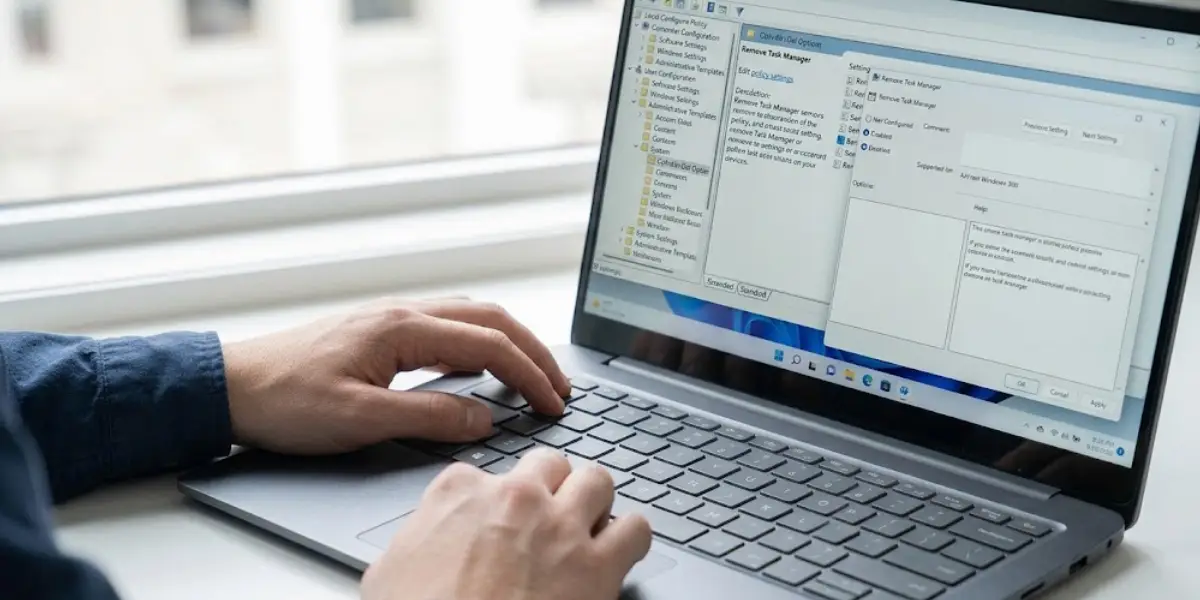
- Step 4: Check Group Policy (Pro, Enterprise, and Education editions). Press Windows + R, type ‘gpedit.msc’, and press Enter. Go to User Configuration, then Administrative Templates, then System, then Ctrl+Alt+Del Options. Open the policy named Remove Task Manager and set it to Not Configured or Disabled. Click Apply, then OK, and restart the PC.
- Step 5: Check the registry (needed on Windows Home, where Group Policy Editor is missing). Press Windows + R, type ‘regedit’, and press Enter. Back up the registry first by choosing File, then Export. Browse to HKEY_CURRENT_USER\Software\Microsoft\Windows\CurrentVersion\Policies\System. If a value named DisableTaskMgr exists, set it to 0 or delete it. Repeat the check at the same path under HKEY_LOCAL_MACHINE, then restart.
- Step 6: Repair system files with DISM and SFC. Open Command Prompt or Terminal as administrator. Run ‘DISM /Online /Cleanup-Image /RestoreHealth’ and let it finish, which can take several minutes. Then run ‘sfc /scannow’. DISM repairs the component store first, which gives SFC healthy source files to restore from.
- Step 7: Test with a new user account. Create a new local administrator account in Settings, sign in to it, and try Task Manager. If it opens there, the original user profile is damaged. Moving files and settings to the new account is usually faster than repairing the old profile.
- Step 8: Try a clean boot. Press Windows + R, type ‘msconfig’, open the Services tab, tick Hide all Microsoft services, and click Disable all. Then disable startup items from the Startup tab in Task Manager’s replacement, Settings, under Apps and Startup, and restart. If Task Manager opens, re-enable items in small groups to find the culprit.
- Step 9: Use System Restore. Search for Create a restore point, click System Restore, and choose a restore point from before the problem began. This undoes recent system changes without touching personal files.
- Step 10: Run an in-place repair upgrade. If every earlier step fails, download the Windows installation media from Microsoft and run Setup from inside Windows, choosing to keep personal files and apps. This reinstalls the operating system files while leaving data in place.
Tip: Back up important files before Step 9 or Step 10. Both are safe in most cases, but a backup costs nothing and removes any worry.
Handy Workarounds While Task Manager Is Down
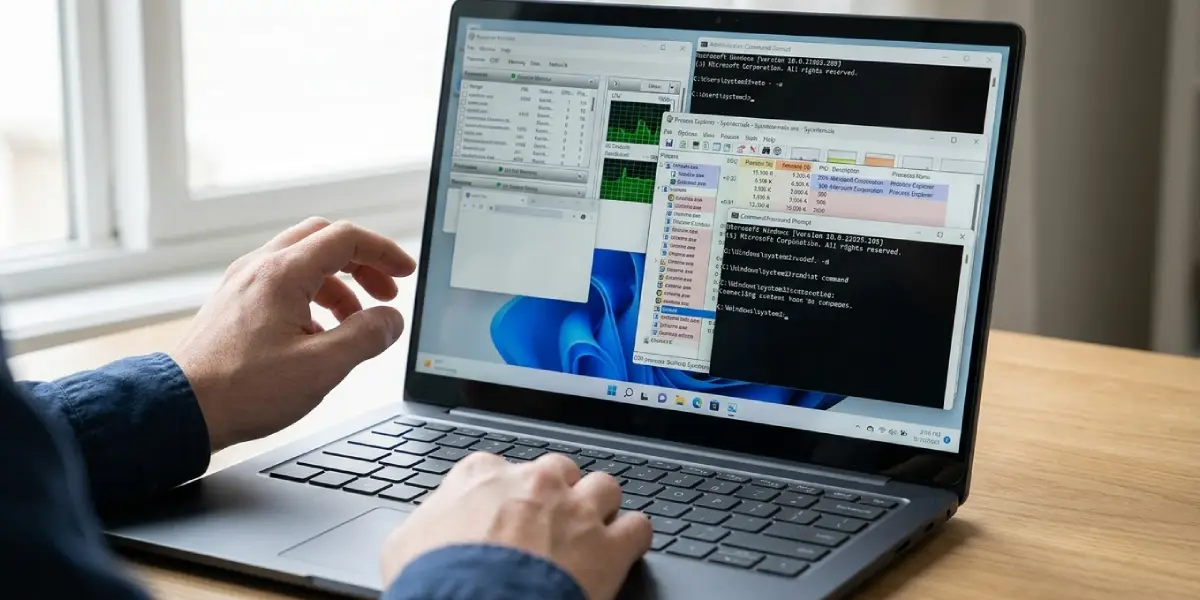
When a frozen program needs to be closed right now, other built-in tools can step in. Resource Monitor opens with ‘resmon’ from the Run box and can end processes. The command ‘taskkill /f /im programname.exe’ in an administrator Command Prompt ends a stubborn program by name. Microsoft’s free Process Explorer from Sysinternals is a well-regarded alternative that gives more detail than Task Manager itself.
Common Problems and Fixes
Message Says Task Manager Has Been Disabled by Your Administrator
This message means the DisableTaskMgr policy is active. Clear it through Group Policy (Step 4) or the registry (Step 5). If it returns after a restart, malware or a management tool is re-applying it, so run the Microsoft Defender Offline scan and check whether a work or school account manages the PC.
Task Manager Flashes and Closes Immediately
A quick open-and-close usually signals corrupted system files or a conflicting program. Run DISM and SFC first, then try a clean boot to rule out third-party software.
Task Manager Opens but Is Blank or Unresponsive
An empty window often points to a damaged user profile or a display driver glitch. Test with a new user account. If it works there, the profile is the problem. If it fails everywhere, update the graphics driver through Windows Update or the manufacturer’s website and repeat the system file repair.
Ctrl + Alt + Del Shows Task Manager Greyed Out
A greyed-out option is the same policy block described above. Check both the Group Policy setting and the registry value, including the HKEY_LOCAL_MACHINE location, then restart.
Group Policy Editor Will Not Open
Windows Home does not include gpedit.msc. Skip to the registry method in Step 5, which achieves the same result.
SFC Reports It Could Not Fix Some Files
Run the DISM command again, confirm it completes without errors, and then rerun ‘sfc /scannow’. If the result is the same, move on to System Restore or an in-place repair upgrade.
Tip: After any fix, test Task Manager using two different methods, such as the keyboard shortcut and the taskbar right-click. This confirms the repair is complete and not just a lucky single launch.
Frequently Asked Questions
Why is Task Manager not opening on Windows?
The most common reasons are a disabled Group Policy or registry setting, malware, corrupted system files, a damaged user profile, or a conflict with third-party software. Checking the exact behavior, such as an error message or an instant close, helps narrow down which one applies.
What does Task Manager has been disabled by your administrator mean?
It means the DisableTaskMgr policy is turned on for the account. On a personal PC, this is often caused by malware or a leftover security tool setting. It can be reversed through Group Policy or the registry.
How do I open Task Manager if Ctrl + Shift + Esc does not work?
Try Ctrl + Alt + Del and select Task Manager, right-click the taskbar, press Windows + X, or type taskmgr into the Run box. If none of these work, the problem is with Task Manager itself and not just the shortcut.
Can malware stop Task Manager from opening?
Yes. Some malware disables Task Manager so that its own processes are harder to find and end. Running a full Microsoft Defender scan and an offline scan is an important step before changing any settings.
How do I enable Task Manager through the registry?
Open Registry Editor, browse to the Policies System key under the current user, and either set the DisableTaskMgr value to 0 or delete it. Back up the registry first and restart afterward. The same value should also be checked under the local machine key.
Will running SFC and DISM delete my files?
No. Both tools only repair Windows system files and the component store. Personal files, installed programs, and settings are not removed.
Is it safe to use a Task Manager alternative?
Yes, as long as the tool comes from a trusted source. Resource Monitor is built into Windows, and Process Explorer is a free utility published by Microsoft through Sysinternals. Both can end processes while Task Manager is being repaired.
Do I need to reinstall Windows if Task Manager still will not open?
Usually not. A new user account, System Restore, or an in-place repair upgrade fixes most stubborn cases while keeping files and apps. A full reset or clean install is only a last resort.
