
Knowing what triggers Outlook error 0x800CCCDD is the fastest way to get mail flowing again. The error appears during send/receive, most often on IMAP accounts, when the server rejects or drops a command Outlook sends. This guide walks through each common trigger in order, so the cause can be found and cleared without guesswork.
Key Takeaways
- The error usually points to a server response Outlook cannot accept, so the message text in the error box is the best clue.
- Incorrect IMAP server, port, or encryption settings are a leading trigger.
- Antivirus or firewall email scanning, too many simultaneous connections, and a bad root folder path can each set it off.
- A damaged Outlook profile is the last trigger to check, and a new profile clears it.
Step-by-Step Guide to Find What Triggers Outlook Error 0x800CCCDD
Check the Exact Error Message First
- Step 1: Click Send/Receive All Folders, then read the full text in the error box. Note the wording after the code, such as ‘The server responded’ followed by a short phrase, or a message saying the IMAP server closed the connection.
- Step 2: Sign in to the mailbox through its webmail page. If webmail loads normally, the account itself is healthy and the problem sits in Outlook, the connection, or security software. If webmail fails too, the issue is on the provider side, and a password reset or provider support is the next move.
Tip: Take a screenshot of the error before closing it. The server wording often separates a connection-limit problem from a settings problem in seconds.
Verify the IMAP Account Settings
- Step 3: In Outlook, select File, then Account Settings, then Account Settings again.
- Step 4: Select the affected email account and click Change.
- Step 5: Confirm the incoming mail server name matches what the email provider publishes, and that the user name is the full email address if the provider requires it.
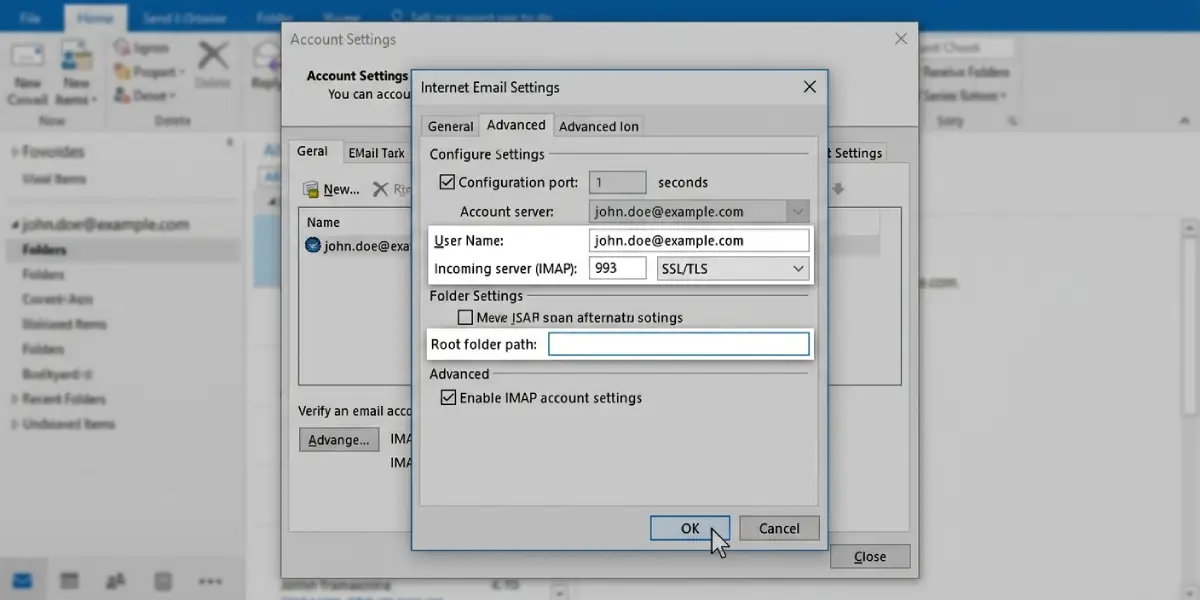
- Step 6: Click More Settings, open the Advanced tab, and check the incoming server port and encryption. IMAP normally uses port 993 with SSL/TLS, or port 143 with STARTTLS where the provider supports it.
- Step 7: Clear the Root folder path box on the Advanced tab if it holds a value the provider did not ask for. A wrong path makes the server answer folder commands with a rejection, which is a classic trigger.
- Step 8: Click OK, then Next, then Finish, and run Send/Receive again.
Rule Out Security Software and Connection Limits
- Step 9: Temporarily turn off the email scanning or mail shield feature in the antivirus program, not the entire protection suite. Run Send/Receive again. If the error disappears, add Outlook as an allowed application in the antivirus and firewall instead of leaving scanning off.
- Step 10: Close Outlook on other computers, and quit mail apps on phones and tablets that use the same mailbox. Many IMAP providers cap simultaneous connections, and exceeding the cap makes the server close the session. Wait a few minutes, then reopen Outlook on this computer only.
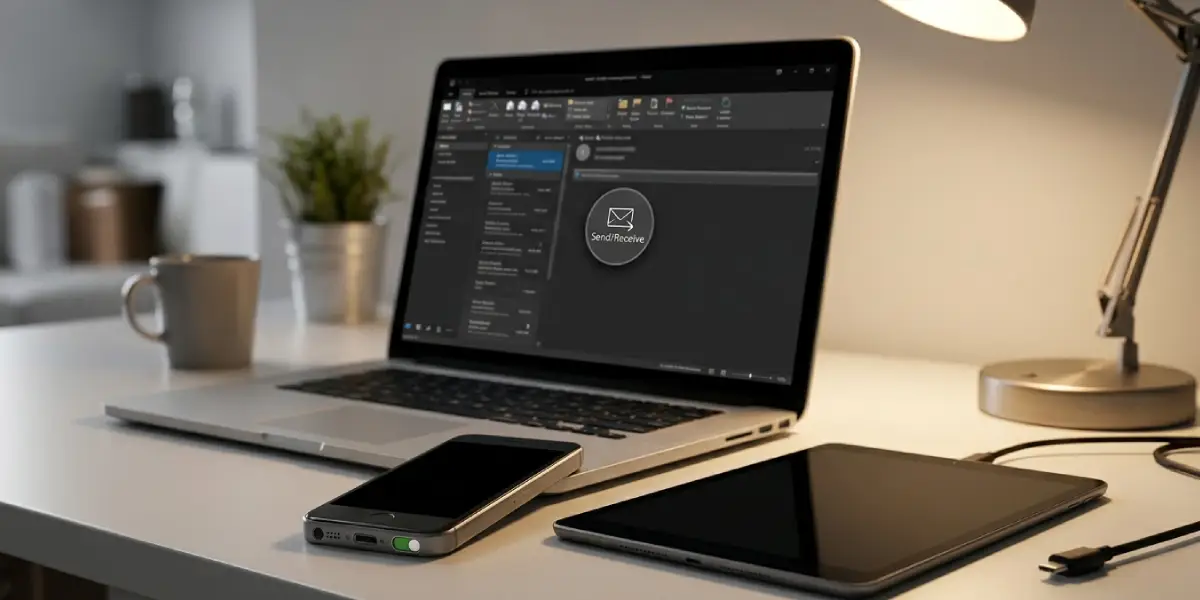
Tip: A mailbox shared across a phone, a tablet, and two laptops is the most common reason for the connection-limit trigger. Disconnect the devices one by one and the culprit usually shows itself.
Test in Safe Mode and Update Outlook
- Step 11: Press the Windows key plus R, type outlook /safe, and press Enter. Safe mode starts Outlook without add-ins. If Send/Receive works there, a faulty add-in is the trigger, and it can be removed under File, Options, Add-ins, Manage COM Add-ins, Go.
- Step 12: Select File, then Office Account, then Update Options, then Update Now. An outdated build can mishandle server responses that current versions accept.
Create a New Outlook Profile
- Step 13: Close Outlook, open Control Panel, and choose Mail (Microsoft Outlook).
- Step 14: Click Show Profiles, then Add, and give the new profile a name.
- Step 15: Add the email account with its IMAP details, then select ‘Always use this profile’ with the new profile chosen.
- Step 16: Open Outlook and let the mailbox sync. If the error is gone, a damaged profile was the trigger, and the old profile can be removed once everything is confirmed.
Common Problems and Fixes
The Error Returns After a Few Minutes
This pattern points to a connection limit or an unstable network. Close mail on other devices, then check that the Wi-Fi or cable connection is steady. Switching to a wired connection for a test often settles the question.
Only One Folder Triggers the Error
A folder with a very large number of items or an unusual character in its name can make the server reject the request. Open the mailbox in webmail, archive or move older items out of that folder, and rename it with plain letters and numbers.
Settings Look Correct but the Error Persists
Remove the account from Outlook and add it again. A fresh setup rewrites the server details cleanly and discards any stale cached values. If the problem survives that step, the new profile in the last section is the next fix.
The Antivirus Cannot Be Configured
Some security suites keep email scanning locked to a certain mode. Switching the scan from encrypted connection scanning to off for email, then testing, confirms whether it is the cause. A product update or the vendor support page will have the exact toggle name.
Frequently Asked Questions
What does Outlook error 0x800CCCDD mean?
It is a send/receive error that most often shows up with IMAP accounts. It means the mail server answered Outlook in a way Outlook could not accept, or the server closed the connection during the session.
What is the most common trigger of error 0x800CCCDD?
Incorrect IMAP settings, such as the wrong server name, port, or encryption method, are among the most frequent triggers. A wrong root folder path comes a close second.
Can antivirus software cause Outlook error 0x800CCCDD?
Yes. Email scanning features can interrupt the connection between Outlook and the mail server. Allowing Outlook in the antivirus and firewall settings usually resolves it without leaving scanning off.
Can too many connected devices trigger the error?
Yes. Many IMAP providers limit how many sessions can be open at once. When a phone, a tablet, and several computers all use the same mailbox, the server can close connections and Outlook reports the error.
Which IMAP port should be used in Outlook?
Port 993 with SSL/TLS is the standard choice for IMAP. Port 143 with STARTTLS works where the provider supports it. The email provider publishes the correct values for the account.
Does a corrupted Outlook profile trigger error 0x800CCCDD?
It can. When settings and server checks come up clean, creating a new Outlook profile and adding the account again removes any hidden profile damage.
Will deleting and re-adding the account lose emails?
For an IMAP account, the messages live on the mail server, so they download again after the account is added back. Anything stored only in a local data file, such as a separate PST archive, should be backed up first.
