
Knowing how to fix keyboard lag or input delay can save a lot of frustration, especially when letters show up late, keys repeat on their own, or typing feels like it is happening through syrup. The cause is usually a setting, a wireless connection problem, a driver, or a system that is too busy to keep up, and only occasionally a failing keyboard. This guide works through the causes and fixes in a sensible order, starting with the quickest checks.
Key Takeaways
- Most keyboard lag comes from software or connection problems, not broken hardware.
- Accessibility features such as Filter Keys and Slow Keys can mimic input delay and are quick to rule out.
- Wireless keyboards lag mainly because of weak batteries, interference, or a poor receiver position.
- Test the keyboard on another computer to find out whether the keyboard or the system is at fault.
Common Causes of Keyboard Lag and Input Delay
Narrowing down the cause first makes the fixes below much faster to apply. Most cases trace back to one of the following.
- Accessibility settings: Filter Keys, Sticky Keys, Slow Keys, or Bounce Keys can delay or ignore keystrokes on purpose.
- Weak batteries or low charge: Wireless keyboards often become sluggish and drop keystrokes before they stop working completely.
- Wireless interference: Wi-Fi routers, USB 3.0 ports, and other Bluetooth or 2.4 GHz devices can disrupt the signal between keyboard and receiver.
- Outdated or corrupted drivers: The keyboard driver or the USB and Bluetooth drivers underneath it may be misbehaving.
- High system load: A CPU, memory, or disk running at its limit can make the whole system, including typing, feel delayed.
- Power-saving features: USB selective suspend, battery saver modes, and aggressive power plans can put the keyboard connection to sleep.
- Dirt and debris: Dust, crumbs, or sticky residue under keys can cause missed or repeated presses.
- Background software: Remote desktop tools, overlays, macro software, or malware can interfere with input.
Before You Start
Most of the fixes below are software changes, so no tools are needed. Cleaning the keyboard is the only physical task. For that, power off the computer, unplug a wired keyboard, and remove the batteries from a wireless one. Touch a bare metal part of the computer case to discharge static before handling the keyboard.
Useful materials include a can of compressed air, a soft brush, a lint-free or microfiber cloth, and isopropyl alcohol at 90 percent or higher. Never pour liquid onto a keyboard, and never use water. Prying off keycaps or opening a laptop to reach the keyboard can affect the warranty, and a built-in laptop keyboard that stays faulty after all these steps is best left to a professional technician.
How to Fix Keyboard Lag or Input Delay Step by Step
Work through these in order. Each step either solves the problem or rules out a cause, so the list gets more specific as it goes.
- Step 1: Restart the computer. A full restart clears stuck processes and driver hiccups that cause temporary lag. On Windows, choose Restart rather than Shut Down, because Fast Startup can carry a problem over from the previous session.
- Step 2: Test the keyboard somewhere else. Plug the keyboard into another computer, or try a different keyboard on this one. If the lag follows the keyboard, the keyboard or its battery is the problem. If it stays with the computer, the cause is in the system.
- Step 3: Check the accessibility settings. On Windows, open Settings, go to Accessibility, then Keyboard, and turn off Sticky Keys, Filter Keys, and Toggle Keys. On a Mac, open System Settings, go to Accessibility, then Keyboard, and turn off Slow Keys and Bounce Keys. These features are often switched on by accident, for example by holding Shift for eight seconds.
- Step 4: Try a different port or connection. For a wired keyboard, move it to another USB port, preferably one directly on the computer rather than a hub or front-panel port. For a wireless keyboard with a USB receiver, plug the receiver into a port close to the keyboard, using a short USB extension cable if the back ports are far away.
- Step 5: Replace or recharge the batteries. A wireless keyboard running on weak batteries is one of the most common causes of delayed or missed keystrokes. Fit fresh batteries or fully charge the keyboard before testing again.
- Step 6: Reduce wireless interference. Move the receiver and keyboard away from the Wi-Fi router, external hard drives, and USB 3.0 devices, which can produce signal noise near the 2.4 GHz band. Keep the line of sight between keyboard and receiver clear. For a Bluetooth keyboard, turn Bluetooth off and on, remove the keyboard from the paired device list, and pair it again.
- Step 7: Update or reinstall the keyboard driver. On Windows, open Device Manager, expand Keyboards, right-click the keyboard entry, and choose Uninstall device. Restart the computer and Windows will reinstall the driver automatically. Also run Windows Update, since it delivers USB, chipset, and Bluetooth driver updates that affect input.
- Step 8: Disable USB power saving. In Device Manager, expand Universal Serial Bus controllers, open the properties of each USB Root Hub, and under Power Management untick the option that allows the computer to turn off the device to save power. In the Windows power plan settings, the USB selective suspend setting can also be set to Disabled.
- Step 9: Check what is slowing the system down. Open Task Manager and look at CPU, memory, and disk usage. If one is constantly near its limit, close the heavy programs, disable unnecessary startup apps, and run a scan with Windows Security or another trusted antivirus tool. Typing delay that appears only while a specific program is open points to that program as the cause.
- Step 10: Switch the power mode. On a laptop, battery saver and power-saving modes can slow performance noticeably. Plug in the charger and choose a balanced or performance power mode, then check whether typing feels more responsive.
- Step 11: Clean the keyboard. Power off, disconnect the keyboard, and turn it upside down. Use short bursts of compressed air between the keys, then loosen stubborn debris with a soft brush. Wipe the keytops with a microfiber cloth lightly dampened with 90 percent isopropyl alcohol, making sure no liquid runs between the keys.
- Step 12: Check the keyboard software and firmware. Gaming and mechanical keyboards often have companion software with settings such as polling rate, macros, and onboard profiles. Reset the keyboard to default settings, close any macro tools, and install the latest firmware from the manufacturer’s official support page.
- Step 13: Update the BIOS or UEFI only if needed. If the lag appears on both wired and wireless keyboards and began after a major system change, check the computer maker’s support page for a BIOS update that mentions USB or input fixes. This is a last software step, and it must never be interrupted once started.
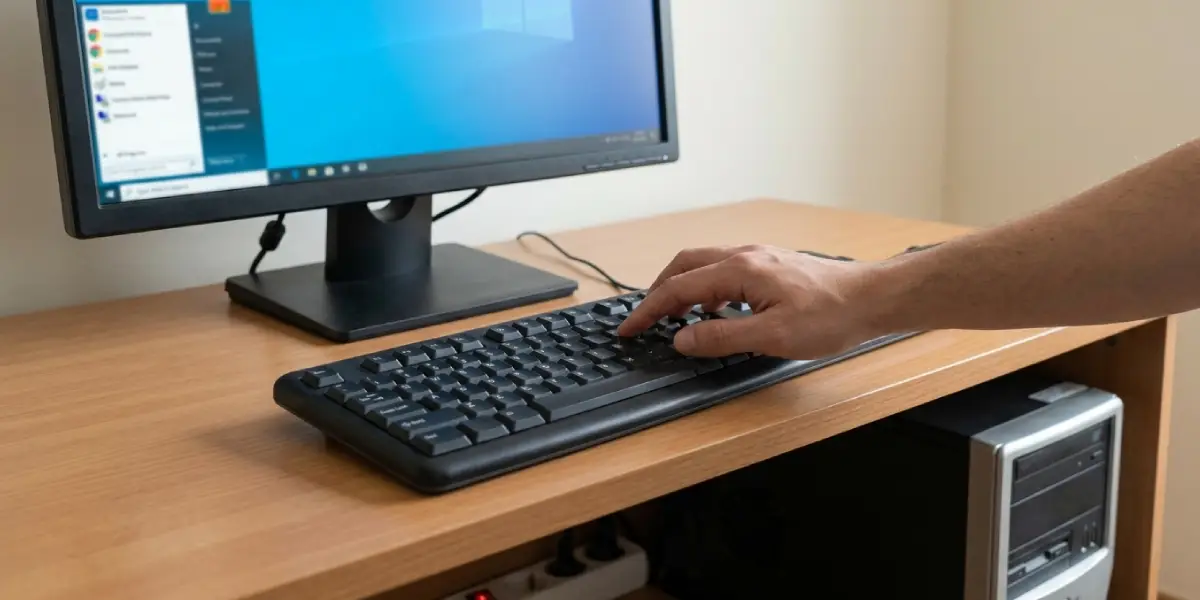
Tip: Change one thing at a time and test typing after each change. That makes it clear which fix worked and prevents unnecessary changes to the system.
Fixing Keyboard Lag in Games and Specific Apps
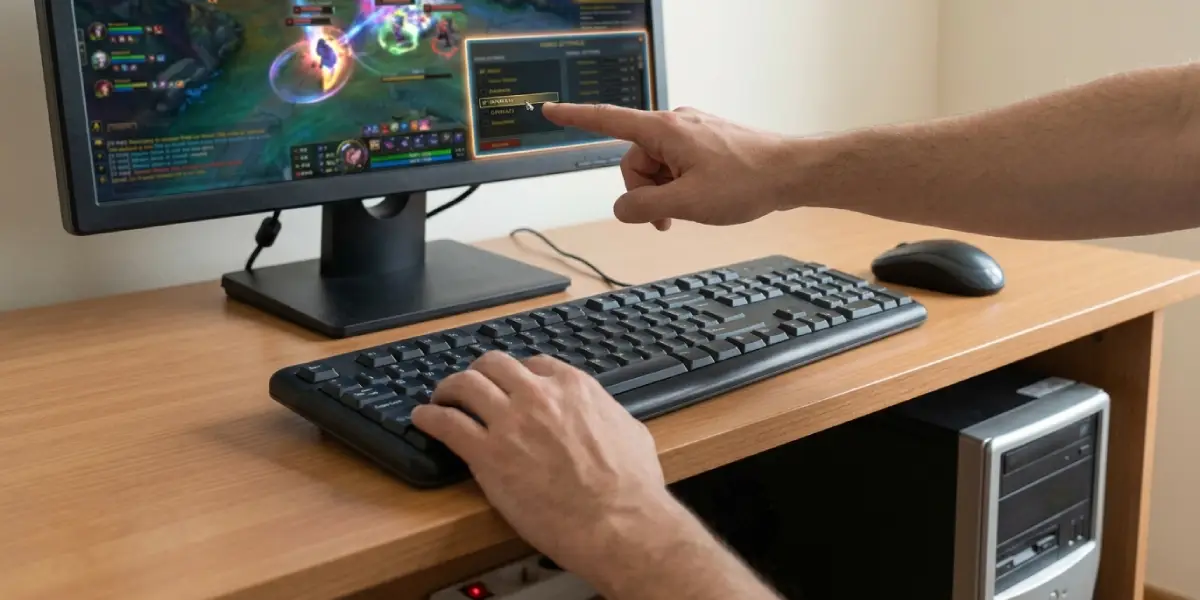
When the delay only appears in a game or a single program, the keyboard itself is usually fine. Close overlays and recording tools, lower the game settings if the frame rate is unstable, and make sure the game is not running in a slow, windowed compatibility mode. Low frame rates are often mistaken for input delay because the screen updates later than the keys are pressed.
Fixing Keyboard Lag During Remote Desktop or Virtual Machine Use
Input delay inside a remote session is usually caused by network latency rather than the keyboard. Switch from Wi-Fi to a wired network connection if possible, close bandwidth-heavy downloads, and lower the remote session’s display quality settings to reduce the data being sent.
Common Problems and Fixes
The Keyboard Still Lags After a Driver Reinstall
Move on to the connection and system checks. Try another USB port, test the keyboard on a second computer, and check Task Manager for a program using most of the CPU or disk. If the keyboard behaves normally elsewhere, the cause is on the original computer.
Keys Repeat or Type Several Letters at Once
This is often a sign of dirt under the keys or Filter Keys and Repeat settings being misconfigured. Clean the keyboard, then open the keyboard settings in the operating system and shorten or lengthen the repeat delay until typing feels right.
A Wireless Keyboard Lags Only Sometimes
Occasional lag almost always points to low battery power or interference. Replace the batteries, move the receiver closer, and keep it away from the router and other wireless devices.
The Built-In Laptop Keyboard Is Delayed While an External One Works Fine
If an external keyboard types normally on the same laptop, the system is healthy and the built-in keyboard or its internal connection is the problem. After cleaning around the keys and confirming the lag is not caused by power-saving mode, a repair technician should inspect the internal keyboard cable and connector rather than leaving it to guesswork.
Typing Is Delayed Everywhere, Including the Mouse
When the mouse pointer also stutters, the whole system is under strain. Check for overheating, a nearly full drive, or a runaway background process, and restart the computer to clear temporary load.
Tip: A keyboard that works perfectly on another computer is the strongest sign that the original computer needs attention, not the keyboard.
Frequently Asked Questions
Why is my keyboard suddenly lagging?
Sudden lag is most often caused by weak batteries in a wireless keyboard, a recent driver or Windows update, a program using heavy system resources, or accessibility features such as Filter Keys being turned on by accident.
How can I tell if the keyboard or the computer is causing the delay?
Connect the keyboard to a different computer and connect a different keyboard to the original one. If the delay follows the keyboard, the keyboard is at fault. If it stays with the computer, the issue is in the system, drivers, or settings.
Why does my wireless keyboard lag but a wired one does not?
Wireless keyboards rely on batteries and a radio signal, so low power, interference from routers or USB 3.0 devices, and a receiver placed too far away can all add delay. Fresh batteries and a closer receiver fix most cases.
Can a USB port cause keyboard input delay?
Yes. A port connected through a crowded hub, a faulty port, or a port affected by power-saving settings can cause delayed or dropped keystrokes. Trying a different port directly on the computer is a quick and useful test.
Do Filter Keys and Sticky Keys cause typing delay?
Filter Keys can ignore brief or repeated keystrokes and make typing feel slow or unresponsive. Sticky Keys changes how modifier keys behave. Both can be turned off in the Accessibility keyboard settings.
Can a dirty keyboard cause input lag?
Dust, crumbs, and sticky residue can cause missed, delayed, or repeated key presses. Cleaning with compressed air, a soft brush, and a cloth lightly dampened with 90 percent isopropyl alcohol often restores normal behavior.
Can malware or background programs cause keyboard lag?
They can. Malware, overloaded startup programs, and overlay or macro software can all slow input processing. Checking Task Manager for heavy usage and running a security scan helps rule these out.
When should the keyboard be replaced?
Replacement makes sense when the keyboard lags on more than one computer, keeps misfiring after cleaning, fresh batteries, and a firmware reset, or has physical damage. For a laptop, a technician should check the internal keyboard before a full replacement is considered.
