
Knowing how to fix ransomware starts with knowing what to do immediately, because the first few minutes decide how much data survives. Ransomware locks files behind encryption and demands payment for the key, and it keeps spreading for as long as the infected device stays connected. This guide walks through the exact order of actions that limits the damage and leads to a safe recovery.
Key Takeaways
- Disconnect the infected device from Wi-Fi, Ethernet, and every external drive right away to stop the spread.
- Do not pay the ransom. Payment does not guarantee working decryption and marks the victim as willing to pay.
- Identify the ransomware strain, then check for a free decryptor before assuming the files are gone.
- The most reliable cleanup is wiping the system drive, reinstalling the operating system, and restoring files from a clean backup.
- Change passwords from a different, clean device, and report the incident.
Common Causes of a Ransomware Infection
Understanding how the infection arrived helps close the door after recovery. Most cases trace back to a handful of entry points.
- Phishing emails with malicious attachments or links, often disguised as invoices, delivery notices, or shared documents.
- Cracked software, game cheats, and pirated installers that carry hidden malware.
- Remote Desktop or other remote access left exposed to the internet with a weak password.
- Outdated operating systems and software with known security holes that were never patched.
- Infected USB drives or compromised downloads from unofficial websites.
Before You Start
Ransomware recovery is mostly digital, but a few preparations keep the process clean and safe.
- A second, clean device (a phone or another computer that was never connected to the infected one) for research and password changes.
- A blank USB flash drive for creating clean operating system installation media.
- A phone or camera to photograph the ransom note and any error messages.
- A backup drive that was disconnected at the time of infection, if one exists.
Tip: Use the clean second device for every online step. Logging into email or banking from the infected machine hands those passwords straight to the attacker if a keylogger is present.
If the infected computer is a work machine, or if it holds data that is business-critical or legally sensitive, stop here and contact the IT department or a professional incident response service. Reinstalling the operating system can also erase evidence they may need.
How to Fix Ransomware Step by Step
Work through these steps in order. Speed matters most in the first two.
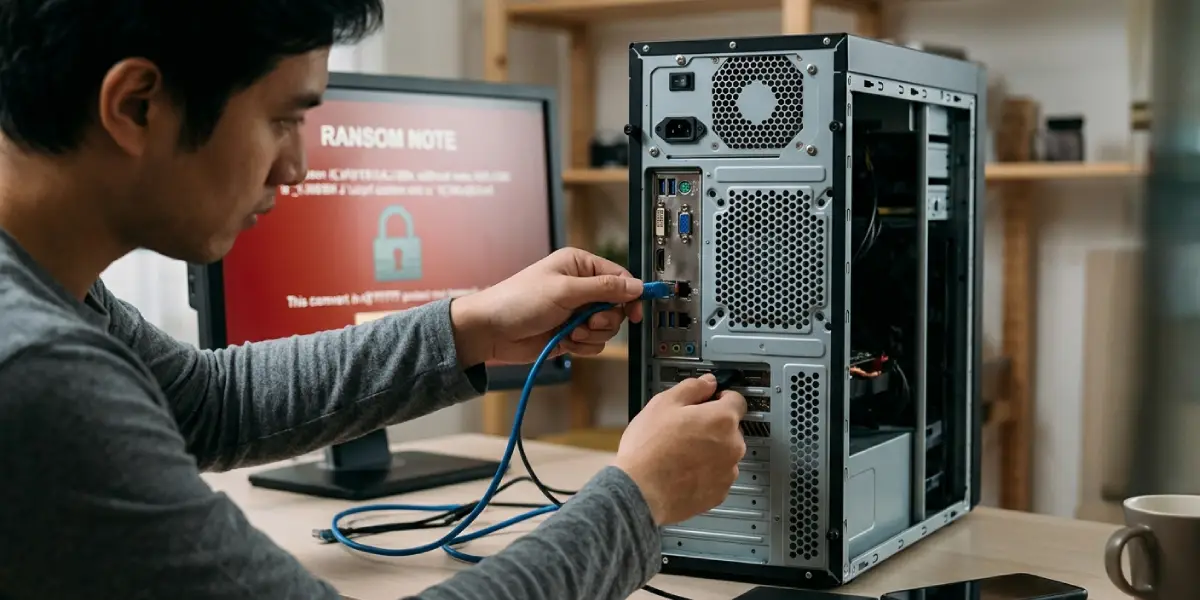
- Step 1: Disconnect the device from the network immediately. Unplug the Ethernet cable, turn off Wi-Fi, and disable Bluetooth. Ransomware can reach shared folders, network drives, and other computers on the same network, so cutting the connection is the single most important action. If files are visibly still being renamed or encrypted, holding the power button until the device shuts down stops the process. This loses temporary data in memory, but protecting the remaining files takes priority for most home users.
- Step 2: Unplug external hard drives, USB sticks, and any connected backup drives. Do not plug them into another computer. A backup drive that was attached during the attack can be encrypted too, so keep it isolated until the infection is fully cleaned up.
- Step 3: Photograph the ransom note and leave it alone. The note usually names the ransomware family, lists a contact address, and shows a unique victim ID. Do not contact the attackers and do not pay. Paying offers no guarantee of a working decryption key, and the FBI and other law enforcement agencies advise against it.
- Step 4: Identify the ransomware strain. On a clean device, upload the ransom note or one encrypted file to the ID Ransomware service, which matches samples against known families. The file extension added to renamed files is also a useful clue.
- Step 5: Check for a free decryptor. The No More Ransom project, backed by law enforcement and security companies, hosts free decryption tools for many ransomware families. If a decryptor exists for the identified strain, follow its instructions on a copy of the encrypted files, never on the only copy.
- Step 6: Change passwords from the clean device. Start with email, then banking, cloud storage, and any account that was logged in on the infected machine. Turn on multi-factor authentication wherever it is offered. Also change the Wi-Fi router admin password if the router was reachable from the infected device.
- Step 7: Remove the infection. An offline scan with Microsoft Defender Offline or a reputable antivirus rescue disk can detect and remove many threats, but it cannot always confirm that every trace is gone. The most reliable fix is a full wipe: boot from clean installation media, delete the partitions on the system drive, and reinstall the operating system from scratch.
- Step 8: Restore files from a clean backup. Before restoring, scan the backup drive on the freshly reinstalled system. Windows shadow copies and System Restore points are usually deleted by ransomware, so a separate backup is what matters. Restore documents and photos only, then reinstall applications from official sources instead of copying old program folders back.
- Step 9: Report the incident. In the United States, reports go to the FBI Internet Crime Complaint Center at ic3.gov. Other countries have their own national cybercrime or computer emergency response teams, and a report also helps investigators track the group involved.
- Step 10: Install every pending operating system and software update before reconnecting to the internet normally. This closes the security hole that may have let the ransomware in.
Tip: Keep the encrypted files even if no decryptor exists today. Researchers regularly release new decryption tools after attackers are arrested or their keys leak, so files that are locked now may be recoverable later.
What to Do If There Is No Backup
Without a backup, the options narrow but do not disappear. First, copy the encrypted files to a separate external drive and store it offline. Second, check the No More Ransom website again, since new decryptors are added over time. Third, look for older copies of important files in places the ransomware could not reach, such as email attachments, messaging app chats, cloud storage version history, and photos synced to a phone. Many cloud services keep previous versions of files for a limited time, and restoring from there can recover work that appears lost.
Preventing a Repeat Infection
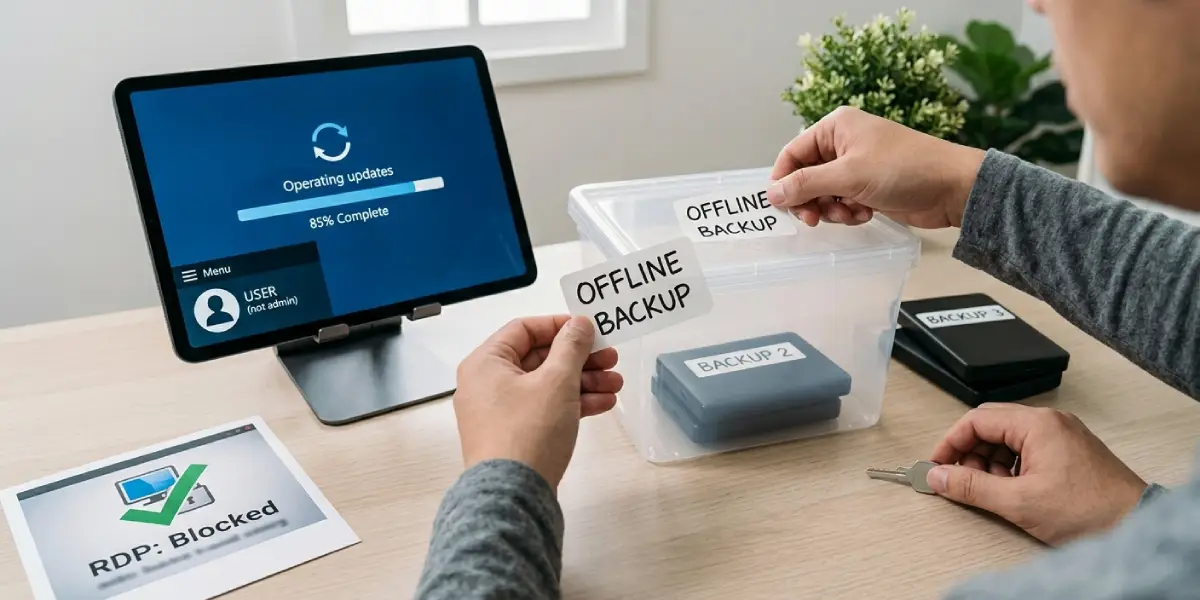
Recovery is also the right moment to rebuild habits. Keep Windows, browsers, and other software updated automatically. Follow the 3-2-1 backup rule: three copies of important data, on two different types of storage, with one copy kept offline or disconnected. Avoid cracked software, treat unexpected attachments with suspicion, and never leave Remote Desktop exposed to the internet. A standard user account for daily work, instead of an administrator account, also limits how far malware can reach.
Common Problems and Fixes
The ransom note is gone or the files have no clear extension
Search the folders for text or HTML files that appeared at the same time as the encryption, since the note is often copied into many directories. If nothing is found, upload a small encrypted file to ID Ransomware, which can sometimes identify the strain from the file structure alone.
A decryptor was found but it fails or reports a wrong key
Make sure the decryptor matches the exact variant, not just the family name. Some tools also need an original, unencrypted copy of a file to compare against. Always run the tool on copies of the encrypted files, and read the instructions on the decryptor page carefully before starting.
The computer will not boot after the infection
Some ransomware overwrites the boot record and shows a ransom message before Windows loads. In that case, boot from the clean installation USB, wipe the system drive, and reinstall the operating system. The data drive can be left untouched and scanned later.
Files restored from backup are still encrypted
This means the backup was connected during the attack or contained already encrypted files. Try an older backup version from before the infection date, and check whether the backup service keeps version history.
The ransomware appears again after cleanup
A leftover infection or a reused password is the usual reason. Perform a full wipe and clean reinstall instead of relying on a scan, and change all passwords again from a clean device. Also check other computers on the same network, because one of them may be the source of reinfection.
Frequently Asked Questions
What should be done first when ransomware is discovered?
Disconnect the device from the network at once by unplugging Ethernet and turning off Wi-Fi, then unplug all external drives. This stops the ransomware from spreading to other devices and shared folders.
Should the ransom be paid to get files back?
No. Paying does not guarantee that the attackers will provide a working key, and it encourages further attacks. Law enforcement agencies advise against paying, and free decryptors exist for many ransomware families.
Can ransomware be removed without losing files?
Removing the malware is possible, but removal alone does not decrypt files that are already locked. Files can only be recovered through a free decryptor, a clean backup, or an older version stored in cloud services.
Is it safe to turn the computer off after a ransomware attack?
If encryption is still running, shutting the device down stops further damage and is usually the right choice for home users. Business environments may need the device left on for forensic investigation, so IT staff should make that call.
How can the ransomware type be identified?
Upload the ransom note or a sample encrypted file to the ID Ransomware service from a clean device. The extension added to the encrypted files and the wording of the note are also strong clues.
Does antivirus software decrypt files?
No. Antivirus software can detect and remove the malware, but it does not unlock encrypted files. Decryption needs the correct key or a purpose-built decryptor tool.
Will a factory reset or a clean install remove ransomware?
Wiping the system drive and reinstalling the operating system removes the malware from that drive. It also erases everything on it, so any files that need to be saved must be copied to a separate drive first and scanned before use.
Can ransomware spread to cloud storage and backups?
Yes, if the cloud folder is synced or the backup drive is connected during the attack, encrypted files can overwrite good copies. Many cloud services keep earlier file versions, which can be restored after the infection is cleaned up.
Who should ransomware be reported to?
Report it to the national cybercrime or computer emergency response authority in the victim’s country. In the United States, that is the FBI Internet Crime Complaint Center. Businesses should also notify their IT team, insurer, and any affected customers where required.
