
A clean profile is often the quickest cure for an Outlook that hangs, loops on password prompts, or refuses to sync. This guide shows how to create an Outlook profile from scratch using the classic Outlook desktop app for Windows. The whole process takes only a few minutes.
Key Takeaways
- A new profile is created from File, Account Settings, Manage Profiles, then Show Profiles and Add.
- Each profile needs a unique name and at least one email account to work.
- Setting the new profile as the default makes Outlook open it automatically.
- The old profile is not touched, so it stays available as a fallback.
- Profiles are a classic Outlook feature, so the ‘New Outlook’ toggle must be off.
How to Create an Outlook Profile From Scratch
Keep the email address and password within reach before starting. Think of a profile as a labeled folder that holds the account settings and data file locations Outlook reads when it opens. Building a fresh one is like moving into a clean desk instead of tidying a cluttered one.
Create the Profile From Inside Outlook
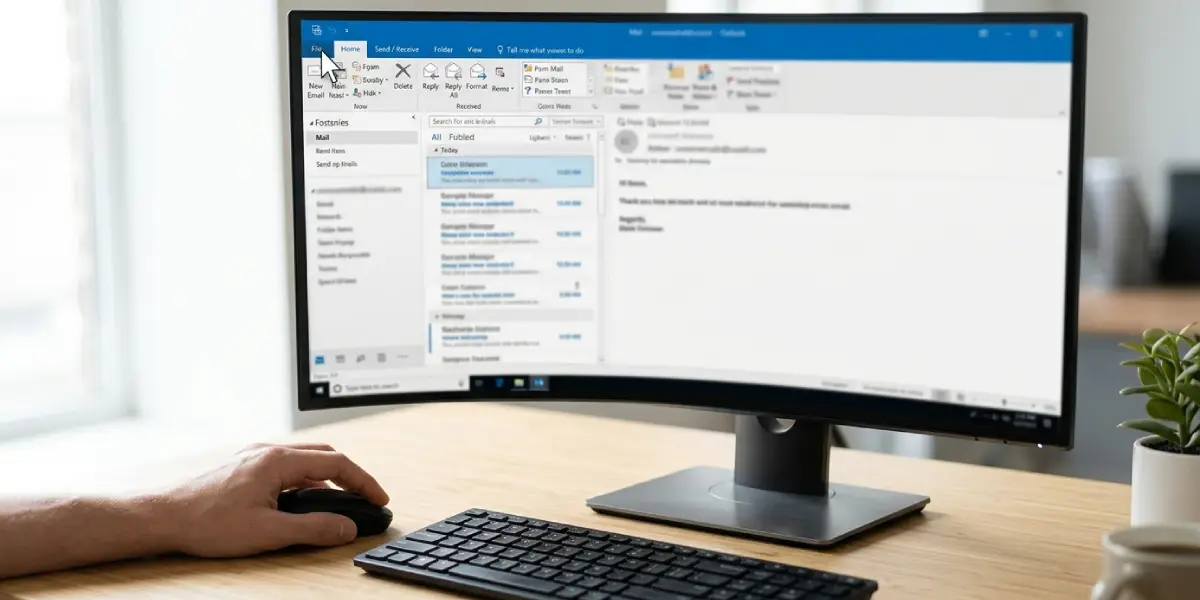
- Step 1: Open Outlook and click the ‘File’ tab in the top-left corner.
- Step 2: Click ‘Account Settings’, then choose ‘Manage Profiles’ from the dropdown list. The Mail Setup window opens.
- Step 3: Click ‘Show Profiles’ to see every profile saved on the computer.
- Step 4: Click ‘Add’ to start a new profile.
- Step 5: Type a clear name in the ‘Profile Name’ box, such as Work2026, and click ‘OK’. Avoid reusing the name of an existing profile.
- Step 6: In the Add Account window, type the full email address and click ‘Connect’. Outlook detects the server settings automatically for most Microsoft 365, Outlook.com, Exchange, and Gmail accounts.
- Step 7: Enter the account password when prompted and sign in. When the confirmation screen appears, click ‘Done’.
- Step 8: Back in the Mail window, find ‘When starting Microsoft Outlook, use this profile’. Select ‘Always use this profile’, pick the new profile from the list, and click ‘OK’.
- Step 9: Close the Mail window, then close and reopen Outlook. The new profile loads and the mailbox begins to sync.
Tip: Choose ‘Prompt for a profile to be used’ in Step 8 if you want Outlook to ask which profile to open at every launch. This is handy while testing a new profile next to an old one.
Reach the Same Screen Through Control Panel
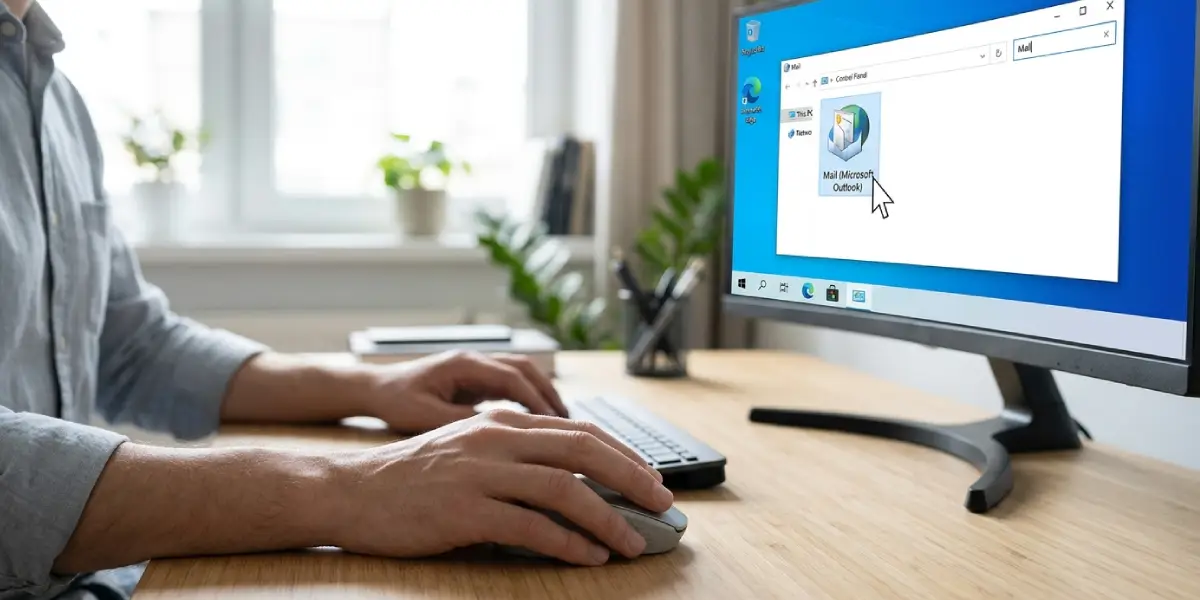
If Outlook will not open, the same Mail Setup window is available outside the app. Open Control Panel, type Mail in the search box, and click ‘Mail (Microsoft Outlook)’. Click ‘Show Profiles’, then continue from Step 4 above. Most people find this route useful when a damaged profile crashes Outlook on startup.
Common Problems and Fixes
Manage Profiles Is Missing From the File Menu
This happens when the new Outlook for Windows is running, because it does not use classic profiles. Switch off the ‘New Outlook’ toggle in the top-right corner of the window to return to classic Outlook, then repeat the steps. The Control Panel route also works.
The Profile Name Is Rejected
Outlook blocks duplicate profile names. Add a number or a year to the name, such as Work2026, and the profile is created without trouble.
Outlook Cannot Find the Server Settings Automatically
If the Connect step fails, open ‘Advanced options’ in the Add Account window and choose the manual setup option. Pick the account type, such as IMAP, and enter the incoming and outgoing server details given by the email provider.
The Password Prompt Keeps Returning
Double-check the password by signing in to the provider’s webmail page in a browser. Some providers, including Gmail on IMAP, require an app password or a browser-based sign-in when multi-factor authentication is on. Using the regular password in that case causes the prompt to repeat.
Outlook Still Opens the Old Profile
The default was not changed. Return to Manage Profiles, choose ‘Always use this profile’, select the new profile, and click ‘OK’. Restart Outlook afterward.
Frequently Asked Questions
What is the fastest way to create an Outlook profile from scratch?
Open Outlook, click File, then Account Settings, then Manage Profiles, click Show Profiles, and select Add. Name the profile, enter the email address, and finish the sign-in. The whole process usually takes only a few minutes.
Where is the Manage Profiles option in Outlook?
It sits under File, then Account Settings, in classic Outlook for Windows. It can also be reached by opening Control Panel and choosing Mail (Microsoft Outlook).
Does creating a new Outlook profile delete my old emails?
No. Creating a profile does not delete the old one. Mail for IMAP, Exchange, and Outlook.com accounts remains on the server and downloads again into the new profile. POP accounts keep their mail in the local data file used by the old profile.
Can more than one email account be added to a single profile?
Yes. After the first account is set up, open Outlook, click File, then Add Account, and repeat the sign-in for each extra address.
How can a different Outlook profile be opened?
Open Mail Setup, click Show Profiles, and select ‘Prompt for a profile to be used’. At the next launch, Outlook asks which profile to open, so any saved profile can be chosen.
How can an old or broken profile be removed after the new one works?
Go to File, Account Settings, Manage Profiles, and click Show Profiles. Select the old profile and click Remove. Confirm that everything needed is in the new profile first, because removing a profile also removes its account settings.
Why is the Manage Profiles option not showing in Outlook?
The new Outlook for Windows does not support classic profiles. Turn off the ‘New Outlook’ toggle to switch back to classic Outlook, or use the Mail option in Control Panel.
Is it necessary to close Outlook before creating a profile?
No. A profile can be created while Outlook is open. The new profile is used only after Outlook restarts with that profile selected as the default.
