
Knowing how to clean a laptop screen hinge area is one of those small maintenance skills that pays off quietly. Dust, skin oils, crumbs, and sticky residue collect where the lid meets the base, and over time they can make the hinge feel gritty or look grimy. The good news is that the job takes about ten minutes and needs only a few basic supplies.
Key Takeaways
- Power the laptop off, unplug it, and let it cool before touching the hinge area.
- Dry methods come first: a soft brush and short bursts of compressed air remove most debris.
- Use isopropyl alcohol at 90 percent or higher on a barely damp cloth, never sprayed directly on the laptop.
- Never force the lid or pry at the hinge. Gritty movement that survives cleaning points to wear, not dirt.
- Regular light cleaning every few months stops buildup from hardening into stubborn grime.
Before You Start
Shut the laptop down completely rather than just closing the lid, then unplug the charger and any connected accessories. If the laptop was running hard, let it sit until the chassis feels cool. This job does not require opening the case, so removing the battery is not necessary.
Tools and Materials Needed
- A clean microfiber or lint-free cloth
- A soft, dry brush such as a clean paintbrush or an anti-static brush
- Compressed air with a short straw nozzle
- Cotton swabs
- Isopropyl alcohol at 90 percent or higher
- A plastic pry tool or a wooden toothpick for packed-in gunk
Metal tools such as screwdrivers or knives are best left out of this job. They scratch plastic and aluminum finishes and can slip into gaps near cables that run through the hinge. Water and household cleaners should also be avoided, since moisture can creep into the gap beneath the hinge cover.
How to Clean a Laptop Screen Hinge Area Step by Step
- Step 1: Place the laptop on a flat, well-lit surface and open the lid to a comfortable angle, usually around 90 to 110 degrees. This exposes the gap at each hinge and shows where the dirt has settled.
- Step 2: Sweep loose dust out with the soft brush. Work from the gap outward so debris leaves the hinge instead of being pushed deeper in. Hold the base steady with one hand while brushing.
- Step 3: Use compressed air in short bursts, holding the can upright and angled slightly across the gap rather than straight into it. Keep the nozzle a few centimeters away. Steer the airflow away from nearby vents and fans, since a blast can spin a fan too fast.
- Step 4: Dampen a corner of the microfiber cloth with a little isopropyl alcohol. It should feel barely moist, not wet. Wipe the hinge cover, the lid edge, and the surrounding base plastic to lift oils and fingerprints.
- Step 5: Wrap a cotton swab with a tiny amount of alcohol and run it along the narrow seam where the hinge meets the lid and base. Replace the swab as soon as it turns gray so grime is not simply redistributed.
- Step 6: For packed-in crumbs or hardened residue, gently scrape with a plastic pry tool or a wooden toothpick. Light pressure is enough. If something refuses to budge, soften it with a damp swab first and try again rather than pushing harder.
- Step 7: Finish with a dry section of the microfiber cloth to remove any leftover moisture. Let the area air-dry for a few minutes before closing the lid or powering the laptop back on.
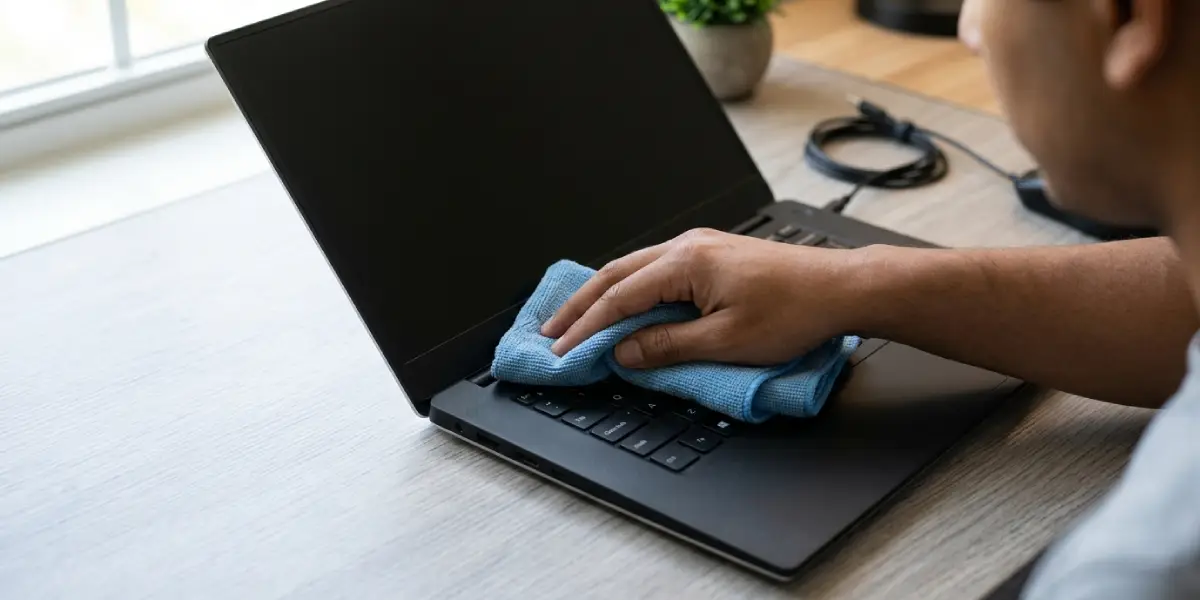
Tip: Work one hinge at a time and check the cloth after each pass. A clean cloth that stays clean means the area is done, and it prevents over-wiping delicate finishes.
Cleaning Around Hinge Covers and Bezel Gaps
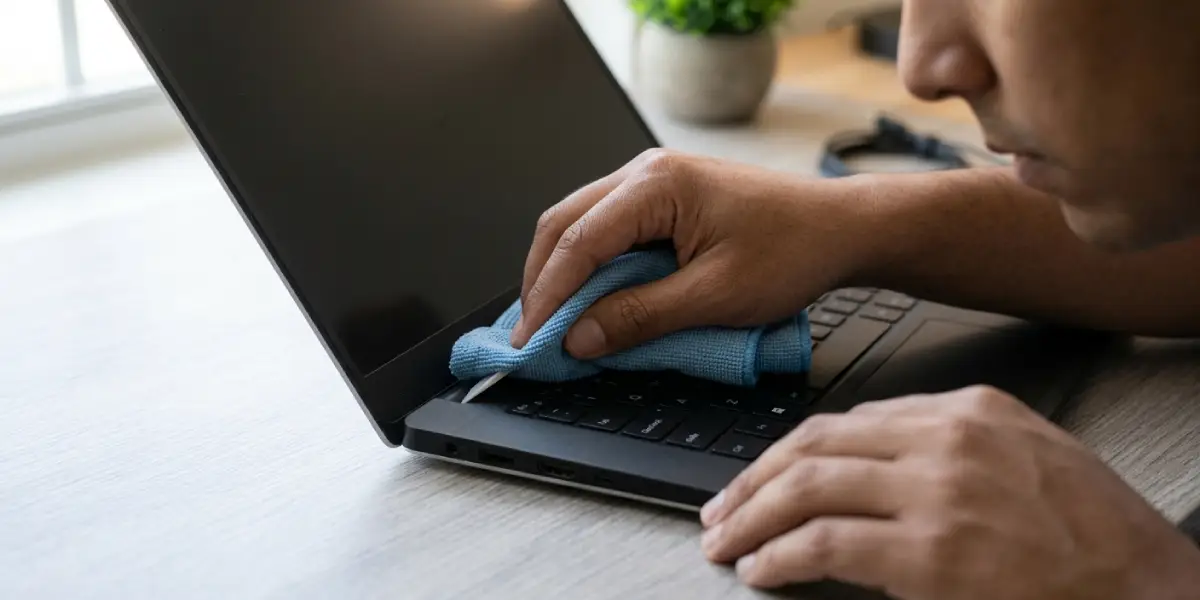
Many laptops have a thin hinge cover or a narrow gap between the display bezel and the base. These spots trap dust like the corners of a window frame. A folded piece of microfiber wrapped around a plastic pry tool reaches into these gaps without scratching. The key is to keep all pressure light and always wipe along the seam instead of poking into it.
What to Avoid Near the Hinge
Spraying liquid directly on the hinge is the most common mistake. Liquid can wick into the seam and reach cables or the display edge. Oil-based lubricants are also best avoided unless the laptop maker specifically recommends them, because they attract dust and can stain plastics. Opening the hinge cover or removing screws goes beyond cleaning and may affect the warranty.
Common Problems and Fixes
The Hinge Still Feels Gritty After Cleaning
Fine debris may remain deep in the joint. Repeat the brush and short-burst compressed air steps, opening and closing the lid slowly between passes. If the grit persists, the hinge may be worn, and a repair technician is the safer option.
Sticky Residue Will Not Come Off
Old spills and adhesive-like film need a little dwell time. Lay a slightly alcohol-damp cotton swab on the spot for ten to fifteen seconds, then wipe gently. Repeating this works better than scrubbing harder.
Streaks or Dull Patches Appear on the Plastic
Streaks usually come from too much liquid or a dirty cloth. Buff the area with a fresh, dry microfiber cloth. If the finish looks permanently dull, the surface coating may have worn away from age or earlier harsh cleaners.
The Hinge Squeaks After Cleaning
Cleaning can remove the film of dirt that was quietly masking a dry hinge. Check the laptop maker’s support page before adding any lubricant, since the wrong product can damage plastics and attract dust.
The Lid Wobbles or Will Not Hold Its Position
Looseness comes from wear or damage inside the hinge, not from dirt. Cleaning will not fix this. Stop and have a professional inspect the hinge, particularly if the lid or bezel looks cracked or lifted.
Tip: If the lid has ever been forced open or dropped, avoid further cleaning near the hinge and book a repair check instead. Extra movement can strain the display cable.
Frequently Asked Questions
How often should a laptop screen hinge area be cleaned?
A light dusting every two to three months is enough for most users. Laptops used on a bed, couch, or in dusty rooms may need attention more often.
Can compressed air damage a laptop hinge?
Short bursts from an upright can are generally safe. Long continuous blasts can force dust deeper, and tilting the can may release cold liquid propellant. Keep airflow away from fans.
Is isopropyl alcohol safe on laptop hinge plastic?
Isopropyl alcohol at 90 percent or higher is widely used for electronics when applied lightly with a cloth or swab. It evaporates quickly, but it should never be sprayed or poured on the laptop.
Can water be used to clean a laptop screen hinge area?
Water is best avoided. It can seep into the hinge seam and reach internal parts, and it dries slowly compared with alcohol.
Should a laptop hinge be lubricated after cleaning?
Lubrication is not part of routine cleaning. Only apply a product if the laptop manufacturer specifically recommends it, because the wrong lubricant can stain plastics and attract dust.
Why is the hinge stiff or noisy after cleaning?
Stiffness or noise usually means worn or dry internal parts that were hidden by grime. Cleaning cannot repair that, so a technician should inspect the hinge.
Do the hinges need to be removed to clean them properly?
No. Surface and seam cleaning can be done with the case closed up. Removing hinge covers or screws is repair work and may affect the warranty.
Is it safe to clean the hinge area with the laptop turned on?
No. The laptop should be powered off and unplugged first. This protects the electronics and removes any risk from accidental moisture.
How can hinge buildup be prevented?
Keep food and drinks away from the laptop, close the lid when not in use, and wipe the hinge area lightly during regular cleaning. Opening the lid by the center of the top edge also reduces strain on the hinges.
