
Knowing how to fix no audio devices found error messages saves a lot of frustration when sound suddenly disappears on a Windows PC or laptop. The problem usually shows up as a red X on the speaker icon, a message reading ‘No audio output device is installed’, or an empty Output list in Sound settings. In most cases the cause is software-related, and the fix takes only a few minutes.
Key Takeaways
- The error almost always points to a disabled device, a stopped audio service, or a missing or corrupted audio driver.
- Start with the quick checks (restart, troubleshooter, Device Manager) before reinstalling anything.
- Switching to the generic ‘High Definition Audio Device’ driver fixes many stubborn cases.
- If the audio device is missing from Device Manager entirely, check BIOS or UEFI settings and the physical connections.
- Download drivers from the PC or laptop manufacturer’s support page rather than random driver sites.
Common Causes
Windows reports no audio devices when it cannot see a working sound device. Picture a radio with the antenna unplugged: the radio itself may be fine, but nothing reaches it. These are the usual culprits.
- The audio device is disabled in Sound settings or Device Manager.
- The Windows Audio service or its related services have stopped or are set to the wrong startup type.
- The audio driver is missing, outdated, corrupted, or was replaced by a faulty one during a Windows update.
- Onboard audio is switched off in BIOS or UEFI.
- Corrupted system files interfere with the audio stack.
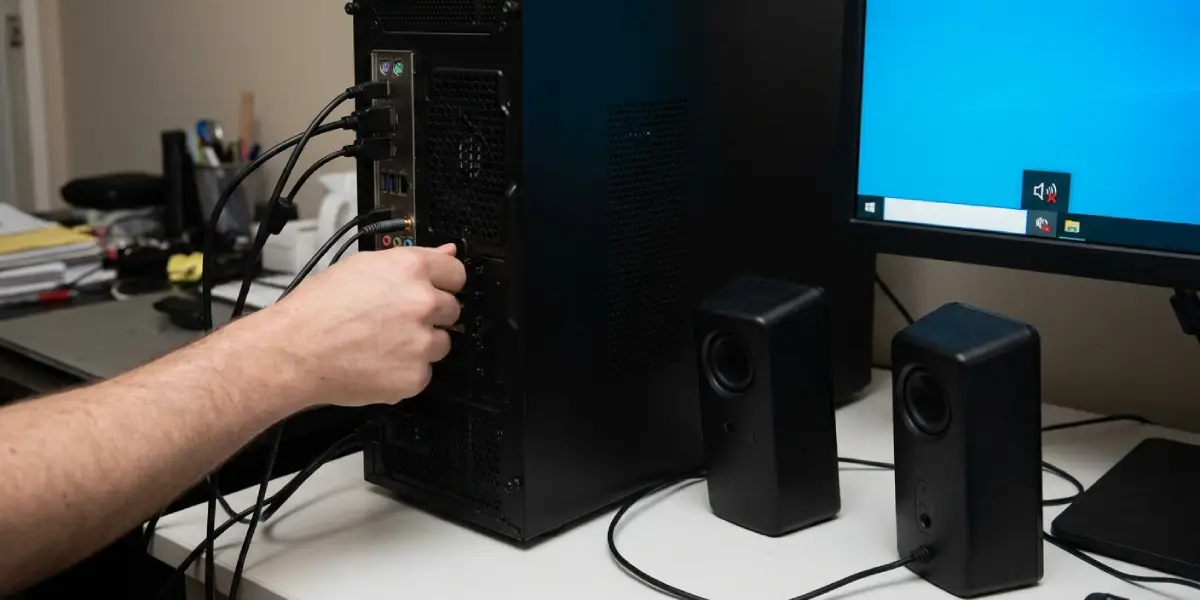
- A loose front-panel audio cable, a damaged jack, or a poorly seated sound card (on desktops) prevents detection.
Before You Start
Most fixes below are software changes and need no tools. A few preparations make the process smoother and safer.
- Save open work, since several steps involve restarting the computer.
- Sign in with an administrator account, because driver and service changes need admin rights.
- Note the exact model of the PC, laptop, or motherboard so the correct driver can be found later.
- Have a second device with internet access nearby in case a driver file needs to be downloaded and copied over on a USB drive.
- For the hardware check at the end of this guide on a desktop, power off, unplug the power cable, and touch bare metal on the case to discharge static before touching any cables or cards. Opening a device can affect its warranty, so laptops still under warranty are best left to the manufacturer’s support.
How to Fix No Audio Devices Found Error Step by Step
Work through these steps in order. They run from the quickest checks to the deeper fixes, so there is no need to skip ahead unless a step clearly does not apply.
- Step 1: Restart the computer and unplug external audio gear. A full restart (not just sleep or hibernate) clears many temporary glitches. Unplug USB headsets, HDMI cables, and Bluetooth adapters, restart, and then reconnect them one at a time. Windows sometimes gets confused when several audio outputs change at once.
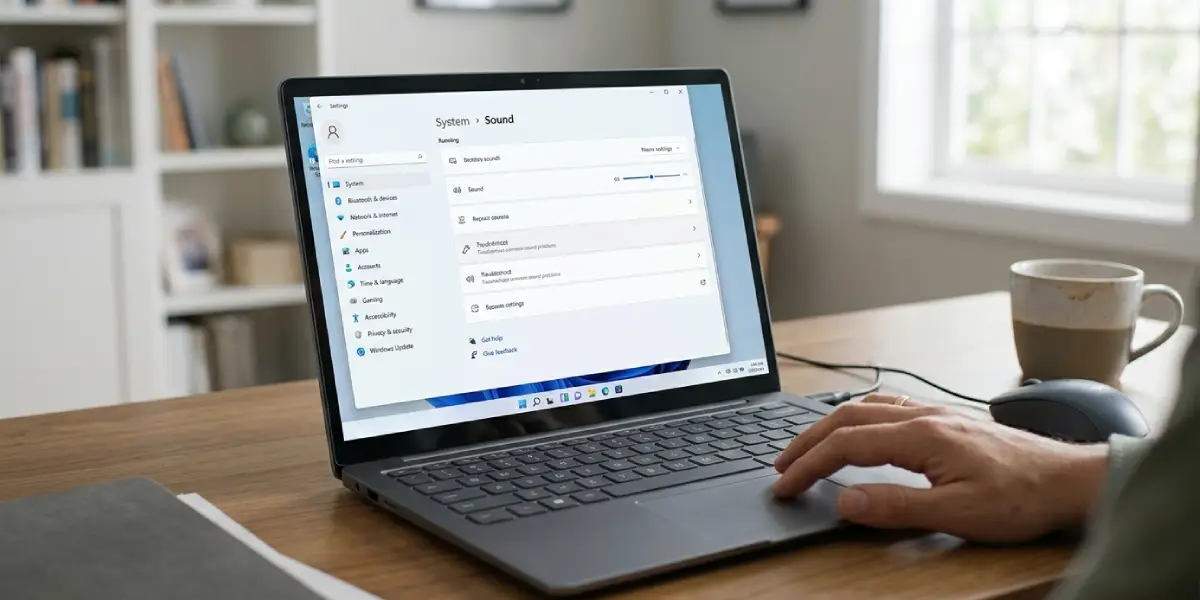
- Step 2: Run the built-in audio troubleshooter. Open Settings, go to System, then Sound, and choose the option to troubleshoot common sound problems for the output device. Follow the prompts and let Windows apply any suggested fix. On some versions of Windows the same tool is reachable through the Get Help app by searching for ‘audio troubleshooter’.
- Step 3: Check for disabled devices in Sound settings. Right-click the speaker icon in the taskbar, open Sound settings, and scroll to Advanced, then More sound settings. In the Playback tab, right-click an empty area and tick both ‘Show Disabled Devices’ and ‘Show Disconnected Devices’. If a speaker or headphone entry appears greyed out, right-click it and choose Enable, then set it as the default device.
- Step 4: Look in Device Manager. Press the Windows key and X together, then choose Device Manager. Expand ‘Sound, video and game controllers’ and also ‘Audio inputs and outputs’. If an entry has a down-arrow icon, right-click it and select Enable device. If a yellow warning triangle appears, the driver is the problem and the steps below will handle it. Under the View menu, choose ‘Show hidden devices’ to reveal entries that are installed but not currently active.
- Tip: If the Sound, video and game controllers section is missing entirely, or contains only items like display audio from a graphics card, the onboard audio hardware is not being detected. Skip ahead to Step 9 and Step 10.
- Step 5: Restart the Windows audio services. Press the Windows key and R together, type services.msc, and press Enter. Find ‘Windows Audio’ and ‘Windows Audio Endpoint Builder’. Right-click each one and choose Restart (or Start if stopped). Then double-click each, set the Startup type to Automatic, and apply the change. Also confirm that ‘Remote Procedure Call (RPC)’ is running, since the audio services depend on it.
- Step 6: Update the audio driver. In Device Manager, right-click the audio device, choose Update driver, and select the option to search automatically for drivers. For the best results, visit the support page of the laptop or motherboard maker, enter the exact model, and download the latest audio driver (commonly Realtek or a similar codec driver) from there. Install it, then restart.
- Step 7: Roll back or reinstall the driver. If the error began right after a driver or Windows update, open the audio device’s Properties in Device Manager, switch to the Driver tab, and choose Roll Back Driver if it is available. If not, right-click the device, choose Uninstall device, and restart. Windows normally reinstalls a basic driver on the next boot.
- Step 8: Switch to the generic High Definition Audio driver. In Device Manager, right-click the audio device and choose Update driver, then Browse my computer for drivers, and then the option to pick from a list of available drivers on the computer. Select ‘High Definition Audio Device’ and confirm any warning. This Microsoft driver supports basic playback on most onboard audio chips and often brings sound back when the manufacturer driver fails.
- Step 9: Check that onboard audio is enabled in BIOS or UEFI. Restart and open the BIOS or UEFI setup using the key shown at startup (often Delete, F2, or F10, depending on the maker). Look in the Advanced or Integrated Peripherals area for an entry such as ‘HD Audio’, ‘Onboard Audio’, or ‘Azalia’ and make sure it is set to Enabled. Save and exit. Updating the BIOS from the manufacturer’s site can also help, but only follow the maker’s instructions exactly, since an interrupted BIOS update can leave a PC unable to start.
- Step 10: Repair system files and undo a bad update. Open Command Prompt as administrator and run sfc /scannow, and let it finish. Then run DISM /Online /Cleanup-Image /RestoreHealth and restart. If the problem began right after a Windows update, open Settings, then Windows Update, then Update history, and uninstall the most recent update. System Restore, if a restore point from before the problem exists, is another clean way to roll back.
- Step 11: Inspect the hardware as a last check. On a desktop, make sure the front-panel audio cable (usually labeled HD Audio) is firmly seated on the motherboard header and that any separate sound card is fully seated in its slot. Test the rear jacks as well as the front ones. Plug in a USB headset or a Bluetooth speaker: if that works, the Windows audio stack is fine and the fault lies with the onboard audio hardware or its connections. If a laptop shows no audio hardware at all after every software fix, stop there and let a qualified technician or the manufacturer’s service center inspect it, since the audio chip or its connector may have failed.
Common Problems and Fixes
The audio device reappears after a restart but vanishes again later
This usually points to Fast Startup or a power-saving setting. Open Control Panel, go to Power Options, choose what the power buttons do, and turn off Fast Startup. In Device Manager, also open the audio device’s Properties and, if a Power Management tab exists, untick the option that allows the computer to turn off the device to save power.
The driver installer says no compatible hardware was found
The installer may be for a different model or a different audio codec. Confirm the exact model number and download the audio driver from the manufacturer’s page for that model only. If the installer still refuses to run, use the generic ‘High Definition Audio Device’ method from Step 8 first, then run the official installer again.
The Sound, video and game controllers section is empty
Windows is not detecting the audio hardware at all. Check that onboard audio is enabled in BIOS or UEFI, update the chipset driver from the manufacturer’s page, and on desktops check the sound card seating if one is installed. If everything checks out, the hardware may be faulty and needs a professional look.
Sound works through HDMI or Bluetooth but not through the speakers or headphone jack
This means Windows sees the display or wireless output but not the onboard audio device. Focus on the onboard audio driver (Steps 6 to 8) and the BIOS setting (Step 9). The headphone jack may also be damaged, so test with another pair of headphones.
The error returned after a Windows update
Windows may have replaced the working audio driver with a different one. Roll back the driver (Step 7) or reinstall the manufacturer’s driver. If a specific update caused the problem, uninstalling that update from Update history is the quickest fix.
The red X stays on the speaker icon after every step
Run the system file repair in Step 10 and check Services again for Windows Audio and Windows Audio Endpoint Builder. If both are running and the driver is current, test with a USB audio device. A working USB headset points to a hardware fault in the onboard audio, while a failing USB headset suggests a deeper Windows issue where System Restore or a repair install may be needed.
Frequently Asked Questions
What does the no audio devices found error mean?
It means Windows cannot detect any working sound device. The audio hardware may be disabled, the driver may be missing or damaged, or a required audio service may not be running.
Why did my audio devices disappear after a Windows update?
An update can replace a working audio driver with an incompatible one or change a setting that disables the device. Rolling back the driver, reinstalling the manufacturer’s driver, or uninstalling the latest update usually restores sound.
How do I reinstall the audio driver in Windows?
Open Device Manager, expand Sound, video and game controllers, right-click the audio device, and choose Uninstall device. Restart the computer and Windows reinstalls a basic driver automatically. Installing the latest driver from the manufacturer’s support page afterward gives the best results.
Which services need to be running for audio to work?
Windows Audio and Windows Audio Endpoint Builder must be running, and both should be set to Automatic startup. The Remote Procedure Call (RPC) service must also be running, since the audio services depend on it.
Can a BIOS setting cause no audio devices to be found?
Yes. If onboard audio (often labeled HD Audio or Onboard Audio) is disabled in BIOS or UEFI, Windows cannot see the audio hardware. Enabling it, saving, and restarting brings the device back in Device Manager.
Is the generic High Definition Audio Device driver safe to use?
Yes. It is a Microsoft driver designed to work with most onboard audio chips. It provides basic sound, though some extra features from the manufacturer’s audio software, such as certain enhancements, may not be available.
Why does sound work through HDMI or Bluetooth but not through the speakers?
Those outputs use different devices from the onboard speakers and headphone jack. When they work and the onboard output does not, the fault lies with the onboard audio driver, its BIOS setting, or the hardware itself.
When should a professional repair the audio problem?
If the audio device never appears in Device Manager after enabling it in BIOS or UEFI, reinstalling drivers, and checking connections, the audio chip or its connector may have failed. At that point a qualified technician or the manufacturer’s service center is the safest choice, especially for laptops under warranty.
