
Knowing how to fix PC not waking from sleep properly can save a lot of frustration, especially when a black screen and spinning fans are the only response to a key press. The cause is usually a driver, a power setting, or a device that interferes with the resume process. The good news is that most cases can be solved with a few settings changes and no tools at all.
Key Takeaways
- A PC that will not wake from sleep is usually blocked by a graphics driver, USB power saving, or incorrect wake permissions.
- Work through the fixes in order, starting with the quick checks and finishing with BIOS and hardware tests.
- The powercfg command in Command Prompt shows which device woke the PC and which devices are allowed to wake it.
- A current BIOS or UEFI version and updated graphics and chipset drivers solve a large share of resume failures.
- Hibernate is a dependable fallback if sleep stays unstable after every fix.
Common Causes of a PC Not Waking From Sleep
A PC going to sleep is like a house with the lights switched off and the heating turned down. Waking it means every part has to switch back on in the right order. If one part does not respond, the whole process stalls. These are the usual culprits:
- An outdated or faulty graphics driver that fails to restore the display after resume.
- USB selective suspend powering down a keyboard or mouse so it can no longer send a wake signal.
- Keyboard or mouse devices not being allowed to wake the computer in Device Manager.
- PCI Express link state power management cutting power too aggressively to a graphics card or SSD.
- Fast Startup keeping a bad driver state saved between boots.
- Outdated BIOS or UEFI firmware, or sleep options in BIOS set incorrectly.
- Unstable memory settings, such as an overclock or XMP profile, that fail when the system changes power states.
- A connected USB device or dock that confuses the system during resume.
How to Fix PC Not Waking From Sleep Properly: Ordered Fixes
Each fix below is safe to try and easy to reverse. Test sleep after every step so it is clear which change made the difference.
Start With the Quick Checks
- Step 1: Identify the exact symptom. A PC with spinning fans and a black screen points to the display or graphics driver. A PC that looks fully off points to a power state or wake permission problem. A PC that wakes and then freezes points to a driver or unstable memory settings. Press a key, move the mouse, and then press the power button once to see which pattern appears.
- Step 2: Use Restart from the Start menu, not Shut down, and then put the PC to sleep again. Restart performs a full reload of drivers, which clears temporary glitches that Fast Startup can otherwise preserve.
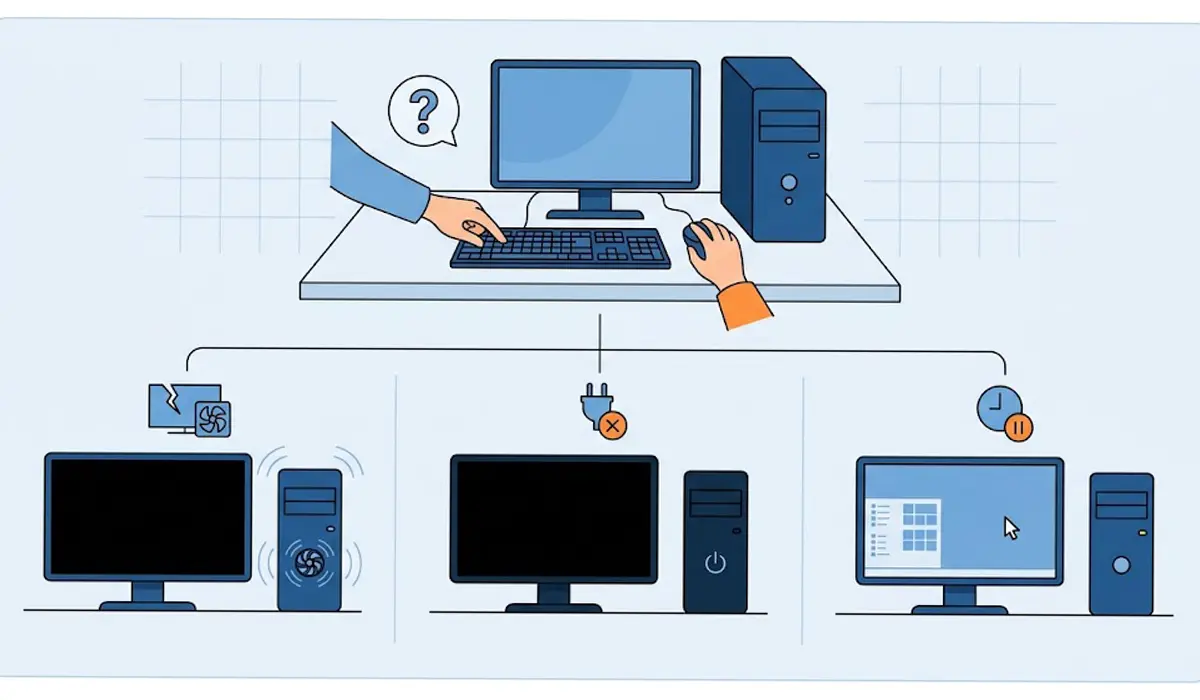
Tip: If the fans are running but the screen shows no signal, unplug and reconnect the display cable or switch the monitor input before assuming the PC is at fault.
Windows Settings Fixes
- Step 3: Allow the keyboard and mouse to wake the PC. Open Device Manager, expand Keyboards, right-click the keyboard, choose Properties, and open the Power Management tab. Tick ‘Allow this device to wake the computer’ and click OK. Repeat the same process under ‘Mice and other pointing devices’. Some devices do not show this tab, which usually means the wake option is handled elsewhere, such as in BIOS.
- Step 4: Turn off USB selective suspend. Open Control Panel, go to Power Options, click ‘Change plan settings’ next to the active plan, and then choose ‘Change advanced power settings’. Expand ‘USB settings’, expand ‘USB selective suspend setting’, and set it to Disabled. Click Apply.
- Step 5: Disable PCI Express power saving. In the same advanced power settings window, expand ‘PCI Express’, expand ‘Link State Power Management’, and set it to Off. This stops the system from cutting power to PCIe devices such as a graphics card or NVMe drive during sleep.
- Step 6: Turn off Fast Startup. In Control Panel, open Power Options, click ‘Choose what the power buttons do’, and then click ‘Change settings that are currently unavailable’. Untick ‘Turn on fast startup (recommended)’ and save the changes. Fast Startup affects shutdown and startup rather than sleep itself, but it keeps driver state saved between boots, so turning it off rules out a stale driver state.
- Step 7: Check which sleep states the PC supports. Open Command Prompt as administrator and run powercfg /a. The result lists the available sleep states and explains why any state is unavailable, which often points straight at a driver or setting that is blocking sleep.
- Step 8: Update or roll back the graphics driver. Download the latest driver from the graphics card maker or the PC manufacturer, and use the clean installation option if the installer offers one. Also install the latest chipset driver from the motherboard or laptop maker. If the problem started right after a driver update, open Device Manager, expand ‘Display adapters’, open the adapter Properties, go to the Driver tab, and click ‘Roll Back Driver’ if the button is available.
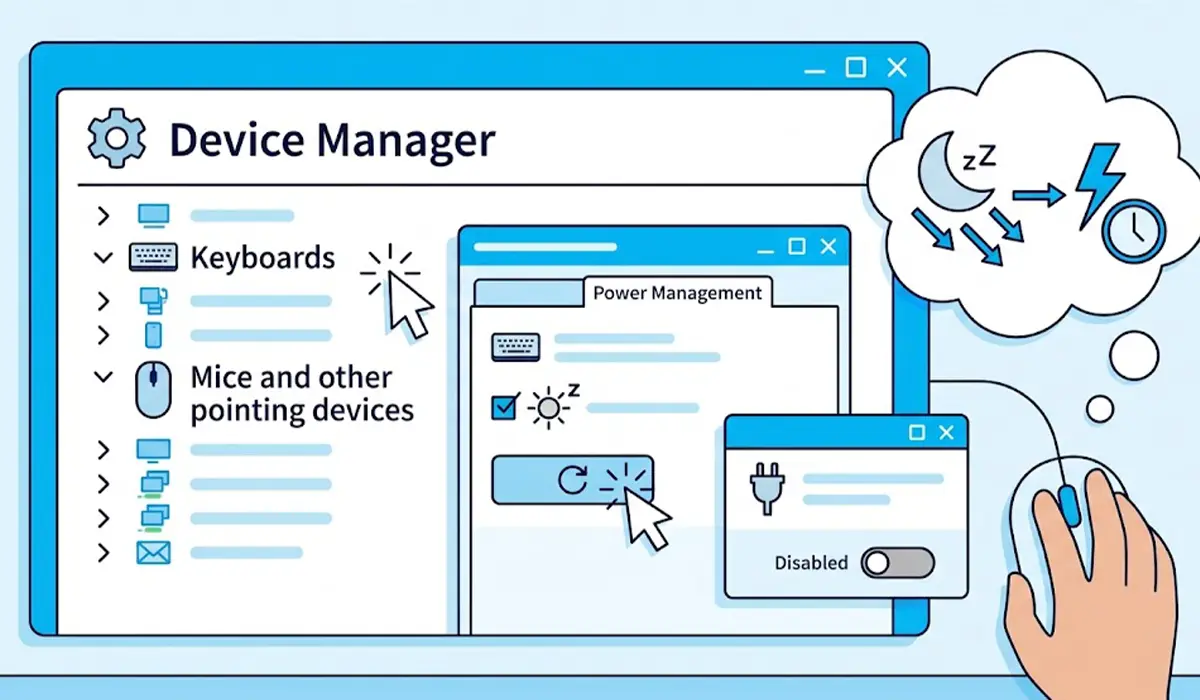
Tip: Change one setting at a time and test sleep after each change. Changing everything at once makes it impossible to know which fix worked, and unnecessary changes are harder to undo later.
BIOS, UEFI, and Hardware Fixes
- Step 9: Update the BIOS or UEFI firmware. Download the update only from the motherboard or laptop manufacturer and follow the maker’s instructions exactly. Keep the device on stable power throughout, because an interrupted update can leave the device unable to start.
- Step 10: Review sleep-related BIOS options. Enter BIOS or UEFI setup at startup and look for options covering the ACPI sleep state, USB wake support, or keyboard wake. Names vary by manufacturer, so check the motherboard or laptop manual if the labels are unclear. Loading the default settings is a quick way to remove a wrong value.
- Step 11: Remove overclocks and test the connected devices. Turn off any CPU overclock or memory XMP profile temporarily and test sleep again. Then unplug every USB device except the keyboard and mouse, including hubs, docks, and external drives, and add them back one at a time.
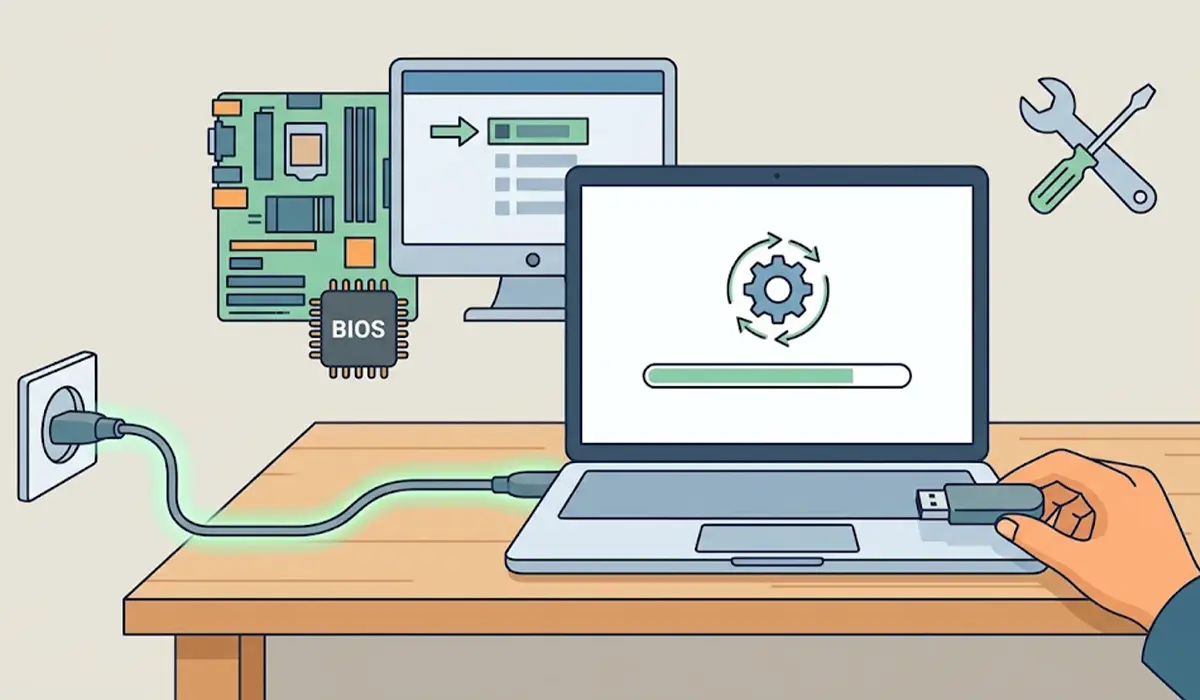
If the PC still fails to resume after every step, and especially if it behaves as if it has lost power completely, the cause may be a failing power supply or unstable memory. Opening the case to test or replace those parts may affect the warranty, so a professional technician is the safer choice.
Common Problems and Fixes
The Screen Stays Black but the PC Is Running
This points to the display chain rather than the PC itself. Try a different cable or port, power cycle the monitor, and update or roll back the graphics driver. On a laptop with two graphics processors, updating both the integrated and dedicated graphics drivers is often needed.
The PC Wakes Immediately After Going to Sleep
Run powercfg /lastwake in an administrator Command Prompt to see what triggered the wake. If a network adapter or a USB device is listed, open its Properties in Device Manager, go to the Power Management tab, and untick ‘Allow this device to wake the computer’. Keep that option enabled on the keyboard or mouse so they can still wake the PC.
The Keyboard Wakes the PC but the Mouse Does Not
The mouse is probably missing wake permission or is being powered down by USB selective suspend. Repeat Step 3 for the mouse and confirm Step 4 is applied. For a wireless mouse, check the receiver is plugged into a port that stays powered during sleep.
Sleep Worked Until a Windows or Driver Update
Roll back the graphics driver first, as described in Step 8. If that does not help, uninstall the most recent update from Windows Update history and pause updates briefly while waiting for a fixed driver.
Wake From Sleep Is Slow or the PC Freezes After Resuming
Disable any overclock or XMP profile, update the BIOS, and check that the SSD firmware and chipset drivers are current. Instability that only appears after sleep often points to settings that were tuned for performance without being tested through power state changes.
Frequently Asked Questions
Why does a PC not wake up from sleep mode?
A PC usually fails to wake because a driver, power setting, or device is interfering with the resume process. The most common triggers are the graphics driver, USB power saving, wake permissions on the keyboard or mouse, and BIOS sleep settings.
Is it safe to force a restart when a PC will not wake from sleep?
Yes, a forced restart is safe for the hardware in most cases, though any unsaved work from the sleeping session may be lost. Hold the power button until the PC switches off, wait a few seconds, then power on again. If the problem keeps returning, work through the fixes in this guide instead of relying on forced restarts.
Does Fast Startup cause sleep problems?
Fast Startup affects shutdown and startup rather than sleep, but it keeps driver state saved between boots. A faulty driver state can therefore carry over and cause odd power behavior. Turning it off is a quick way to rule it out.
How can the wake source be identified?
Open Command Prompt as administrator and run powercfg /lastwake. The result shows what woke the PC most recently. Running powercfg /devicequery wake_armed lists every device currently allowed to wake the system.
Should USB selective suspend be disabled?
Disabling USB selective suspend is a common fix when a USB keyboard or mouse stops responding after sleep. On a desktop there is no meaningful downside. On a laptop, it can slightly reduce battery runtime, so it is best tested and then reverted if it makes no difference.
Can an outdated BIOS cause a PC to not wake from sleep?
Yes. Motherboard and laptop makers release BIOS or UEFI updates that fix sleep and resume bugs. Always download the update from the manufacturer’s support page and keep the device on stable power during the update.
Is hibernate a good alternative to sleep?
Hibernate is a reasonable fallback. It saves the session to the drive and powers the PC down completely, so resume does not depend on the same low-power state that sleep uses. It takes a little longer to resume than sleep. Hibernate can be enabled by running powercfg /hibernate on in Command Prompt as administrator.
Can a faulty power supply or RAM stop a PC from waking from sleep?
It is possible, though less common than software causes. Unstable RAM or a weak power supply can fail when the system changes power states. Rule out drivers, settings, and BIOS first, then have a technician test the hardware.
