
Need to schedule an email to send later in Outlook, such as a message written at midnight that should land in an inbox at 9 AM? Outlook can hold the message and deliver it at the exact date and time chosen. The steps below cover the new Outlook, Outlook on the web, and classic Outlook for Windows.
Key Takeaways
- In new Outlook and Outlook on the web, use the arrow next to Send and pick ‘Schedule send’.
- In classic Outlook for Windows, use ‘Delay Delivery’ on the Options tab and set ‘Do not deliver before’.
- Scheduled messages wait in the Drafts folder (new Outlook and web) or the Outbox folder (classic Outlook).
- Double-check the time zone before sending, since the delivery time follows the device or account settings.
How to Schedule an Email to Send Later in Outlook
The exact menu depends on the Outlook version in use. If the Send button has a small arrow beside it, follow the first method. If the message window has an Options tab with ‘Delay Delivery’, follow the second.
New Outlook and Outlook on the Web
- Step 1: Select ‘New mail’ and write the message as usual. Add the recipients, subject line, and body. Replies and forwards work the same way.
- Step 2: Look at the Send button in the compose window and select the small drop-down arrow next to it.
- Step 3: Choose ‘Schedule send’ from the menu.
- Step 4: Pick one of the suggested times, such as tomorrow morning, or select ‘Custom time’ to set an exact date and time.
- Step 5: If a custom time was chosen, select ‘Send’ in the dialog box to confirm. Outlook now holds the message until the chosen moment.
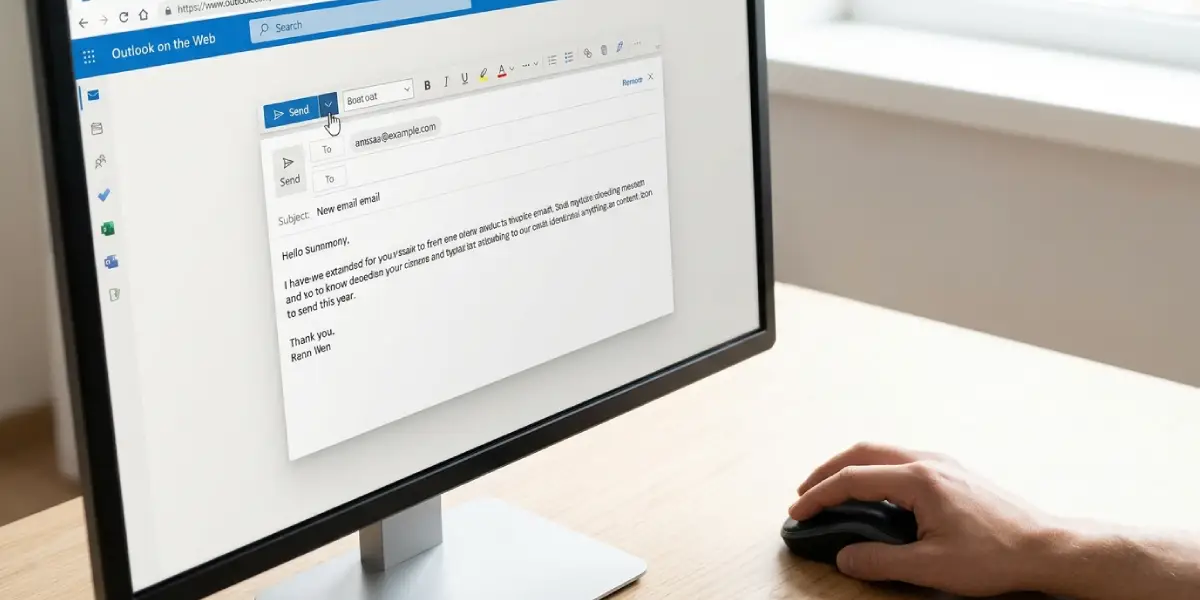
Tip: Before confirming a custom time, check which time zone the date picker shows. A message meant for a 9 AM start in another city can easily go out hours early or late if the zone is wrong.
Classic Outlook for Windows
- Step 1: Create a new email and complete the recipients, subject, and message.
- Step 2: In the message window, open the ‘Options’ tab and select ‘Delay Delivery’ in the More Options group.
- Step 3: In the Properties dialog box, find the Delivery options section and tick the ‘Do not deliver before’ check box.
- Step 4: Set the date and time for delivery, then select ‘Close’.
- Step 5: Select ‘Send’. The message moves to the Outbox folder and stays there until the scheduled time.
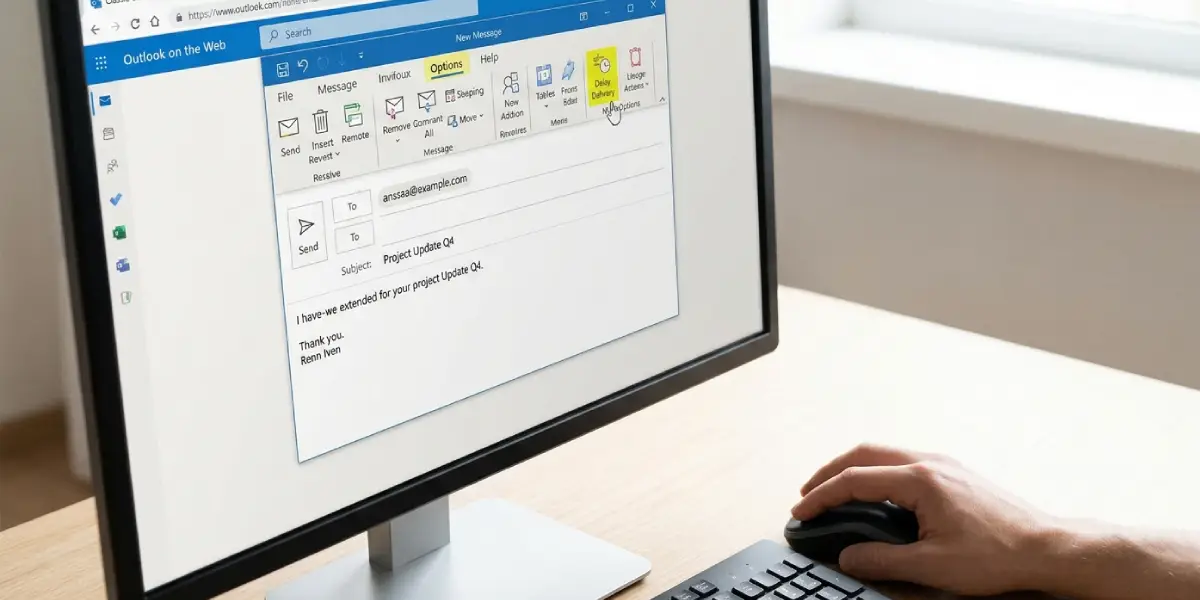
Tip: With classic Outlook, keep the app open and connected to the internet at the scheduled time. A closed app or a laptop in sleep mode is the most common reason a delayed email goes out late.
Check That the Email Is Scheduled
In new Outlook and Outlook on the web, open the Drafts folder. The scheduled message appears there with its delivery time. In classic Outlook, open the Outbox folder, where the message sits until the delay ends. Seeing it in the right folder confirms the schedule worked.
Common Problems and Fixes
The ‘Schedule send’ Option Is Missing
Not every version of Outlook shows this option in the Send menu. If the arrow next to Send does not offer it, switch to the ‘Delay Delivery’ method on the Options tab, which is available in classic Outlook for Windows.
The Email Did Not Go Out at the Scheduled Time
In classic Outlook, the app generally needs to be running and online when the delay ends. Open Outlook, check the connection, and confirm that ‘Work Offline’ is not switched on in the Send / Receive tab. Once Outlook is online, the message in the Outbox is sent.
The Email Was Sent at the Wrong Hour
This usually points to a time zone mismatch between the device, the Outlook account, and the intended recipient. Check the time zone settings on the device and in Outlook, then reschedule future messages with the corrected time.
The Scheduled Message Cannot Be Found
Look in the right folder. New Outlook and Outlook on the web keep scheduled messages in Drafts, while classic Outlook keeps delayed messages in the Outbox. The Sent Items folder only shows the message after delivery.
The Schedule Needs to Be Changed or Canceled
In new Outlook and Outlook on the web, open the message from Drafts and select ‘Cancel send’, then schedule it again with a new time. In classic Outlook, open the message from the Outbox, go to Options, select ‘Delay Delivery’, clear the ‘Do not deliver before’ check box or change the time, and select ‘Send’ again.
Frequently Asked Questions
Can I schedule an email to send later in Outlook for any date and time?
Yes. In new Outlook and Outlook on the web, ‘Custom time’ lets you pick an exact date and time. In classic Outlook, the ‘Do not deliver before’ setting accepts a specific date and time as well.
Where do scheduled emails go in Outlook?
In new Outlook and Outlook on the web, they stay in the Drafts folder until the delivery time. In classic Outlook for Windows, they wait in the Outbox folder.
Does Outlook need to be open for a scheduled email to send?
With classic Outlook and the ‘Delay Delivery’ method, keeping the app open and online at the scheduled time is the safest approach. With ‘Schedule send’ in new Outlook and Outlook on the web, the message is handled by the mail service, so it does not depend on the browser tab staying open.
How do I cancel a scheduled email in Outlook?
In new Outlook and Outlook on the web, open the message from the Drafts folder and select ‘Cancel send’. In classic Outlook, open it from the Outbox, remove the delay under ‘Delay Delivery’, and either send it right away or delete it.
Can I change the time of a scheduled email?
Yes. Cancel the current schedule, then schedule the message again with a new time. In classic Outlook, reopen the message from the Outbox and edit the ‘Do not deliver before’ value.
Can I schedule a reply or a forwarded email?
Yes. Replies and forwards use the same Send menu or Options tab as a new message, so the scheduling steps stay the same.
Will the recipient know the email was scheduled?
No. The message arrives with the delivery time as its sent time, and nothing in the email shows that it was scheduled in advance.
How do I schedule an email to send later in Outlook for Mac?
In Outlook for Mac, select the arrow next to the Send button in the compose window and choose ‘Send Later’. Then set the date and time and confirm.
