
Few things are more annoying than a graphics card that sounds like a jet engine while the desktop sits idle. To fix GPU fans running at 100% constantly, start by working out whether the cause is real heat, a software override, or a faulty fan controller. Most cases come down to dust, a stuck fan curve, a driver glitch, or background GPU load, and all of these can be sorted out at home.
Key Takeaways
- Constant full-speed fans are a symptom, not a diagnosis. Check the GPU temperature and load first, because the answer decides which fix applies.
- Software causes are the quickest to rule out: stray background load, a fixed fan curve in a tuning utility, or a corrupted driver.
- Dust buildup and poor case airflow are the most common physical causes and cost almost nothing to fix.
- If the fans stay at full speed while the card is cool and idle, the fan controller or temperature sensor may be faulty, and warranty service is the safest route.
Common Causes of GPU Fans Running at 100%
Understanding why the fans are screaming saves a lot of guesswork. Think of the fan controller like a thermostat: it only does what the temperature reading and the fan curve tell it to do. If either input is wrong, the fans respond wrongly.
- Hidden background load, such as a browser tab, a video player, malware, or a hidden mining process keeping the GPU busy.
- A manual fan curve or fixed fan speed saved in a tuning utility such as MSI Afterburner or a similar tool.
- A corrupted or mismatched graphics driver that mismanages fan control.
- Dust clogging the heatsink fins and fan blades, so heat cannot escape and the card compensates by spinning faster.
- Poor case airflow, which feeds the card hot air and keeps temperatures high.
- Dried thermal paste or worn thermal pads on older cards, which let heat build up even under light loads.
- A loose or damaged fan connector, or a failing fan controller or temperature sensor on the card itself.
Before You Start
The first few steps are software only. The cleaning and hardware steps later in this guide involve opening the case, so a little preparation keeps everything safe.
- Shut the PC down fully, switch off the power supply, and unplug the power cable.
- Hold the power button for a few seconds to drain leftover charge, then touch bare metal on the case or wear an anti-static strap to discharge static.
- Let the card cool down if the PC was just running.
- Gather a soft brush, compressed air, a microfiber or lint-free cloth, and a small Phillips screwdriver. For a repaste, add 90 percent or higher isopropyl alcohol and fresh thermal paste.
- Never use water, never spray liquids directly on the card, and never use metal tools around the circuit board.
Removing the cooler to replace paste or pads can void the warranty on many cards. If the card is still covered, contact the manufacturer first. On a laptop, where the cooling system is part of a tightly packed assembly, stopping at the software and external cleaning steps and leaving internal work to a repair shop is the sensible choice.
How to Fix GPU Fans Running at 100% Constantly, Step by Step
Software and Settings Fixes
- Step 1: Check the real temperature and load. Open a monitoring tool such as HWiNFO, GPU-Z, or MSI Afterburner and watch the GPU temperature, GPU load, and fan speed percentage at idle. If the temperature is high or the load is not near zero, there is a real heat or load problem. If the card is cool and idle but the fans are still at full speed, the cause is more likely a setting, a driver, or a controller fault.
- Step 2: Find hidden GPU load. Open Task Manager, go to the Processes tab, and sort by the GPU column. Close anything unexpected, turn off hardware acceleration in browsers if a tab keeps the GPU busy, and run a full scan with Windows Security. Unknown programs that use the GPU heavily while nothing is open deserve a closer look.
- Step 3: Reset the fan curve. If a tuning utility is installed, open it, press the reset button, and turn off any custom or fixed fan speed setting. Close the utility and restart the PC. A forgotten profile set to 100 percent is a surprisingly common culprit, especially after a gaming session that used an aggressive profile.
- Step 4: Check the Windows power and in-game settings. Set the Windows power plan to Balanced and, for games, apply a frame rate cap or enable V-Sync. An uncapped menu screen can push a GPU to maximum output and keep the fans loud for no visible benefit.
- Step 5: Clean install the graphics driver. Download the latest driver for the card directly from NVIDIA, AMD, or Intel. Use Display Driver Uninstaller (DDU) in Windows Safe Mode to remove the old driver completely, restart, and then install the fresh one. This clears out corrupted fan control data that a standard update leaves behind.
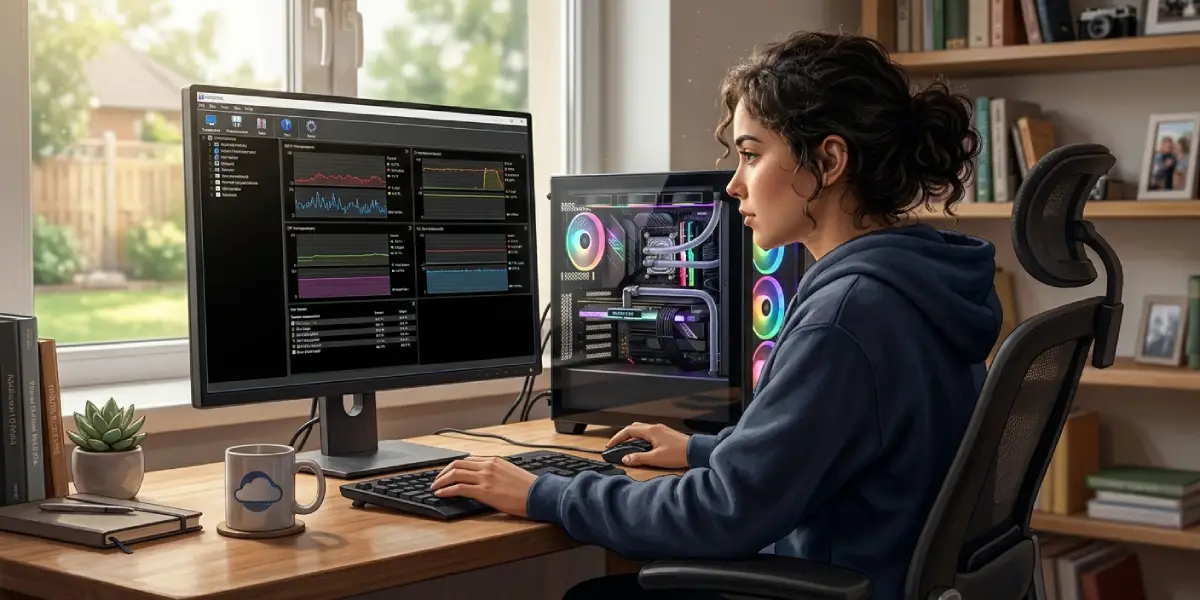
Tip: Make one change at a time and restart between steps. Changing several settings together makes it impossible to tell which one solved the problem.
Physical Fixes
- Step 6: Clean the dust from the card and case. With the PC off and unplugged, open the side panel. Hold each GPU fan still with a finger or a soft tool so it cannot spin freely, then use short bursts of compressed air through the fins and across the blades. Brush off stubborn dust gently, and clear dust from case filters and intake fans as well. Spinning a fan freely with compressed air can push it faster than it was designed to turn and damage the bearing, so keeping the blades still matters.
- Step 7: Improve case airflow. Make sure the front or bottom intake fans are working, the exhaust fans at the rear and top are not blocked, and cables are not sitting in front of the GPU. Leave some space around the case so intake air is not drawn from a cramped corner or hot spot.
- Step 8: Check the fan and power connections. Reseat the GPU in its PCIe slot, press each PCIe power connector in until it clicks, and confirm that the card’s fan cables are fully seated on the circuit board where the design allows access. A poorly connected fan lead can make the controller behave unpredictably.
- Step 9: Replace thermal paste and pads only if the card is out of warranty and temperatures stay high even after cleaning. Remove the cooler carefully, clean the old paste off the GPU die with isopropyl alcohol on a lint-free cloth, apply a thin, even layer of fresh paste, and refit the cooler with even screw pressure. Where the card uses thermal pads on memory chips or power components, replace them with pads of the same thickness rather than guessing. If the cooler looks complex or the pad thickness is unclear, hand the job to a professional.
- Step 10: Test the card in a different system, if one is available. If the fans still run at full speed with the card cool and idle, the fan controller or temperature sensor is the likely fault. At that point, a warranty claim or professional repair is the right path, since neither can be fixed with settings or cleaning.
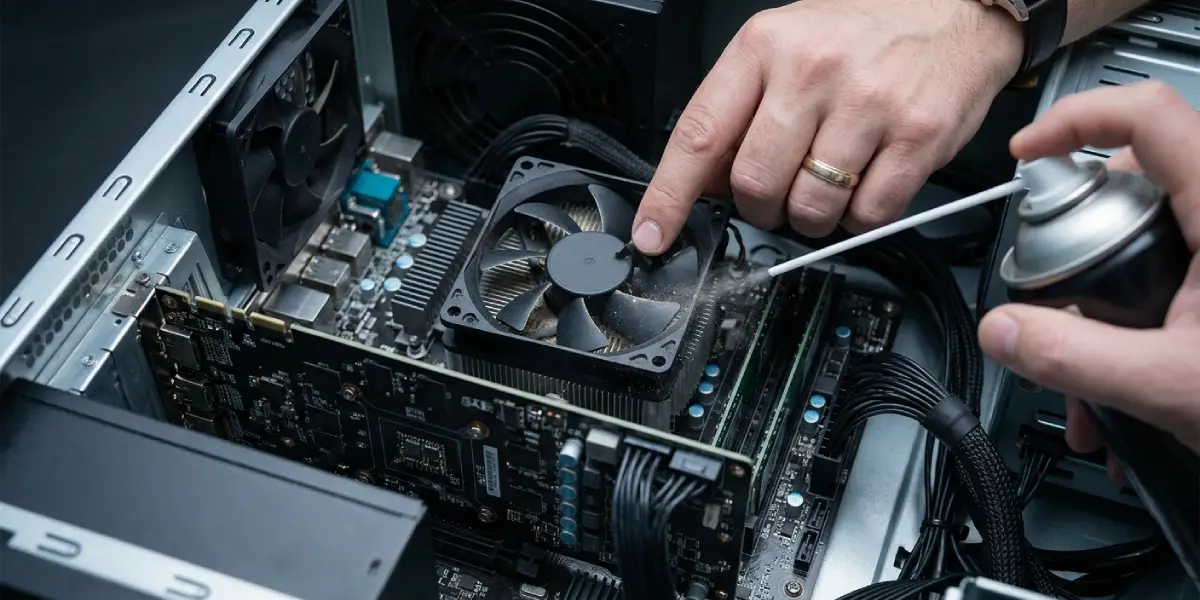
Tip: A card that sounds fine for a few minutes and then ramps to full speed usually has a heat problem such as dust or old paste. A card that runs at full speed from the moment the PC powers on is more likely a software or controller issue.
Common Problems and Fixes
The fans still run at full speed after cleaning
Recheck the temperature in a monitoring tool. If it is still high, the heatsink may be blocked deeper than a surface clean can reach, or the thermal paste may be dried out. If the temperature is low, move on to the driver clean install and then the controller fault checks.
The fans run at 100% right after a driver update
A fresh install over an old driver can leave fan settings in a bad state. Perform a clean install with DDU in Safe Mode, then reset any fan profile in the tuning utility.
The fans ramp to full speed only in games
Full speed under heavy load can be normal if temperatures are genuinely high. Cap the frame rate, improve case airflow, clean the dust, and consider a modest undervolt or power limit in a tuning utility to lower heat output.
The fan speed reading shows 100% but no fan is spinning
This points to a sensor reading problem or a failed fan. Check that the fans physically turn, reseat connections, and contact the manufacturer if the fault continues.
One fan is much louder than the other
An unevenly noisy fan often has dust on the blades or a worn bearing. Clean it first. If the noise or rattle remains, the fan or the whole cooler may need replacing.
The PC does not boot or shows no display after a repaste
Power down, unplug, and reseat the GPU and its power connectors. Confirm that the cooler screws are tightened evenly and that no thermal paste has spilled onto the circuit board or into the PCIe slot. If the problem remains, stop and have the card checked by a technician.
Frequently Asked Questions
Is it normal for GPU fans to run at 100% all the time?
No. Fans can ramp up to high speeds briefly under heavy load, but constant full speed at idle or during light use points to a problem such as heat, a software override, or a faulty fan controller.
Can GPU fans running at 100% damage the card?
Running the fans at full speed does not harm the GPU itself, but it wears the fan bearings faster and creates unnecessary noise. The underlying cause should still be found and fixed.
Why do GPU fans spin at 100% when the PC is idle?
Common reasons include background GPU load, a fixed fan speed or custom fan curve in a tuning utility, a driver glitch, a dust-clogged heatsink, or a faulty fan controller or temperature sensor.
How can the GPU fan curve be reset?
Open the tuning utility, press the reset button, turn off any custom or fixed fan speed option, and restart the PC. If the problem continues, uninstall the utility to confirm that it is not overriding the card’s default fan control.
Will reinstalling the graphics driver stop the fans from running at full speed?
It can, when a corrupted or mismatched driver is the cause. A clean install using Display Driver Uninstaller in Windows Safe Mode removes leftover settings that a normal update leaves behind.
How often should a graphics card be cleaned?
It depends on the environment. A quick dust check every few months suits homes with pets or heavy dust, while a cleaner room may only need a check every six months or so.
Will replacing thermal paste fix GPU fans running at 100%?
Only if dried paste or worn thermal pads are causing high temperatures. Dust is a far more common cause, so cleaning should come first. Removing the cooler may also affect the warranty.
When should a GPU be repaired or replaced?
If the fans stay at full speed while the card is cool and idle, and a clean driver install and a test in another system change nothing, the fan controller or sensor is likely faulty. Contact the manufacturer for warranty service or a professional repair.
