
The easy way to recall or replace a sent email in Outlook takes less than a minute, but it only works under the right conditions. The message must sit unread in the recipient’s mailbox, and both mailboxes must be on Microsoft Exchange or Microsoft 365 in the same organization. Here is exactly where to click, and what to check first.
Key Takeaways
- Open the message from the Sent Items folder, then choose Recall This Message (classic Outlook) or Recall message (new Outlook and Outlook on the web).
- Pick ‘Delete unread copies of this message’ to pull it back, or ‘Delete unread copies and replace with a new message’ to swap in a corrected version.
- Recall only succeeds if the recipient has not read the message and is in the same Exchange or Microsoft 365 organization.
- A Message Recall Report or a success or failure message confirms the result for each recipient.
Steps to Recall or Replace a Sent Email in Outlook
The menu path depends on which version of Outlook is in use. Classic Outlook for Windows uses the File tab, while new Outlook and Outlook on the web use a Recall button inside the opened message. Pick the version that matches the screen in front of you.
Classic Outlook for Windows
- Step 1: In the folder pane on the left, select the Sent Items folder.
- Step 2: Double-click the message so it opens in its own window. Selecting it in the list is not enough, because the recall options live in the opened message.
- Step 3: Select File, then Info.
- Step 4: Select Resend or Recall, then choose Recall This Message. As a shortcut, the same command also sits on the Message tab under Actions.
- Step 5: Choose one option. Select ‘Delete unread copies of this message’ to simply pull the email back. Select ‘Delete unread copies and replace with a new message’ to swap it for a corrected version.
- Step 6: Select the ‘Tell me if recall succeeds or fails for each recipient’ check box, then select OK.
- Step 7: If the replace option was chosen, the original message opens for editing. Fix the mistake, then select Send. The original is deleted from the recipient’s mailbox and the edited version takes its place.
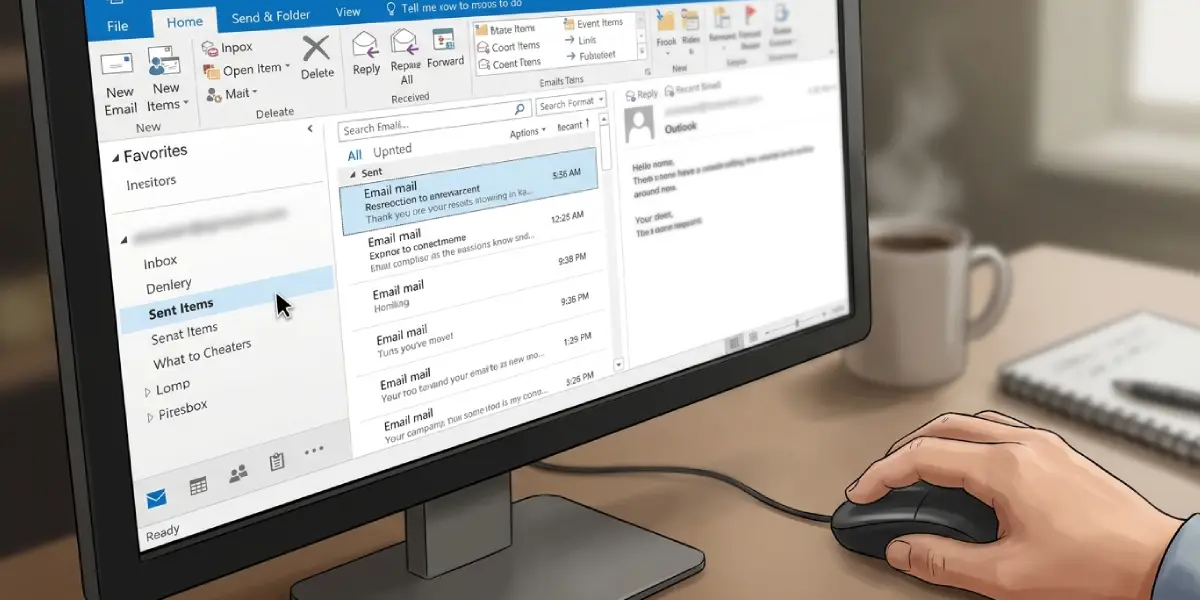
Tip: Tick the ‘Tell me if recall succeeds or fails’ box every time. Without it, there is no easy way to know whether the recall actually worked or whether the recipient still has the original.
New Outlook and Outlook on the Web
- Step 1: Select Sent Items in the left folder pane.
- Step 2: Double-click the sent message to open it in a separate window.
- Step 3: Select Recall message. If the button is not visible on the toolbar, open the More actions (…) menu in the message window and look for it there.
- Step 4: Select OK in the confirmation dialog box.
- Step 5: Wait for the Message Recall Report to arrive in the inbox, then select the link inside it to see whether the recall succeeded, is pending, or failed.
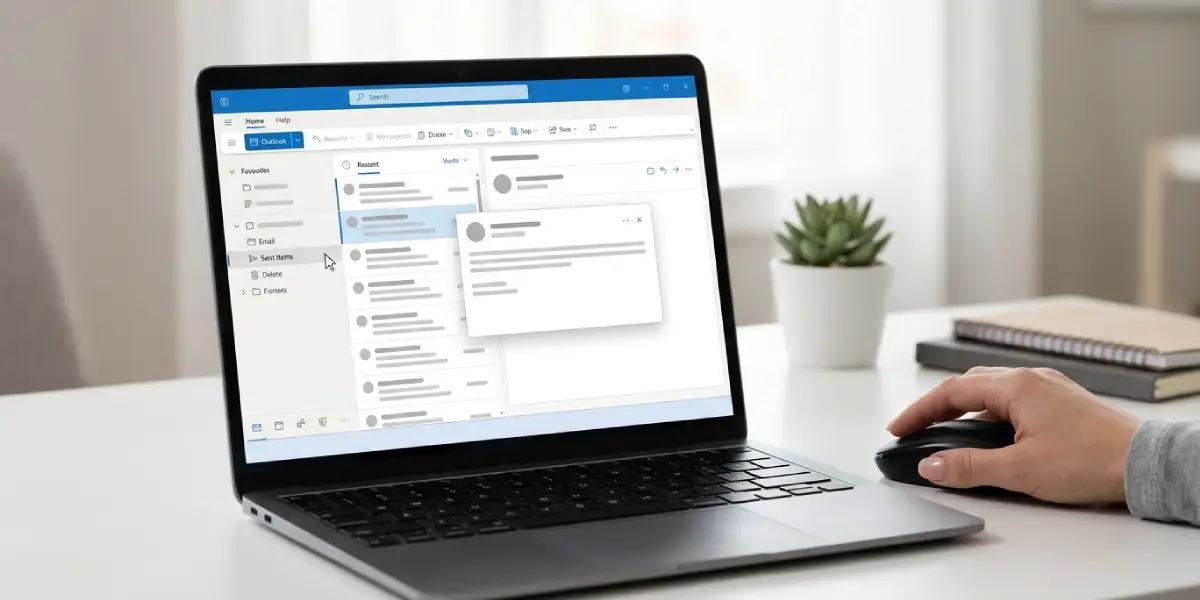
To replace the email in new Outlook or Outlook on the web, recall the original first, then send a corrected message once the report confirms the recall.
Outlook for Mac
- Step 1: Select the message in the Sent folder.
- Step 2: Select the Message menu on the toolbar.
- Step 3: Select Recall.
Recall on Mac works only when the sender and the recipient both use Microsoft 365 email accounts within the same organization.
Check These Requirements Before Recalling
Think of recall as a race. The command can only grab the message if it is still sitting untouched in the recipient’s inbox, so speed matters. A quick check of these conditions saves a failed attempt.
- Both the sender and the recipient use a Microsoft Exchange or Microsoft 365 account.
- Both mailboxes belong to the same organization.
- The recipient has not opened the message or marked it as read.
- The message is still in the recipient’s inbox and has not been moved by a rule.
- The sending account is not a MAPI or POP account, because recall will not work with those.
Tip: Recall right after noticing the mistake. A message sent to a colleague who checks mail all day is often read within minutes, and a read message cannot be recalled.
Common Problems and Fixes
The Recall This Message option is missing or greyed out
This usually means the account is not an Exchange or Microsoft 365 account, or the message was opened from the wrong folder. Open the message from the Sent Items folder in its own window and check the account type under File, then Info.
The recall report says the recall failed
A failure typically means the recipient already read the message, the message was moved out of the inbox by a rule, or the recipient is outside the organization or not using Outlook. In that case, the practical fix is to send a short follow-up email asking the recipient to ignore or delete the earlier message.
No success or failure message arrives
The report can take a short while to appear. In new Outlook, closing and reopening the app, or signing out and back in, can force a sync so the Message Recall Report shows up. In classic Outlook, make sure the ‘Tell me if recall succeeds or fails for each recipient’ box was ticked.
The replace option opened the original message but nothing changed for the recipient
The replacement only takes effect after Send is selected. Edit the opened message, then select Send so the original is deleted from the recipient’s mailbox and the new one arrives in its place.
Frequently Asked Questions
Can a sent email be recalled in Outlook?
Yes, if the sender and recipient are both on Microsoft Exchange or Microsoft 365 in the same organization and the recipient has not read the message yet.
Does recall work if the recipient has already opened the email?
No. Once the message has been read or marked as read, the recall fails and the original stays in the recipient’s mailbox.
How do I know if the recall worked?
Outlook sends a Message Recall Report or a success or failure message to the inbox. In classic Outlook, ticking the ‘Tell me if recall succeeds or fails for each recipient’ box makes sure that notice arrives.
What is the difference between recalling and replacing a message?
Recalling deletes the unread copies of the original. Replacing deletes the unread copies and opens the original for editing, so a corrected version can be sent in its place.
Can an email sent to a Gmail or Yahoo address be recalled?
No. Recall only works when the recipient is on Microsoft Exchange or Microsoft 365 within the same organization as the sender.
What does Resend This Message do?
In classic Outlook, Resend This Message sends the email again with the option to update the content or change the recipients. It is found under Resend or Recall in File, then Info.
Does recall work with POP accounts?
No. Recall will not work if the account is a MAPI or POP account.
Can a sent email be recalled in Outlook for Mac?
Yes, when both the sender and the recipient use Microsoft 365 accounts in the same organization. Select the message in the Sent folder, open the Message menu, and select Recall.
Is there a time limit for recalling an email?
There is no set time window in the steps, but the message must still be unread and in the recipient’s inbox. The sooner the recall is started, the better the chance it succeeds.
