
Knowing how to fix external SSD not recognized via USB can save a lot of panic, because the drive is usually fine and the problem sits in the cable, the port, a missing drive letter, or a driver setting. This guide moves from the quickest checks to the deeper fixes, so the problem can be solved with the least risk to the files on the drive.
Key Takeaways
- Most ‘not recognized’ cases come from a bad cable, a weak port, or a missing drive letter, not a dead drive.
- Start with the free checks first: another cable, another port, and another computer.
- Disk Management on Windows and Disk Utility on Mac show whether the system sees the drive at all.
- Never initialize, format, or create a new volume on a drive that holds data that matters.
- If the drive does not show up on any computer with a known-good cable, the SSD or its enclosure board has likely failed.
Common Causes
An external SSD can fail to appear for several reasons, and knowing which one applies makes the fix much faster.
- A damaged, loose, or charge-only USB cable that cannot carry data properly.
- A dirty, worn, or underpowered USB port, or an unpowered hub that cannot supply enough power.
- No drive letter assigned, so the drive is connected but hidden from File Explorer.
- A drive that is offline, uninitialized, or shows unallocated space in Disk Management.
- A corrupted or incompatible file system, such as a Mac-formatted APFS drive plugged into Windows.
- Outdated or glitchy USB controller drivers, or USB selective suspend turning the port off.
- A failing SSD or a failed USB-to-SATA or USB-to-NVMe bridge board inside the enclosure.
Before You Start
This is a software and connection fix, so there is no need to open the enclosure. Opening it can void the warranty and risks damaging the bridge board.
- Save any open work, then close programs that might be using the drive.
- Gather a second USB cable that is known to work for data, a second computer if one is available, and a spare USB port on the PC itself.
- Avoid formatting, initializing, or running repair tools until the drive has been tested on another computer. These actions can make file recovery harder.
- Stop and use a professional data recovery service if the drive holds irreplaceable files and makes no sign of life on any computer.
How to Fix External SSD Not Recognized via USB Step by Step
Rule Out the Cable and Port
- Step 1: Unplug the SSD, restart the computer, and reconnect the drive before opening any other programs. A simple restart clears many temporary USB glitches.
- Step 2: Swap the cable. Use the cable that came with the SSD if possible, since some third-party USB-C cables only charge a device and do not carry data. Cables wear out where they bend, so a cable that looks fine can still be the culprit.
- Step 3: Plug the SSD directly into a port on the computer, not into a hub, dock, or monitor. On a desktop, use a port on the back of the case, which connects straight to the motherboard. Try both a USB-A and a USB-C port if the computer has both.
- Step 4: Disconnect other USB devices temporarily, such as external hard drives, capture cards, and charging gadgets. Too many devices on the same controller can starve the SSD of power.
- Step 5: Connect the SSD to a different computer. If it appears there, the drive is healthy and the problem lies with the first computer’s port, drivers, or settings. If it fails everywhere with a known-good cable, the drive or its enclosure is the likely cause.
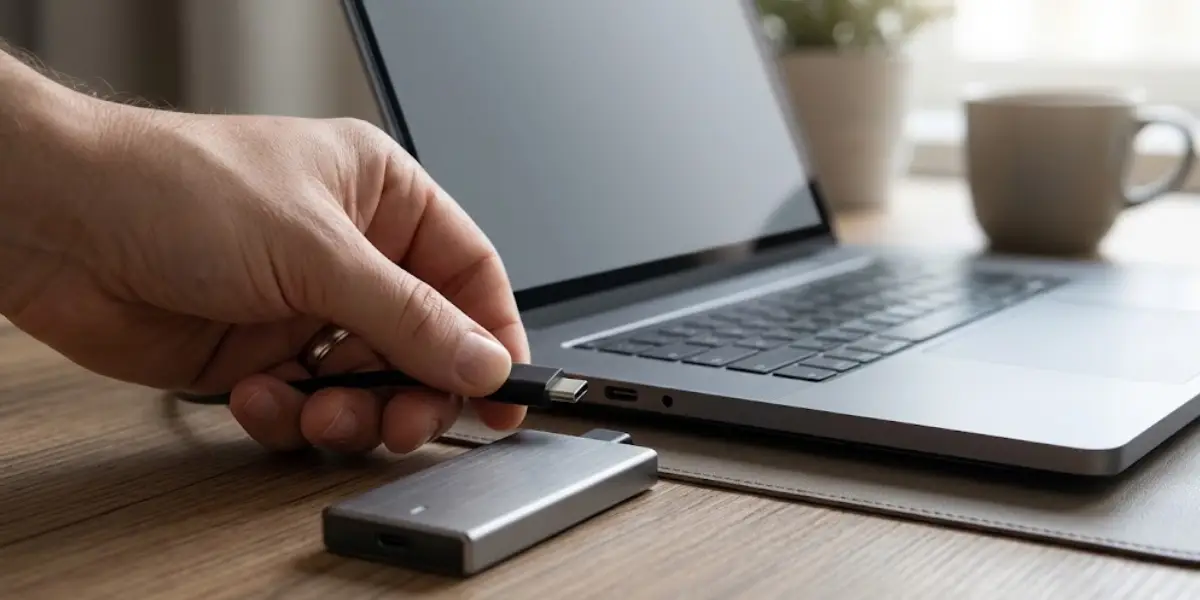
Tip: A drive that connects, disconnects, and reconnects every few seconds usually points to a bad cable or a port that cannot supply enough power, not a corrupted drive.
Check Whether Windows Sees the Drive
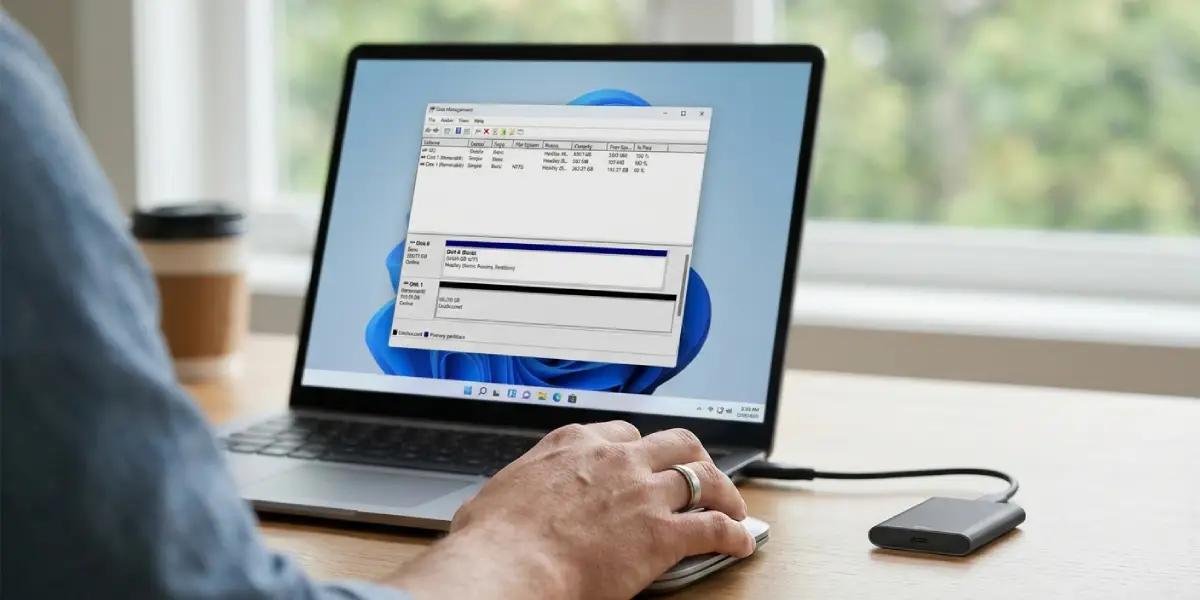
- Step 6: Right-click the Start button and open Disk Management. Look for the SSD in the lower list of disks. A drive that appears here is detected by Windows, even if it is missing from File Explorer.
- Step 7: If the drive shows a healthy partition but no drive letter, right-click the partition, choose Change Drive Letter and Paths, click Add, pick an unused letter, and confirm. The drive should appear in File Explorer within seconds.
- Step 8: If the disk is marked Offline, right-click the disk label on the left side (not the partition) and choose Online.
- Step 9: If the disk shows Not Initialized, stop and think before acting. Initializing writes a new partition table, which can make existing data harder to reach. A drive that was working before and now shows this usually holds data, so try a different port, cable, and computer first, or use data recovery software before touching it. Initialize only if the drive is new or empty.
- Step 10: If the drive shows only Unallocated space, the same caution applies. Creating a new simple volume or formatting will erase access to old files. Only do this on a new or empty SSD, or after the files are recovered.
Reset the USB Drivers in Windows
- Step 11: Open Device Manager, expand Disk drives, right-click the external SSD entry, and choose Uninstall device. Do the same for any entry marked with a yellow warning triangle or named Unknown USB Device.
- Step 12: Unplug the SSD, restart the computer, and reconnect the drive. Windows reinstalls the drivers automatically on the next connection.
- Step 13: Run Windows Update and install pending updates, including optional driver updates for USB controllers. For desktops and laptops, the motherboard or laptop maker’s website also offers chipset and USB drivers that fix compatibility issues with newer drives.
- Step 14: Open Control Panel, go to Power Options, select Change plan settings, then Change advanced power settings. Under USB settings, set USB selective suspend setting to Disabled. This stops Windows from cutting power to the port to save energy, which is a common cause of drives that vanish after sitting idle.
Check the Drive on a Mac
- Step 15: Open Disk Utility, click the View button, and choose Show All Devices. A drive that is detected but unmounted appears here even when it is missing from the desktop and Finder.
- Step 16: Select the drive’s volume and click Mount if the option is available. If it refuses to mount, select the drive and run First Aid to repair file system errors.
- Step 17: Open System Information, choose USB in the left list, and look for the SSD. If it is listed, the connection works and the problem is with the file system. If it is missing, the issue is the cable, port, or drive.
Repair File System Errors
- Step 18: If the drive appears in Disk Management with a drive letter but will not open, or asks to be formatted, open Command Prompt as administrator and run chkdsk with the drive letter and the /f switch, for example chkdsk E: /f. Replace E with the actual letter. This repairs logical file system errors without wiping the drive.
- Step 19: If the drive shows as RAW, avoid formatting. Copy the files off with data recovery software first, then format to NTFS or exFAT afterward.
- Step 20: If the drive was formatted on a Mac with APFS or HFS+, Windows cannot read it without extra software. Either plug it into a Mac to copy the data, or reformat it to exFAT once the files are safe, since exFAT works on both Windows and macOS.
Tip: When one cable and one port fail, test the same cable and port with a different device such as a phone or flash drive. That quickly shows whether the hardware or the SSD is at fault.
Common Problems and Fixes
The SSD Shows in Device Manager but Not in Disk Management
This usually points to a driver or controller problem. Uninstall the device in Device Manager, restart, update the USB and chipset drivers, and try another port. If Disk Management still shows nothing, the enclosure’s bridge board or the SSD itself may have failed.
The SSD Appears Then Disappears
Random disconnects point to a loose or damaged cable, a port that cannot supply stable power, or USB selective suspend. Replace the cable, use a rear port on a desktop, and turn off selective suspend in Power Options.
The Drive Shows Up as Unknown or With 0 MB
A drive reporting zero capacity or an Unknown name usually points to a failing controller or a drive that has lost communication with its enclosure. Test on another computer. If the result is the same, the drive likely needs repair or replacement, and data recovery is best left to a specialist.
The Drive Works on One Computer but Not Another
Differences in file system support, missing drivers, or a weak USB port are the usual reasons. Check the file system, install the latest chipset and USB drivers on the failing computer, and try a different port.
The SSD Is Detected but Asks to Be Formatted
Do not accept the format prompt if the files matter. Run chkdsk first, or recover the files with data recovery software, and only then reformat.
A USB-C Port Does Nothing When the SSD Is Connected
Some USB-C ports are limited to charging or video output. Check the computer’s manual for the port’s capabilities and try a different port or a USB-A adapter with a data-capable cable.
Frequently Asked Questions
Why is my external SSD not showing up in File Explorer?
The most common reasons are a missing drive letter, an offline disk, a bad cable, or a port that cannot supply enough power. Open Disk Management to see whether Windows detects the drive, then assign a drive letter or bring the disk online.
Will fixing a not recognized SSD erase my data?
Most of the fixes in this guide do not touch the data. Changing the cable, port, drivers, and drive letter are safe. Initializing, formatting, and creating a new volume can erase access to files, so avoid them until the data is backed up or recovered.
Can a bad USB cable stop an external SSD from being recognized?
Yes. A worn cable, a loose connector, or a cable made only for charging can prevent the drive from connecting properly. Try the cable that came with the SSD or another known data-capable cable.
Why does my external SSD appear and then disappear?
Intermittent disconnects usually come from a damaged cable, a weak or unpowered hub, or Windows turning off the port through USB selective suspend. Connect the drive directly to the computer and disable selective suspend in Power Options.
How do I know if the SSD is dead or just not recognized?
Test the drive on a second computer with a known-good cable. If it fails to appear in Disk Management or Disk Utility on every computer, and the enclosure shows no activity, the SSD or its bridge board has likely failed.
Should I format an external SSD that is not recognized?
Format only when the drive is new, empty, or already backed up. Formatting a drive with important data makes recovery more difficult, so try chkdsk or data recovery software first.
Why does my Mac-formatted SSD not work on Windows?
Windows cannot read the APFS and HFS+ file systems that Macs commonly use. Copy the data using a Mac, or reformat the drive as exFAT, which both Windows and macOS can read and write.
Do I need to update drivers to fix an unrecognized external SSD?
Sometimes. Uninstalling the drive in Device Manager and restarting reinstalls the drivers, and updating Windows and the motherboard chipset drivers fixes many USB compatibility problems.
Can a USB hub cause an external SSD to be unrecognized?
Yes. Hubs, especially unpowered ones, can fail to supply enough power or bandwidth for an external SSD. Plugging the drive directly into the computer is one of the quickest ways to rule this out.
