
Music that stutters, drops for a second, or disconnects completely is one of the most annoying audio problems. The good news is that a Bluetooth speaker cutting out is usually fixable without buying anything new. This guide shows how to fix a Bluetooth speaker cutting out by working through the most common causes in a sensible order, from quick checks to driver and battery fixes.
Key Takeaways
- Distance, walls, and wireless interference cause most dropouts, so test at close range first.
- Removing the speaker and pairing it again clears many corrupted connections.
- On a Windows PC, an outdated Bluetooth driver or an aggressive power-saving setting is a frequent culprit.
- A weak speaker battery and outdated speaker firmware can also cause stuttering.
- Work through the steps in order and test after each one to find the exact cause.
Common Causes of a Bluetooth Speaker Cutting Out
Bluetooth is a short-range radio link, so anything that weakens or crowds that signal can interrupt the sound. Knowing the likely cause saves time, because the fix depends on what is actually going wrong.
Signal Range and Obstacles
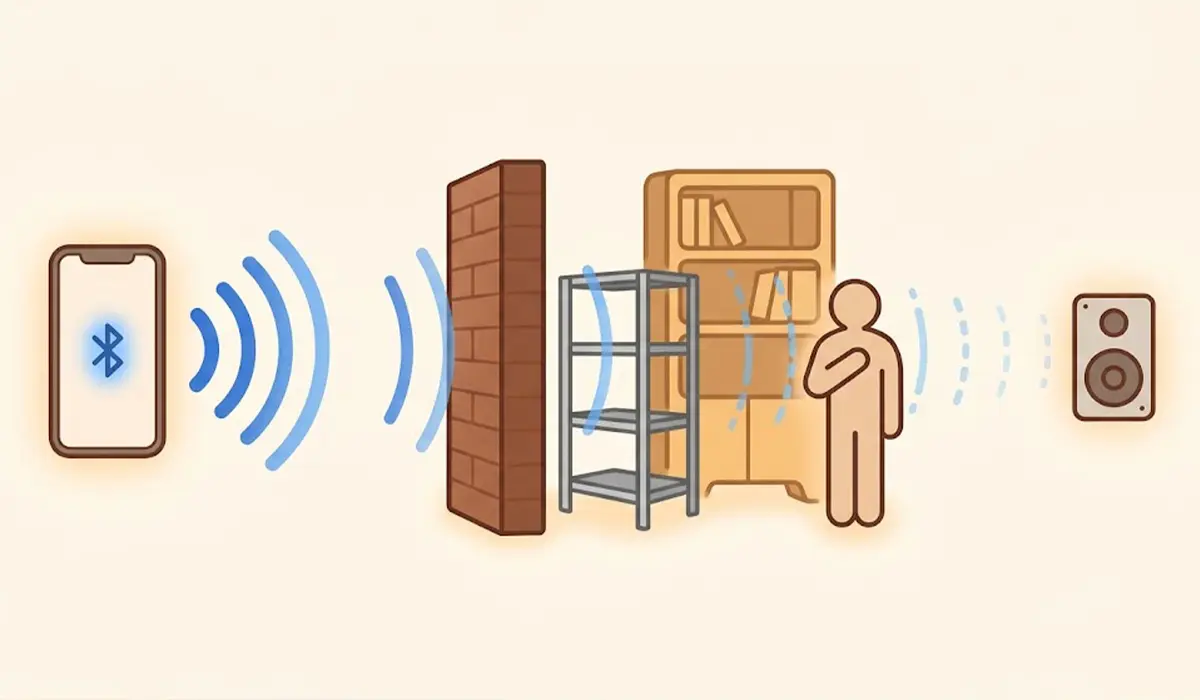
Bluetooth range is often quoted at around 10 meters (about 33 feet) in open space, but real rooms are rarely open. Walls, furniture, metal shelves, and even a human body standing between the source and the speaker can weaken the signal. Think of it like a flashlight beam: the more things in the way, the dimmer it gets.
Wireless Interference
Bluetooth shares the 2.4 GHz band with many Wi-Fi routers, cordless phones, microwave ovens, and other Bluetooth devices. When several of them are active in one room, the speaker can lose pieces of the audio stream. Most people find that dropouts get worse when a microwave runs or when a router sits right next to the source device.
Low Battery on the Speaker or Source
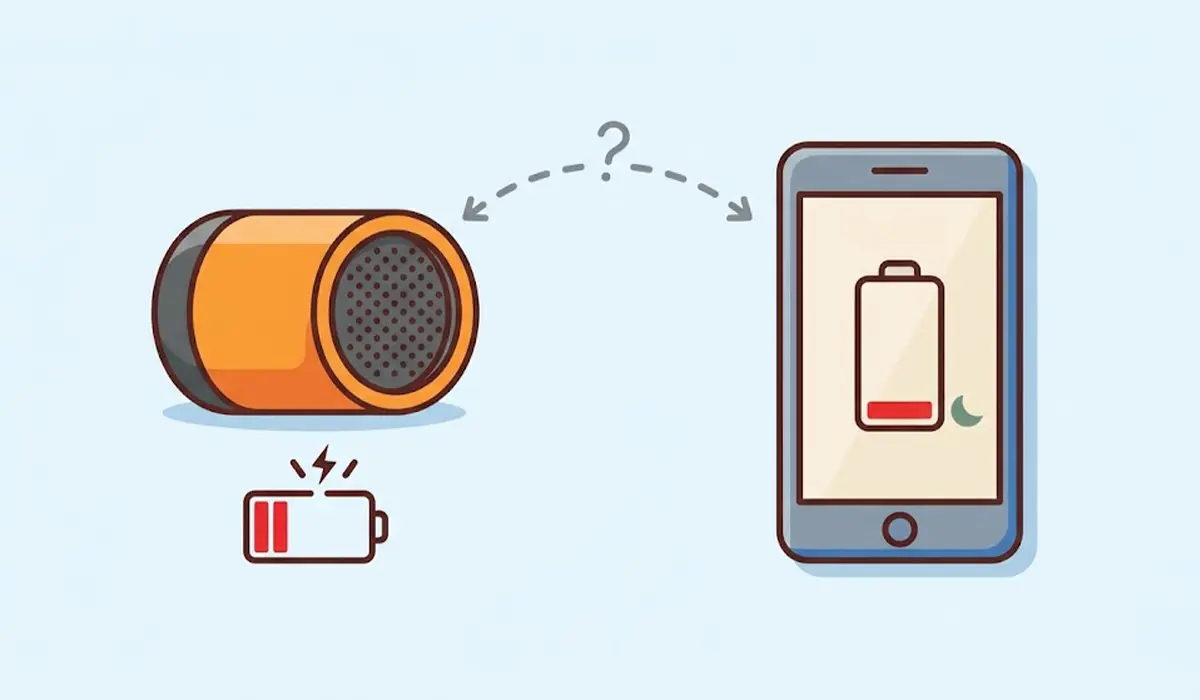
A speaker with a nearly empty or aging battery may not hold a stable connection or may power down briefly under load, especially at high volume. A phone or laptop in a strict battery saver mode can also limit the Bluetooth radio.
Software, Driver, and Firmware Problems
A corrupted pairing record, an outdated Bluetooth driver on a PC, or old speaker firmware can all cause random disconnects. Power management settings in Windows can also switch the Bluetooth adapter off briefly to save energy, which sounds exactly like a dropout.
Too Many Connected Devices
Some speakers remember several devices and try to reconnect to whichever one is nearby. If a phone and a laptop keep competing for the same speaker, audio can jump or stop. Streaming from a source that is also running heavy tasks can add to the problem.
Step-by-Step Fixes for a Bluetooth Speaker Cutting Out
Start at the top and test the audio for a few minutes after each step. Stop as soon as the problem is gone.
- Step 1: Move the source device and speaker close together. Place them within a couple of meters with a clear line of sight and play audio for a few minutes. If the dropouts stop, range or obstacles were the cause, and the speaker simply needs a better position.
- Step 2: Charge the speaker fully. Plug in the speaker and let it charge while it plays, or charge it first and test again. Also charge the phone or laptop, and turn off any battery saver mode on the source device while testing.
- Step 3: Restart both devices. Power the speaker off and on, then restart the phone, tablet, or computer. This clears temporary glitches in the Bluetooth stack and is surprisingly effective.
- Step 4: Reduce interference. Move the speaker and source away from the Wi-Fi router, microwave, cordless phone base, and other wireless gear. Turn off Bluetooth on nearby devices that are not in use. If the router offers a 5 GHz network, connecting the source device to it can free up the crowded 2.4 GHz band.
- Step 5: Remove the speaker and pair it again. Open the Bluetooth settings on the source device, choose the speaker, and select ‘Forget’ or ‘Remove device’. Put the speaker into pairing mode and connect again. A fresh pairing replaces any damaged connection data.
- Step 6: Disconnect other devices from the speaker. If the speaker has been paired with several phones or computers, turn Bluetooth off on the ones that are not in use so they cannot grab the connection.
- Step 7: Update the speaker firmware and the source software. Many speaker brands offer firmware updates through a companion app. On the source side, install the latest operating system updates, since these often include Bluetooth fixes.
- Step 8: On a Windows PC, update the Bluetooth driver. Right-click the Start button, open Device Manager, expand ‘Bluetooth’, right-click the adapter, and choose ‘Update driver’. If the problem started after a recent update, the adapter’s properties may offer a ‘Roll Back Driver’ option. Downloading the driver from the PC or adapter maker’s support page is often more reliable than the generic one.
- Step 9: Stop Windows from powering off the Bluetooth adapter. In Device Manager, double-click the Bluetooth adapter, open the ‘Power Management’ tab, and clear the box named ‘Allow the computer to turn off this device to save power’. Click OK and test again.
- Step 10: Restart the Bluetooth Support Service on Windows. Press the Windows key and R together, type services.msc, and press Enter. Find ‘Bluetooth Support Service’, right-click it, and choose ‘Restart’. Make sure its startup type is set to ‘Automatic’.
- Step 11: Reset the speaker to factory settings. Check the speaker manual for the reset method, since the button combination differs between brands. After a reset, pair the speaker again as a new device.
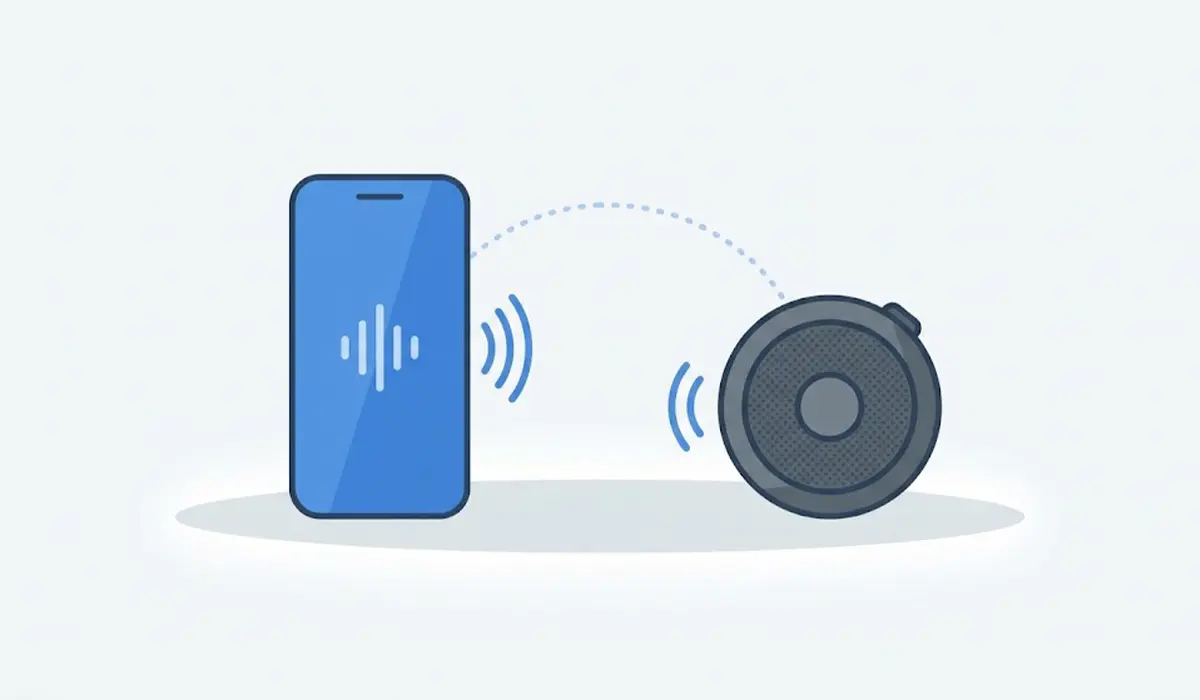
Tip: Change only one thing at a time. If several fixes are applied together, there is no way to know which one actually solved the problem, and the same issue is likely to return later.
Common Problems and Fixes
The Speaker Still Cuts Out Even When It Is Right Next to the Device
Close range rules out distance, so look at interference and software. Pair the speaker with a different phone or laptop. If it works perfectly there, the original source device has a driver, settings, or Bluetooth hardware problem. If it cuts out on every device, the speaker itself may need a firmware update, a reset, or a battery replacement through the manufacturer.
Audio Cuts Out Only on a Windows PC
This points to the adapter or its settings. Update or reinstall the Bluetooth driver, turn off the power-saving option in the adapter’s properties, and restart the Bluetooth Support Service. A USB Bluetooth adapter plugged into a rear port, away from other USB devices and Wi-Fi dongles, can also give a steadier link on a desktop.
Sound Quality Drops or Cuts Out When a Call or Microphone Starts
Some speakers with built-in microphones switch to a lower-quality calling mode when the microphone is used. In Windows sound settings, choose the speaker’s stereo output instead of the hands-free output for music, and avoid apps that keep the speaker’s microphone active.
The Speaker Disconnects After a Few Minutes of Silence
Many speakers have an auto power-off or sleep feature that shuts them down when no audio plays. Check the speaker manual or companion app to see whether this behavior can be adjusted. It is normal behavior rather than a fault, as long as audio resumes after reconnecting.
The Problem Returns Every Few Days
A recurring issue usually means a deeper cause. Check whether the speaker battery drains very quickly or the speaker shuts off at high volume, which can signal an aging battery. A wireless router or another device that was recently installed nearby may also be creating fresh interference.
Tip: If the speaker is still under warranty and keeps cutting out on every device after a reset, contacting the manufacturer is usually the safest next move. Opening the speaker casing can void the warranty and risk damage to the battery.
Frequently Asked Questions
Why does my Bluetooth speaker keep cutting out?
The most common reasons are weak signal from distance or obstacles, interference from Wi-Fi or other wireless devices, a low battery, outdated drivers or firmware, and a damaged pairing connection. Testing close range first helps narrow down the cause quickly.
How far can a Bluetooth speaker be from my phone before it cuts out?
Many speakers work reliably up to roughly 10 meters (about 33 feet) in open space. Walls, furniture, and other devices shorten that distance, so the usable range indoors is often smaller.
Can Wi-Fi interfere with a Bluetooth speaker?
Yes. Bluetooth and many Wi-Fi networks use the 2.4 GHz band, so a busy router close to the speaker or source device can cause stuttering. Moving the devices apart or using a 5 GHz Wi-Fi network often helps.
Does a low battery make a Bluetooth speaker cut out?
It can. A weak or aging battery may not supply steady power at high volume, causing the speaker to stutter or shut off. Charging the speaker fully and testing again is a quick way to check.
Should I forget the speaker and pair it again?
Yes, this is one of the most effective fixes. Removing the speaker from the Bluetooth device list and pairing it again replaces any corrupted connection data that may be causing the dropouts.
Why does my Bluetooth speaker cut out on my Windows laptop but not on my phone?
That usually means the problem lies with the laptop’s Bluetooth driver or power settings rather than the speaker. Update the driver, turn off the power-saving option for the Bluetooth adapter, and restart the Bluetooth Support Service.
Will updating the speaker firmware fix connection drops?
It can, when the manufacturer has released a fix for Bluetooth stability. Firmware updates are usually installed through the brand’s companion app, so check the app or the support page for the speaker model.
When should a Bluetooth speaker be repaired or replaced?
If the speaker cuts out on every device, still fails after a factory reset, and shows signs of a failing battery, such as very short playtime or sudden shutdowns, the hardware is likely at fault. Contact the manufacturer for service or consider a replacement.
