
If the taskbar clock is a few minutes off, stuck an hour ahead or showing the wrong city’s time, the fix is to set your time and time zone manually in Windows. Here’s the thing: automatic time works well most of the time, but a VPN, a trip abroad or a weak internet connection can throw it off.
This guide is updated for the latest Windows 11 version 26H2, and the same steps work on Windows 10, with small label differences noted where they apply. Any account can change the time zone, but changing the time itself needs an administrator account, or the administrator password when Windows asks for it.
Quick Answer: To set your time and time zone manually in Windows, right-click the clock on the taskbar and select Adjust date and time. Turn off Set time zone automatically and pick your zone from the Time zone drop-down. Then turn off Set time automatically, select Change next to Set the date and time manually, enter the correct date and time and select Change again.
Key Takeaways
- The easiest way to set your time and time zone manually in Windows is Settings > Time & language > Date & time.
- Set the time zone first. The clock moves to the new zone’s local time right away, which often fixes the time too.
- The Change button stays greyed out until Set time automatically is turned off.
- The Control Panel and PowerShell offer the same result for anyone who prefers them.
- To go back to automatic time, turn both switches back on and select Sync now.
How to Set Your Time and Time Zone Manually in Windows: Step-by-Step
The methods below go from easiest to most advanced. Not sure which one to use?
- Most people: Method 1.
- Settings will not open, or the classic window feels more familiar: Method 2.
- Comfortable with commands, or setting up several PCs: Method 3.
Method 1: Use the Settings App
- Right-click the clock at the right end of the taskbar and select Adjust date and time (on Windows 10, it is called Adjust date/time). Settings opens on the Date & time page.
- Turn off Set time zone automatically.
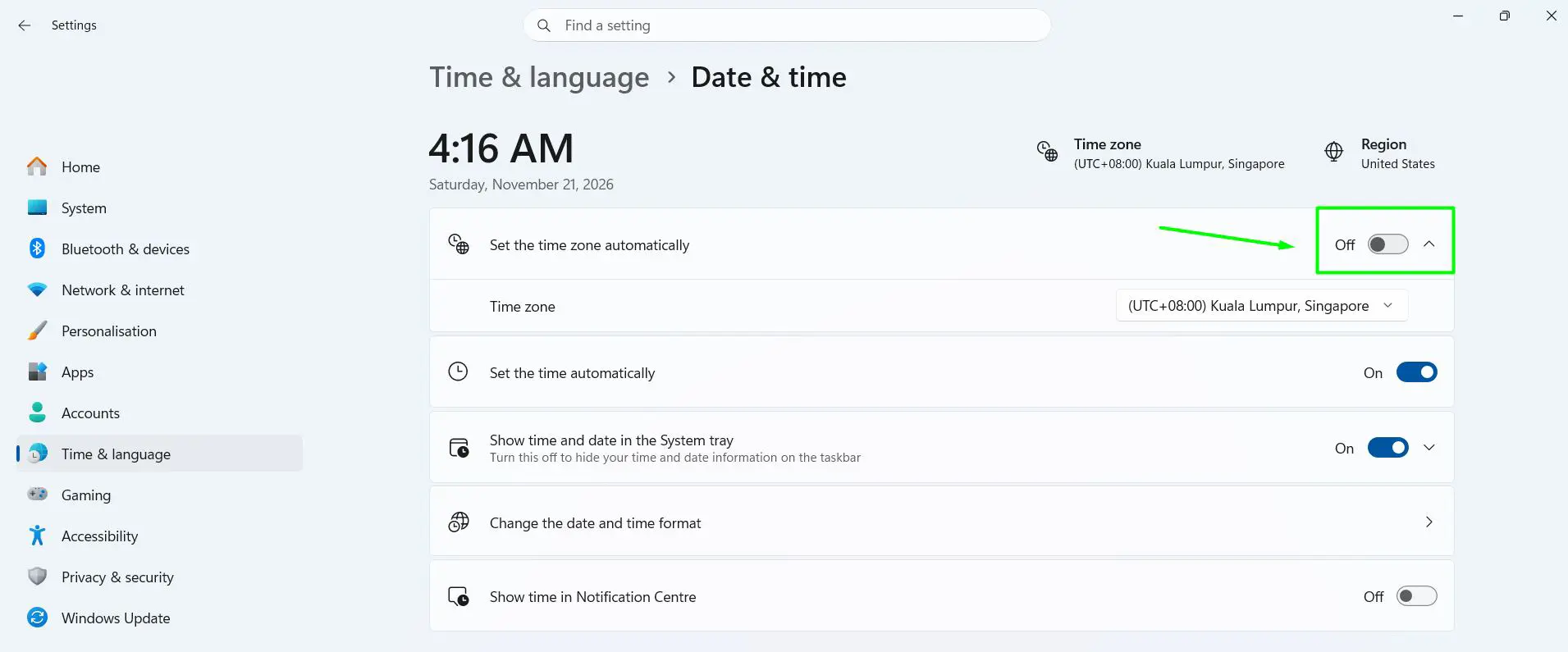
- Open the Time zone drop-down and select your zone, for example (UTC+08:00) Kuala Lumpur, Singapore. The taskbar clock updates straight away.
- If Adjust for daylight saving time automatically appears, leave it on so the clock moves forward and back on its own.
- If the time is still wrong, turn off Set time automatically.
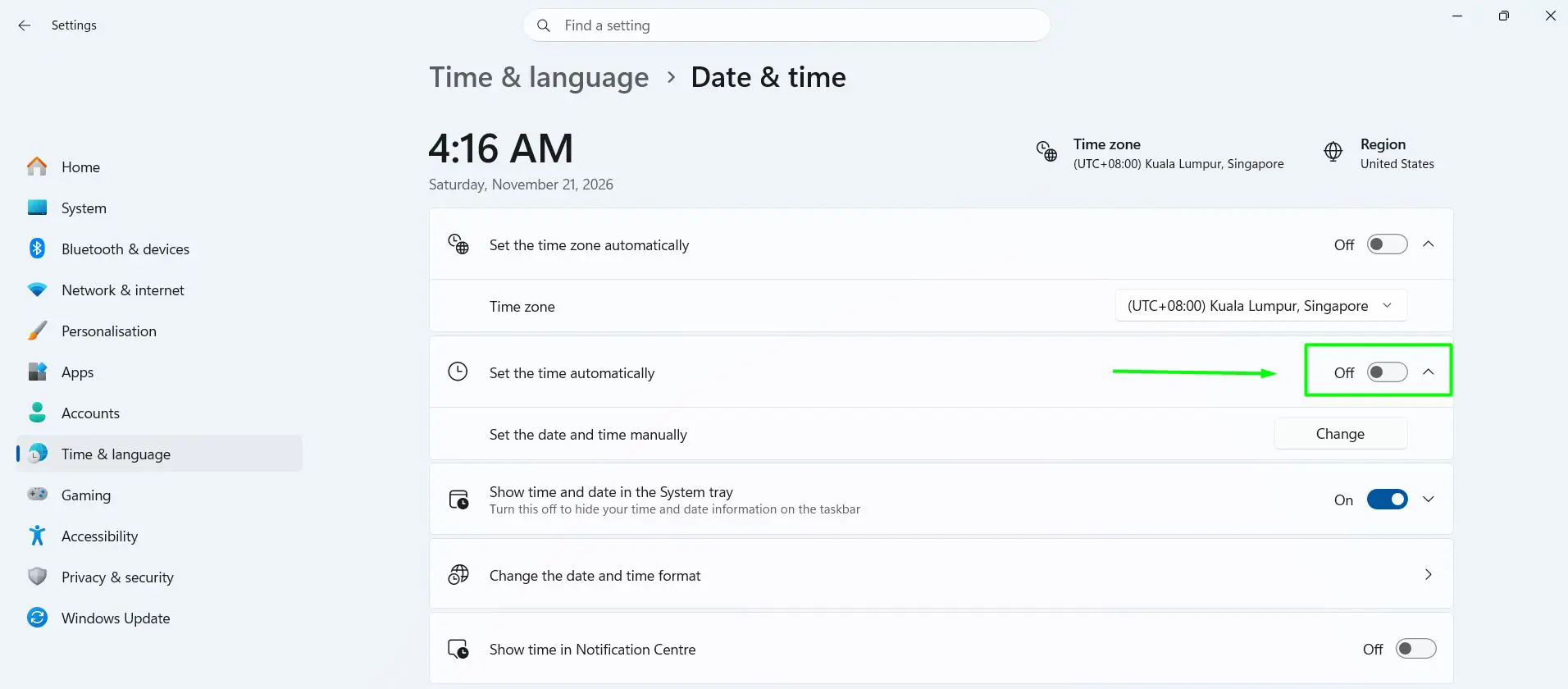
- Next to Set the date and time manually, select Change.
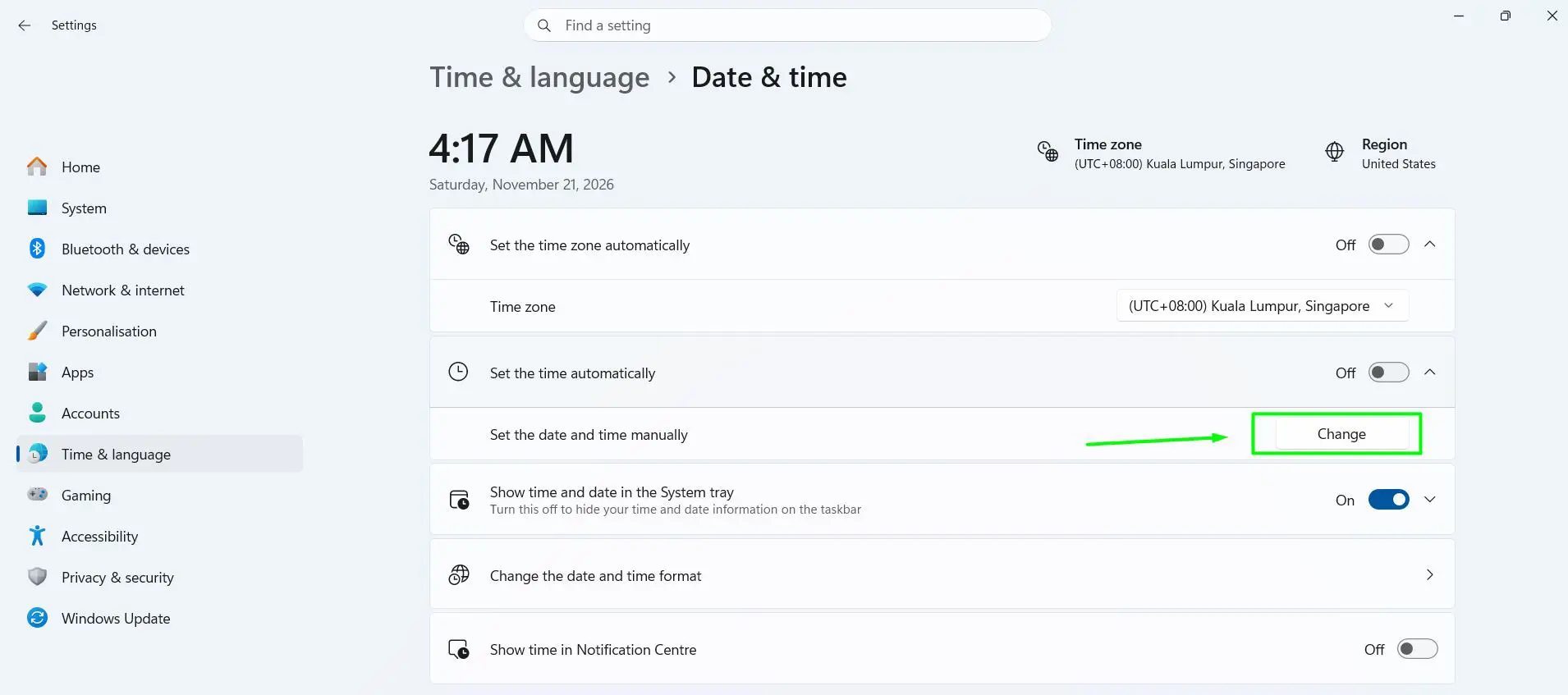
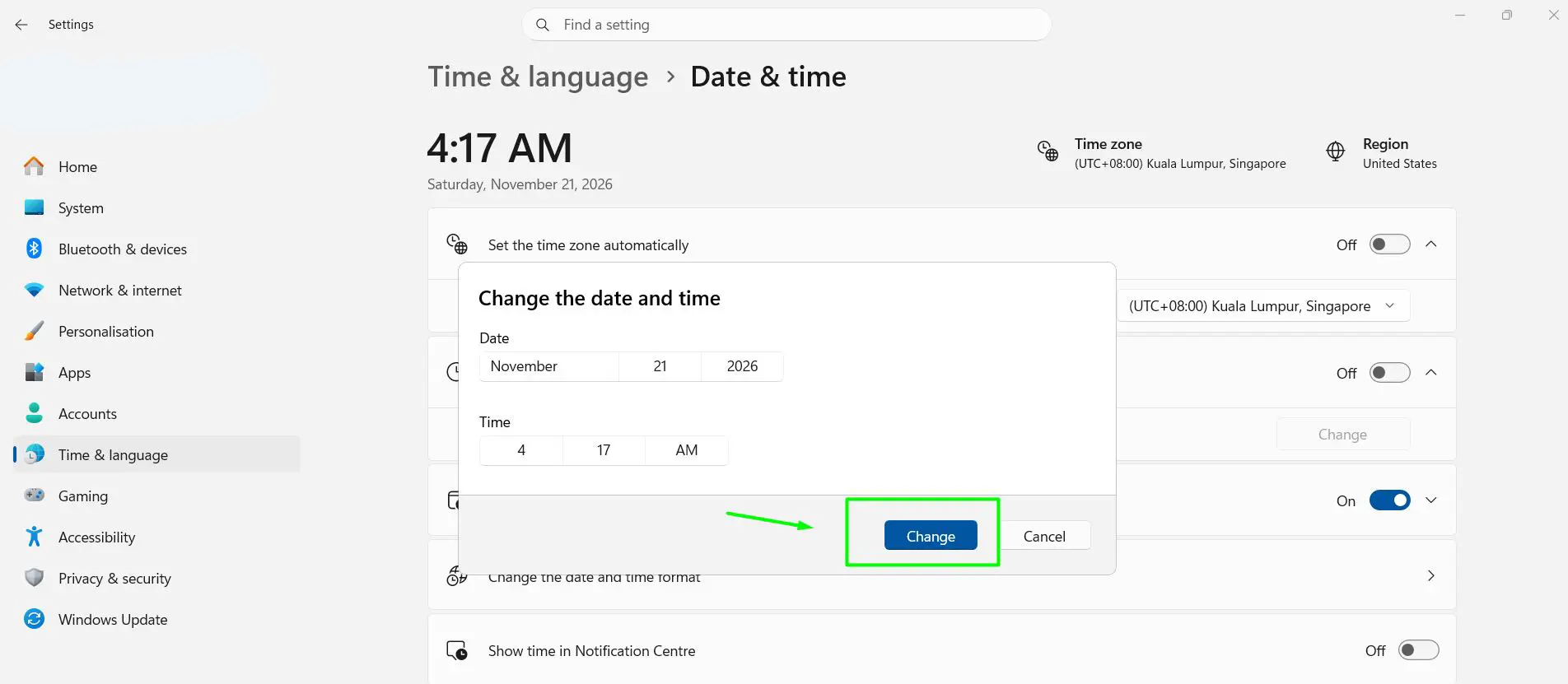
- Pick the correct date and time in the Change date and time window, then select Change. The new time shows on the taskbar immediately.
Tip: Press Windows + R, type ms-settings:dateandtime and press Enter to jump straight to this page. It is handy when the clock is hidden or the taskbar is acting up.
Method 2: Use the Control Panel
The classic Date and Time window still works in Windows 10 and 11. First, turn off Set time automatically in Settings (Method 1, step 5), or Windows will overwrite the manual time at the next sync.
- Press Windows + R, type timedate.cpl and press Enter.
- On the Date and Time tab, select Change time zone.
- Choose your zone from the Time zone list and select OK.
- Select Change date and time.
- Pick the date on the calendar, type the correct time and select OK.
- Select OK to close the window.
Method 3: Use PowerShell (Advanced)
These commands must run in an elevated (administrator) window. Turn off Set time automatically in Settings first, or the manual time gets replaced at the next sync.
- Press Windows + X and select Terminal (Admin), or Windows PowerShell (Admin) on Windows 10. Select Yes when User Account Control asks.
- To see the exact name of every time zone, run: Get-TimeZone -ListAvailable
- To set the time zone, run the command with the name from the Id column, for example: Set-TimeZone -Id ‘Singapore Standard Time’
- To set the date and time, use year-month-day and 24-hour time, for example: Set-Date -Date ‘2026-11-21 16:30’
- Run Get-Date to confirm the new date and time.
The year-month-day format works no matter which regional date format the PC uses, so there is no risk of mixing up the day and the month.
How to Check the Change Worked
Look at the clock on the taskbar – it should show the new time straight away. Select the clock to open the calendar and confirm the date. The Time zone drop-down at Settings > Time & language > Date & time shows the zone that is now in use.
How to Switch Back to Automatic Time
- Open Settings > Time & language > Date & time.
- Turn on Set time automatically.
- Turn on Set time zone automatically if you want Windows to follow your location.
- Expand Additional settings and select Sync now. On Windows 10, Sync now is under Synchronize your clock on the same page. The clock corrects itself within a few seconds.
Tips for Setting the Time Manually
- Fix the time zone before the time. Most people find that once the zone is right, the time is right too.
- If Set time zone automatically is greyed out, turn on Location services at Settings > Privacy & security > Location. Windows needs your location to detect the zone.
- Using a VPN or travelling? Automatic detection can pick the wrong zone, so setting it manually is more reliable.
- A manually set clock does not sync, so it can slowly drift by a few seconds. Switch back to automatic time when you no longer need the manual setting.
- On a work or school PC, the time settings may be locked by the organization. Ask the IT team to change them.
- If the time is wrong every time the PC starts, set the correct time in the BIOS or UEFI settings. If that does not hold either, the small CMOS battery on the motherboard likely needs replacing.
- Rolled the clock back for an old app or a test? Set it back to the correct time afterwards, because a wrong clock can stop websites, sign-ins and Windows Update from working.
Frequently Asked Questions
Why is the Change button greyed out in Date & time settings?
The Change button only works when Set time automatically is turned off. If it stays greyed out after that, the PC may be managed by a work or school organization, or the account may not have administrator rights.
Why can’t I turn on Set time zone automatically?
Windows uses your location to detect the time zone. Turn on Location services at Settings > Privacy & security > Location, then go back and turn the switch on.
Why does my time keep changing back?
If Set time automatically is still on, Windows replaces the manual time at the next sync. Turn it off before changing the time.
Why is my clock exactly one hour off?
The time zone is usually wrong, or the daylight saving setting does not match your area. Check the Time zone drop-down and the Adjust for daylight saving time automatically switch.
Do I need administrator rights to change the time in Windows?
Changing the time needs administrator rights, so Windows asks for an admin password on a standard account. Changing the time zone works on any account.
Does changing the time zone change the clock automatically?
Yes. The clock switches to the local time of the new zone right away, so there is usually no need to set the time as well.
How do I go back to automatic time after setting it manually?
Turn on Set time automatically, then select Sync now on the Date & time page. Windows contacts the time server and corrects the clock.
Can I show a second time zone on the taskbar?
Yes. On the Date & time settings page, select Additional clocks, tick Show this clock, choose a time zone and name it. Up to two extra clocks appear when you hover over or select the taskbar clock.
Why is the time wrong every time I turn on my PC?
The clock inside the PC is likely losing power while it is off. Set the correct time in BIOS or UEFI, and replace the CMOS battery if the problem keeps coming back.
Can a wrong clock cause problems in Windows?
Yes. A wrong date or time can cause security certificate errors on websites, failed Windows Updates and sign-in problems. Keeping the clock correct avoids all of these.
