
Learning how to use PowerPoint Designer for instant layouts turns a plain slide into a polished one in a few clicks. Designer reads the text and pictures already on a slide and offers ready-made layouts to match. This guide covers the exact steps, from switching Designer on to applying a layout.
Key Takeaways
- Designer needs a Microsoft 365 subscription and an active internet connection.
- The Designer button sits on the Home tab and the Design tab, and it opens a pane on the right.
- Designer works on one slide at a time, so select a single slide first.
- Clicking a thumbnail in the pane applies that layout immediately, and Ctrl+Z undoes it.
Step-by-Step Guide to Using PowerPoint Designer for Instant Layouts
Turn On Designer and Prepare the Slide
- Step 1: Open the presentation in PowerPoint for Microsoft 365 and confirm the file is saved as a .pptx. Designer does not run on older .ppt files opened in compatibility mode.
- Step 2: Go to File, then Options, then General. Scroll to the PowerPoint Designer section and tick ‘Automatically show me design ideas’. Click OK.
- Step 3: Add real content to the slide – a title, a short list, or a picture. Designer has little to work with on an empty slide, and a slide with a headline plus an image or a few bullet points gives the best results.
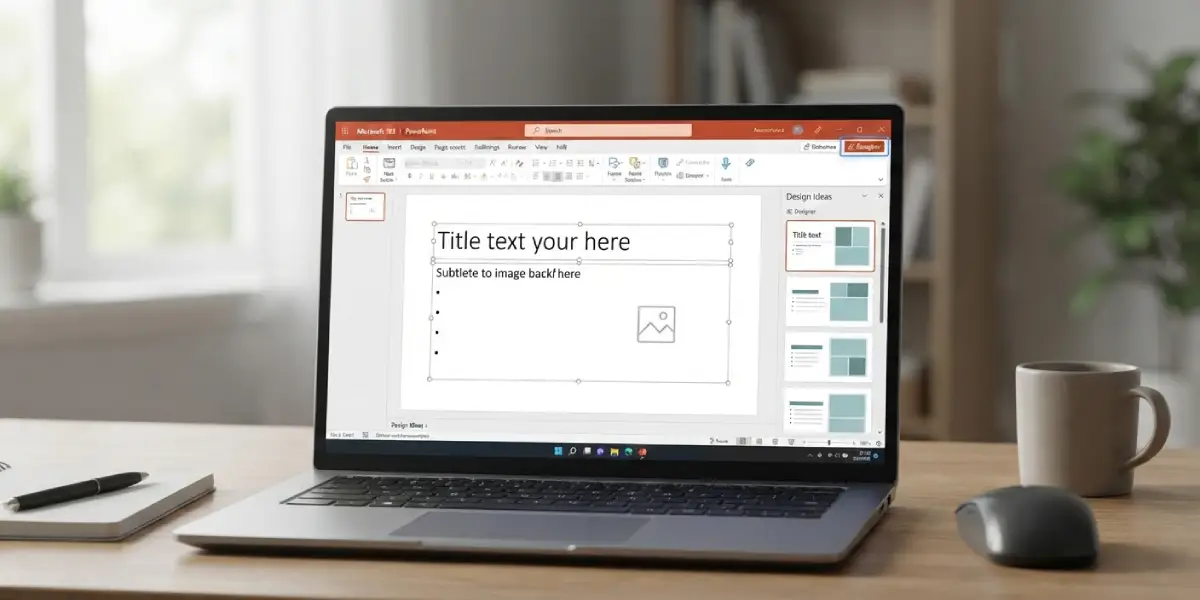
Tip: Insert a picture through Insert, then Pictures, rather than pasting it as part of a larger group. Designer recognizes standalone pictures far more reliably.
Open the Designer Pane and Apply a Layout
- Step 4: Click the slide thumbnail in the left pane so only that one slide is selected.
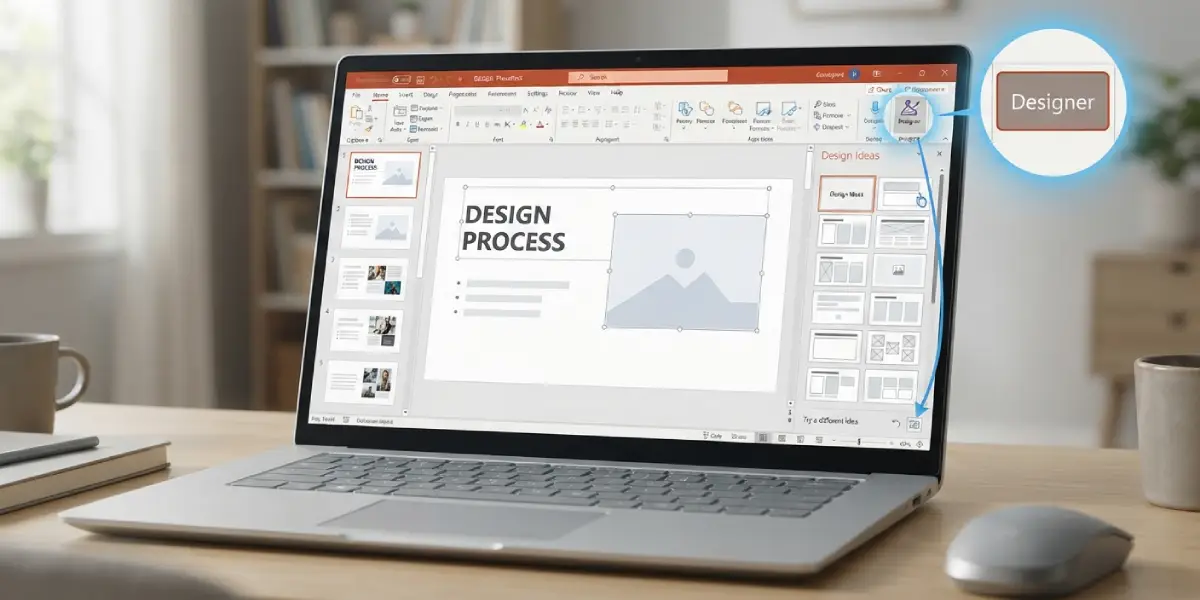
- Step 5: Select the Designer button on the Home tab. The same button also appears on the Design tab at the far right of the ribbon.
- Step 6: Wait a moment while the Designer pane opens on the right side and loads its suggestions. A short message such as ‘Working on it’ usually appears first.
- Step 7: Scroll through the thumbnails in the pane. Layouts may include picture crops, icons, restyled lists, or timeline-style graphics, depending on the slide content.
- Step 8: Click the thumbnail you like. The slide updates instantly, keeping the original text and pictures.
- Step 9: Not happy with the result? Press Ctrl+Z, or simply click a different thumbnail in the pane to swap the layout.
- Step 10: Move to the next slide and repeat from Step 4. Designer treats every slide separately.
Tip: Think of Designer as a quick first draft from a layout assistant. Accept the closest match, then adjust fonts, colors, or picture positions by hand.
Common Problems and Fixes
The Designer Button Is Grayed Out or Missing
This usually points to a license or file issue. Confirm that PowerPoint is signed in with an active Microsoft 365 subscription, then check that the file is a .pptx and not a .ppt. If the file opened in Protected View, click Enable Editing first.
The Pane Shows No Design Ideas
A slide that is empty, or one crowded with many separate objects, often returns no suggestions. Simplify the slide by keeping one title, one body area, and a small number of pictures, then reopen Designer. Also make sure only one slide is selected in the thumbnail pane.
Suggestions Load Slowly or Never Appear
Designer pulls its layouts from an online service, so a weak or blocked connection stalls it. Check the internet connection, close the Designer pane, and open it again from the Home tab.
Design Ideas Do Not Appear Automatically
Return to File, then Options, then General, and verify that ‘Automatically show me design ideas’ is ticked. The Designer button still works manually even when the automatic option is off.
Frequently Asked Questions
Is PowerPoint Designer free?
Designer is included with a Microsoft 365 subscription at no extra charge. It is not available in non-subscription versions of PowerPoint.
Does PowerPoint Designer work offline?
No. Designer needs an internet connection because the layout suggestions are generated online.
Where is the Designer button in PowerPoint?
The Designer button is on the Home tab and also on the Design tab, near the right end of the ribbon. Selecting it opens the Designer pane on the right side of the window.
Can Designer change several slides at once?
No. Designer works on one slide at a time, so each slide needs its own selection and its own layout choice.
Will Designer delete or rewrite my text and pictures?
No. Designer rearranges and styles the existing content on the slide. The wording and pictures stay the same, and Ctrl+Z reverses any layout that does not fit.
Can Designer work with text-only slides?
Yes. Designer can restyle titles and bullet lists, and for suitable content it may offer graphic treatments such as icons or timeline-style layouts.
Why does Designer give no suggestions for my slide?
The slide may be empty, overloaded with many objects, or part of a multi-slide selection. Select a single slide with a clear title and a small amount of content, then open Designer again.
How do I turn off automatic design ideas?
Go to File, then Options, then General, and clear the ‘Automatically show me design ideas’ checkbox under PowerPoint Designer. The Designer button can still be used manually afterward.
