
Knowing how to reduce game load times with an SSD can turn a long wait at every loading screen into a short pause. The drive is only part of the story, though. A game installed on the wrong drive, a slot running at reduced speed, or a nearly full SSD can all hold back the gains. This guide covers what to do, in order.
Key Takeaways
- Install games on an SSD, not a hard drive. This single change delivers the biggest drop in load times.
- An NVMe SSD is usually faster than a SATA SSD, but both beat a mechanical hard drive by a wide margin.
- Moving a game to the SSD is simple in most launchers, and Steam can do it without a full reinstall.
- A full, overheated, or badly connected SSD can load games slower than it should, so check free space, cooling, and link speed.
- Load times also depend on the CPU, RAM, and the game itself, so an SSD will not remove every loading screen.
Before You Start
Most of this guide is software only. If a new SSD still needs to be installed, a few safety basics apply.
- Back up anything important on the old drive first.
- Shut the PC or laptop down fully, unplug the power cable, and on a laptop disconnect the internal battery if the manual says so.
- Touch a bare metal part of the chassis or use an anti-static strap to discharge static before handling the drive.
- Have a small Phillips screwdriver ready, plus the M.2 mounting screw or standoff that came with the motherboard or drive. A SATA SSD needs a free drive bay and a SATA data cable and power connector in a desktop.
- Let any hot parts cool down before opening the case.
Opening a device may affect the warranty. If the laptop is sealed, glued, or has no accessible M.2 slot, stop and let a professional handle the install.
How to Reduce Game Load Times With an SSD: Step-by-Step
Choose and Confirm the Right Drive
- Step 1: Pick the drive type. A SATA SSD is a big upgrade over a hard drive, and an NVMe SSD in an M.2 slot is the faster option when the motherboard supports it. Check the motherboard or laptop manual for which M.2 slots exist and whether they support NVMe or SATA.
- Step 2: Install the drive if needed. Seat an M.2 drive at a slight angle into the slot, press it flat, and secure it with the mounting screw. Fit the motherboard heatsink over it if one is provided.
- Step 3: Confirm Windows sees the drive. Open Task Manager, go to the Performance tab, and look for the disk entry that lists it as SSD or NVMe. If it is missing, check Disk Management and initialize the drive there.
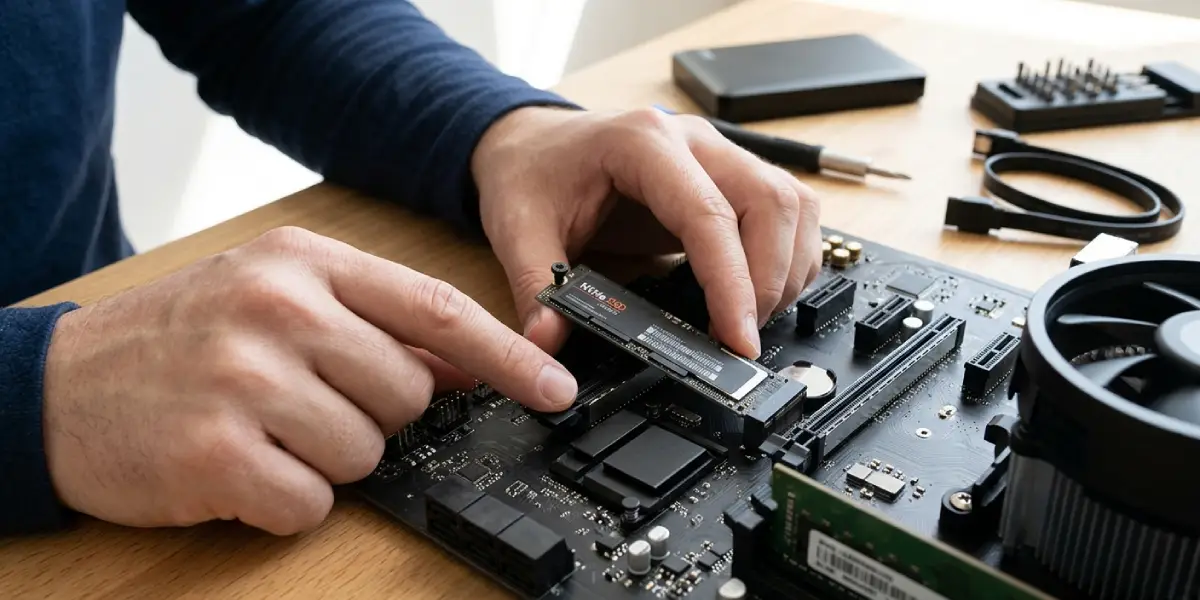
Tip: When the motherboard has more than one M.2 slot, the manual often shows that one slot connects straight to the CPU while another runs through the chipset. Choose the slot the manual recommends for the main drive, and watch for notes about slots that share bandwidth with SATA ports.
Move the Games to the SSD
- Step 4: In Steam, open Settings, go to Storage, open the drive drop-down, and choose Add Drive to create a library folder on the SSD.
- Step 5: Right-click a game in the library, choose Properties, open Installed Files, and select Move Install Folder. Pick the SSD library folder and let the move finish. Repeat for the games that load slowest first.
- Step 6: For other launchers, look for a Move or Locate option in the game’s settings. If the launcher has none, uninstall the game and reinstall it with the SSD chosen as the install location. Copying folders by hand can leave the launcher confused, so verify the game files afterward if that route is used.
Most people find that the biggest, most demanding games benefit most. Open-world titles that stream lots of data gain far more than small indie games that already load in seconds.
Keep the SSD Healthy and Fast
- Step 7: Leave free space. An SSD that is almost full has less room to manage writes efficiently, and game updates also need spare room. Keeping a healthy portion of the drive empty is good practice.
- Step 8: Check that Windows treats it as an SSD. Search for Defragment and Optimize Drives in the Start menu and confirm the media type reads Solid state drive. Windows then handles TRIM automatically, and no manual defragmenting is needed or wanted.
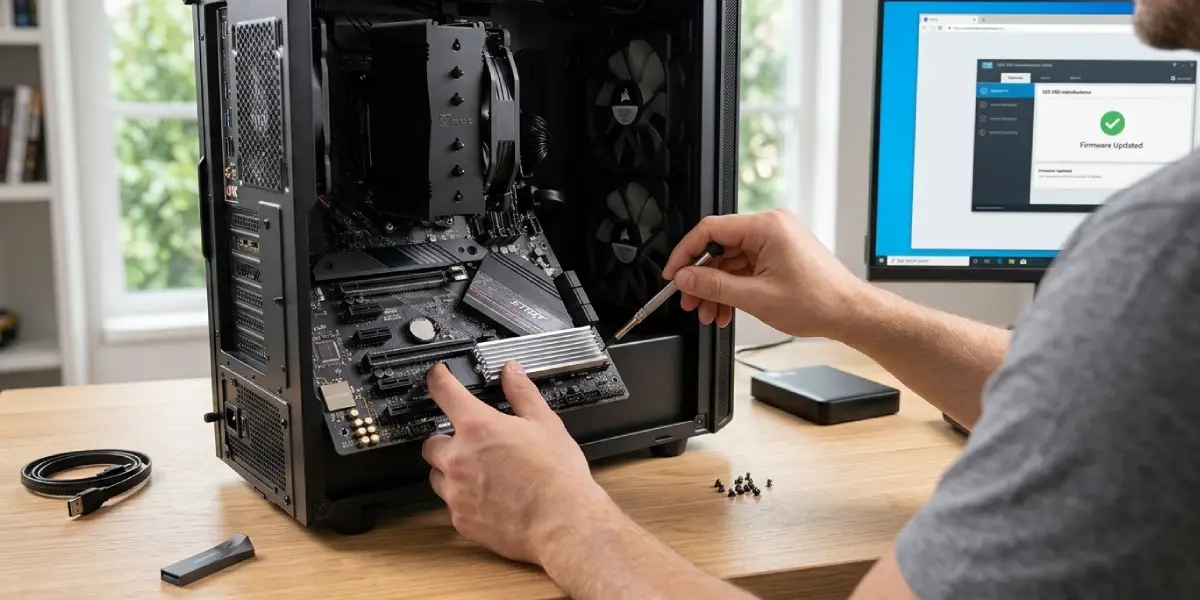
- Step 9: Keep the drive cool. Fit the supplied heatsink on an NVMe drive and make sure case or laptop airflow is not blocked. An NVMe SSD that overheats slows itself down to protect the hardware.
- Step 10: Update drivers and firmware. Install the latest chipset drivers from the motherboard or laptop maker, and check the SSD manufacturer’s utility for firmware updates. Follow the maker’s instructions exactly and never interrupt a firmware update.
Tip: On a laptop, plug in the charger before gaming. Many laptops reduce performance on battery, which can slow loading even with a fast SSD.
What an SSD Can and Cannot Fix
An SSD speeds up reading game files from storage. Load times also depend on how fast the CPU can process that data, how much RAM is available, and how the game is built. A game that spends most of its loading screen building shaders or generating a world will improve less than one that mainly streams files. Some newer games support DirectStorage, which reduces CPU work during loading, but that is a feature the game must include and cannot be switched on by the user.
Common Problems and Fixes
Load Times Barely Improved After Moving the Game
Confirm the game is actually running from the SSD by checking its install path in the launcher. A second copy may still sit on the old drive. If the path is correct, the bottleneck is probably the CPU, RAM, or shader compilation rather than storage.
Steam Fails to Move the Install Folder
Close the game and any overlay first, make sure the SSD has enough free space, and retry. If the move keeps failing, use Verify Integrity of Game Files after the move or reinstall the game to the SSD library folder.
The SSD Runs Slower Than Advertised
Check that the drive sits in the correct M.2 slot and that the manual does not list a speed limit for that slot. A SATA-only M.2 slot, or a slot that shares lanes with other devices, can cap performance. Also make sure the motherboard storage mode is set correctly in the BIOS and that chipset drivers are current.
Loading Starts Fast Then Slows Down
This often points to thermal throttling on an NVMe drive. Add or reseat the heatsink, improve case airflow, and avoid placing the drive directly under a hot graphics card if another slot is available.
The Drive Is Almost Full
Uninstall games that are no longer played, or keep those on a hard drive and reserve the SSD for current favorites. Freeing up space helps the drive maintain consistent performance.
Stutter on First Launch After Moving a Game
The game may be rebuilding its shader cache. Let it run through the first launch and the stutter usually settles on later runs.
Frequently Asked Questions
Does an SSD really reduce game load times?
Yes. A solid-state drive reads data much faster than a mechanical hard drive, so games that stream large files load noticeably quicker. The size of the improvement depends on the game and the rest of the system.
Is an NVMe SSD better than a SATA SSD for gaming?
An NVMe SSD is generally faster on paper, but in many games the real-world loading difference between NVMe and SATA is smaller than the jump from a hard drive to any SSD. A SATA SSD is still a worthwhile upgrade.
Do games run faster on an SSD, or only load faster?
Mostly they load faster. Frame rates depend mainly on the GPU and CPU. An SSD can reduce stutter in games that stream assets from storage while playing, but it will not raise average frame rates in most titles.
Can games be moved to an SSD without reinstalling?
Steam allows it through the Move Install Folder option in a game’s Properties. Other launchers vary, and some require a reinstall or a Locate option after copying the files.
How much free space should be left on a gaming SSD?
There is no single exact figure, but leaving a healthy margin of free space helps the drive stay fast and leaves room for game updates and patches.
Should the operating system and games share the same SSD?
They can. A single fast SSD works well for both, as long as there is enough room. Using a second SSD for games is a nice option for those who want to keep game files separate from the system.
Should an SSD be defragmented for better game performance?
No. Defragmenting an SSD is unnecessary. Windows runs TRIM automatically through the Optimize Drives tool, which is the correct maintenance for a solid-state drive.
Why are loading times still slow even with an SSD?
Common causes include the game still being installed on a hard drive, an SSD that is overheating or nearly full, a slot running below its rated speed, or a CPU or shader compilation bottleneck that storage cannot fix.
