
Learning how to fix Windows recovery environment not loading matters most at the worst possible moment, when the PC will not boot and the blue Advanced Startup menu never appears. The recovery environment (WinRE) is a small, separate copy of Windows that holds Startup Repair, System Restore, and Reset this PC. When it goes missing or breaks, the usual rescue tools go with it. The good news is that the cause is usually a disabled setting, a damaged boot file, or a recovery partition that has been resized or deleted.
Key Takeaways
- WinRE depends on a file called Winre.wim, a recovery partition, and a boot entry. If any one of them is missing or broken, the environment will not load.
- The command reagentc /info shows in seconds whether WinRE is enabled and where Windows thinks it lives.
- A bootable Windows USB drive can open recovery tools even when the built-in environment is completely gone.
- Back up data and find the BitLocker recovery key before changing anything on the system drive.
- Repeated failures after all fixes point to a failing drive, which needs a drive health check or replacement.
Before You Start
Most of these fixes are software-only, so no screws need to come out. A few preparations still save a lot of grief later.
- Another working PC and a blank USB flash drive of at least 8 GB, used to create Windows installation media with the official Media Creation Tool from Microsoft.
- The BitLocker recovery key, if the drive is encrypted. It is usually stored in the Microsoft account linked to the PC. Changing boot settings can trigger a key prompt.
- A backup of important files. If the PC still boots to the desktop, copy documents to an external drive first.
- On a laptop, keep the charger plugged in so power does not drop during a repair.
If the drive makes clicking noises or the PC is under warranty with a vendor recovery service, stop and contact the manufacturer or a professional technician. Repair commands on a failing drive can make data loss worse.
Common Causes of Windows Recovery Environment Not Loading
- WinRE is switched off. A system update, a cloning tool, or a manual command can disable it without any warning.
- The Winre.wim file is missing or corrupted, so there is nothing for the boot menu to load.
- The recovery partition was deleted, shrunk, or moved while resizing partitions or installing a second operating system.
- The boot configuration data (BCD) or boot files are damaged, which often shows up as a boot loop or an error before the menu appears.
- Disk errors or a failing drive are damaging the sectors where recovery files sit.
- Third-party disk cloning or partition software left the recovery entry pointing to the wrong place.
How to Fix Windows Recovery Environment Not Loading Step by Step
Check Whether WinRE Is Enabled
If Windows still boots to the desktop, start here. This check takes under a minute and solves a surprising number of cases.
- Step 1: Right-click the Start button and choose Terminal (Admin) or Command Prompt (Admin).
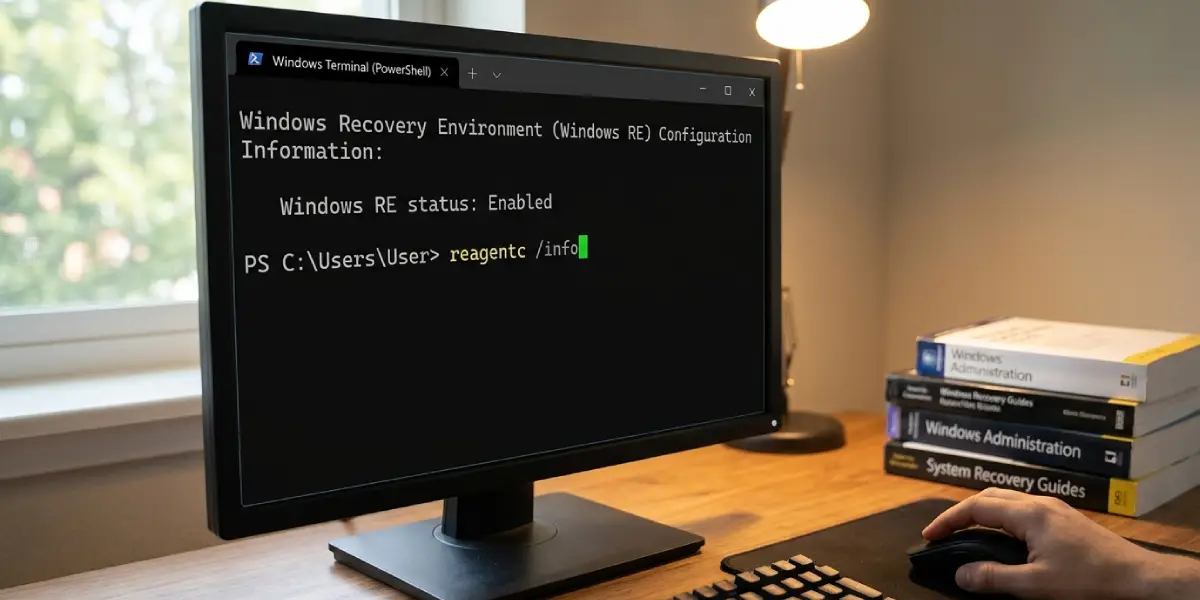
- Step 2: Type reagentc /info and press Enter.
- Step 3: Look at the line named Windows RE status. If it says Disabled, type reagentc /enable and press Enter.
- Step 4: Run reagentc /info again. The status should now read Enabled, and a Windows RE location should be listed, usually a path containing harddisk and partition numbers.
- Step 5: Restart while holding the Shift key, or open Settings, go to System, then Recovery, and select Restart now next to Advanced startup, to confirm that the environment loads.
Tip: If the Windows RE location line is blank even after enabling, the Winre.wim file is probably missing. Move on to the file restore section below.
Force WinRE to Appear When the PC Will Not Boot
Windows is designed to open recovery on its own after repeated failed boots. This works best when the PC is fully powered off before each attempt.
- Step 1: Power the PC on, and as soon as the manufacturer logo or the spinning dots appear, hold the power button until it shuts off.
- Step 2: Repeat the same interruption two more times. On the third start, Windows should show Preparing Automatic Repair.
- Step 3: When the repair screen appears, choose Advanced options, then Troubleshoot, then Startup Repair and let it finish.
- Step 4: If Startup Repair fails, return to Advanced options and open Command Prompt for the next fixes.
If this never produces a blue recovery screen, WinRE itself is damaged or missing, and the installation USB route is the reliable way forward.
Boot From a Windows Installation USB
The installation media carries its own copy of the recovery tools, so it works even when the built-in environment is gone. Most people find this is the step that finally gets them unstuck.
- Step 1: On another PC, run the Media Creation Tool and create installation media on the USB drive.
- Step 2: Plug the USB drive into the problem PC and power it on while tapping the boot menu key. The key varies by manufacturer, and common ones are F12, F9, F8, Esc, or F2.
- Step 3: Choose the USB drive from the boot menu. If it is not listed, enter the firmware setup and confirm that USB boot is allowed.
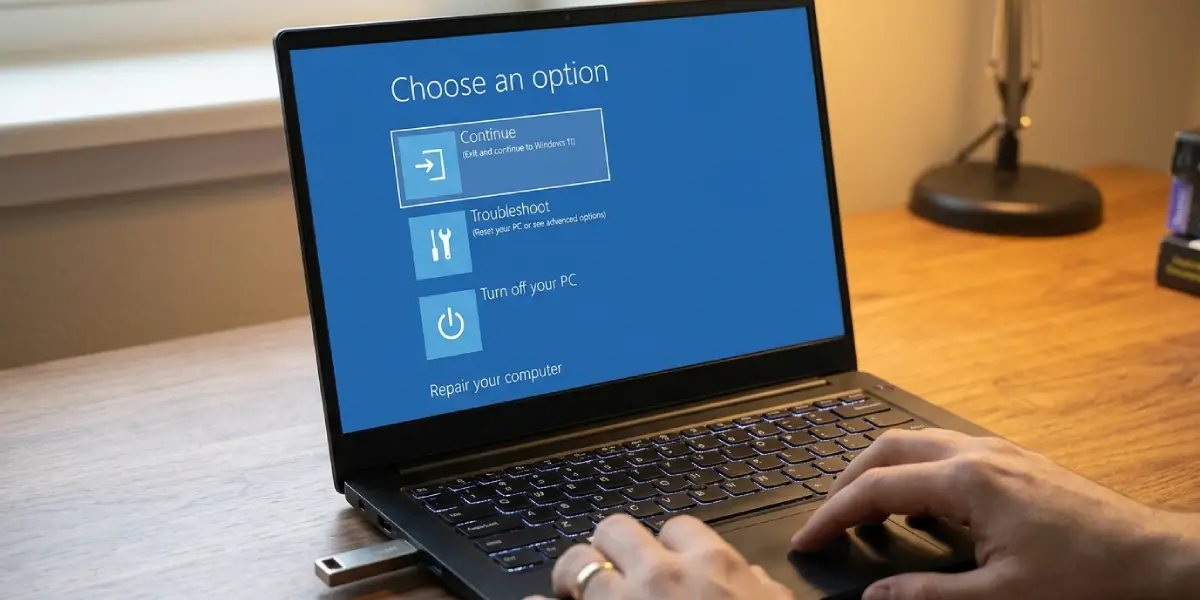
- Step 4: On the first Windows Setup screen, select Next, then click Repair your computer in the lower-left corner. Do not choose Install now.
- Step 5: Open Troubleshoot, then Advanced options, to reach Startup Repair, System Restore, and Command Prompt.
Repair the Boot Files and Boot Configuration
Damaged boot data is one of the most common reasons the recovery menu never loads. Run these from the Command Prompt in the repair environment, one line at a time.
- Step 1: Type bootrec /scanos and press Enter. This lists the Windows installations the tool can find.
- Step 2: Type bootrec /fixmbr and press Enter.
- Step 3: Type bootrec /fixboot and press Enter. If it returns an Access is denied message on a UEFI system, the boot partition needs to be rebuilt with bcdboot, covered below.
- Step 4: Type bootrec /rebuildbcd and press Enter. When asked to add an installation to the boot list, type Y and press Enter.
- Step 5: Close the window, choose Continue, and see whether the PC starts normally.
For the Access is denied case, the bcdboot tool can copy fresh boot files from the Windows folder. The exact drive letters differ in the repair environment, so confirm the Windows drive first by running dir C:\ and checking that the Windows folder is there. Then run bcdboot C:\Windows, swapping the letter if Windows sits on a different drive. This recreates the boot entry for most standard installations.
Restore the Winre.wim File and Re-register It
Winre.wim is the actual recovery image. Windows normally keeps it in a hidden folder at C:\Windows\System32\Recovery. If reagentc /info shows no location or an error, the file is probably missing.
- Step 1: In an administrator Command Prompt on a working Windows desktop, run dir C:\Windows\System32\Recovery /a to check whether Winre.wim is present. The /a switch reveals hidden files.
- Step 2: If the file is missing, mount the install.wim file from the Windows installation USB with DISM. Run dism /mount-image /imagefile:D:\sources\install.wim /index:1 /mountdir:C:\mount /readonly, after creating an empty C:\mount folder. Replace D: with the USB drive letter. Some media use install.esd instead, and DISM can mount that format as well.
- Step 3: Copy Winre.wim from the mounted image folder at C:\mount\Windows\System32\Recovery into C:\Windows\System32\Recovery.
- Step 4: Unmount the image with dism /unmount-image /mountdir:C:\mount /discard.
- Step 5: Run reagentc /disable, then reagentc /enable. Windows registers the file again and places it in the recovery partition if one exists.
- Step 6: Confirm with reagentc /info that the status is Enabled and test with Shift plus Restart.
Tip: Use an installation USB built from the same Windows version and edition as the installed system. A mismatched image can leave WinRE enabled but unable to load.
Check the Recovery Partition
If reagentc keeps failing, the partition itself may be gone or too small. Open Disk Management by right-clicking Start. A healthy system drive normally shows a small Recovery Partition, often a few hundred megabytes up to around a gigabyte or more, placed next to the EFI System Partition or after the main Windows partition.
- Step 1: Look for a partition labeled Recovery Partition. If one exists, leave it alone and do not format or delete it.
- Step 2: If none exists, Windows can still run WinRE from the Recovery folder on the C: drive. Running reagentc /enable after restoring Winre.wim usually accomplishes this on its own.
- Step 3: If the partition was shrunk by a partition tool and the recovery area is too small, rebuilding the layout is a delicate job. A backup and a professional technician, or a clean installation of Windows, are safer than manual diskpart work on a system that holds important data.
Scan for File and Drive Errors
Corrupted system files and drive errors can keep recovery from loading, and no repair will hold if the drive is failing.
- Step 1: From a working desktop, open an administrator Command Prompt and run sfc /scannow, then wait for it to finish.
- Step 2: Run dism /online /cleanup-image /restorehealth to repair the Windows component store.
- Step 3: Run chkdsk C: /f and agree to schedule the scan on the next restart.
- Step 4: From the repair environment, if Windows will not start, use sfc /scannow /offbootdir=C:\ /offwindir=C:\Windows, adjusting drive letters if the Windows drive differs.
- Step 5: Check the drive health with the manufacturer’s diagnostic utility or a trusted SMART monitoring tool. Warnings such as reallocated or pending sectors, or an SSD flagged as degraded, mean the drive should be replaced soon.
Last Resort: Reset or Reinstall Windows
If every step above fails and the drive checks out as healthy, a clean installation rebuilds the boot files, the recovery environment, and the partition layout in one go. Think of it as replacing a cracked foundation instead of patching one brick at a time. Back up personal files first, since a clean install erases the drive. Booting from the installation USB and choosing Install now, then selecting the correct drive, writes everything fresh and restores a working WinRE.
Common Problems and Fixes
reagentc /enable Fails With an Error
The most common reason is a missing Winre.wim or a damaged recovery partition. Restore the file from installation media, run reagentc /disable, and then reagentc /enable again. If the error stays, check that the system drive is in good health with chkdsk.
Windows Shows a BitLocker Recovery Screen After Repairs
Changes to boot files can make BitLocker ask for its recovery key. Enter the 48-digit key from the Microsoft account or the place where it was saved. After Windows loads, suspending and resuming BitLocker in Control Panel resets the protection.
The PC Boots Straight Into Automatic Repair in a Loop
This pattern usually means damaged boot files or a recent bad update. Use the installation USB, open Command Prompt, and run the bootrec commands, then the bcdboot step if needed. If System Restore points exist, restoring to an earlier date can break the loop without touching personal files.
The USB Drive Does Not Show Up in the Boot Menu
Recreate the installation media, try a different USB port, preferably a rear port on a desktop, and confirm that USB boot is enabled in firmware settings. If Secure Boot or the boot mode is set wrongly for the media, adjust it according to the manufacturer’s guidance.
WinRE Loads but Startup Repair Fails
The environment itself is fine in this case, and the underlying Windows files are the problem. Use System Restore, run the SFC and DISM scans, and if all else fails, use Reset this PC with the option to keep personal files.
WinRE Keeps Turning Itself Off
Some disk cloning tools and security software disable recovery during their own operations. After enabling it, avoid running the tool that caused the change, and re-check with reagentc /info after the next major Windows update.
Frequently Asked Questions
What is the Windows Recovery Environment?
The Windows Recovery Environment is a lightweight copy of Windows stored separately from the main system. It provides tools such as Startup Repair, System Restore, Command Prompt, and Reset this PC, and it can run even when the main Windows installation will not start.
How do I check if WinRE is enabled?
Open Command Prompt as an administrator and run reagentc /info. The Windows RE status line shows Enabled or Disabled, and the location line shows where the recovery image is stored.
Why does Shift plus Restart not open the recovery menu?
This usually happens when WinRE is disabled, the Winre.wim file is missing, or the recovery partition is damaged. Running reagentc /enable and restoring the recovery image normally fixes it.
Can I fix this without a USB drive?
Yes, if Windows still boots to the desktop. The reagentc commands, SFC, and DISM can all be run from within Windows. If the PC does not boot at all, a USB installation drive on another PC is the most reliable way to reach repair tools.
Will fixing WinRE delete my files?
Commands like reagentc, bootrec, SFC, and DISM do not erase personal files. A clean installation or formatting a drive does, so back up important data before attempting anything beyond the standard repairs.
What does the error ‘Windows RE image not found’ mean?
It means Windows cannot find the Winre.wim file at the location it expects. Copying a matching Winre.wim from installation media into the Recovery folder, then running reagentc /disable and reagentc /enable, usually resolves it.
Do I need a recovery partition for WinRE to work?
A dedicated recovery partition is the standard setup, but Windows can store Winre.wim in the Recovery folder on the system drive when no partition exists. Running reagentc /enable registers whichever location is available.
Could a failing hard drive or SSD cause WinRE not to load?
Yes. Bad sectors or a degrading SSD can damage recovery files and boot data. If repairs keep failing or the drive reports SMART warnings, back up data and replace the drive.
