
Knowing how to fix GRUB bootloader after Windows reinstall is the difference between a working dual-boot setup and a PC that only ever starts Windows. The Windows installer rewrites boot records and firmware boot entries without checking for Linux, so the GRUB menu simply vanishes. The good news is that Linux itself is almost always untouched, and a live USB can bring the menu back in about fifteen minutes.
Key Takeaways
- A Windows reinstall replaces the boot entry (UEFI) or the boot sector (legacy BIOS), but it normally leaves the Linux partitions intact.
- The reliable fix is to boot a Linux live USB, mount the installed system, enter it with chroot, and reinstall GRUB.
- Match the method to the boot mode: UEFI systems use the EFI System Partition, legacy BIOS systems write GRUB to the disk itself.
- Run update-grub afterward so the new Windows installation appears in the menu.
- Stop immediately if the Linux partitions are missing, because writing to the disk can make recovery harder.
Before You Start
No hardware needs to be opened for this repair, so the main risks are software ones: picking the wrong partition or overwriting data. A few minutes of preparation prevents nearly every mistake.
What You Need
- A USB flash drive large enough for a Linux distribution ISO, ideally the same distribution that is installed on the PC.
- A tool to write the ISO to the drive, such as Rufus, balenaEtcher, or Ventoy, on any working computer (the freshly reinstalled Windows PC works too).
- An internet connection in the live session, which helps if packages need to be reinstalled.
- A pen and paper or a phone note to jot down partition names before running any command.
Safety Notes
- Back up anything important from the Linux side if it can be reached. Repairing GRUB rarely touches personal files, but a mistyped command can.
- Save any open work, plug a laptop into AC power, and make sure the machine will not sleep during the repair.
- Replace every placeholder such as sdXY with the real partition name found in the steps below. Never copy commands blindly.
- If the Linux partitions no longer appear after the Windows reinstall, or the commands below produce errors that are not explained in this guide, stop and ask a professional or a data recovery service for help. Changing the boot loader does not usually affect a warranty, but opening the device for disk work might.
How to Fix GRUB Bootloader After Windows Reinstall Step by Step
This method works for Ubuntu, Debian, Linux Mint, and most Arch-based systems. Small differences for other distributions are noted along the way.
Part 1: Boot the Live USB and Identify Your Partitions
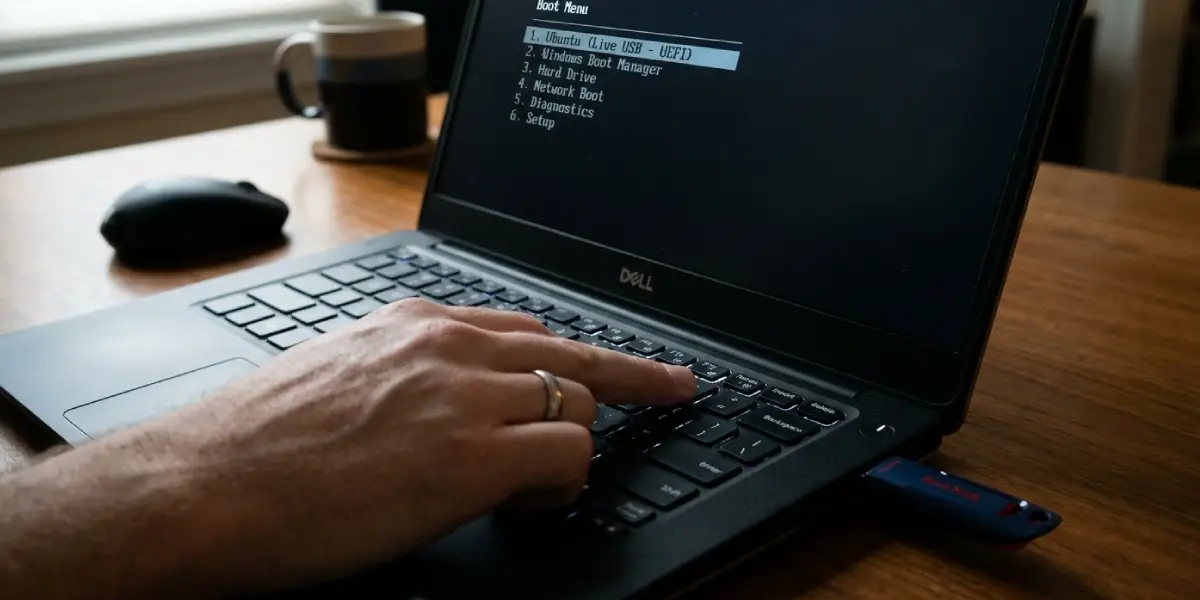
- Step 1: Insert the live USB, restart the PC, and open the one-time boot menu (commonly F12, F10, F9, Esc, or F2 depending on the manufacturer). Choose the USB drive and select the option to try the distribution without installing.
- Step 2: Open a terminal and check the boot mode by running ls /sys/firmware/efi. If a list of files appears, the live session is running in UEFI mode. If the command reports that the directory does not exist, the session is in legacy BIOS mode. Use the section below that matches.
- Step 3: List the disks and partitions with sudo lsblk -f. Look for the Linux root partition (usually ext4 or btrfs) and, on UEFI systems, the EFI System Partition, which is formatted as vfat (FAT32) and is small in size. Note their names, for example sda5 for root and sda1 for EFI.
Part 2: Repair GRUB on a UEFI System
- Step 1: Mount the Linux root partition with sudo mount /dev/sdXY /mnt, replacing sdXY with the root partition. If the system uses a separate /boot partition, mount it next with sudo mount /dev/sdXB /mnt/boot.
- Step 2: Mount the EFI System Partition with sudo mount /dev/sdXZ /mnt/boot/efi. If the Windows reinstall created a new EFI partition, use the one that exists now.
- Step 3: Connect the live system’s essential folders to the installed system with this loop: for d in /dev /dev/pts /proc /sys /run; do sudo mount –bind $d /mnt$d; done
- Step 4: Make the firmware variables visible inside the installed system with sudo mount –bind /sys/firmware/efi/efivars /mnt/sys/firmware/efi/efivars. This lets GRUB create its boot entry.
- Step 5: Enter the installed system with sudo chroot /mnt. The terminal prompt changes, which confirms that commands now act on the installed Linux system instead of the live USB.
- Step 6: Reinstall GRUB with grub-install –target=x86_64-efi –efi-directory=/boot/efi –bootloader-id=GRUB. A message saying that installation finished without errors is the expected result. On Fedora, reinstall the grub2-efi-x64 and shim-x64 packages instead, then regenerate the config with grub2-mkconfig -o /boot/grub2/grub.cfg.
- Step 7: Rebuild the menu with update-grub on Debian, Ubuntu, and Mint, or grub-mkconfig -o /boot/grub/grub.cfg on Arch-based systems. Look for a line mentioning Windows Boot Manager in the output.
- Step 8: Leave the chroot with exit, then unmount everything with sudo umount -R /mnt. Shut down, remove the USB drive, and start the PC normally.
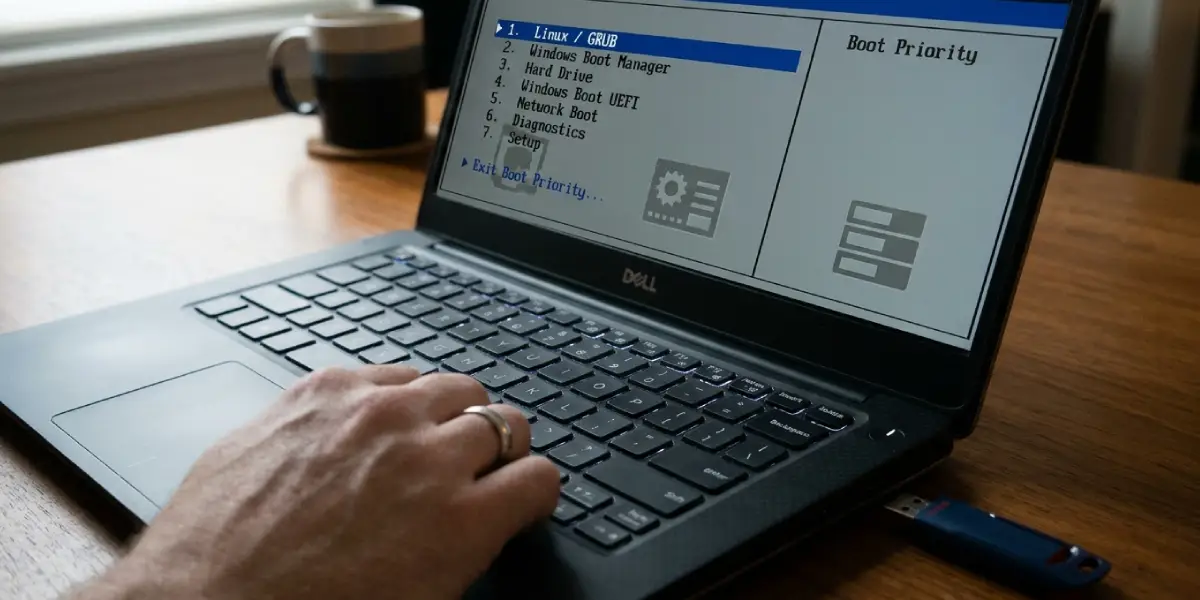
- Step 9: If Windows still starts first, open the firmware setup and move the Linux or GRUB entry to the top of the boot order. From a Linux terminal, sudo efibootmgr -v lists the entries and sudo efibootmgr -o followed by the entry numbers sets the order.
Part 3: Repair GRUB on a Legacy BIOS System
On older machines using legacy BIOS with an MBR disk, the Windows installer overwrites the boot code at the start of the disk. The repair is nearly identical, minus the EFI steps.
- Step 1: Mount the Linux root partition with sudo mount /dev/sdXY /mnt, add a separate /boot partition if one exists, and bind the system folders using the same loop from the UEFI section.
- Step 2: Enter the system with sudo chroot /mnt.
- Step 3: Install GRUB to the whole disk, not a partition, with grub-install /dev/sdX. Use sda or nvme0n1, with no number on the end.
- Step 4: Run update-grub, exit the chroot, unmount with sudo umount -R /mnt, and reboot without the USB drive.
Part 4: Get Windows Back in the Menu
Newer Ubuntu releases ship with the OS prober turned off, so the freshly installed Windows may not be listed even though GRUB itself works. Open the file /etc/default/grub inside the chroot, set GRUB_DISABLE_OS_PROBER=false (add the line if it is missing), make sure the os-prober package is installed, and run update-grub again. The output should now include a Windows Boot Manager line.
Tip: Keep the live USB handy until both operating systems have been booted successfully at least once. If something goes wrong, the same steps can be repeated within minutes.
Tips for a Smooth Repair
- Use a live USB made from the same distribution and a similar version as the installed system. A mismatch is rarely fatal, but matching avoids odd package or kernel behavior.
- Take a photo of the lsblk output before running any mount command. Mounting the wrong partition is the most common mistake, and a reference image makes the right choice obvious.
- For Ubuntu-based systems, the Boot-Repair utility is a graphical alternative that automates the same process. It is worth trying if the terminal approach feels uncomfortable.
- Tip: When reinstalling Windows in the future, disconnect the Linux drive first or install Windows before Linux. Windows has no awareness of other operating systems and tends to treat its own boot files as the only ones that matter.
Common Problems and Fixes
grub-install Says EFI Variables Are Not Supported
The live USB was started in legacy BIOS mode while the installed system uses UEFI. Reboot, choose the entry for the USB drive that begins with UEFI in the boot menu, and confirm with ls /sys/firmware/efi before continuing.
The PC Still Boots Straight Into Windows
GRUB installed correctly, but the firmware boot order still prefers Windows Boot Manager. Change the order in the firmware setup or with efibootmgr as described in Step 9 of the UEFI repair. Some manufacturer firmware also keeps a separate option for the default boot file, which may need to point at the GRUB entry.
GRUB Appears but Windows Is Missing From the Menu
Enable the OS prober by setting GRUB_DISABLE_OS_PROBER=false in /etc/default/grub, confirm that os-prober is installed, and run update-grub again from the chroot. Make sure the Windows EFI files exist on the EFI System Partition.
The Screen Shows grub rescue
This means GRUB loaded but cannot find its configuration or modules, often because partition numbers changed during the Windows installation. Do not try to patch it from the rescue prompt. Boot the live USB and run the full chroot repair described above, which rebuilds everything from scratch.
The Linux Partition Cannot Be Found
If lsblk shows no ext4 or btrfs partition where Linux used to be, the Windows installer may have deleted or reformatted it. Stop writing to the disk and consult a data recovery professional, because any further installation can overwrite recoverable data.
The Linux Partition Is Encrypted
A partition showing as crypto_LUKS must be unlocked before mounting. Run sudo cryptsetup open /dev/sdXY cryptroot, enter the passphrase, and mount the unlocked volume from /dev/mapper instead. Encrypted systems using LVM also need their volume group activated first.
The System Refuses to Boot With Secure Boot Enabled
Install the signed boot packages for the distribution, such as shim-signed and grub-efi-amd64-signed on Ubuntu, from inside the chroot and repeat the GRUB installation. Disabling Secure Boot temporarily in the firmware also confirms whether it is the cause.
Frequently Asked Questions
Why does a Windows reinstall remove GRUB?
The Windows installer sets its own boot manager as the default entry on UEFI systems or overwrites the boot sector on legacy BIOS systems. It does not look for other operating systems, so the entry that launched GRUB is lost, even though the Linux files remain on the disk.
Will fixing GRUB delete my Linux files or my new Windows installation?
No. Reinstalling GRUB only writes boot files to the EFI System Partition or the start of the disk. Personal files on the Linux and Windows partitions stay untouched, provided the correct partitions are mounted and the commands are typed accurately.
Do I need a live USB to fix GRUB after reinstalling Windows?
In nearly every case, yes. With the GRUB menu gone, there is no way to start Linux, so a live USB is needed to reach the installed system. The only exception is a firmware boot menu that still lists a GRUB or distribution entry, which can be selected directly.
How can I tell if my PC uses UEFI or legacy BIOS?
Boot the live USB and run ls /sys/firmware/efi in a terminal. If files are listed, the session is in UEFI mode. If the directory does not exist, it is legacy BIOS. In Windows, the System Information app also shows a BIOS Mode field with the answer.
Which partition should GRUB be installed to?
On UEFI systems, GRUB files go to the EFI System Partition, which is mounted at /boot/efi. On legacy BIOS systems, GRUB is written to the whole disk, such as /dev/sda, and never to a numbered partition.
Can the Windows Boot Repair tools restore GRUB instead?
No. Windows recovery tools such as bootrec only repair the Windows boot files and have no knowledge of GRUB. Running them can actually push GRUB further out of the boot order. The repair has to be done from Linux.
Why is Windows not listed in the GRUB menu after the repair?
Many current distributions disable the OS prober by default. Setting GRUB_DISABLE_OS_PROBER=false in /etc/default/grub, installing os-prober if needed, and running update-grub makes GRUB scan for the Windows boot files and add an entry.
How can the problem be avoided after the next Windows reinstall?
Before reinstalling Windows, make a bootable Linux USB so the repair is ready if needed. After the reinstall, firmware boot order and the GRUB entry can be checked quickly. Unplugging the Linux drive during the Windows installation also keeps its boot files out of reach.
Wrapping Up
A missing GRUB menu after a Windows reinstall looks alarming, but it is one of the most predictable and fixable boot problems. Boot a live USB, mount the right partitions, reinstall GRUB from inside the chroot, and refresh the menu so Windows is listed. After that, both systems start from one familiar menu again.
