
If text looks blurry, icons seem huge, or a new monitor doesn’t fill the screen properly, here is how to change screen resolution in Windows 11 in under a minute. The whole job takes place in the Settings app, and you don’t need administrator rights. It works the same way on Windows 11 Home, Pro, and Enterprise, on both desktops and laptops.
Key Takeaways
- Open Settings > System > Display and pick a new value from the Display resolution drop-down menu.
- The option marked (Recommended) is your screen’s native resolution and usually gives the sharpest picture.
- Windows gives you about 15 seconds to click Keep changes. If you don’t, it switches back to the old resolution on its own.
- With more than one monitor, each display has its own resolution. Select the right one at the top of the Display page first.
- If the resolution list is short or greyed out, the cause is almost always a missing or generic graphics driver.
How to Change Screen Resolution in Windows 11: Step-by-Step
Windows 11 has two built-in ways to change the resolution. The Settings app covers almost every situation. The display adapter properties window is useful when you want to see every resolution and refresh rate combination your graphics card supports.
Method 1: Use the Settings App
- Step 1: Press Windows + I to open Settings.
- Step 2: Click System in the left pane, then click Display on the right.
- Step 3: If you have more than one monitor, click the display you want to change in the diagram at the top of the page. Click Identify if you’re not sure which number belongs to which screen. A large number appears briefly on each monitor.
- Step 4: Scroll to the Scale & layout section and find Display resolution.
- Step 5: Open the drop-down menu and choose the resolution you want. The screen goes black for a moment and then comes back at the new resolution.
- Step 6: In the confirmation box that asks Keep these display settings?, click Keep changes to save it, or Revert to go back.
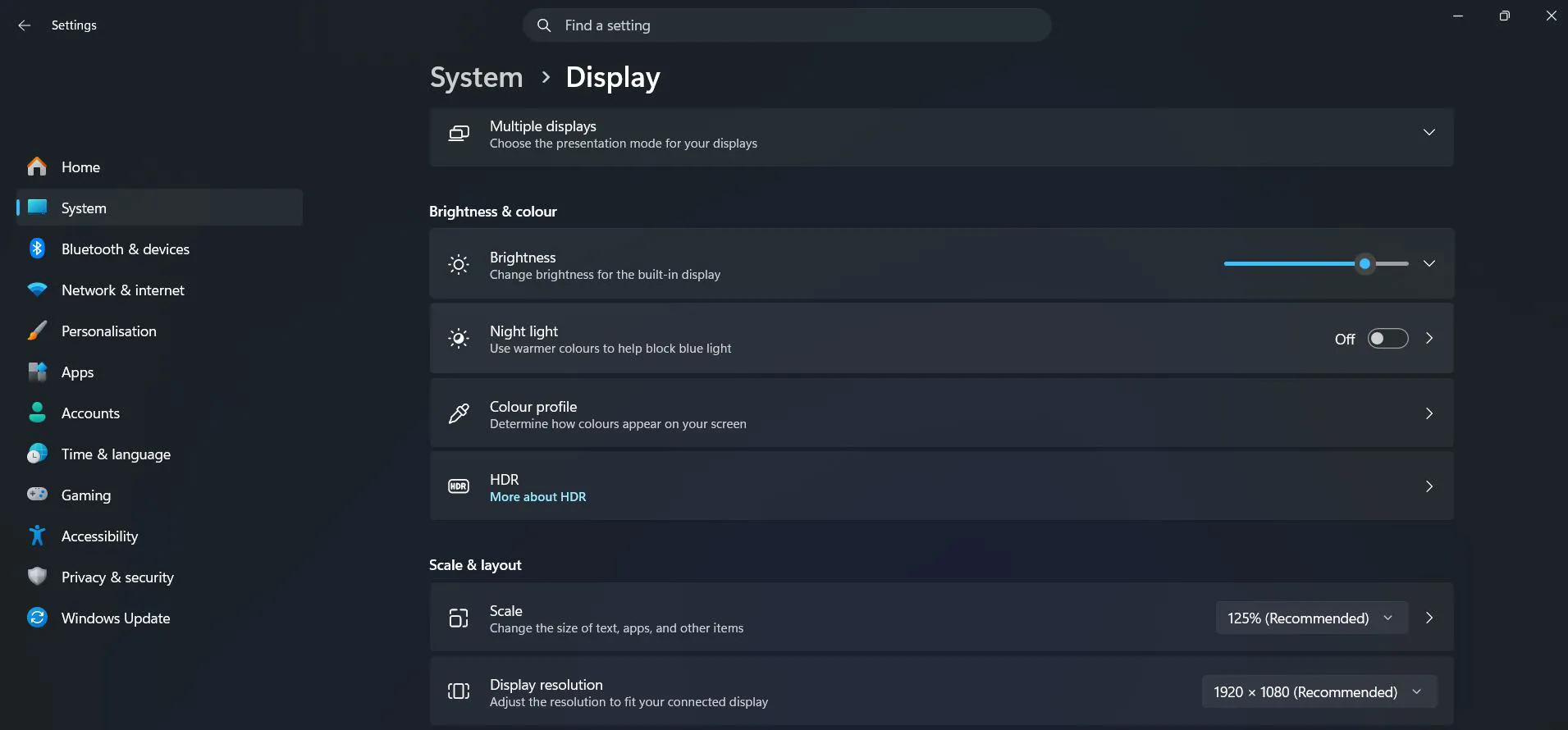
Once you click Keep changes, the new resolution applies straight away. Text and icons look smaller at a higher resolution and larger at a lower one. You don’t need to restart.
Tip: You can skip a few clicks by right-clicking an empty spot on the desktop and choosing Display settings. It opens the same page directly.
Method 2: Use Display Adapter Properties
This older-style window lists every mode the graphics driver supports, each paired with a color depth and refresh rate. It helps when you need an exact combination, such as a specific resolution at 60 Hz on a projector.
- Step 1: Press Windows + I, then go to System > Display.
- Step 2: Under Related settings, click Advanced display.
- Step 3: If you have several monitors, pick the right one from the Select a display to view or change its settings menu at the top.
- Step 4: Click Display adapter properties for Display 1. The number matches the display you selected.
- Step 5: On the Adapter tab, click List All Modes.
- Step 6: Select the mode you want from the list and click OK.
- Step 7: Click Apply, then click Yes in the confirmation prompt within 15 seconds to keep the new mode.
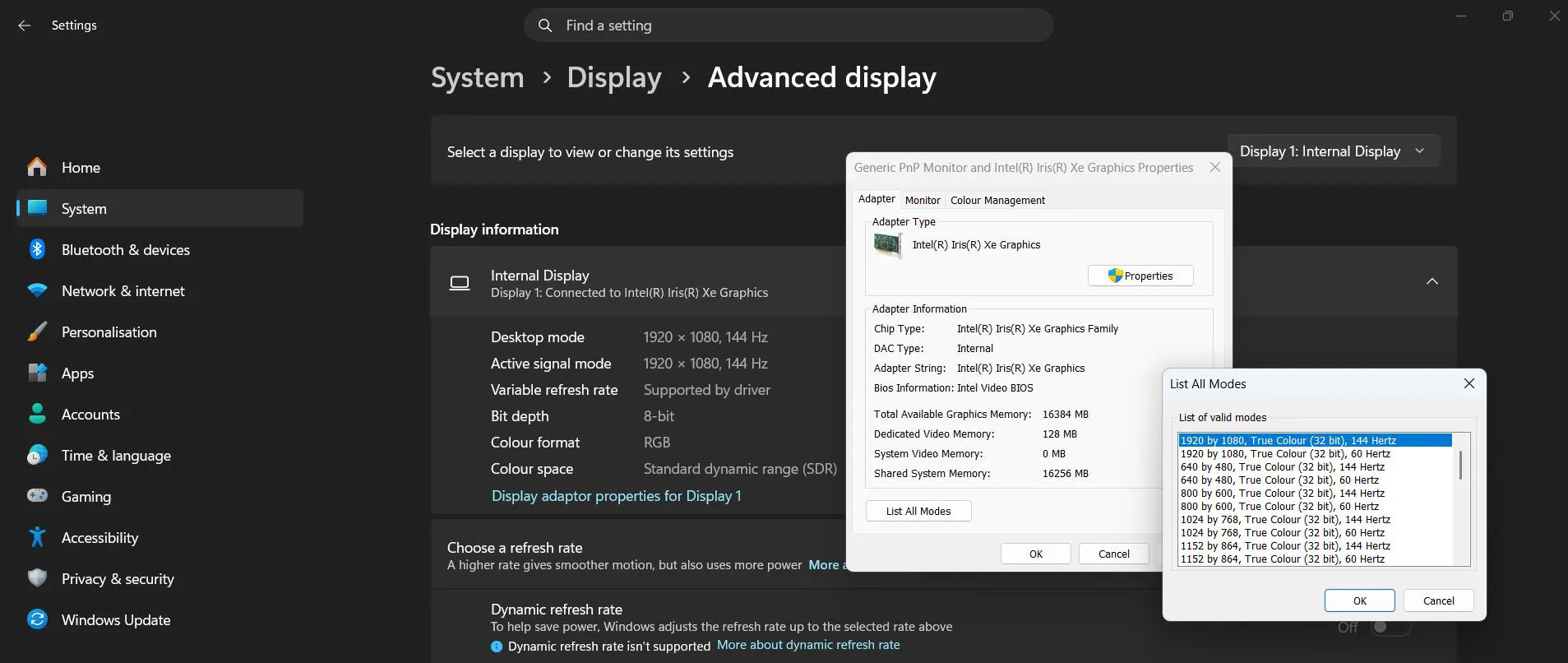
Tip: If the list here is much shorter than you expected, check the adapter name at the top of the Adapter tab. If it says Microsoft Basic Display Adapter, the proper graphics driver isn’t installed. See the fixes below.
How to Undo or Reverse This Change
If the new resolution looks wrong, go back to Settings > System > Display, open the Display resolution menu, and choose the option marked (Recommended). That is the screen’s native resolution, and it’s the safest setting to fall back to. If the screen went black or shows an ‘out of range’ message right after a change, don’t click anything. After about 15 seconds, Windows switches back to the previous resolution by itself.
Common Problems and Fixes
The Display resolution menu is greyed out
This usually means Windows is using its generic driver instead of the real graphics driver. Go to Settings > Windows Update and click Check for updates, then open Advanced options > Optional updates and install any display or graphics driver listed there. Restart the PC afterward. The menu also stays locked during a Remote Desktop session, because the remote computer’s resolution follows the window on the device you’re connecting from.
The resolution I want isn’t in the list
Windows only shows resolutions that both the monitor and the graphics driver report as supported. Make sure the graphics driver is up to date, and check that the cable and port can carry the resolution. An older HDMI cable or adapter can cap a 4K monitor at a lower resolution. Plugging directly into the graphics card’s port, rather than the motherboard’s, often makes the missing options appear on desktop PCs.
Everything looks blurry after the change
LCD and OLED screens look sharpest at their native resolution. Any other setting forces the screen to stretch the image, which softens text. Switch back to the (Recommended) resolution. If text is now too small, change the Scale value just above it on the same page instead of lowering the resolution.
The screen went black and didn’t come back
Wait 15 seconds. Windows reverts automatically if you don’t confirm the change. If the screen stays black, press Windows + Ctrl + Shift + B to restart the graphics driver. You’ll hear a short beep and the screen flickers back on.
The resolution resets after a restart or when a monitor is reconnected
This is most common with docking stations, adapters, and KVM switches that don’t pass the monitor’s details through properly. Update the graphics driver first, then try connecting the monitor directly to the PC. Once Windows sees the monitor correctly, it remembers the resolution for that screen.
Frequently Asked Questions
Does changing screen resolution work on Windows 11 Home?
Yes. The Display resolution setting is available in every Windows 11 edition, including Home, Pro, and Enterprise, and it works the same way in all of them.
Do I need to restart my PC after changing the resolution?
No. The new resolution applies as soon as you click Keep changes. A restart is only needed after you install a new graphics driver.
Which resolution should I choose?
Pick the one marked (Recommended). It matches the native resolution of the panel and gives the clearest text and images. If things look too small at that setting, raise the Scale percentage instead.
Is there a keyboard shortcut to change screen resolution in Windows 11?
There is no direct shortcut that switches the resolution. The quickest route is pressing Windows + I and going to System > Display, or right-clicking the desktop and choosing Display settings.
Can I set a different resolution for each monitor?
Yes. Each connected display keeps its own resolution. On the Display page, select the monitor in the diagram at the top, then change the Display resolution menu for that screen only.
Does lowering the resolution save battery on a laptop?
The effect on battery life is usually very small, and a non-native resolution makes the screen look blurry. Lowering screen brightness saves far more power than lowering resolution.
Will a lower resolution make games or apps run faster?
Changing the Windows desktop resolution has little effect on everyday apps. Most games have their own resolution setting in their in-game options, and that setting is what affects game performance.
Why does Windows ask me to keep or revert the change?
It’s a safety net. If the new resolution isn’t supported and the screen goes blank, you can’t click anything, so Windows automatically returns to the previous resolution after about 15 seconds unless you confirm.
Why is my resolution stuck at a low setting like 1024 x 768?
This almost always means the graphics driver is missing and Windows is using the Microsoft Basic Display Adapter. Install the correct driver through Windows Update > Advanced options > Optional updates, then restart the PC.
