
Learning how to fix monitor overscan with HDMI takes only a few minutes, and it brings back the taskbar, window edges, and every pixel that went missing. Overscan happens when the screen enlarges the picture so the outer edges fall beyond the visible area. The cure is almost always a single setting on the display, the graphics driver, or both.
Key Takeaways
- Overscan is a leftover TV behavior that crops and enlarges the image, and it is most common on TVs used as monitors over HDMI.
- The fastest fix is a picture size setting on the display, often named Just Scan, Screen Fit, Full Pixel, or 1:1 Pixel Mapping.
- If the display has no such option, the graphics driver can shrink the image back into place using a scaling or underscan control.
- A correct native resolution in Windows must be set first, otherwise no scaling setting will look sharp.
Why HDMI Monitors Show Overscan
Old CRT televisions deliberately hid the edges of a broadcast picture because those edges were messy. Many modern TVs still copy that habit, so a signal arriving over HDMI gets zoomed in slightly. Computer monitors rarely do this, but some monitors and nearly all TVs treat an HDMI signal as video rather than a PC desktop.
Think of it like a framed photo with a mat cut too small. Nothing is wrong with the photo – the frame is simply covering the borders. The goal is to remove the mat.
Before You Start
No disassembly is needed, so the prep is short. Make sure the PC and display are both powered on and the HDMI cable is fully seated at both ends. Keep the display remote or on-screen controls within reach, since the main fix usually lives in the display menu.
- The display remote or its physical menu buttons
- The HDMI cable already in use, plus a spare if one is available for testing
- Access to Windows display settings and the graphics driver control panel
How to Fix Monitor Overscan With HDMI
- Step 1: Confirm the native resolution in Windows. Right-click the desktop, open Display settings, and choose the resolution marked Recommended. Most monitors and TVs are 1920 x 1080 or 3840 x 2160. A wrong resolution can mimic overscan, so this check comes first.
- Step 2: Open the display’s own menu and find the picture size or aspect ratio setting. Change it to the option that disables overscan. The wording depends on the brand, as covered in the next section.
- Step 3: Set the HDMI input to PC mode if the display offers it. Many TVs have an option to rename the input or change its icon to PC, which switches off extra video processing and overscan at the same time.
- Step 4: Turn off image-altering features in the display menu. Options such as zoom, overscan, edge enhancement, or motion processing can crop or soften a desktop image.
- Step 5: If edges are still cut off, adjust scaling in the graphics driver. Use the NVIDIA Control Panel, AMD Software, or Intel Graphics Command Center, as detailed below.
- Step 6: Check the result. Open a full-screen window and confirm that all four corners, the taskbar, and the title bars are visible and sharp. Drag a window to each edge of the screen to be sure.
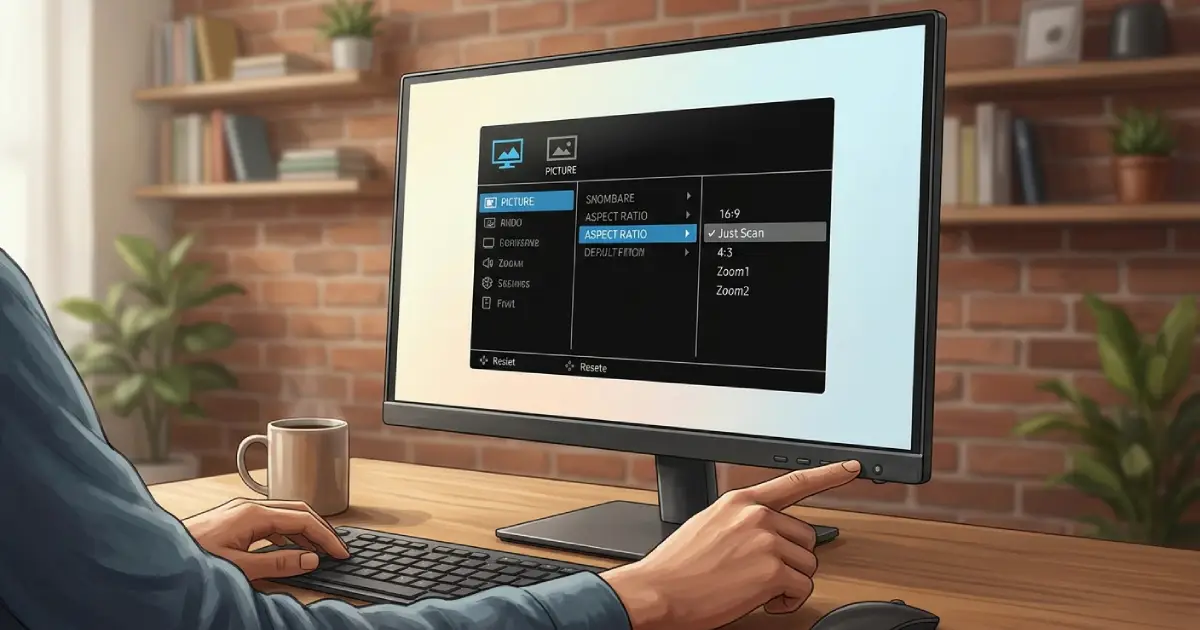
Tip: Always fix overscan on the display first and the driver second. Letting the screen show the signal at 1:1 gives the sharpest picture, while driver scaling shrinks the image and can add slight softness.
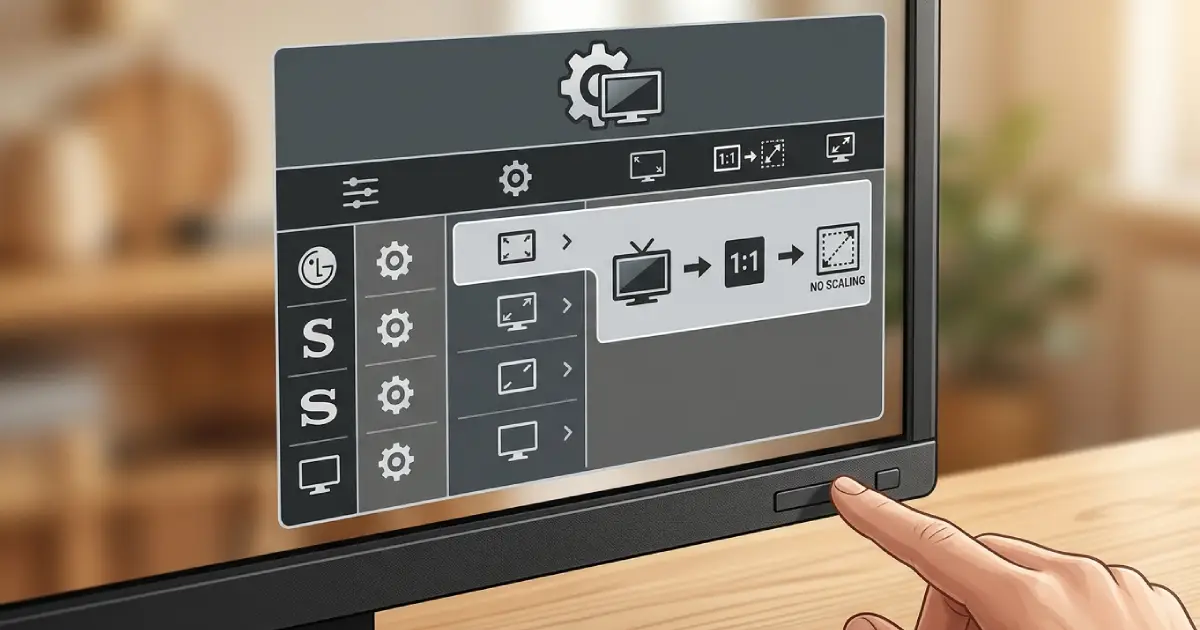
Common Names for the Overscan-Off Setting
- LG TVs: Just Scan, found under Aspect Ratio settings
- Samsung TVs: Screen Fit, found under Picture Size settings
- Sony TVs: Full Pixel, found under Screen or Display Area settings
- Other brands and monitors: look for 1:1, Pixel Mapping, Native, Dot by Dot, or Overscan set to Off
Fixing Overscan in NVIDIA Control Panel
- Step 1: Open NVIDIA Control Panel and go to Display, then Adjust desktop size and position.
- Step 2: Select the HDMI display, then set Scaling mode to No scaling and Perform scaling on to Display.
- Step 3: If the picture is still cropped, open Change resolution and select the PC resolution list rather than the HDTV list, then click Apply.
Fixing Overscan in AMD Software
- Step 1: Open AMD Software and go to Settings, then Display.
- Step 2: Find the HDMI Scaling slider and move it until the desktop edges line up with the screen edges.
- Step 3: Click Apply or confirm the change, and test again with a full-screen window.
Fixing Overscan in Intel Graphics Command Center
- Step 1: Open Intel Graphics Command Center and select Display.
- Step 2: In the General tab, adjust the Scaling option so the image is not zoomed or cropped.
- Step 3: Apply the change and verify the screen edges.
Tip: Driver-based sliders that shrink the image should only be used when the display itself has no overscan-off option. Using both together can leave black borders around the picture.
Common Problems and Fixes
The Picture Has Black Borders After Fixing Overscan
This is usually underscan, which means the image has been shrunk too far. Return the driver scaling slider toward zero, or set the driver scaling to No scaling and rely on the display’s Just Scan or 1:1 setting instead.
The Text Looks Blurry After the Change
Blurry text often means the desktop resolution does not match the display’s native resolution, or driver scaling is stretching the image. Set the native resolution in Windows, then turn off driver scaling and use the display’s pixel-for-pixel mode.
The Overscan Option Is Grayed Out or Missing
Some displays hide the setting unless the signal is recognized as a PC. Change the HDMI input label or icon to PC, then check the picture size menu again. If the option is still missing, try a different HDMI port on the display.
Overscan Returns After Restarting or Switching Inputs
Settings are stored per input on most TVs. Confirm the fix was applied to the same HDMI input being used, and keep the input labeled as PC so the display remembers the correct mode.
The Edges Are Still Cut Off With a Different Cable
A cable is rarely the cause of overscan, but a faulty or low-quality one can cause signal issues that look similar. Test a known-good HDMI cable. If the problem remains identical, the cause is a setting rather than hardware.
If the screen shows flickering, no signal, or persistent distortion even at the correct resolution, the HDMI port or the display may be faulty. At that point, a professional repair or the manufacturer’s support is the safer route.
Frequently Asked Questions
What is monitor overscan?
Overscan is when a display enlarges the incoming picture so the outer edges are cropped off. It was designed for old broadcast TV and still appears on many modern TVs when connected to a computer over HDMI.
Why does overscan happen over HDMI and not DisplayPort?
HDMI is also used by TVs, set-top boxes, and game consoles, so displays often treat an HDMI input as a video source and apply overscan. DisplayPort is used almost exclusively by PC monitors, which rarely apply it.
Which setting turns overscan off on a TV?
The name varies by brand. Common options include Just Scan on LG, Screen Fit on Samsung, Full Pixel on Sony, and 1:1 or Pixel Mapping on other models. Look in the picture size or aspect ratio menu.
Can overscan be fixed from Windows alone?
Often yes. Setting the recommended resolution and adjusting scaling in the NVIDIA, AMD, or Intel graphics software can bring the edges back. The display-side setting still gives the cleanest result when it is available.
Does fixing overscan reduce picture quality?
Turning overscan off on the display improves quality because the image is shown pixel for pixel. Driver sliders that shrink the image can introduce slight softness, so they work best as a backup option.
Will a different HDMI cable fix overscan?
Almost never. Overscan is a scaling setting, not a cable problem. A new cable only helps if the signal itself is unstable, which shows up as flicker or dropouts rather than cropped edges.
Why does the picture look zoomed in even at the right resolution?
The display is probably still applying a zoom or overscan mode, or the HDMI input is not set to PC mode. Check the picture size setting and the input label on the display.
Is overscan the same as the wrong aspect ratio?
No. A wrong aspect ratio stretches or squeezes the image, while overscan crops the edges and enlarges the picture. Both can appear together, so check the picture size and aspect settings during the fix.
