
The #VALUE! error in Excel: Cause and Fix comes down to one idea. A formula received a value it cannot work with, usually text where a number was expected. This guide shows how to find the exact cell responsible and correct it in a few minutes.
Key Takeaways
- #VALUE! means a formula contains the wrong type of data, most often text, stray spaces, or a date stored as text.
- The Evaluate Formula tool shows exactly which part of the formula fails.
- TRIM, SUBSTITUTE, and VALUE turn text-based numbers into real numbers.
- IFERROR should be added only after the real problem has been fixed.
How to Fix the #VALUE! Error in Excel Step by Step
- Step 1: Click the cell that shows #VALUE! and read the formula in the formula bar. Note every cell reference and function inside it. A formula like =B2*C2 has only two possible culprits, which makes the search quick.
- Step 2: Open the Formulas tab and select Evaluate Formula in the Formula Auditing group. Click Evaluate repeatedly. Excel calculates the formula one piece at a time, and the step where #VALUE! first appears points to the faulty reference or argument.
- Step 3: Check what type of data each referenced cell holds. In a spare cell, type =ISNUMBER(B2) and press Enter. TRUE means B2 holds a real number. FALSE means it holds text, even if it looks like a number. Repeat for each reference in the formula.
- Step 4: Remove hidden spaces from text-based numbers. Data pasted from websites, PDFs, or exported reports often carries leading, trailing, or non-breaking spaces. In a helper column, enter =VALUE(TRIM(SUBSTITUTE(B2,CHAR(160),CHAR(32)))). This swaps non-breaking spaces for normal ones, trims the extra spaces, and converts the result to a real number. Then point the original formula at the helper column.
- Step 5: Convert a whole column of text numbers in one pass if the data is clean apart from the format. Select the column, go to the Data tab, choose Text to Columns, and click Finish. Excel re-reads each cell and converts text numbers to real numbers.
- Step 6: Fix dates stored as text. If subtracting two dates returns #VALUE!, one of them is probably text. Wrap the text date in DATEVALUE, as in =DATEVALUE(A2), or use the Text to Columns method from Step 5 on the date column.
- Step 7: Check that the ranges inside the formula match. Functions that compare or multiply arrays, such as SUMPRODUCT, return #VALUE! when the ranges have different sizes. Make sure every range has the same number of rows and columns, for example A2:A20 paired with B2:B20.
- Step 8: Replace the + operator with SUM when blank-looking cells are the cause. A cell containing a formula that returns empty text breaks =A2+B2, while =SUM(A2:B2) skips text and returns a total.
- Step 9: Press Enter to recalculate and confirm that #VALUE! has cleared. If it remains, return to Step 2 and evaluate the formula again, because a formula can contain more than one problem.
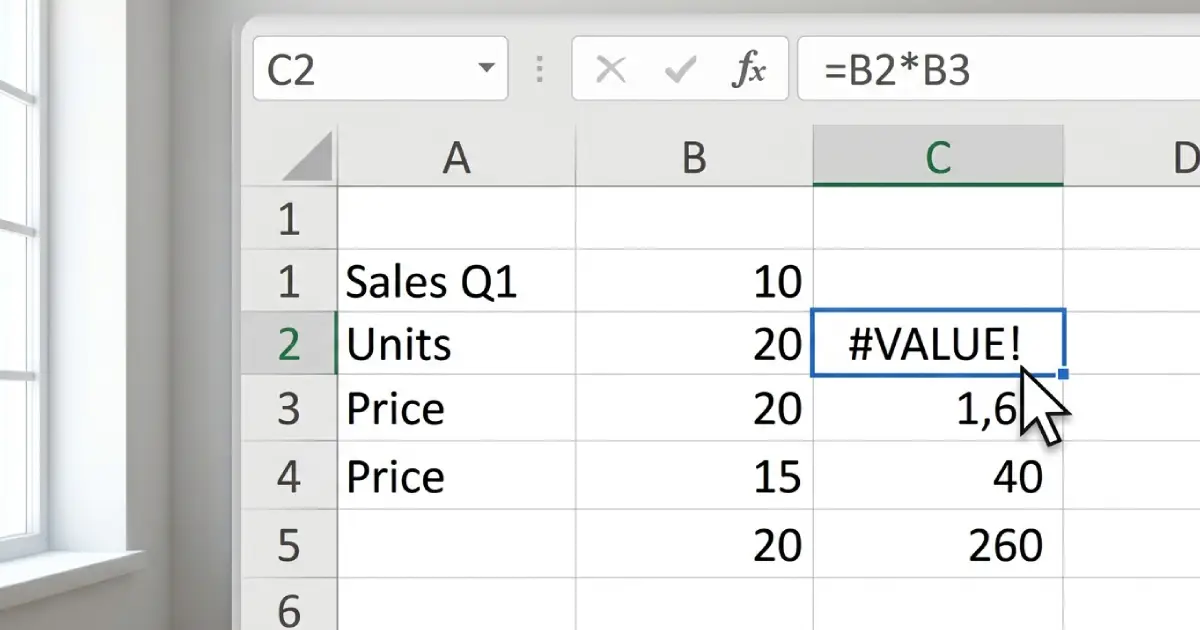
Tip: Cells with a small green triangle in the corner often flag numbers stored as text. Select the cell, click the warning icon that appears, and choose Convert to Number for a one-click fix.
Most Common Causes to Look For
- Text typed into a cell that a formula treats as a number, such as the word ‘n/a’ or a unit like ’25 kg’.
- Extra or non-breaking spaces that make a number behave like text.
- Dates stored as text rather than as real date values.
- Ranges of different sizes inside functions like SUMPRODUCT.
- A lookup value longer than 255 characters in functions such as MATCH or VLOOKUP.
- Functions like SUMIF or COUNTIF pointing at a workbook that is currently closed.
Common Problems and Fixes
The Formula Still Shows #VALUE! After Using VALUE
The cell probably contains characters other than spaces, such as a currency symbol, a unit, or a letter. Use Find and Replace to remove those characters, or clean the text with SUBSTITUTE before applying VALUE.
Evaluate Formula Points to a Cell That Looks Fine
Some cells look numeric but contain a non-breaking space. The TRIM function alone does not remove it. Use the SUBSTITUTE version from Step 4, which handles CHAR(160) directly.
SUMIF or COUNTIF Returns #VALUE! Only on Some Days
This happens when the formula refers to another workbook that is sometimes closed. Open the source workbook and the formula recalculates. Keeping both files open while working avoids the problem.
A Lookup Formula Returns #VALUE! for Long Text
MATCH and VLOOKUP cannot search for a lookup value longer than 255 characters. Shorten the lookup value, or search on a shorter ID column instead.
Subtracting Dates Gives #VALUE!
One of the two dates is stored as text. Convert it with DATEVALUE or Text to Columns, then run the subtraction again.
Tip: Wrap a formula in IFERROR, such as =IFERROR(B2*C2,0), only after the underlying problem is solved. Used too early, it hides bad data and makes later mistakes harder to spot.
Frequently Asked Questions
What does the #VALUE! error mean in Excel?
It means a formula contains a value of the wrong data type or an argument that the function cannot process. The most common example is text being used in a calculation that needs a number.
Why does adding two cells return #VALUE!?
At least one of the cells holds text, a stray space, or a formula that returns empty text. The + operator cannot handle those values, while the SUM function skips text and still returns a total.
How can the exact cause of #VALUE! be found?
Select the cell, open the Formulas tab, and use Evaluate Formula in the Formula Auditing group. Stepping through the calculation shows which reference or argument produces the error.
Is IFERROR a proper fix for #VALUE!?
IFERROR only hides the error message. It is useful for a clean final report, but the bad data behind the error should be corrected first so results stay accurate.
Why do SUMIF and COUNTIF return #VALUE! with another workbook?
These functions return #VALUE! when they refer to a workbook that is closed. Opening the source workbook lets the formula calculate normally.
Why does a date calculation return #VALUE!?
One of the dates is stored as text instead of a real date value. Converting it with DATEVALUE or the Text to Columns command restores normal date math.
Can a very long lookup value cause #VALUE!?
Yes. MATCH and VLOOKUP return #VALUE! when the lookup value is longer than 255 characters. Using a shorter lookup value solves it.
How can numbers stored as text be converted in bulk?
Select the column, go to the Data tab, choose Text to Columns, and click Finish. Excel re-reads the cells and converts the text numbers into real numbers.
