
Knowing how to pin and snooze emails in Outlook keeps important messages visible and lets the rest wait until a better moment. Pinning anchors a message at the top of its folder, while snoozing hides it and brings it back at the time chosen. Both take only a couple of clicks in new Outlook for Windows, new Outlook for Mac, and Outlook on the web.
Key Takeaways
- Pinning fixes an email at the top of its folder until it is unpinned.
- Snoozing removes an email from the Inbox and returns it to the top at the chosen time.
- Both actions are available by hovering over a message or right-clicking it.
- A pinned email can be unpinned and a snoozed email can be unsnoozed at any time.
How to Pin and Snooze Emails in Outlook Step by Step
The steps below apply to new Outlook and Outlook on the web. If the options are missing in classic Outlook for Windows, switch on the ‘New Outlook’ toggle at the top right of the window.
How to Pin an Email
- Step 1: Open Outlook and select Mail, then open the folder that holds the message, such as Inbox.
- Step 2: Hover the mouse pointer over the email in the message list. A set of small action icons appears on the right side of the message.
- Step 3: Click the pushpin icon. Alternatively, right-click the email and choose Pin from the menu.
- Step 4: Check the top of the message list. The email now sits above the rest, marked with a pin icon.
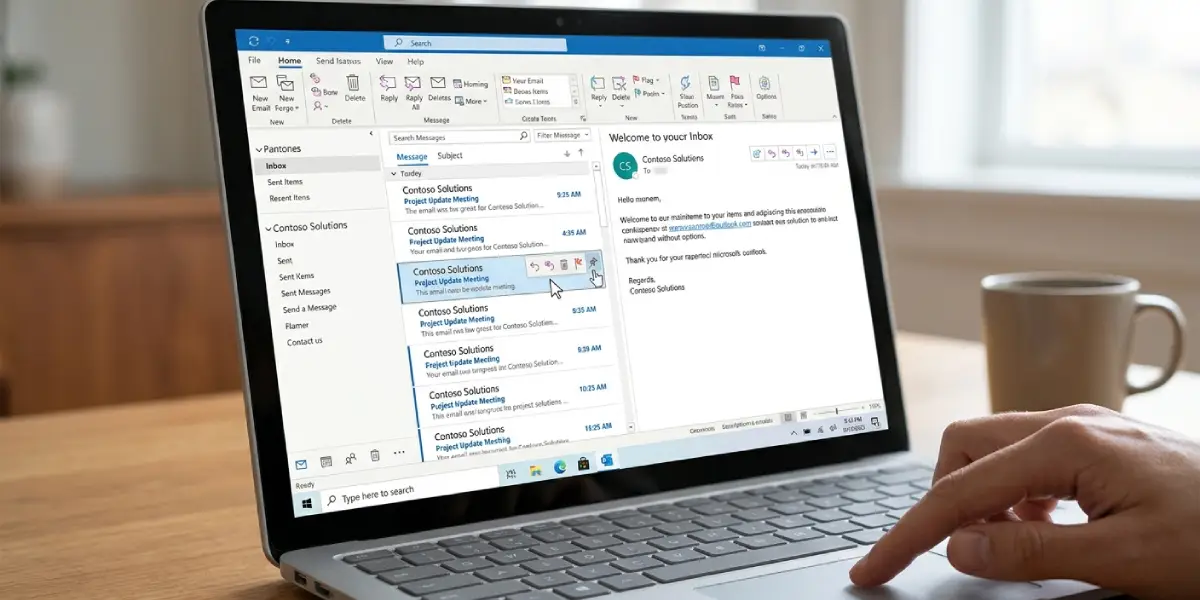
Tip: Pinning works well for messages that get referenced all day, such as a meeting link, a shipping address, or a client’s instructions. Think of it as sticking a note on the edge of a monitor.
How to Unpin an Email
- Step 1: Find the pinned email at the top of the folder.
- Step 2: Click the pin icon again, or right-click the email and choose Unpin.
- Step 3: Confirm that the message has dropped back into its normal position by date.
How to Snooze an Email
- Step 1: In the Inbox, hover over the email that cannot be dealt with right now.
- Step 2: Click the clock icon for Snooze. Alternatively, right-click the email and choose Snooze.
- Step 3: Pick a preset time from the list, such as Later today, Tomorrow, This weekend, or Next week.
- Step 4: For a specific moment, choose Choose a date, set the date and time, and select Save.
- Step 5: Confirm that the message has left the Inbox. It returns to the top of the Inbox at the time chosen.
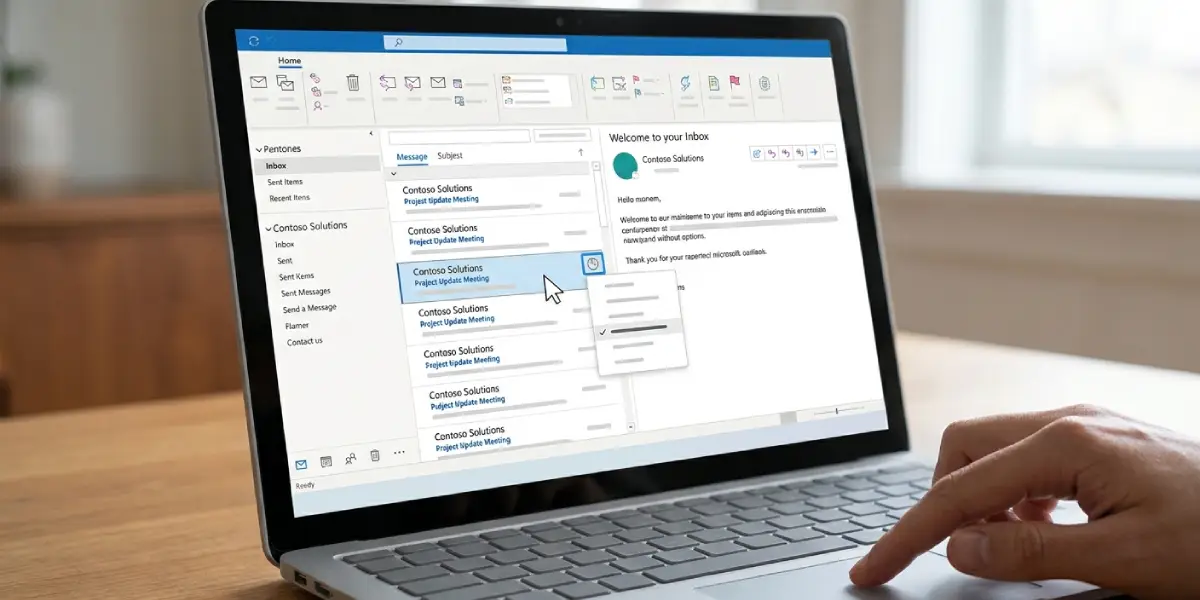
Tip: Snoozing suits emails that need a reply but not today, like a quote request that depends on a colleague’s figures arriving on Thursday. Set the snooze for Thursday morning and the message reappears when the answer is ready.
How to Unsnooze an Email Early
- Step 1: Open the Snoozed folder from the folder list on the left. If it is not visible, expand the folder list first.
- Step 2: Hover over the snoozed email, or right-click it.
- Step 3: Select Unsnooze. The message goes back to the Inbox right away.
Common Problems and Fixes
The Pin or Snooze Icon Does Not Appear
Hover icons only show in layouts that have room for them, and some features are limited to new Outlook. Switch on the ‘New Outlook’ toggle if classic Outlook is open, then widen the message list pane or right-click the email to reach Pin and Snooze from the menu.
A Snoozed Email Cannot Be Found
Snoozed messages are not deleted. They leave the Inbox and wait in the Snoozed folder until the chosen time. Open that folder to find the message or to unsnooze it.
A Pinned Email Is Not at the Top
Pinning applies to the folder where the action was taken. If the message was pinned in one folder, it will not appear pinned in another. Open the original folder and check for the pin icon, then pin the message again if it was removed.
The Snooze Time Was Set Incorrectly
Open the Snoozed folder, select Unsnooze, then snooze the email again with the correct time using Choose a date.
Frequently Asked Questions
What is the difference between pinning and snoozing an email in Outlook?
Pinning keeps an email at the top of its folder so it stays in view. Snoozing temporarily removes an email from the Inbox and brings it back at a chosen date and time.
Does snoozing an email delete it?
No. A snoozed email is kept in the Snoozed folder until the snooze time arrives, and it can be unsnoozed at any moment.
Where do snoozed emails go in Outlook?
Snoozed emails move out of the Inbox into the Snoozed folder, then return to the top of the Inbox at the time chosen.
Can a snoozed email be brought back before the snooze time ends?
Yes. Open the Snoozed folder, hover over the message or right-click it, and select Unsnooze to return it to the Inbox right away.
How can a pinned email be unpinned?
Click the pin icon on the message again, or right-click the email and choose Unpin. The message returns to its normal place by date.
Does the sender know when an email is pinned or snoozed?
No. Both actions only change how the message appears in the person’s own mailbox, and nothing is sent to the sender.
Can a custom date and time be set when snoozing?
Yes. Choose Choose a date in the Snooze menu, set the date and time, and select Save.
Why are the Pin and Snooze options missing in Outlook?
These options are available in new Outlook and Outlook on the web. If classic Outlook for Windows is open, switch on the ‘New Outlook’ toggle to access them.
