
Learn how to turn off content adaptive brightness control in Windows 11 when the screen keeps dimming or brightening on its own while the picture changes. The setting appears only on devices with a built-in display that supports it, such as many laptops and tablets, and no administrator rights are needed. The whole change takes less than a minute.
Key Takeaways
- The setting lives at Settings > System > Display > Brightness.
- Set the Change brightness based on content drop-down to Off.
- The change applies immediately, with no restart needed.
- If the option is missing, the built-in display or its driver usually does not support it.
Step-by-Step Guide to Turn Off Content Adaptive Brightness Control in Windows 11
Method 1: Use the Settings App
- Press Windows + I to open Settings.
- Click System in the left sidebar.
- Click Display on the right side.
- Under the brightness controls, click Brightness to expand the extra options.
- Find the Change brightness based on content drop-down.
- Open the drop-down and select Off.
- Close Settings. The new choice is saved automatically.
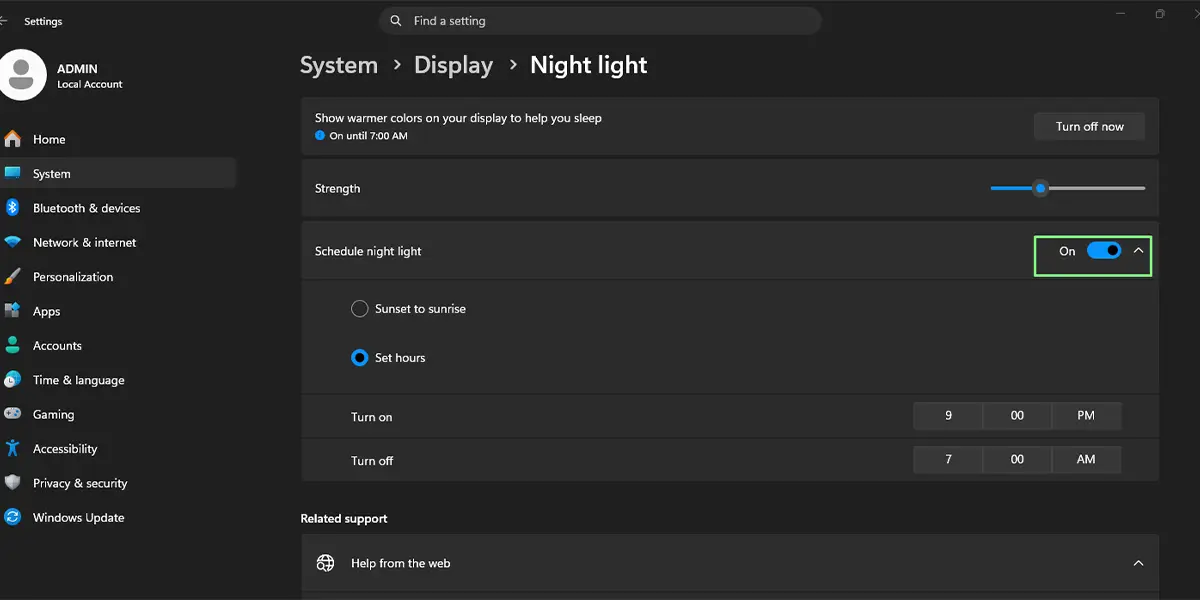
After this, the screen no longer lightens or darkens by itself as the content changes. A good way to check is to switch between a bright web page and a dark video. The overall brightness now stays steady instead of shifting.
Tip: The same expanded Brightness area also holds Change brightness automatically when lighting changes, which is a separate option that reacts to room light on devices with a light sensor. Turn that off as well if brightness still moves around.
What the Drop-Down Options Mean
Most people find that the drop-down offers three choices. Off stops Windows from adjusting brightness or contrast based on what is on screen. Always keeps the adjustment active whether the laptop is plugged in or running on battery. On battery only applies it only when the device is unplugged.
Choosing Off gives the most consistent picture, which helps when colors look washed out or when editing photos and video. The trade-off is that a laptop on battery may run a little shorter, since the automatic dimming is no longer saving power.
How to Undo or Reverse This Change
To switch content adaptive brightness back on, go to Settings > System > Display > Brightness, open the Change brightness based on content drop-down, and pick On battery only or Always. The adjustment resumes right away.
Common Problems and Fixes
The Change brightness based on content option is missing
This option shows up only when the PC has a built-in display and graphics hardware that support it. Desktop PCs with an external monitor, and some laptops, may not list it at all. If a laptop should have it, install the latest graphics driver and Windows updates, then open Settings > System > Display > Brightness again.
The drop-down is greyed out
A work or school PC can have display settings controlled by the organization. In that case, the option stays locked and only the administrator can change it. On a personal PC, restart the computer and check the page again.
The screen still changes brightness after setting it to Off
Content adaptive brightness is only one of several things that can move the brightness. Turn off Change brightness automatically when lighting changes in the same Brightness section. Battery saver can also lower brightness when the battery runs low, which is a separate behavior from this setting.
The setting goes back to its old value
Open Settings > System > Display > Brightness and confirm the drop-down reads Off and not On battery only. If it keeps changing, the device may be managed by an organization that applies its own display settings.
Frequently Asked Questions
Does turning off content adaptive brightness control need a restart?
No. The change applies as soon as Off is selected in the drop-down, so Settings can be closed straight away.
Do I need administrator rights to turn it off?
No. A standard account can change this option on a personal PC. A work or school device may lock it.
Will turning it off affect battery life?
It can. Content adaptive brightness is designed to save power by adjusting the screen, so a laptop on battery may last a little less with the setting off.
Why is the Change brightness based on content option missing?
The option appears only on devices with a built-in display and hardware that support it. Desktop PCs with external monitors often do not show it. Updating the graphics driver and Windows can bring it back on supported laptops.
Is this the same as adaptive brightness for room lighting?
No. Content adaptive brightness reacts to what is shown on screen, while Change brightness automatically when lighting changes reacts to the light in the room. They are two separate options in the same Brightness section.
Does the setting affect an external monitor?
This option is meant for the built-in display of a laptop or tablet. An external monitor is not controlled by it.
Which Settings path opens this option?
Go to Settings > System > Display, then click Brightness to expand it. The Change brightness based on content drop-down is inside that section.
Can the screen look better with this setting off?
Often, yes. With the automatic adjustment off, colors and contrast stay constant, which many people prefer for photos, video, and design work.
