
Want to connect to a wireless display in Windows 11 without running a single cable? Miracast makes that possible by mirroring or extending the screen of a laptop or PC to a TV, projector, or wireless adapter. It works on Windows 11 Home and Pro, but the PC needs a Wi-Fi adapter and a graphics driver that support Miracast, and the receiving display must support it too. No administrator rights are needed.
Key Takeaways
- Turn on screen mirroring (Miracast) on the TV, projector, or adapter first, so Windows can find it.
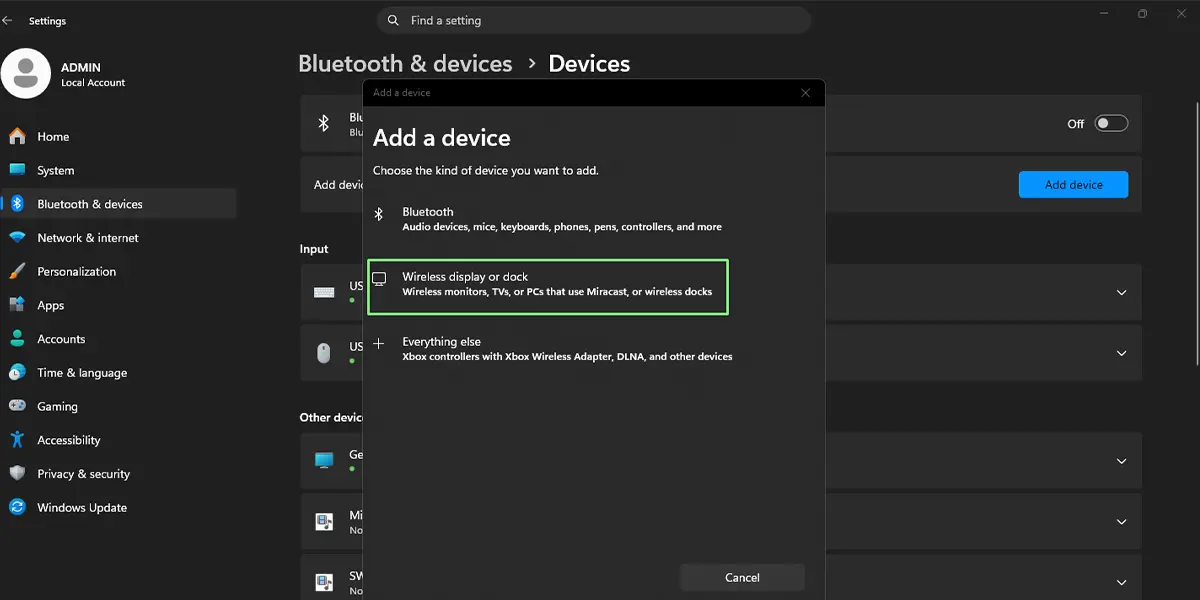
- The easiest route is Settings > Bluetooth & devices > Devices > Add device > Wireless display or dock.
- Quick Settings (Windows + A) and the Windows + K shortcut open the Cast list in two clicks.
- Press Windows + P afterwards to switch between Duplicate, Extend, and Second screen only.
Step-by-Step Guide to Connect to a Wireless Display in Windows 11
Before starting any method, switch on the TV, projector, or Miracast adapter and enable its screen mirroring or wireless display mode. Most TVs hide this under a menu named Screen Mirroring, Miracast, or Screen Share. Keep the PC within a few meters of the display for a steady connection.
Method 1: Use the Settings App
- Press Windows + I to open Settings.
- Select Bluetooth & devices from the left sidebar.
- Click Devices.
- Click the Add device button at the top of the page.
- In the Add a device window, choose Wireless display or dock.
- Wait a few seconds while Windows scans. The name of the TV or adapter appears in the list.
- Click the display name to start the connection.
- Accept the connection prompt on the TV if one appears, or enter the PIN if it asks for one.
The PC screen shows up on the wireless display within a few seconds, usually as a mirrored copy of the desktop.
Tip: Windows remembers displays added this way, so next time the connection is much faster through Quick Settings or Windows + K.
Method 2: Use Quick Settings
- Click the network, speaker, and battery icons at the right end of the taskbar, or press Windows + A, to open Quick Settings.
- Click the Cast tile.
- Wait for the list of available displays to fill in.
- Click the name of the wireless display.
If the Cast tile is not visible, click the pencil icon in Quick Settings, choose Add, and select Cast from the list. Then click Done.
Method 3: Use the Windows + K Shortcut
- Press Windows + K to open the Cast pane directly.
- Pick the wireless display from the list of nearby devices.
- Wait for the connection message and for the picture to appear on the display.
Tip: Windows + P opens the projection menu, which also includes a Connect to a wireless display option. It is handy when a presentation is about to start and every second counts.
Choose How the Screen Appears on the Wireless Display
Once connected, the display usually mirrors the PC screen. Press Windows + P to change that. Duplicate shows the same picture on both screens, Extend turns the TV into a second monitor, and Second screen only blanks the laptop and uses only the wireless display. Most people find that Duplicate works best for presentations, while Extend suits a movie on the TV with other windows left on the laptop.
The Cast pane also has a Change projection mode link, which opens the same choices.
How to Undo or Reverse This Change
To stop casting, press Windows + K and click Disconnect at the top of the Cast pane. The screen returns to the PC right away. To remove the display completely, go to Settings > Bluetooth & devices > Devices, open the menu on the display’s entry, and select Remove device. The next connection will then start from scratch.
Common Problems and Fixes
The Wireless Display Does Not Appear in the List
Make sure screen mirroring is switched on at the TV or adapter and that both devices are close together. Turn Wi-Fi off and on again on the PC, then open the Cast pane with Windows + K and let it search again. Some TVs only stay discoverable for a short time after Miracast is enabled, so restarting the search on the TV can help.
The Cast Tile Is Missing From Quick Settings
Open Quick Settings, click the pencil icon, choose Add, and select Cast. If it is not offered, the PC may not support Miracast, so the other methods will not work either.
Windows Says the PC Does Not Support Miracast
Miracast needs a compatible Wi-Fi adapter and graphics driver. To check, press Windows + R, type the command below, and press Enter. No elevated window is needed.
dxdiag
Click Save All Information, open the saved text file, and look for the Miracast line. If it says Available, the hardware is ready, and updating the graphics and Wi-Fi drivers is the next step. If it says Not Supported, the PC cannot use Miracast, and a compatible Wi-Fi adapter or graphics driver would be required.
The Connection Drops or the Picture Lags
Move closer to the display and remove obstacles such as walls or metal shelves. Closing heavy apps and bandwidth-hungry downloads on the PC also helps, because Miracast shares the Wi-Fi radio with the rest of the system.
The Display Connects but Shows No Picture
Disconnect, wait a few seconds, and connect again. Pressing Windows + P and re-selecting Duplicate often brings the picture back. A restart of the TV or adapter clears most stubborn cases.
Frequently Asked Questions
Does Miracast work on Windows 11 Home?
Yes. Wireless display connections work on both Home and Pro editions, as long as the PC’s Wi-Fi adapter and graphics driver support Miracast.
Do I need a Wi-Fi router to connect to a wireless display?
No. Miracast creates a direct connection between the PC and the display, so a router is not required. Both devices still need working wireless hardware.
How do I know if my PC supports Miracast?
Run dxdiag from the Run box (Windows + R), save the information to a text file, and check the Miracast line. It shows Available when the PC supports it.
What is the fastest way to connect to a wireless display?
Press Windows + K, then click the display name. This opens the Cast pane directly and skips the Settings pages.
Can the wireless display act as a second monitor?
Yes. After connecting, press Windows + P and choose Extend. The TV or projector then works as an additional screen.
Why is the Cast option missing in Quick Settings?
The tile may simply be hidden. Open Quick Settings, click the pencil icon, choose Add, and select Cast. If it is not listed, the PC likely lacks Miracast support.
Will casting drain the laptop battery faster?
It can. Streaming the screen over Wi-Fi uses extra power from the wireless adapter and graphics chip, so plugging in the charger is wise for long sessions.
Can sound play through the wireless display too?
Yes. Miracast sends audio along with the picture, so sound normally plays through the TV or projector speakers once the connection is active.
Do I need to restart the PC after connecting?
No. The connection starts right away, and no restart is needed to begin or end casting.
