
Knowing how to cast your screen to a smart TV in Windows 11 turns any living room into a big-screen workspace, whether the goal is a movie night, a slideshow, or a spreadsheet everyone can actually read. The feature works on every Windows 11 edition, but it needs a PC with Miracast support and a TV that offers screen mirroring. Both devices must also be on and close to each other, ideally in the same room.
Key Takeaways
- The fastest route is Windows + K, which opens the Cast panel and lists nearby wireless displays.
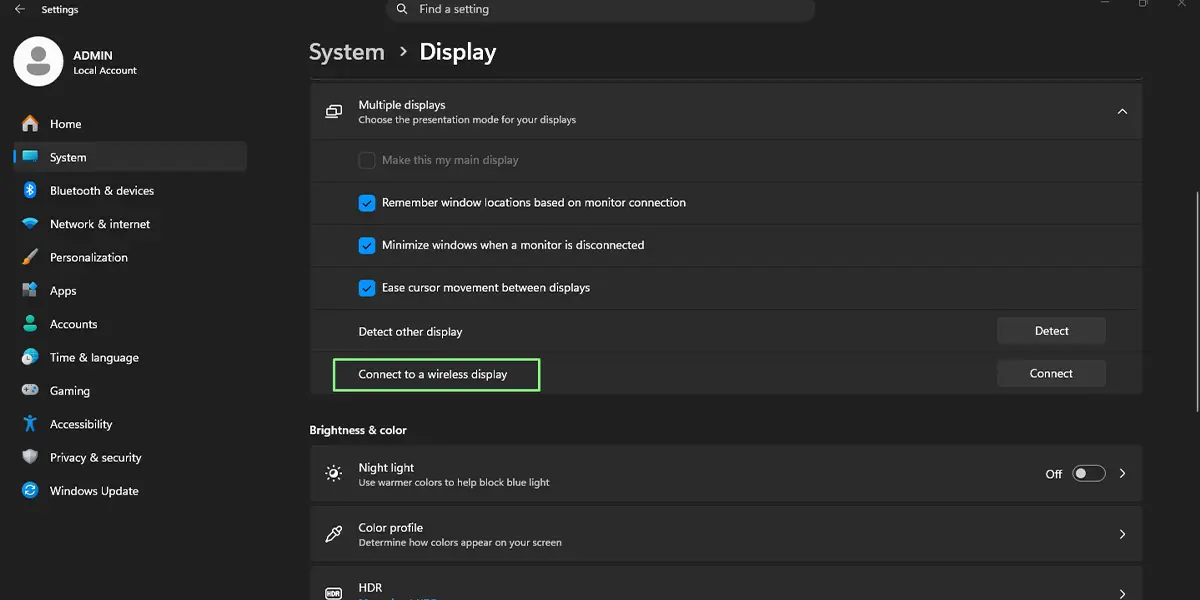
- The Settings path is Settings > System > Display > Multiple displays > Connect to a wireless display.
- The TV must have screen mirroring (Miracast) switched on before it shows up in the list.
- Windows + P lets the TV either duplicate or extend the PC screen once connected.
- Disconnecting takes one click from the same Cast panel.
Step-by-Step Guide to Cast Your Screen to a Smart TV in Windows 11
Before starting, switch the TV on and open its screen mirroring option. The name differs by brand, so look for something like Screen Mirroring, Miracast, or Screen Share in the TV’s input or network menu. Keep that screen open while following the steps below. Also make sure Wi-Fi is turned on at the PC, because Miracast uses a direct wireless link between the two devices.
Method 1: Use the Settings App
- Press Windows + I to open Settings.
- Select System in the left pane, then click Display.
- Expand the Multiple displays section.
- Find Connect to a wireless display and click Connect.
- Wait a few seconds while the Cast panel searches for nearby screens. The TV’s name should appear in the list.
- Click the name of the TV.
- If the TV shows a PIN or an accept prompt, confirm it on the TV or enter the code on the PC.
After a moment, the desktop appears on the TV screen. Most people find the first connection takes a little longer than later ones, since Windows has to pair with the TV for the first time.
Tip: The same Multiple displays section also lets the screen layout be changed after connecting, which is handy when the TV should act as a second monitor instead of a mirror.
Method 2: Use Quick Settings
- Click the network, speaker, and battery icons at the right end of the taskbar, or press Windows + A, to open Quick Settings.
- Click Cast.
- Choose the TV from the list of available displays.
- Approve the connection on the TV if it asks.
If the Cast tile is not visible, click the pencil icon at the bottom of Quick Settings, choose Add, and select Cast. The tile then stays in Quick Settings for next time.
Method 3: Use the Windows + K Shortcut
- Press Windows + K on the keyboard.
- Wait for the Cast panel to scan for available displays.
- Click the name of the smart TV.
- Accept any prompt that appears on the TV.
This is the quickest option for a laptop that moves between a desk and a living room, since it skips the menus completely. Tip: Press Windows + P after connecting to pick Duplicate, Extend, or Second screen only. Duplicate suits presentations, while Extend works well when the PC screen should stay private.
How to Stop Casting to the TV
Press Windows + K to reopen the Cast panel, then click Disconnect next to the TV. The picture returns to the PC alone, and the TV goes back to its normal input. The same Disconnect button is available in Quick Settings under Cast.
Common Problems and Fixes
The TV Does Not Appear in the Cast List
The most common cause is that screen mirroring is not switched on at the TV. Open the TV’s screen mirroring screen first, then search again from the PC. Also check that Wi-Fi is on at the PC and that both devices are in the same room. Some TVs rely on other casting standards and do not support Miracast, so they may never show up in this list.
The Cast Option Is Missing From Quick Settings
Click the pencil icon in Quick Settings, select Add, and choose Cast. If the option still does not appear, the PC may not support Miracast, which depends on the Wi-Fi adapter and graphics driver.
The Connection Fails or Drops Repeatedly
Move the laptop closer to the TV and close other heavy network activity. Restarting both the PC and the TV often clears a stuck pairing. If the problem continues, update the graphics driver and the Wi-Fi driver through Windows Update, since outdated drivers are a frequent reason Miracast misbehaves.
The Picture Lags or the Text Looks Blurry
Wireless casting compresses the image, so some softness is normal. Switching to Duplicate with Windows + P and lowering the PC screen resolution to match the TV can improve sharpness. Fast video and games may still show a slight delay.
The PC Is Managed by Work or School
Some organizations restrict wireless display features on managed devices. If the Cast panel will not open or the connect button does nothing, the policy may be set by the administrator.
Frequently Asked Questions
Does casting the screen work on Windows 11 Home?
Yes. Casting to a wireless display is available on Windows 11 Home, Pro, and Enterprise. The requirement is Miracast support on the PC and a compatible TV, not a specific edition.
Do I need to install anything to cast to a smart TV?
No extra software is needed. The Cast feature is built into Windows 11, and it only requires that the PC hardware and the TV both support Miracast.
What is the keyboard shortcut to cast the screen in Windows 11?
Press Windows + K to open the Cast panel directly. Windows + P opens the projection modes, which control whether the TV duplicates or extends the PC screen.
Why is my smart TV not showing up when I try to cast?
Screen mirroring is usually not enabled on the TV, or the TV does not support Miracast. Open the screen mirroring option on the TV, make sure Wi-Fi is on at the PC, and search again with Windows + K.
Can the TV be used as a second monitor instead of a mirror?
Yes. After connecting, press Windows + P and choose Extend. The TV then works as an additional display, so different windows can sit on each screen.
Does casting drain the laptop battery faster?
It can. Wireless casting keeps the Wi-Fi adapter and graphics hardware busy, so a laptop on battery power may drain faster than usual. Plugging in the charger is a good idea for longer sessions.
Will sound play through the TV speakers?
In most cases, yes. Audio is sent along with the picture over the wireless connection, so the TV speakers play the sound while casting. The volume is then adjusted on the TV or in the PC volume controls.
Can a PC be cast to a TV without Wi-Fi?
Miracast needs the PC’s wireless adapter to be turned on, because it creates a direct link between the PC and the TV. A router is not required for this link, but the PC’s Wi-Fi must be enabled.
