
Typing the same formula into hundreds of rows is a slow way to spend an afternoon. The good news is that Excel can copy a formula down a column in a single move, so anyone who wants to work faster and fill down a formula quickly in Excel can do it in seconds. This guide covers the fastest methods, from a keyboard shortcut to a double-click.
Key Takeaways
- Select the formula cell plus the empty cells below it, then press Ctrl+D to fill down instantly.
- Double-click the fill handle (the small square at the cell corner) to fill down to the last row of neighboring data.
- Use the Name Box to select a very long range, then press Ctrl+D for thousands of rows at once.
- Lock fixed cell references with the $ sign (or F4) so they do not shift while filling down.
Step-by-Step: Fill Down a Formula Quickly in Excel
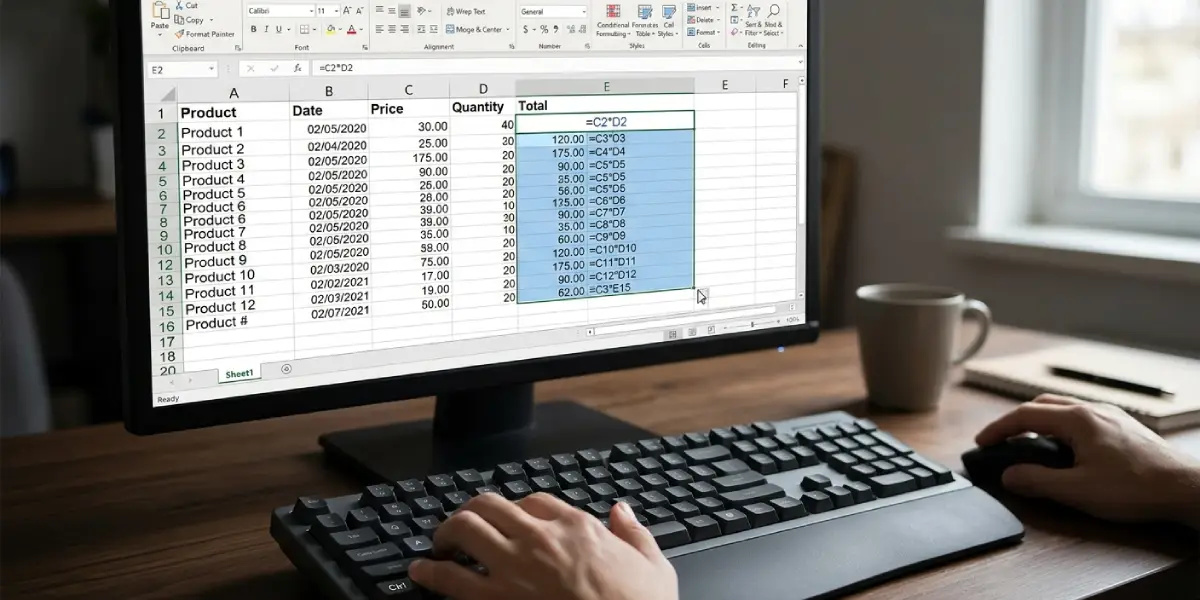
Picture a sales sheet where column C holds quantities, column D holds prices, and the formula =C2*D2 sits in E2. The goal is to copy that formula to every row below. The methods that follow all start from that single finished formula.
Method 1: Fill Down with the Ctrl+D Shortcut
This is the fastest option when the target range is visible or easy to select.
- Step 1: Enter the formula in the first cell, for example =C2*D2 in cell E2, and press Enter.
- Step 2: Click cell E2, then hold Shift and click the last cell where the formula is needed, such as E50. The formula cell and all empty cells below it are now highlighted.
- Step 3: Press Ctrl+D. Excel copies the formula into every selected cell and adjusts the row numbers automatically.
Tip: On a Mac, press Command+D. Control+D also works in Excel for Mac.
Method 2: Double-Click the Fill Handle
This works best when the column next to the formula already contains data, because Excel uses that column to decide where to stop.
- Step 1: Click the cell that contains the formula, such as E2.
- Step 2: Move the pointer to the small green square in the bottom-right corner of the cell until it turns into a thin black plus sign.
- Step 3: Double-click. The formula fills down to the last row of data in the adjacent column.
Method 3: Fill Down a Long Range with the Name Box
Scrolling through 5,000 rows to select a range is tedious. The Name Box skips that entirely.
- Step 1: Enter the formula in the first cell, for example E2.
- Step 2: Click the Name Box (the small field left of the formula bar), type E2:E5000, and press Enter. Excel selects the whole range.
- Step 3: Press Ctrl+D to fill the formula down through row 5000.

Method 4: Use the Fill Command on the Ribbon
Anyone who prefers menus over shortcuts can get the same result from the ribbon.
- Step 1: Select the formula cell and the empty cells below it.
- Step 2: On the Home tab, in the Editing group, select Fill.
- Step 3: Choose Down from the list.
Method 5: Enter One Formula in Many Cells with Ctrl+Enter
This approach skips the copy step by typing the formula into every selected cell at once.
- Step 1: Select the full range where the formula is needed, for example E2:E50.
- Step 2: Type the formula, such as =C2*D2, without clicking elsewhere.
- Step 3: Press Ctrl+Enter instead of Enter. Excel writes the formula into every selected cell, with references adjusted for each row.
Lock Cell References Before Filling Down
Most people find that filled-down formulas go wrong because one reference should have stayed put. If every row needs to multiply by a tax rate stored in cell H1, a formula like =C2*H1 would drift to H2, H3, and so on as it fills down. The key is to anchor that reference with dollar signs.
- Step 1: Click the cell with the formula and click inside the formula bar on the reference to lock, such as H1.
- Step 2: Press F4 to change H1 to $H$1. On some laptops, press Fn+F4.
- Step 3: Press Enter, then fill down with any method above. Every row now points to the same $H$1 cell.
Tip: Think of the dollar sign as a pin. Without it, the reference slides down with the formula. With it, the reference stays pinned in place.
Common Problems and Fixes
Double-clicking the fill handle does nothing
Excel decides where to stop by looking at the column directly to the left or right. If that neighboring column is empty, the double-click has nothing to follow. Use Ctrl+D or the Name Box method instead. If the fill handle itself is missing, go to File, then Options, then Advanced, and check the box named ‘Enable fill handle and cell drag-and-drop’.
The fill stops partway down the column
A blank cell in the neighboring column makes the double-click method stop at the gap. Fill the blank cells first, or select the full range manually and press Ctrl+D.
Every row shows the same result
This usually means calculation is set to manual. On the Formulas tab, select Calculation Options and choose Automatic. Pressing F9 also forces a recalculation.
The formula appears as text instead of a result
The cells are probably formatted as Text. Change the format to General on the Home tab, click into the cell, and press Enter again. Then repeat the fill.
Results are wrong after filling down
A reference that should stay fixed has likely shifted. Add dollar signs to that reference, as shown in the section above, and fill down again.
Formatting changed after filling down
Fill down also copies cell formatting. Immediately after filling, click the Auto Fill Options button that appears at the bottom-right of the filled area and choose Fill Without Formatting.
Frequently Asked Questions
What is the fastest way to fill down a formula in Excel?
The fastest way is to select the formula cell and the empty cells below it, then press Ctrl+D. For columns with neighboring data, double-clicking the fill handle is just as quick.
What is the shortcut to fill down a formula on a Mac?
Press Command+D after selecting the formula cell and the cells below it. Control+D also works in Excel for Mac.
How can a formula be filled down to thousands of rows at once?
Enter the formula in the first cell, type the full range into the Name Box, such as E2:E5000, and press Enter. Then press Ctrl+D to fill the entire range.
Why does double-clicking the fill handle not work?
The adjacent column may be empty, or the fill handle option may be turned off. Check File, Options, Advanced, and make sure ‘Enable fill handle and cell drag-and-drop’ is selected.
How can cell references stay the same while filling down?
Add dollar signs to the reference, such as $H$1, by selecting it in the formula bar and pressing F4. Locked references do not change as the formula moves down.
Can fill down copy a formula without copying formatting?
Yes. After filling, click the Auto Fill Options button at the bottom-right of the filled cells and choose Fill Without Formatting.
Does fill down overwrite existing data in the selected cells?
Yes. Any values already sitting in the selected cells below the formula are replaced. Pressing Ctrl+Z immediately after filling restores them.
Can the same formula be entered into many cells without copying?
Yes. Select the whole range, type the formula, and press Ctrl+Enter. Excel enters the formula into every selected cell with the references adjusted for each row.
