
Learning how to turn on adaptive brightness in Windows 11 takes less than a minute, and it saves a lot of manual slider fiddling when moving between bright and dim rooms. This feature only works on devices with a built-in ambient light sensor, which is common on laptops, tablets, and 2-in-1 PCs but rare on desktop monitors. No administrator rights are needed for the Settings method.
Key Takeaways
- The quickest route is Settings > System > Display > Brightness, then tick the automatic brightness checkbox.
- The option appears only when the PC has a working ambient light sensor.
- Control Panel and a Power Options command can switch it on as well.
- Turning it off again takes one click in the same place.
Step-by-Step Guide to Turn On Adaptive Brightness in Windows 11
Method 1: Use the Settings App
- Press Windows + I to open Settings.
- Select System in the left pane.
- Click Display.
- Expand the Brightness section by clicking its arrow if it is collapsed.
- Tick the checkbox labeled Change brightness automatically when lighting changes.
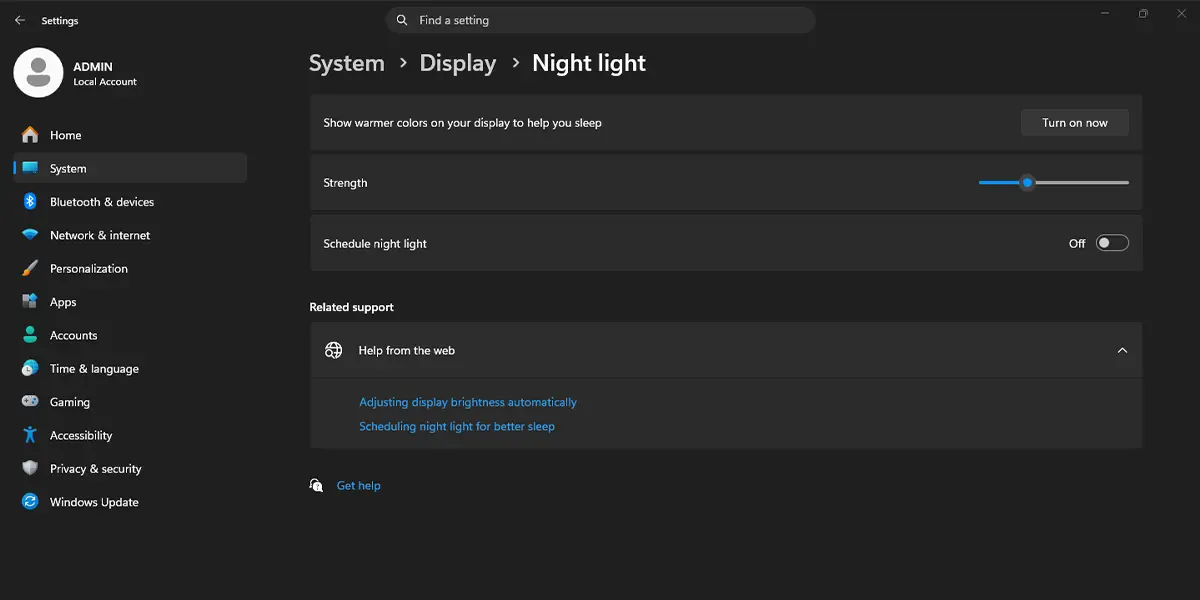
The full path is Settings > System > Display > Brightness. After the box is ticked, the screen adjusts on its own. Walk from a dim hallway to a sunny window and the display brightens without any slider movement.
Tip: On many laptops, the Help improve battery by optimizing the content shown and brightness dropdown sits right below this checkbox. It is a separate battery-saving feature, so leave it as it is unless screen colors look off.
Method 2: Use Control Panel Power Options
This method is handy when the Settings checkbox is missing but the power plan still carries the adaptive brightness option, or when different behavior is wanted on battery and plugged in.
- Press Windows + R, type control, and press Enter to open Control Panel.
- Go to Control Panel > Hardware and Sound > Power Options.
- Click Change plan settings next to the selected power plan.
- Click Change advanced power settings.
- In the window that opens, expand Display.
- Expand Enable adaptive brightness.
- Set both On battery and Plugged in to On.
- Click Apply, then OK.
If Enable adaptive brightness does not appear under Display, the PC does not expose an ambient light sensor to Windows.
Method 3: Use a Command in Terminal
For a quick switch-on without clicking through menus, run these commands in Windows Terminal or Command Prompt. An elevated (administrator) window is not required. The first command covers plugged-in use, the second covers battery use, and the third applies the change.
- Right-click the Start button and choose Terminal.
- Run the first command:
powercfg /setacvalueindex SCHEME_CURRENT SUB_VIDEO ADAPTBRIGHT 1
- Run the second command:
powercfg /setdcvalueindex SCHEME_CURRENT SUB_VIDEO ADAPTBRIGHT 1
- Run the third command to apply the change:
powercfg /setactive SCHEME_CURRENT
These commands only change the active power plan. On a PC without an ambient light sensor, the setting exists but has no visible effect.
How to Undo or Reverse This Change
To switch automatic brightness off, go to Settings > System > Display > Brightness and untick Change brightness automatically when lighting changes. For the Control Panel route, set Enable adaptive brightness to Off for both On battery and Plugged in. For the command route, run the same three commands with the final number changed from 1 to 0.
Common Problems and Fixes
The Checkbox Is Missing in Settings
The checkbox appears only when Windows detects an ambient light sensor. Most desktop PCs and external monitors do not have one, so the option simply never shows up. On a laptop or tablet that should have a sensor, restart the PC and check again, then install the latest chipset and sensor drivers from the device manufacturer.
The Setting Turns Itself Off After a Restart
A power plan change or a manufacturer utility can overwrite the setting. Re-check Control Panel > Hardware and Sound > Power Options > Change plan settings > Change advanced power settings > Display > Enable adaptive brightness and make sure both battery and plugged-in values are On. Some laptops also include a graphics driver option for display power saving that can conflict, so check the graphics driver control panel as well.
The Brightness Does Not Change Even Though the Box Is Ticked
Cover the sensor area, usually near the webcam, with a hand and then uncover it. If nothing happens, the sensor driver may be missing or outdated. Updating the driver through Windows Update or the manufacturer support page is the most common fix. Windows also pauses automatic changes right after the brightness slider is moved by hand, so wait a few seconds before testing again.
The Option Is Greyed Out on a Work or School PC
Devices managed by an organization can have power and display settings locked by policy. In that case, only the IT administrator can change it.
Frequently Asked Questions
Does adaptive brightness work on Windows 11 Home?
Yes. The feature depends on hardware, not the Windows edition, so Home, Pro, and Enterprise all support it as long as an ambient light sensor is present.
Why is there no adaptive brightness option on my PC?
The PC most likely has no ambient light sensor. Desktops and external monitors usually lack one. On laptops, a missing or outdated sensor driver can also hide the option.
Do I need to restart the computer after turning it on?
No. The change takes effect immediately after the checkbox is ticked or the power setting is applied.
Does adaptive brightness save battery?
Often it does, because the screen dims automatically in darker spaces instead of staying at a high level. The savings depend on the display and how often the lighting changes.
Can I turn on adaptive brightness with a keyboard shortcut?
No dedicated shortcut exists for this setting. Press Windows + I to open Settings quickly, then go to System > Display > Brightness. Some laptops have function keys for manual brightness only.
Why does the screen brightness keep changing on its own?
That is the feature working as designed. The display follows the light around the laptop. If the changes are distracting, untick Change brightness automatically when lighting changes in Settings > System > Display > Brightness.
Is the Power Options setting the same as the Settings checkbox?
They control the same behavior, but Power Options lets different values be set for battery and plugged-in use, while the Settings checkbox applies one simple switch.
Does adaptive brightness work with an external monitor?
Not usually. It reads the sensor on the built-in display, so an external monitor keeps the brightness it was given manually.
