
Knowing how to check NVMe SSD temperature in Windows takes only a minute and can save a drive from slowdowns or early wear. NVMe drives run much hotter than older SATA drives, especially under long file transfers, game installs, or video exports. Windows already includes a few built-in ways to read the temperature, and free third-party tools add more detail.
Key Takeaways
- Windows 11 can show drive temperature in Settings, and some recent builds also show it in Task Manager.
- PowerShell can read the temperature on any Windows 10 or 11 PC with no extra software.
- HWiNFO and CrystalDiskInfo show live readings, plus the drive’s health data.
- Always compare readings against the manufacturer’s rated limit for the exact drive model, since limits differ between drives.
- Check the temperature while the drive is busy, not only while the PC sits idle.
Before You Start
This is a software-only task, so nothing needs to be opened or unplugged. Have the following ready:
- Administrator access to the Windows account (needed for PowerShell and some monitoring tools).
- The exact model name of the NVMe SSD, found in Device Manager under Disk drives or in the tool results below, to look up its rated temperature on the manufacturer’s website.
- Optionally, a free monitoring tool such as HWiNFO or CrystalDiskInfo, downloaded from the developer’s official site.
How to Check NVMe SSD Temperature in Windows Step by Step
The methods below go from simplest to most detailed. Most people find that the first one that works on their PC is all that is needed.
Method 1: Windows Settings (Windows 11)
- Step 1: Open Settings and go to System, then Storage.
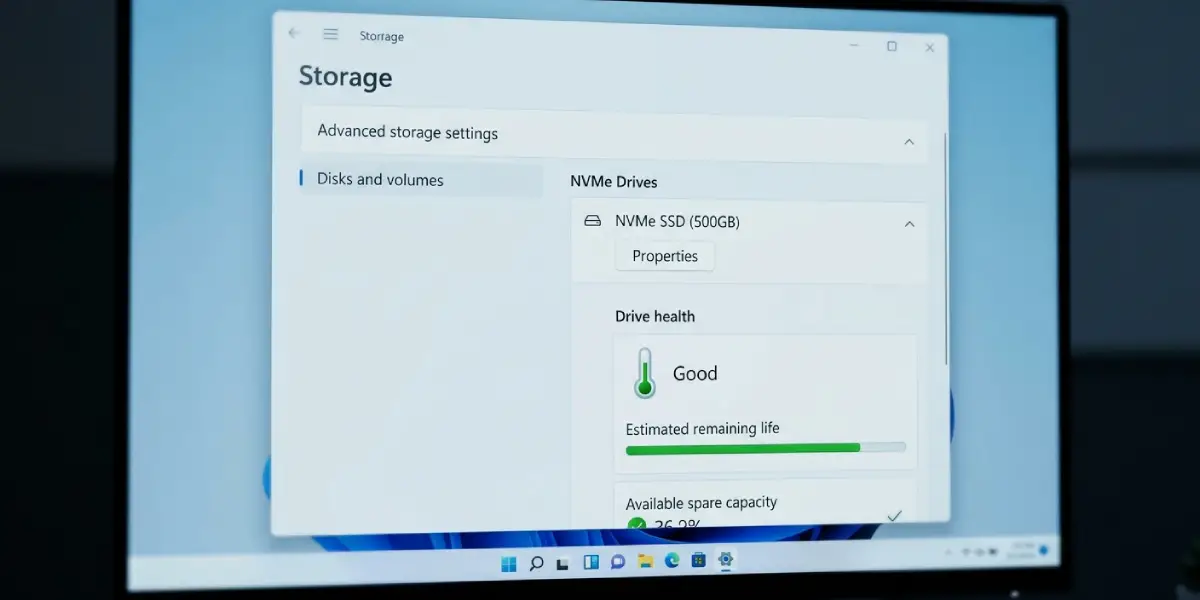
- Step 2: Select Advanced storage settings, then Disks and volumes.
- Step 3: Choose the NVMe drive and click Properties.
- Step 4: Look at the Drive health section, which lists the temperature along with the estimated remaining life and available spare capacity.
Tip: This page only shows a snapshot from the moment it opens. Reopen it after a heavy workload to see how warm the drive gets under real use.
Method 2: Task Manager
- Step 1: Press Ctrl + Shift + Esc to open Task Manager.
- Step 2: Open the Performance tab.
- Step 3: Select the NVMe drive from the list on the left.
- Step 4: Check the drive details on the right for a temperature entry.
Some recent Windows 11 builds show the temperature here, while others do not. If the entry is missing, that simply means the installed build does not display it, and one of the other methods will work.
Method 3: PowerShell (works on Windows 10 and 11)
- Step 1: Right-click the Start button and open Terminal (Admin) or Windows PowerShell (Admin).
- Step 2: Type the following command and press Enter: Get-PhysicalDisk | Get-StorageReliabilityCounter | Select-Object DeviceId, Temperature, TemperatureMax
- Step 3: Read the Temperature column, which reports degrees Celsius for each detected drive.
- Step 4: To match a number to a specific drive, run Get-PhysicalDisk and compare the DeviceId values with the model names listed.
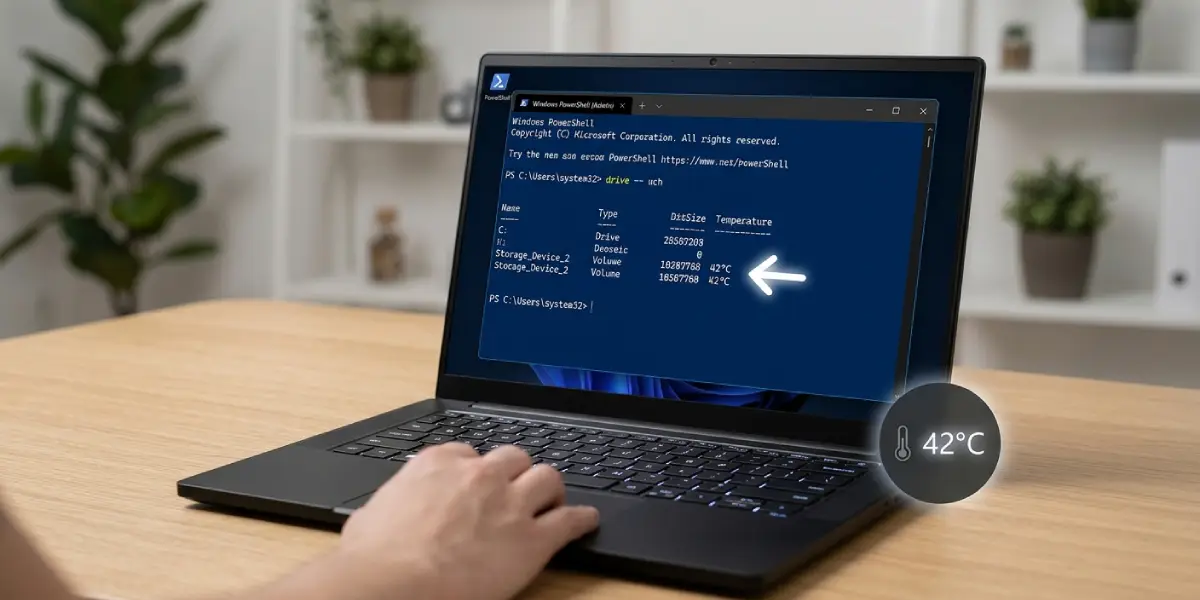
Some drives or drivers do not report every value, so a blank column does not mean the drive is faulty.
Method 4: HWiNFO for Live Monitoring
- Step 1: Download HWiNFO from its official website and launch it.
- Step 2: Choose the Sensors-only option and click Run.
- Step 3: Scroll down to the section named after the NVMe drive model.
- Step 4: Read the Drive Temperature line. Many NVMe drives also list a second or third sensor, which usually reflects the controller or NAND flash.
- Step 5: Keep the window open while copying a large file or running a game to watch the peak value.
Tip: The highest of the listed drive sensors is the number to compare against the manufacturer’s limit.
Method 5: CrystalDiskInfo for Health Plus Temperature
- Step 1: Download CrystalDiskInfo from the developer’s official site and open it.
- Step 2: Select the NVMe drive from the tabs at the top of the window.
- Step 3: Read the Temperature value and the overall Health Status shown on the main panel.
Method 6: Manufacturer Software
- Step 1: Identify the drive brand, such as Samsung, Western Digital, Crucial, or Kingston.
- Step 2: Install the brand’s own utility, for example Samsung Magician, WD Dashboard, or Crucial Storage Executive.
- Step 3: Open the drive overview page, where the current temperature is displayed alongside firmware and health information.
How to Read the Result
A single number means little without context. Idle readings are normally much lower than readings during a big transfer, and a drive in a laptop with limited airflow will usually run warmer than one under a motherboard heatsink in a desktop. The key is to compare the peak reading under load with the rated operating or throttling temperature in the drive’s datasheet. Many consumer NVMe drives begin reducing speed once they get hot, which shows up as a sudden drop in transfer speed during long copies. If the peak reading stays well below the rated limit and speeds stay steady, nothing needs fixing.
Common Problems and Fixes
The temperature does not appear in Settings or Task Manager
Not every Windows build displays it in those places. Use PowerShell, HWiNFO, or CrystalDiskInfo instead, since they read the value directly from the drive.
PowerShell returns an empty Temperature column
The command was probably run without administrator rights, or the drive or its driver does not report the value to Windows. Reopen PowerShell as administrator and try again. If the column is still blank, HWiNFO or the manufacturer’s tool usually reads it correctly.
Two or three different temperatures are shown for one drive
Many NVMe SSDs carry several sensors, typically one near the controller and others on the flash chips. This is normal. Use the highest value when judging heat.
The drive is not listed in a monitoring tool
Run the tool as administrator, update it to the latest version, and confirm the drive appears in Device Manager under Disk drives. Drives inside some external enclosures or RAID setups hide their sensors from Windows.
The reading is close to or above the rated limit
Check that the drive has its heatsink or thermal pad in place, improve case or laptop airflow, and clean dust from vents. A heatsink designed for M.2 drives is a common fix on desktop motherboards. Opening a laptop to add cooling can affect the warranty, so a professional is the safer choice if the process feels uncertain.
Frequently Asked Questions
What is a normal NVMe SSD temperature?
It depends on the drive, the workload, and the airflow. Idle readings are normally much lower than readings under heavy use. The reliable benchmark is the operating temperature range printed in the manufacturer’s datasheet for that exact model.
Can Task Manager show the NVMe SSD temperature?
On some recent Windows 11 builds, yes, under the Performance tab when the drive is selected. Older builds and Windows 10 do not show it, so PowerShell or a monitoring tool is needed.
How do I check NVMe SSD temperature in Windows without installing software?
Use Settings under System, Storage, Disks and volumes on Windows 11, or run the Get-StorageReliabilityCounter command in PowerShell as administrator. Both use features already built into Windows.
Is HWiNFO safe for checking drive temperature?
Yes, when downloaded from the official HWiNFO website. Sensors-only mode simply reads values from the hardware without changing any settings.
Why does my NVMe SSD show more than one temperature?
Many NVMe drives include multiple sensors, usually covering the controller and the flash memory. The highest reading is the one to compare against the manufacturer’s limit.
What happens if an NVMe SSD gets too hot?
Most drives reduce their speed through thermal throttling to protect themselves, which causes slow file transfers and stutter. Sustained high heat is also not good for long-term drive health.
How often should NVMe SSD temperature be checked?
A quick check after buying or installing a new drive, after adding a heatsink, and any time transfers suddenly slow down is usually enough. Gamers and video editors may want to watch it during heavy sessions.
Do laptops run NVMe SSDs hotter than desktops?
Often they do, because airflow and space for heatsinks are limited. That makes checking the temperature under load especially useful on a laptop.
