
Learning how to extend battery life on Windows 11 usually comes down to a handful of settings that quietly decide how hard a laptop works while unplugged. Most drain comes from the screen, background apps, and a power mode set for speed instead of efficiency. The steps below cover each of them in the order that delivers the biggest gains first.
Key Takeaways
- The screen is usually the biggest power drain, so brightness, timeout, and refresh rate settings deliver the fastest gains.
- Setting the on-battery power mode to Best power efficiency and enabling Battery saver reduces background activity across the whole system.
- Background apps, startup programs, and unused wireless radios drain power even when nothing seems to be running.
- A battery report created with the powercfg command shows whether short runtime comes from settings or from a worn battery.
How to Extend Battery Life on Windows 11 Step by Step
No tools or disassembly are needed here. Everything happens inside Windows settings, so the changes are safe and fully reversible. Work through the groups below in order, and test runtime for a day or two before deciding which changes are worth keeping.
Set Up the Core Power Settings
- Step 1: Press the Windows key and I together to open Settings, then go to System and select Power & battery. Nearly every core setting lives on this page.
- Step 2: Under the Power section, open the Power mode dropdown for on-battery use and choose Best power efficiency. This limits how aggressively the processor boosts, which is the same idea as easing off the accelerator to save fuel. Most people find that everyday tasks like browsing, documents, and video playback feel almost identical.
- Step 3: Expand the screen and sleep timeout options and shorten the on-battery values so the display turns off and the PC sleeps sooner when idle. A laptop left sitting with the screen on during a phone call or coffee break wastes more power than most people expect.
- Step 4: Expand Battery saver and set it to turn on automatically at a higher battery percentage than the default. Leave the option to lower screen brightness while Battery saver is on enabled. Battery saver also restricts some background activity, which is why it helps well beyond the display.
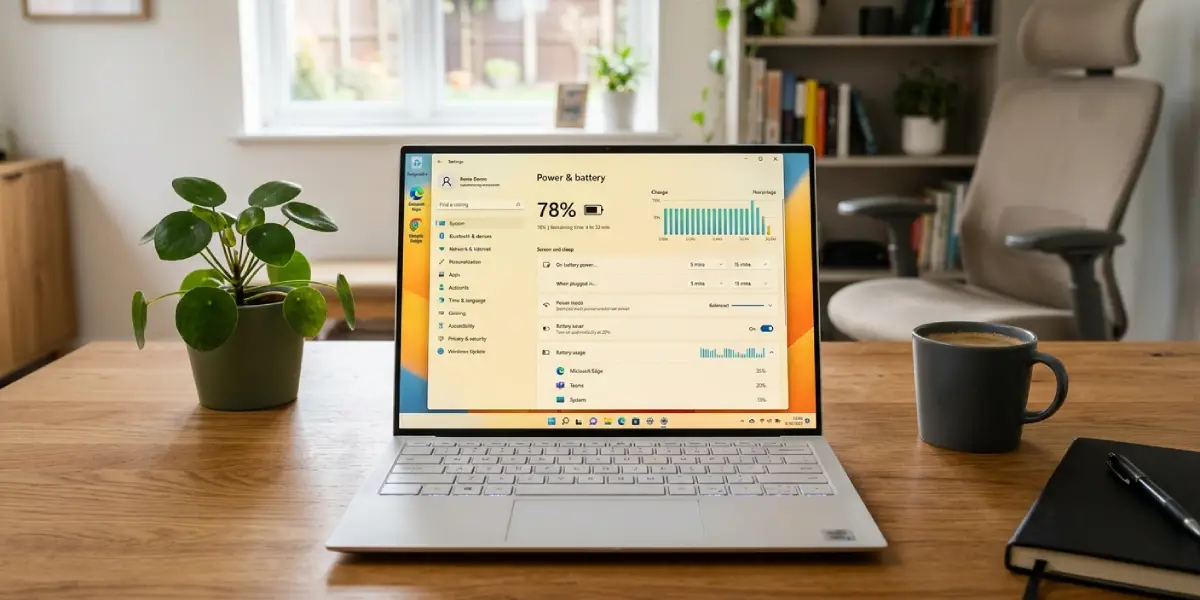
Tip: Battery saver can be switched on manually at any time from the Quick Settings panel at the right end of the taskbar. Switching it on before leaving the desk is more effective than waiting for the automatic trigger.
Cut Down Screen and Background Drain
- Step 5: Lower the screen brightness with the slider in Quick Settings or under Settings, System, Display. The display backlight is typically the single largest power consumer in a laptop, so even a modest reduction extends runtime noticeably.
- Step 6: On a laptop with a high refresh rate panel, open Settings, System, Display, Advanced display and choose a lower refresh rate, or enable dynamic refresh rate if that option appears. A faster refresh rate makes motion smoother but asks the graphics hardware and panel to work harder. Laptops with a standard panel will not show this choice.
- Step 7: Return to Power & battery and open Battery usage. This view lists which apps used the most power over the past day or week. Any app near the top that is not actively needed is a candidate for the next step.
- Step 8: Go to Settings, Apps, Installed apps, select the three dots beside a heavy app, choose Advanced options, and change the background permission to Power optimized or Never. This setting applies to Microsoft Store and packaged apps. Traditional desktop programs need to be closed or configured inside their own settings.
- Step 9: Open Settings, Apps, Startup and switch off programs that do not need to launch at sign-in. Chat clients, game launchers, and updaters are common offenders that sit in the background all day.
- Step 10: Turn off hardware that is not in use. Disable Bluetooth when nothing is paired, use Airplane mode on long stretches without internet, switch off the keyboard backlight, and unplug USB devices such as external drives and receivers, since many draw power from the laptop.
- Step 11: Enable the browser’s own efficiency features. Microsoft Edge offers Efficiency mode and sleeping tabs under Settings, System and performance, and Google Chrome offers Energy Saver in its performance settings. Browsers with dozens of open tabs are a common reason a laptop runs out of battery faster than expected.
Check Battery Health and Keep the System Updated
- Step 12: Right-click the Start button, open Terminal or Command Prompt, and run powercfg /batteryreport. Windows saves an HTML report and prints its file location. Open it in a browser and compare Design capacity with Full charge capacity. A large gap means the battery has worn down, and no setting will fully make up for that.
- Step 13: Run Windows Update and install any available driver and firmware updates from the laptop manufacturer’s support tool. Power management fixes often arrive through chipset, graphics, and BIOS updates.
- Step 14: Check the manufacturer’s utility or BIOS for a battery charge limit option. Many laptops can cap charging below full, which reduces stress on lithium-ion cells for people who keep the laptop plugged in most of the time.
Tip: Heat shortens battery lifespan. Using the laptop on a hard, flat surface instead of a bed or sofa keeps vents clear and helps the battery hold its capacity longer.
Common Problems and Fixes
Battery drains quickly even after changing the settings
Open Task Manager with Ctrl, Shift, and Esc and sort by CPU and Disk usage to spot a runaway process. Cross-check with the Battery usage list in Settings. Closing or uninstalling the offending app, or updating it, usually fixes the drain.
The power mode option is missing or limited
Some laptops use manufacturer-specific power profiles, and certain devices expose fewer options. Check the manufacturer’s control app for a quiet or battery-saving profile, and make sure chipset and graphics drivers are current.
Battery saver turns itself off
Battery saver switches off automatically when the charger is connected. That is normal behavior. It can be turned on again manually once the laptop is back on battery power.
The laptop loses charge while asleep
Run powercfg /sleepstudy in Terminal to generate a report showing what used power during sleep. Disconnect devices that keep the system awake, close apps that were running at sleep time, and shut down or hibernate the laptop when it will sit unused for long periods.
The battery report shows a much lower full charge capacity
This indicates normal battery wear. Settings can stretch the remaining capacity, but only a replacement battery restores original runtime. Many laptops use internal batteries, so opening the device may affect the warranty. When replacement is needed, a manufacturer-approved service or a qualified technician is the safest route.
Frequently Asked Questions
What is the fastest way to extend battery life on Windows 11?
Lower the screen brightness, set the on-battery power mode to Best power efficiency, and turn on Battery saver. These three changes usually deliver the largest improvement with the least effort.
Does Battery saver slow down Windows 11?
Battery saver limits some background activity and can dim the screen, so a few tasks may feel slightly less immediate. Normal work like browsing and documents is rarely affected in a noticeable way.
Does dark mode save battery on Windows 11?
Dark mode can save power on laptops with OLED displays because black pixels use very little energy. On standard LCD panels the savings are minimal, so brightness matters far more.
How do I see which apps are draining my battery?
Open Settings, go to System, then Power & battery, and select Battery usage. The list shows how much power each app has used, and it can be viewed by day or by week.
Should a laptop stay plugged in all the time?
Modern laptops stop charging when the battery is full, so staying plugged in is generally safe. Keeping the battery at full charge in a warm environment can speed up wear, so a manufacturer charge limit option is worth enabling if one is available.
How do I check my battery health in Windows 11?
Run powercfg /batteryreport in Terminal or Command Prompt and open the saved HTML file. Compare Design capacity with Full charge capacity to see how much the battery has worn down.
Does lowering the refresh rate really help?
On laptops with a high refresh rate display, a lower refresh rate reduces the work the display and graphics hardware perform, which can help runtime. Laptops with a standard panel have no such option.
Why does my laptop battery drain while it is asleep?
Modern Standby lets a laptop stay lightly connected in sleep, and apps or connected devices can keep it from settling fully. The powercfg /sleepstudy report shows what used power, and shutting down or hibernating avoids the drain entirely.
