
If the cursor keeps jumping because a palm brushes the trackpad, it helps to turn off the touchpad when a mouse is connected in Windows 11. The setting is a single checkbox, needs no administrator rights, and works on Home, Pro, and Enterprise. It is available only on laptops with a precision touchpad, which covers most modern Windows 11 laptops.
Key Takeaways
- Open Settings > Bluetooth & devices > Touchpad and expand the Touchpad section.
- Clear the Leave touchpad on when a mouse is connected checkbox.
- The touchpad switches off when a USB or Bluetooth mouse connects and switches back on when the mouse is removed.
- No restart, administrator account, or extra software is needed.
Step-by-Step Guide to Turn Off the Touchpad When a Mouse Is Connected
This method uses the Settings app and takes under a minute. Connect the mouse first so the result can be tested right away.
- Press Windows + I to open Settings.
- Select Bluetooth & devices in the left sidebar.
- Click Touchpad on the right side of the window.
- Click the Touchpad row at the top to expand it, if the options are not already showing.
- Make sure the Touchpad toggle is set to On. The checkbox below only takes effect while the touchpad itself is enabled.
- Clear the checkbox labeled Leave touchpad on when a mouse is connected.
- Move the connected mouse and then try the touchpad. The cursor now responds only to the mouse.
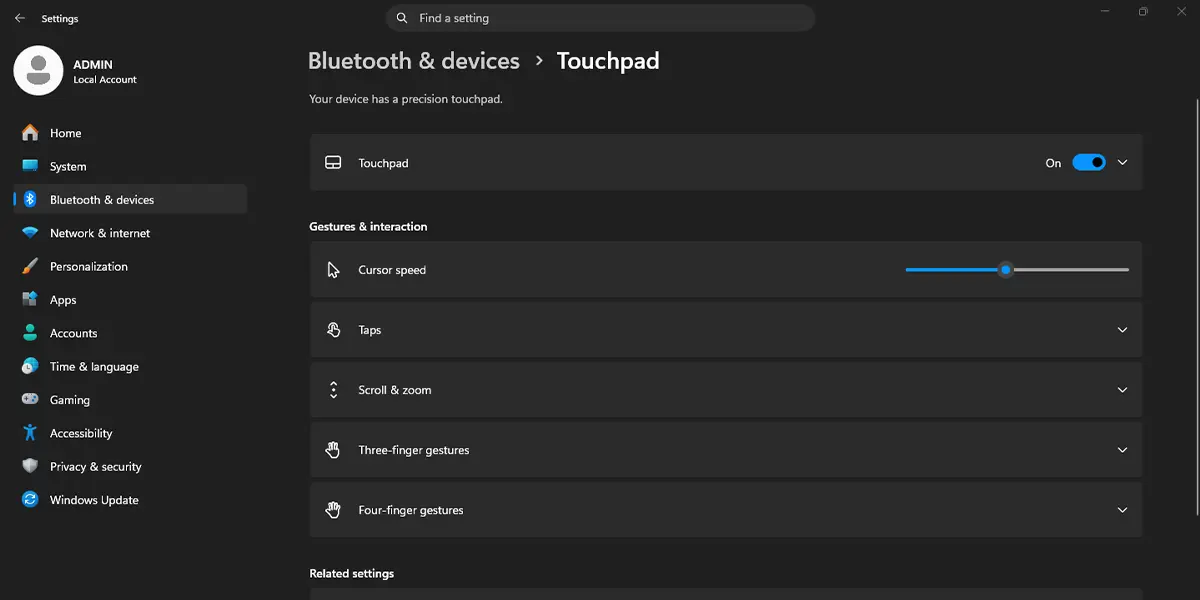
Tip: To jump straight to this page, press Windows + R, type ms-settings:devices-touchpad, and press Enter.
What Happens After the Change
When the mouse is plugged in or paired
Windows turns the touchpad off as soon as it detects the mouse. This applies to wired USB mice, wireless mice with a USB receiver, and Bluetooth mice. Typing is much calmer too, since accidental palm touches no longer move the cursor or trigger clicks.
When the mouse is removed
Unplug the mouse, turn it off, or disconnect it from Bluetooth, and the touchpad wakes up again on its own. This makes the setting handy for a laptop that moves between a desk and a couch, because no toggle needs to be flipped each time.
How to Undo or Reverse This Change
Go back to Settings > Bluetooth & devices > Touchpad, expand the Touchpad section, and tick the Leave touchpad on when a mouse is connected checkbox. The touchpad then stays active alongside the mouse.
Common Problems and Fixes
The Touchpad page is missing in Settings
The page appears only when Windows detects a touchpad. Desktop PCs do not have one. On a laptop, a missing page usually points to a missing or outdated touchpad driver, so check Windows Update for driver updates and restart the laptop.
The checkbox is missing or the options look limited
Some laptops use a non-precision touchpad that relies on the manufacturer’s own mouse or touchpad software instead of the built-in Windows options. In that case the checkbox may not be shown, and installing the correct driver from the laptop maker can restore the full Windows page.
The touchpad is still active with the mouse connected
Confirm that the checkbox is cleared and that Windows recognizes the mouse as a pointing device. Unplug the mouse, reconnect it, and test again. A laptop manufacturer’s touchpad utility can also override the Windows setting, so check for one in the notification area.
The touchpad does not come back after unplugging the mouse
Make sure the Touchpad toggle at the top of the section is still set to On. If the touchpad stays unresponsive, restart the laptop and check again.
The setting is controlled by work or school
On a managed laptop, an organization policy may lock touchpad options. The IT department can confirm whether the setting has been restricted.
Frequently Asked Questions
Does this work on Windows 11 Home?
Yes. The touchpad setting is part of the Settings app on every edition of Windows 11, including Home and Pro.
Do I need administrator rights to change it?
No. A standard user account can change the setting for that account.
Does the PC need a restart?
No. The change takes effect immediately, so the next time a mouse connects, the touchpad turns off.
Does it work with a Bluetooth or wireless mouse?
Yes. A mouse connected over USB, through a wireless receiver, or through Bluetooth is treated the same way once Windows recognizes it.
Will the touchpad turn back on when the mouse is removed?
Yes. As soon as the mouse is unplugged or disconnected, the touchpad becomes active again, provided the main Touchpad toggle is set to On.
Is there a keyboard shortcut to turn the touchpad on or off?
Windows 11 has no default shortcut for this. Some laptops include a function key combination for the touchpad, which depends on the manufacturer. Windows + I followed by the Touchpad page is the quickest built-in route.
Does this affect a touchscreen?
No. The setting controls only the touchpad, so a touchscreen keeps working normally.
Why is the checkbox not showing on my laptop?
The most common reasons are a missing touchpad driver, a non-precision touchpad, or a device managed by work or school. Updating the touchpad driver usually brings the option back.
Check the Settings > Bluetooth & devices > Touchpad page once more after any major Windows update to confirm the checkbox is still cleared.
