
Knowing how to toggle absolute references with F4 turns a tedious typing job into a one-key move. Instead of typing dollar signs by hand, a single press adds, moves, or removes them while a formula is being written. The steps below work in any modern desktop version of Excel for Windows.
Key Takeaways
- F4 cycles a cell reference through four states: A1, $A$1, A$1, and $A1.
- The key only toggles references while a formula is in edit mode, with the cursor in or right after the reference.
- One press locks both column and row, two presses lock only the row, three presses lock only the column, and four presses return to a normal reference.
- Laptops often need Fn + F4, and Excel for Mac uses Command + T.
How to Toggle Absolute References with F4 Step by Step
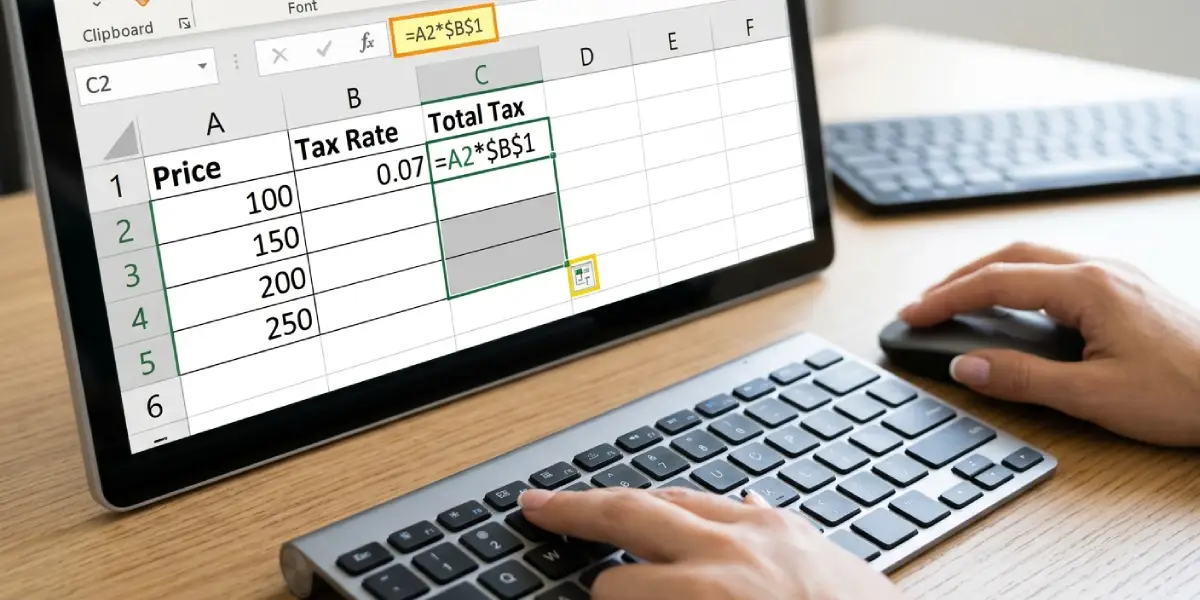
The example below uses a common scenario: a sales tax rate sits in cell B1, prices sit in column A, and every price needs to be multiplied by that single rate. The rate cell must stay locked while the formula is copied down.
- Step 1: Click the cell where the formula should go, such as C2, and type an equals sign to start the formula.
- Step 2: Click cell A2 or type A2, then type the multiplication symbol (*).
- Step 3: Click cell B1 or type B1. The formula now reads =A2*B1, and the cursor sits right after B1.
- Step 4: Press F4 once. The reference changes to $B$1, which locks both the column and the row.
- Step 5: Press Enter to finish the formula. The result appears in C2.
- Step 6: Drag the fill handle in the bottom-right corner of C2 down the column. Each new row uses the next price in column A, while $B$1 stays fixed on the tax rate.
Tip: The cursor must be touching the reference it should change. If the formula contains several references, click inside the one that needs the dollar signs before pressing F4.
Press F4 to Cycle Through All Four Reference Types
Each press moves the reference to the next state in a fixed loop. Think of it like a dial with four clicks that always returns to where it started.
- Step 1: Place the cursor on a reference such as A1 while editing a formula.
- Step 2: Press F4 once to get $A$1 (column and row locked).
- Step 3: Press F4 again to get A$1 (only the row locked).
- Step 4: Press F4 a third time to get $A1 (only the column locked).
- Step 5: Press F4 a fourth time to return to A1 with no locks.
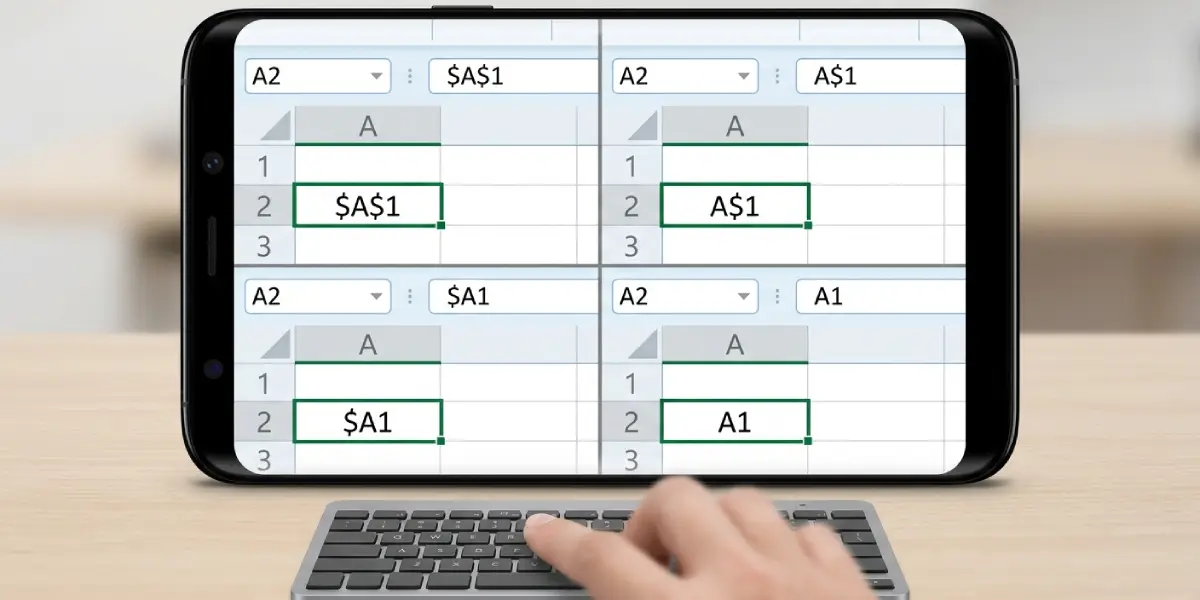
Mixed references like A$1 and $A1 are handy for multiplication tables, where one value runs across the top and another runs down the side. Both can be set with the same key, just by stopping at the right press.
Apply F4 to a Whole Range
- Step 1: While editing a formula, highlight the full range text inside it, such as A2:A10, by dragging across it in the formula bar or cell.
- Step 2: Press F4 to add dollar signs to both ends of the range, giving $A$2:$A$10.
- Step 3: Press Enter to confirm the change.
Tip: When a formula such as VLOOKUP uses a lookup table, lock the table range right after selecting it with the mouse. Pressing F4 at that moment saves a return trip to fix the formula later.
Common Problems and Fixes
F4 Repeats the Last Action Instead of Adding Dollar Signs
Outside of edit mode, F4 repeats the previous command, such as a fill color or a deleted row. Double-click the formula cell or press F2 first, place the cursor on the reference, and then press F4.
Nothing Happens When F4 Is Pressed on a Laptop
Many laptops assign the F-keys to functions like volume or brightness. Hold Fn and press F4, or turn on Fn Lock so the F-keys behave as standard function keys.
The Wrong Reference Gets Changed
F4 acts on the reference where the cursor is sitting or the one immediately before it. Click directly inside or at the end of the target reference, then press F4 again to cycle it back to the right state.
Excel Closes When F4 Is Pressed
This happens when Alt is held down at the same time, because Alt + F4 closes the active window. Release Alt and press F4 alone.
The Shortcut Does Not Work on a Mac
Excel for Mac uses Command + T to toggle between reference types in edit mode. On some setups, Fn + F4 also works, depending on keyboard settings.
Frequently Asked Questions
What does F4 do when editing an Excel formula?
F4 adds or moves dollar signs on the reference at the cursor. Each press cycles it to the next reference type, which controls whether the column, the row, or both stay fixed when the formula is copied.
What is the order of the F4 cycle?
The order is A1, then $A$1, then A$1, then $A1, and then back to A1. The first press always creates a fully absolute reference.
Can F4 lock an entire range at once?
Yes. Select the whole range text inside the formula, such as A2:A10, and press F4. Excel adds dollar signs to both cell addresses, producing $A$2:$A$10.
Why does F4 not toggle references on a laptop?
The function row on many laptops is set to multimedia controls by default. Pressing Fn + F4 sends the real F4 command, or Fn Lock can be turned on to avoid holding Fn each time.
What is the Mac shortcut for toggling absolute references?
Excel for Mac uses Command + T while a formula is in edit mode. Fn + F4 may also work, depending on the keyboard configuration.
Does F4 work when a cell is only selected and not being edited?
No. Outside edit mode, F4 repeats the last action performed. Press F2 or double-click the cell to enter edit mode before using F4 on a reference.
Is typing dollar signs manually the same as using F4?
The result is identical. F4 is faster and avoids typos, especially in long formulas with several references.
Does F4 change the formula result?
Not in the original cell. The result only differs once the formula is copied or filled to other cells, where locked parts stay fixed and unlocked parts shift.
