
Want to change touchpad scroll direction in Windows 11 so the page moves the way your fingers do, like on a phone or a MacBook? It takes about 30 seconds in Settings. This works on laptops with a precision touchpad, which covers most Windows 11 laptops, and no administrator rights are needed.
Key Takeaways
- The setting lives at Settings > Bluetooth & devices > Touchpad > Scroll & zoom.
- Use the Scrolling direction drop-down to pick Down motion scrolls up (natural) or Down motion scrolls down (traditional).
- The change applies instantly, with no restart needed.
- Only the touchpad is affected. An external mouse wheel keeps its own behavior.
Step-by-Step Guide to Change Touchpad Scroll Direction in Windows 11
Method 1: Use the Settings App
- Press Windows + I to open Settings.
- Select Bluetooth & devices in the left sidebar.
- Click Touchpad.
- Expand the Scroll & zoom section if it is collapsed.
- Make sure the Drag two fingers to scroll box is ticked.
- Open the Scrolling direction drop-down.
- Choose Down motion scrolls up for natural scrolling, or Down motion scrolls down for the classic Windows behavior.
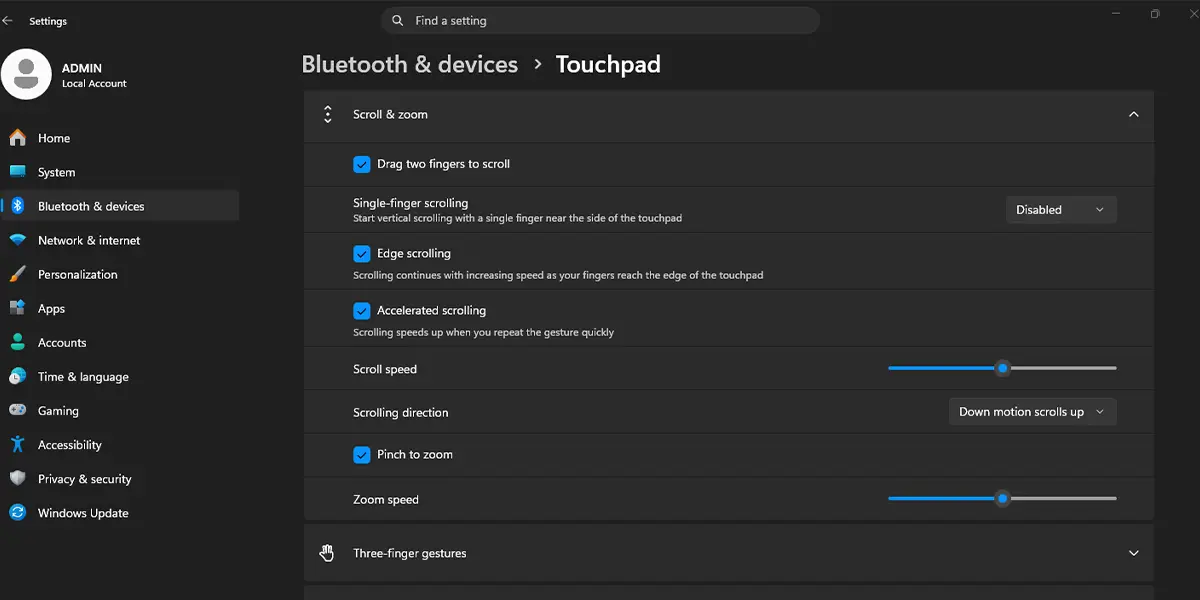
Test it right away by placing two fingers on the touchpad over a web page or document. With Down motion scrolls up, sliding your fingers down pulls the page down with them, much like dragging a sheet of paper across a desk. With Down motion scrolls down, sliding your fingers down moves the view further down the page.
Tip: Try the new direction in a long web page before closing Settings. If it feels backwards, switch the drop-down again. Most people find that a few minutes of use is enough to know which one feels right.
Method 2: Jump Straight to the Touchpad Page With the Run Box
- Press Windows + R to open the Run dialog.
- Type the command below exactly as shown and press Enter. No elevated window is needed.
ms-settings:devices-touchpad
- The Touchpad page opens directly. Expand Scroll & zoom.
- Pick your preferred option from the Scrolling direction drop-down.
This shortcut is handy on a shared family laptop or a work PC when several people prefer different scrolling styles and need to flip the setting often.
Tip: The same Scroll & zoom section also holds the Pinch to zoom option, so both gestures can be adjusted in one visit.
How to Undo or Reverse This Change
To go back, open Settings > Bluetooth & devices > Touchpad > Scroll & zoom and set the Scrolling direction drop-down to the other option. The switch is instant and can be repeated as many times as needed.
Common Problems and Fixes
The Scrolling Direction Option Is Missing
The Scroll & zoom options appear only for precision touchpads. If the section is missing or the whole Touchpad page is absent, the laptop may be using an older touchpad driver. Open Settings > Windows Update and install pending updates, including optional driver updates, or install the latest touchpad driver from the laptop maker. After a restart, check the page again.
The Setting Does Not Seem to Work
If two-finger scrolling does nothing, the Drag two fingers to scroll box is probably unticked. Tick it, then test again. Also remember that this setting controls the touchpad only, so an external USB or Bluetooth mouse will still scroll the way it always did.
The Direction Resets After an Update or Restart
A driver update can sometimes put the touchpad back to its default behavior. Reopen Settings > Bluetooth & devices > Touchpad > Scroll & zoom and select the preferred option again. If the page is controlled by work or school, an administrator may be enforcing the setting.
Frequently Asked Questions
Does changing touchpad scroll direction work on Windows 11 Home?
Yes. The Scrolling direction option is part of the standard Touchpad settings and is available in Windows 11 Home, Pro, and Enterprise.
Do I need to restart the computer after changing it?
No. The new direction takes effect immediately, so there is no need to sign out or restart.
Will this change how my external mouse scrolls?
No. The setting applies only to the built-in touchpad. A mouse wheel is handled separately and keeps its own direction.
Why is the Scrolling direction option missing on my laptop?
The option is shown only on laptops with a precision touchpad. A missing option usually points to an outdated or generic touchpad driver, so installing Windows updates or the manufacturer driver often brings it back.
Is there a keyboard shortcut to flip the scroll direction?
No dedicated shortcut exists for this setting. The quickest route is pressing Windows + R, typing ms-settings:devices-touchpad, and pressing Enter to open the Touchpad page.
What does Down motion scrolls up mean?
It is natural scrolling. Sliding two fingers down moves the page down with them, the same way a touchscreen behaves. The other option, Down motion scrolls down, is the traditional Windows behavior.
Does this setting affect battery life or performance?
No. It only changes how finger movement is translated into scrolling, so there is no noticeable impact on battery or speed.
Can scroll direction be set differently for each app?
No. The setting applies system-wide to every app and window on the PC.
