
Need to change your keyboard layout in Windows 11 because the keys type the wrong symbols or you want a different language or style? It only takes a minute in the Settings app. The steps work on every edition of Windows 11, including Home and Pro, and no administrator rights are needed for your own account.
Key Takeaways
- Open Settings > Time & language > Language & region to add or remove a keyboard layout.
- Use the three-dot menu next to your language, choose Language options, then click Add a keyboard.
- Switch between layouts instantly by pressing Windows + Space.
- No restart is needed, and the change applies right away.
How to Change Your Keyboard Layout in Windows 11 Step by Step
Method 1: Use the Settings App
This is the most reliable way to add a new layout, such as US Dvorak, United Kingdom, or German, and to remove one you no longer need.
- Press Windows + I to open Settings.
- Click Time & language in the left sidebar.
- Click Language & region.
- Under Preferred languages, click the three-dot menu next to the language you are using, such as English (United States).
- Click Language options.
- Scroll to the Keyboards section and click Add a keyboard.
- Pick the layout you want from the list.
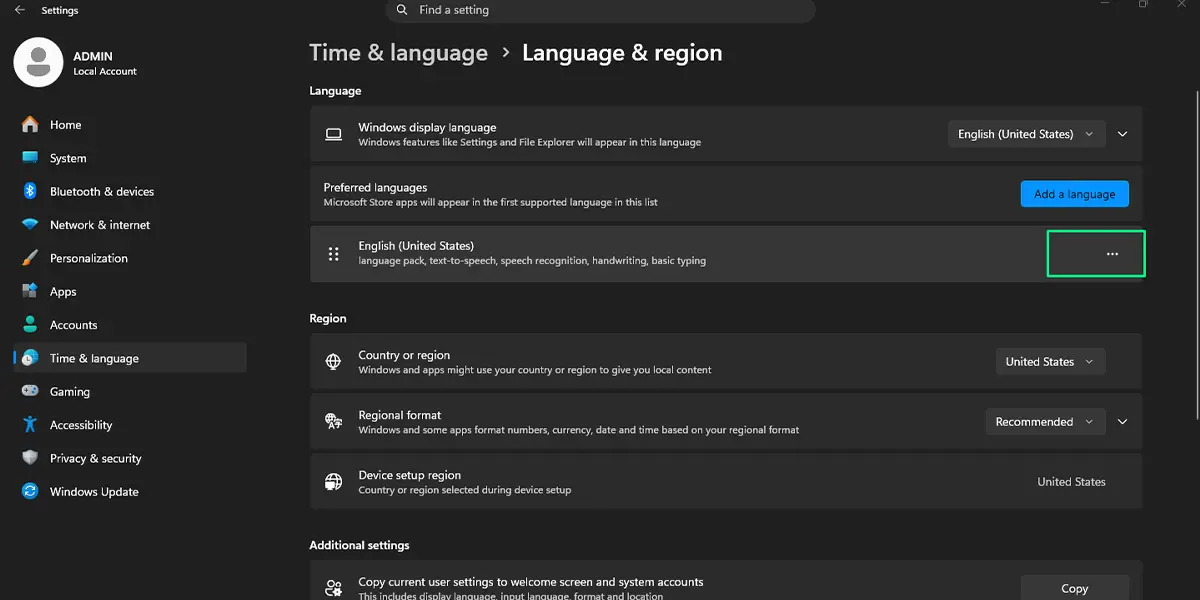
The new layout appears under Keyboards right away. If two or more layouts are installed, a small language abbreviation such as ENG appears near the clock in the taskbar.
Tip: A layout belongs to a language. To use a layout from a language that is not listed, go back to Settings > Time & language > Language & region, click Add a language, and then add the keyboard from that language’s options page.
Method 2: Switch Layouts from the Taskbar or Keyboard
Once two or more layouts are installed, changing between them takes a single click or key press. This is handy on a shared family computer, where one person types in English and another in a different layout.
- Look at the right side of the taskbar, next to the clock, for the language abbreviation (for example, ENG).
- Click it to open the list of installed layouts.
- Click the layout you want to use.
The abbreviation updates immediately, and the next key you press types with the new layout. To skip the mouse, press Windows + Space. Each press cycles to the next layout, and a small pop-up shows which one is active. Alt + Shift also switches layouts when it is enabled.
Switch Between Keyboard Layouts Faster
Most people find that Windows + Space is all they need. Anyone who prefers a different combination can change it in a few steps.
Change the Layout Switching Shortcut
- Open Settings > Time & language > Typing.
- Click Advanced keyboard settings.
- Click Input language hot keys.
- In the window that opens, stay on the Advanced Key Settings tab and click Change Key Sequence.
- Choose the combination you prefer, then click OK.
Tip: Pick a combination that does not clash with shortcuts used in your editing or gaming apps, since an accidental layout switch mid-sentence can scramble what gets typed.
How to Undo or Reverse This Change
To go back to the previous layout, press Windows + Space or click the language abbreviation in the taskbar and choose the old layout. To remove a layout completely, open Settings > Time & language > Language & region, click the three-dot menu next to the language, choose Language options, click the three-dot menu next to the unwanted keyboard, and then click Remove. A layout that is currently in use cannot be removed until another one is active.
Common Problems and Fixes
The Layout Is Not in the List
Each language only offers its own layouts. Add the matching language first from Settings > Time & language > Language & region by clicking Add a language, then open its Language options page to add the keyboard.
The Language Indicator Is Missing from the Taskbar
The indicator only appears when two or more layouts are installed. With a single layout, nothing is shown. Add a second layout using Method 1 and the abbreviation shows up next to the clock.
Keys Still Type the Wrong Characters
Check the abbreviation in the taskbar to confirm which layout is active, then press Windows + Space to switch to the right one. The printed letters on the physical keys never change, so a layout that differs from the key labels will type different characters than the ones shown.
The Layout Keeps Changing in Different Apps
If each app window seems to remember its own layout, open Settings > Time & language > Typing > Advanced keyboard settings and check the option Let me use a different input method for each app window. Turning it off keeps one layout across all windows.
The Default Layout Resets After Restart
Open Settings > Time & language > Typing > Advanced keyboard settings. Use the Override for default input method dropdown to choose the layout that should be active by default.
Frequently Asked Questions
Does changing the keyboard layout work on Windows 11 Home?
Yes. Adding, switching, and removing keyboard layouts works the same on Windows 11 Home, Pro, and Enterprise.
Do I need to restart the PC after changing the layout?
No. The new layout works as soon as it is added and selected, with no restart required.
What is the keyboard shortcut to switch layouts?
Press Windows + Space to cycle through installed layouts. Alt + Shift also works when that shortcut is enabled in the input language hot key settings.
Why is the language switcher missing from the taskbar?
The switcher only shows when two or more layouts are installed. Add another layout in Settings > Time & language > Language & region and it appears next to the clock.
Does changing the layout change the Windows display language?
No. A keyboard layout only controls which character each key types. The display language for menus and apps is a separate setting.
Can each app use a different keyboard layout?
Yes. In Settings > Time & language > Typing > Advanced keyboard settings, turn on Let me use a different input method for each app window.
How do I remove a keyboard layout I no longer use?
Go to Settings > Time & language > Language & region, open the three-dot menu next to the language, choose Language options, then use the three-dot menu next to the layout and click Remove.
Does adding a layout need administrator rights?
Adding or removing a layout for your own account does not normally need administrator rights. On a work or school PC, some options may be restricted by the organization that manages the device.
Will the layout change affect the letters printed on my keys?
No. The printed labels stay the same because they are physical. Only the characters Windows types when a key is pressed will change.
