
Learning how to use voice typing in Windows 11 lets you dictate text into almost any app or text box by speaking instead of typing. It works on Windows 11 Home and Pro, needs a working microphone and an internet connection, and does not require administrator rights.
Key Takeaways
- Press Windows + H in any text field to start voice typing instantly.
- The microphone and online speech recognition must be allowed under Settings > Privacy & security.
- The on-screen microphone button can be turned on at Settings > Time & language > Typing.
- Spoken commands such as ‘delete that’ and ‘stop listening’ help control the text without touching the keyboard.
How to Use Voice Typing in Windows 11: Step-by-Step Guide
Voice typing turns speech into text wherever a cursor is blinking, including Notepad, Word, a browser search box, or an email draft. The Settings method comes first because it makes sure everything is switched on correctly.
Method 1: Use the Settings App
- Press Windows + I to open Settings.
- Click Privacy & security in the left sidebar.
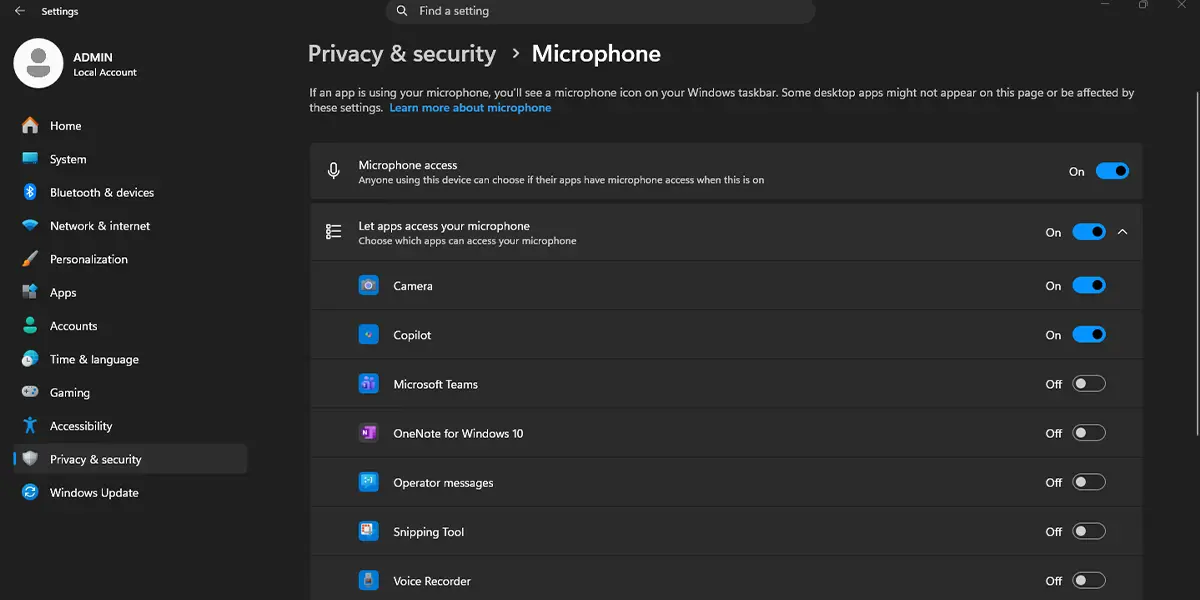
- Scroll down and click Microphone, then make sure the Microphone access toggle is turned on.
- Go back to Privacy & security and click Speech.
- Turn on the Online speech recognition toggle. Voice typing relies on this setting to turn spoken words into text.
- Go to Settings > Time & language > Typing and turn on the Voice typing launcher toggle.
- Click inside any text field, such as a blank Notepad page.
- Click the microphone button that appears next to the text field. If the button does not show up, press Windows + H instead.
A small voice typing bar appears near the top of the screen with a microphone icon. Once it says ‘Listening…’, start speaking and the words appear at the cursor.
Tip: Check the sound level before dictating a long document. Speaking about an arm’s length from a laptop microphone usually gives cleaner results than leaning in close.
Method 2: Use the Windows + H Keyboard Shortcut
- Click inside the text box or document where the text should appear.
- Press Windows + H on the keyboard.
- Wait for the voice typing bar to show ‘Listening…’.
- Speak clearly and at a natural pace.
- Press Windows + H again, or click the microphone icon on the bar, to stop.
This is the fastest route for most people. It works the same way whether a laptop is on battery, plugged in, or connected to a second monitor.
Method 3: Use the Touch Keyboard
- Right-click an empty part of the taskbar and click Taskbar settings.
- Expand Taskbar corner icons and turn on Touch keyboard.
- Click the keyboard icon in the taskbar corner to open the touch keyboard.
- Click inside a text field, then tap the microphone key on the touch keyboard.
- Speak, then tap the microphone key again to stop.
This method suits touch screen laptops and tablets, where the physical keyboard may be detached or folded away.
Voice Commands and Punctuation While Dictating
Voice typing does more than type words. Most people find that a handful of spoken commands covers almost everything.
Add Punctuation by Voice
Say the punctuation out loud as part of the sentence, for example ‘period’, ‘comma’, ‘question mark’, or ‘new line’. The matching mark appears in the text instead of the spoken word.
Edit and Control the Text
Say ‘delete that’ to remove the last phrase, and ‘stop listening’ to turn the microphone off. If punctuation is often missed, click the Settings gear on the voice typing bar and check the Auto punctuation option.
Tip: Pause for a moment between sentences. A short pause helps Windows place punctuation and capital letters more accurately.
How to Undo or Reverse This Change
To stop the on-screen microphone button from appearing, go to Settings > Time & language > Typing and turn off the Voice typing launcher toggle. To stop sending speech to Microsoft for recognition, go to Settings > Privacy & security > Speech and turn off Online speech recognition. Voice typing then stops working until that toggle is turned back on.
Common Problems and Fixes
Windows + H Does Nothing
Make sure the cursor is active inside a text field first. Then confirm that Online speech recognition is on at Settings > Privacy & security > Speech. Restarting the app that has the text field often clears a stuck voice typing bar.
The Voice Typing Bar Says It Cannot Hear Anything
Open Settings > Privacy & security > Microphone and confirm that Microphone access is on. Then open Settings > System > Sound and check that the correct microphone is chosen under Input and that its volume is not muted.
The Microphone Button Does Not Appear Next to the Text Field
Check that the Voice typing launcher toggle is on at Settings > Time & language > Typing. Some apps do not show the button, so Windows + H is the reliable backup.
Words Are Typed Incorrectly
Background noise and distance from the microphone are the usual causes. Move to a quieter spot, speak at a steady pace, and make sure the active keyboard language matches the language being spoken.
Toggles Are Greyed Out on a Work or School PC
Settings on a managed computer can be locked by the organization. In that case, only the IT administrator can allow the microphone or online speech recognition.
Frequently Asked Questions
Does voice typing work on Windows 11 Home?
Yes. Voice typing is built into both Windows 11 Home and Windows 11 Pro, with no extra download needed.
Does voice typing need an internet connection?
Yes. Voice typing uses online speech recognition, so a working internet connection is needed for the words to be converted into text.
What is the keyboard shortcut for voice typing in Windows 11?
Press Windows + H while the cursor is in a text field. Pressing the same shortcut again stops voice typing.
Do I need an external microphone?
No. A built-in laptop microphone works. A headset or external microphone can improve accuracy in noisy rooms.
Can voice typing work in any app?
It works in most apps and websites that accept typed text. Some apps with custom text boxes may not accept dictated text.
Why is voice typing not working after turning it on?
The most common reasons are that Microphone access or Online speech recognition is turned off in Settings > Privacy & security, or that the wrong microphone is selected under Settings > System > Sound.
Can voice typing add punctuation automatically?
Yes. Open the settings gear on the voice typing bar and turn on the Auto punctuation option. Spoken punctuation such as ‘period’ and ‘comma’ also works.
Does voice typing work in other languages?
Voice typing supports several languages. It generally follows the language of the active keyboard, which can be changed from the language switcher in the taskbar.
